

与之前的版本一样,Android 15 包含一些可能会影响应用的行为变更。以下行为变更仅影响以 Android 15 或更高版本为目标平台的应用。如果您的应用以 Android 15 或更高版本为目标平台,您应该修改自己的应用以适当地支持这些行为(如果适用)。
无论应用的 targetSdkVersion 为何,都请务必查看对 Android 15 上运行的所有应用都有影响的行为变更列表。
核心功能
Android 15 修改或扩展了 Android 系统的各种核心功能。
前台服务变更
我们将对 Android 15 中的前台服务进行以下更改。
数据同步前台服务超时行为
对于以 Android 15(API 级别 35)或更高版本为目标平台的应用,Android 15 为 dataSync 引入了新的超时行为。此行为也适用于新的 mediaProcessing 前台服务类型。
系统允许应用的 dataSync 服务在 24 小时内总共运行 6 小时,之后系统会调用正在运行的服务的 Service.onTimeout(int, int) 方法(在 Android 15 中引入)。此时,该服务有几秒钟时间来调用 Service.stopSelf()。调用 Service.onTimeout() 后,该服务将不再被视为前台服务。如果服务未调用 Service.stopSelf(),系统会抛出内部异常。系统会在 Logcat 中记录此异常,并显示以下消息:
Fatal Exception: android.app.RemoteServiceException: "A foreground service of
type dataSync did not stop within its timeout: [component name]"
为避免因行为变更而导致问题,您可以执行以下一项或多项操作:
- 让您的服务实现新的
Service.onTimeout(int, int)方法。当您的应用收到回调时,请务必在几秒钟内调用stopSelf()。(如果您不立即停止应用,系统会生成故障。) - 确保应用的
dataSync服务在任何 24 小时内总运行时间不超过 6 小时(除非用户与应用互动,重置计时器)。 - 仅通过直接的用户互动来启动
dataSync前台服务;由于您的应用在服务启动时位于前台,因此服务会在应用进入后台后的 6 小时内完整运行。 - 请改用替代 API,而不是使用
dataSync前台服务。
如果您的应用的 dataSync 前台服务在过去 24 小时内运行了 6 小时,则您无法启动其他 dataSync 前台服务,除非用户已将您的应用切换到前台(这会重置计时器)。如果您尝试启动其他 dataSync 前台服务,系统会抛出 ForegroundServiceStartNotAllowedException,并显示类似“前台服务类型 dataSync 的时间限制已用尽”的错误消息。
测试
如需测试应用的行为,您可以启用数据同步超时功能,即使应用未以 Android 15 为目标平台也是如此(前提是应用在 Android 15 设备上运行)。如需启用超时,请运行以下 adb 命令:
adb shell am compat enable FGS_INTRODUCE_TIME_LIMITS your-package-name
您还可以调整超时期限,更轻松地测试应用在达到此限制时的行为。如需设置新的超时期限,请运行以下 adb 命令:
adb shell device_config put activity_manager data_sync_fgs_timeout_duration duration-in-milliseconds
新的媒体处理前台服务类型
Android 15 引入了一种新的前台服务类型 mediaProcessing。此服务类型适用于转码媒体文件等操作。例如,媒体应用可能会下载音频文件,并需要先将其转换为其他格式,然后才能播放。您可以使用 mediaProcessing 前台服务,确保即使应用在后台运行时转换也会继续。
系统允许应用的 mediaProcessing 服务在 24 小时内总共运行 6 小时,之后系统会调用正在运行的服务的 Service.onTimeout(int, int) 方法(在 Android 15 中引入)。此时,服务有几秒钟的时间来调用 Service.stopSelf()。如果服务未调用 Service.stopSelf(),系统会抛出内部异常。系统会在 Logcat 中记录此异常,并显示以下消息:
Fatal Exception: android.app.RemoteServiceException: "A foreground service of
type mediaProcessing did not stop within its timeout: [component name]"
为避免出现此异常,您可以执行以下任一操作:
- 让您的服务实现新的
Service.onTimeout(int, int)方法。当您的应用收到回调时,请务必在几秒钟内调用stopSelf()。(如果您未立即停止应用,系统会生成失败情况。) - 确保应用的
mediaProcessing服务在任何 24 小时内总运行时间不超过 6 小时(除非用户与应用互动,重置计时器)。 - 仅在有直接用户互动时启动
mediaProcessing前台服务;由于服务启动时应用位于前台,因此您的服务在应用进入后台后有完整的 6 小时时间。 - 请改用 替代 API(例如 WorkManager),而不是使用
mediaProcessing前台服务。
如果您的应用的 mediaProcessing 前台服务在过去 24 小时内运行了 6 小时,则您无法启动其他 mediaProcessing 前台服务,除非用户将您的应用切换到前台(这会重置计时器)。如果您尝试启动另一个 mediaProcessing 前台服务,系统会抛出 ForegroundServiceStartNotAllowedException,并显示类似于“前台服务类型 mediaProcessing 的时间限制已用尽”的错误消息。
如需详细了解 mediaProcessing 服务类型,请参阅 Android 15 前台服务类型变更:媒体处理。
测试
如需测试应用的行为,您可以启用媒体处理超时,即使您的应用并非以 Android 15 为目标平台也是如此(前提是应用在 Android 15 设备上运行)。如需启用超时,请运行以下 adb 命令:
adb shell am compat enable FGS_INTRODUCE_TIME_LIMITS your-package-name
您还可以调整超时期限,以便更轻松地测试应用在达到上限时的行为方式。如需设置新的超时期限,请运行以下 adb 命令:
adb shell device_config put activity_manager media_processing_fgs_timeout_duration duration-in-milliseconds
对启动前台服务的 BOOT_COMPLETED 广播接收器的限制
There are new restrictions on BOOT_COMPLETED broadcast receivers launching
foreground services. BOOT_COMPLETED receivers are not allowed to launch the
following types of foreground services:
dataSynccameramediaPlaybackphoneCallmediaProjectionmicrophone(this restriction has been in place formicrophonesince Android 14)
If a BOOT_COMPLETED receiver tries to launch any of those types of foreground
services, the system throws ForegroundServiceStartNotAllowedException.
Testing
To test your app's behavior, you can enable these new restrictions even if your
app is not targeting Android 15 (as long as the app is running on an Android 15
device). Run the following adb command:
adb shell am compat enable FGS_BOOT_COMPLETED_RESTRICTIONS your-package-name
To send a BOOT_COMPLETED broadcast without restarting the device,
run the following adb command:
adb shell am broadcast -a android.intent.action.BOOT_COMPLETED your-package-name
在应用拥有 SYSTEM_ALERT_WINDOW 权限时启动前台服务的限制
以前,如果应用拥有 SYSTEM_ALERT_WINDOW 权限,即使应用当前在后台运行,也可以启动前台服务(如免于后台启动限制中所述)。
如果应用以 Android 15 为目标平台,则此豁免范围现在更窄。现在,应用需要具有 SYSTEM_ALERT_WINDOW 权限,并且还需要有一个可见的叠加窗口。也就是说,应用需要先启动 TYPE_APPLICATION_OVERLAY 窗口,并且该窗口需要处于可见状态,然后您才能启动前台服务。
如果您的应用尝试从后台启动前台服务,但不符合这些新要求(并且没有其他豁免情况),系统会抛出 ForegroundServiceStartNotAllowedException。
如果您的应用声明了 SYSTEM_ALERT_WINDOW 权限并从后台启动前台服务,则可能会受到此变更的影响。如果您的应用获得了 ForegroundServiceStartNotAllowedException,请检查应用的操作顺序,并确保应用在尝试从后台启动前台服务之前已具有有效的叠加层窗口。您可以通过调用 View.getWindowVisibility() 检查叠加层窗口当前是否可见,也可以替换 View.onWindowVisibilityChanged(),以便在可见性发生变化时收到通知。
测试
如需测试应用的行为,您可以启用这些新限制,即使您的应用并未以 Android 15 为目标平台(只要应用在 Android 15 设备上运行)也是如此。如需针对从后台启动前台服务启用这些新限制,请运行以下 adb 命令:
adb shell am compat enable FGS_SAW_RESTRICTIONS your-package-name
更改了应用何时可以修改免打扰模式的全局状态
Apps that target Android 15 (API level 35) and higher can no longer change the
global state or policy of Do Not Disturb (DND) on a device (either by modifying
user settings, or turning off DND mode). Instead, apps must contribute an
AutomaticZenRule, which the system combines into a global policy with the
existing most-restrictive-policy-wins scheme. Calls to existing APIs that
previously affected global state (setInterruptionFilter,
setNotificationPolicy) result in the creation or update of an implicit
AutomaticZenRule, which is toggled on and off depending on the call-cycle of
those API calls.
Note that this change only affects observable behavior if the app is calling
setInterruptionFilter(INTERRUPTION_FILTER_ALL) and expects that call to
deactivate an AutomaticZenRule that was previously activated by their owners.
OpenJDK API 变更
Android 15 将继续更新 Android 的核心库,以与最新 OpenJDK LTS 版本中的功能保持一致。
其中一些变更可能会影响以 Android 15(API 级别 35)为目标平台的应用兼容性:
对字符串格式化 API 进行了更改:现在,在使用以下
String.format()和Formatter.format()API 时,对参数索引、标志、宽度和精度的验证要求变得更加严格:String.format(String, Object[])String.format(Locale, String, Object[])Formatter.format(String, Object[])Formatter.format(Locale, String, Object[])
例如,如果使用参数索引 0(格式字符串中的
%0),则会抛出以下异常:IllegalFormatArgumentIndexException: Illegal format argument index = 0在这种情况下,可以通过使用实参索引 1(格式字符串中的
%1)来解决此问题。Arrays.asList(...).toArray()的组件类型发生变化:使用Arrays.asList(...).toArray()时,生成的数组的组件类型现在是Object,而不是底层数组元素的类型。因此,以下代码会抛出ClassCastException:String[] elements = (String[]) Arrays.asList("one", "two").toArray();在这种情况下,为了在生成的数组中保留
String作为组件类型,您可以改用Collection.toArray(Object[]):String[] elements = Arrays.asList("two", "one").toArray(new String[0]);语言代码处理方式变更:使用
LocaleAPI 时,希伯来语、意第绪语和印度尼西亚语的语言代码不再转换为其过时形式(希伯来语:iw,意第绪语:ji,印度尼西亚语:in)。为这些语言区域之一指定语言代码时,请改用 ISO 639-1 中的代码(希伯来语:he,意第绪语:yi,印度尼西亚语:id)。对随机 int 序列的更改:在 https://bugs.openjdk.org/browse/JDK-8301574 中做出更改后,以下
Random.ints()方法现在返回的数字序列与Random.nextInt()方法不同:通常,此更改不会导致应用行为异常,但您的代码不应期望从
Random.ints()方法生成的序列与Random.nextInt()匹配。
当您在应用的 build 配置中将 compileSdk 更新为使用 Android 15(API 级别 35)后,新的 SequencedCollection API 可能会影响应用的兼容性:
与
kotlin-stdlib中的MutableList.removeFirst()和MutableList.removeLast()扩展函数冲突Java 中的
List类型会映射到 Kotlin 中的MutableList类型。 由于List.removeFirst()和List.removeLast()API 已在 Android 15(API 级别 35)中引入,因此 Kotlin 编译器会将函数调用(例如list.removeFirst())静态解析为新的ListAPI,而不是kotlin-stdlib中的扩展函数。如果应用在重新编译时将
compileSdk设为35,将minSdk设为34或更低,然后在 Android 14 及更低版本上运行,则会抛出运行时错误:java.lang.NoSuchMethodError: No virtual method removeFirst()Ljava/lang/Object; in class Ljava/util/ArrayList;Android Gradle 插件中的现有
NewApilint 选项可以捕获这些新的 API 用法。./gradlew lintMainActivity.kt:41: Error: Call requires API level 35 (current min is 34): java.util.List#removeFirst [NewApi] list.removeFirst()如需修复运行时异常和 lint 错误,可以在 Kotlin 中分别将
removeFirst()和removeLast()函数调用替换为removeAt(0)和removeAt(list.lastIndex)。如果您使用的是 Android Studio Ladybug | 2024.1.3 或更高版本,它还提供了针对这些错误的快速修复选项。如果 lint 选项已被停用,请考虑移除
@SuppressLint("NewApi")和lintOptions { disable 'NewApi' }。与 Java 中的其他方法冲突
现有类型中添加了新方法,例如
List和Deque。这些新方法可能与其他接口和类中具有相同名称和参数类型的方法不兼容。如果方法签名冲突且不兼容,javac编译器会输出构建时错误。例如:错误示例 1:
javac MyList.javaMyList.java:135: error: removeLast() in MyList cannot implement removeLast() in List public void removeLast() { ^ return type void is not compatible with Object where E is a type-variable: E extends Object declared in interface List错误示例 2:
javac MyList.javaMyList.java:7: error: types Deque<Object> and List<Object> are incompatible; public class MyList implements List<Object>, Deque<Object> { both define reversed(), but with unrelated return types 1 error错误示例 3:
javac MyList.javaMyList.java:43: error: types List<E#1> and MyInterface<E#2> are incompatible; public static class MyList implements List<Object>, MyInterface<Object> { class MyList inherits unrelated defaults for getFirst() from types List and MyInterface where E#1,E#2 are type-variables: E#1 extends Object declared in interface List E#2 extends Object declared in interface MyInterface 1 error如需修复这些构建错误,实现这些接口的类应使用兼容的返回值类型替换该方法。例如:
@Override
public Object getFirst() {
    return List.super.getFirst();
}
安全
Android 15 包含一些可提升系统安全性的变更,有助于保护应用和用户免受恶意应用的侵害。
受限的 TLS 版本
Android 15 restricts the usage of TLS versions 1.0 and 1.1. These versions had previously been deprecated in Android, but are now disallowed for apps targeting Android 15.
限制后台 activity 启动
Android 15 做出了一些变更,可防止恶意后台应用将其他应用置于前台、提升自身权限并滥用用户互动,从而保护用户免受恶意应用的侵害,并让用户更好地控制自己的设备。自 Android 10(API 级别 29)起,后台 activity 启动受到限制。
其他更改
- 将
PendingIntent创建者更改为默认阻止后台活动启动。这有助于防止应用意外创建可能被恶意行为者滥用的PendingIntent。 - 除非
PendingIntent发送方允许,否则请勿将应用转至前台。此变更旨在防止恶意应用滥用在后台启动 activity 的功能。默认情况下,除非创建者允许后台 activity 启动权限或发送者具有后台 activity 启动权限,否则不允许应用将任务堆栈带到前台。 - 控制任务堆栈的顶层 activity 如何完成其任务。如果顶部 activity 完成了一项任务,Android 将返回到上次处于活跃状态的任务。此外,如果非顶部 activity 完成其任务,Android 会返回到主屏幕;它不会阻止此非顶部 activity 完成。
- 防止从其他应用启动任意 activity 进入您自己的任务。此变更可防止恶意应用通过创建看似来自其他应用的 activity 来对用户进行钓鱼式攻击。
- 阻止将非可见窗口纳入后台 activity 启动的考虑范围。这有助于防止恶意应用滥用后台活动启动来向用户显示不必要或恶意的内容。
更安全的 intent
Android 15 introduces StrictMode for
intents.
In order to see detailed logs about Intent usage violations, use following
method:
Kotlin
fun onCreate() {
    StrictMode.setVmPolicy(VmPolicy.Builder()
        .detectUnsafeIntentLaunch()
        .build()
    )
}
Java
public void onCreate() {
    StrictMode.setVmPolicy(new VmPolicy.Builder()
            .detectUnsafeIntentLaunch()
            .build());
}
用户体验和系统界面
Android 15 包含一些旨在打造更一致、更直观的用户体验的变更。
窗口边衬区变化
There are two changes related to window insets in Android 15: edge-to-edge is enforced by default, and there are also configuration changes, such as the default configuration of system bars.
Edge-to-edge enforcement
如果应用以 Android 15(API 级别 35)为目标平台,则在搭载 Android 15 的设备上默认以无边框显示。
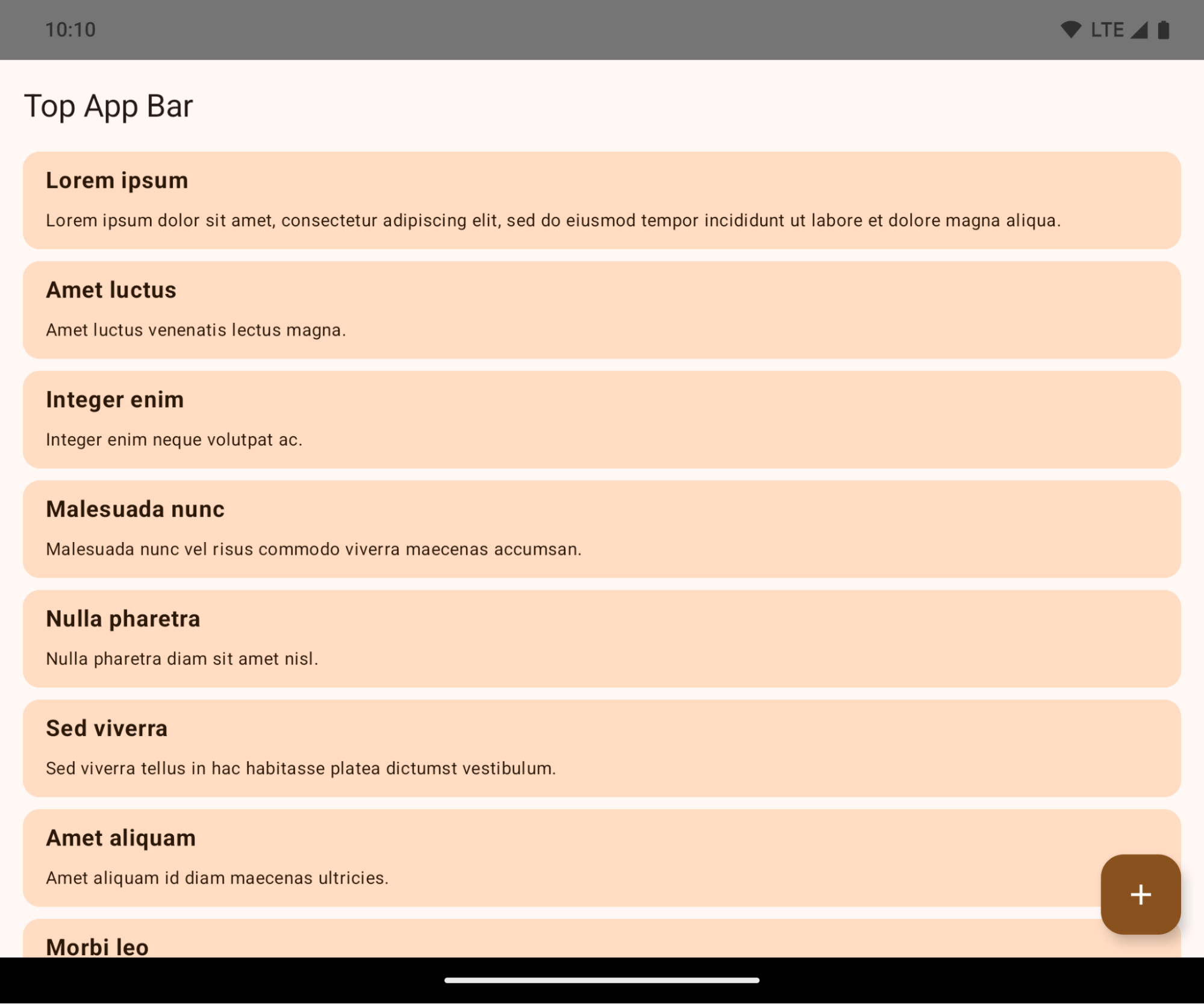
这是一项破坏性更改,可能会对应用的界面产生负面影响。这些更改会影响以下界面区域:
- 手势提示条导航栏
- 默认透明。
- 底部偏移量处于停用状态,因此除非应用边衬区,否则内容会在系统导航栏后面绘制。
setNavigationBarColor和R.attr#navigationBarColor已废弃,不会影响手势导航。setNavigationBarContrastEnforced和R.attr#navigationBarContrastEnforced仍然对手势导航没有影响。
- “三按钮”导航
- 默认情况下,不透明度设置为 80%,颜色可能与窗口背景颜色一致。
- 底部偏移量处于停用状态,因此内容会在系统导航栏后面绘制,除非应用了边衬区。
- 默认情况下,
setNavigationBarColor和R.attr#navigationBarColor会设置为与窗口背景匹配。窗口背景必须是颜色可绘制对象,才能应用此默认值。此 API 已废弃,但仍会影响三按钮导航。 setNavigationBarContrastEnforced和R.attr#navigationBarContrastEnforced默认情况下为 true,这会在三按钮导航栏中添加不透明度为 80% 的背景。
- 状态栏
- 默认透明。
- 顶部偏移量处于停用状态,因此内容会绘制在状态栏后面,除非应用了边衬区。
setStatusBarColor和R.attr#statusBarColor已废弃,在 Android 15 上没有任何效果。setStatusBarContrastEnforced和R.attr#statusBarContrastEnforced已废弃,但在 Android 15 上仍然有效。
- 刘海屏
- 非浮动窗口的
layoutInDisplayCutoutMode必须为LAYOUT_IN_DISPLAY_CUTOUT_MODE_ALWAYS。SHORT_EDGES、NEVER和DEFAULT会被解读为ALWAYS,这样用户就不会看到由刘海屏导致的黑条,并且会看到无边框显示。
- 非浮动窗口的
以下示例展示了应用在以 Android 15(API 级别 35)为目标平台之前和之后,以及应用边衬区之前和之后的效果。此示例并不全面,在 Android Auto 上可能会有所不同。
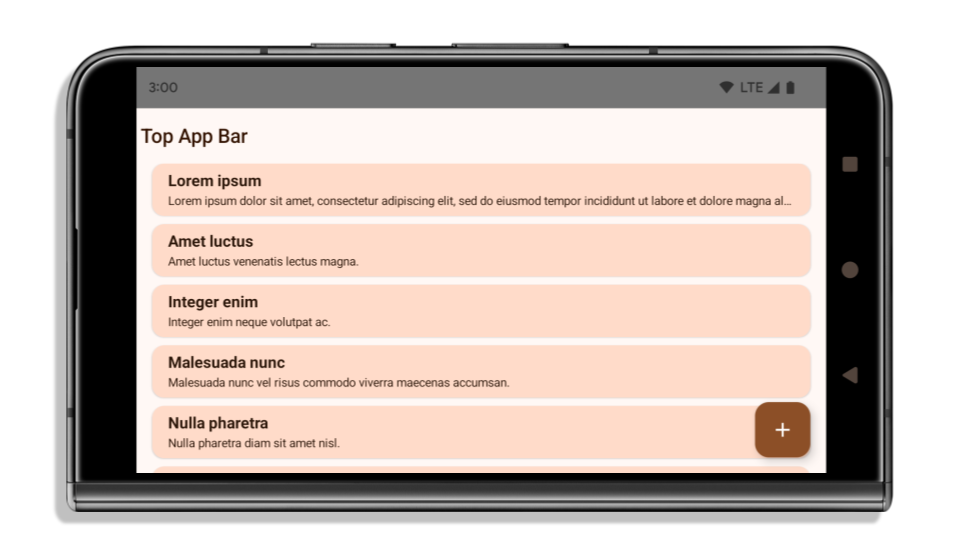
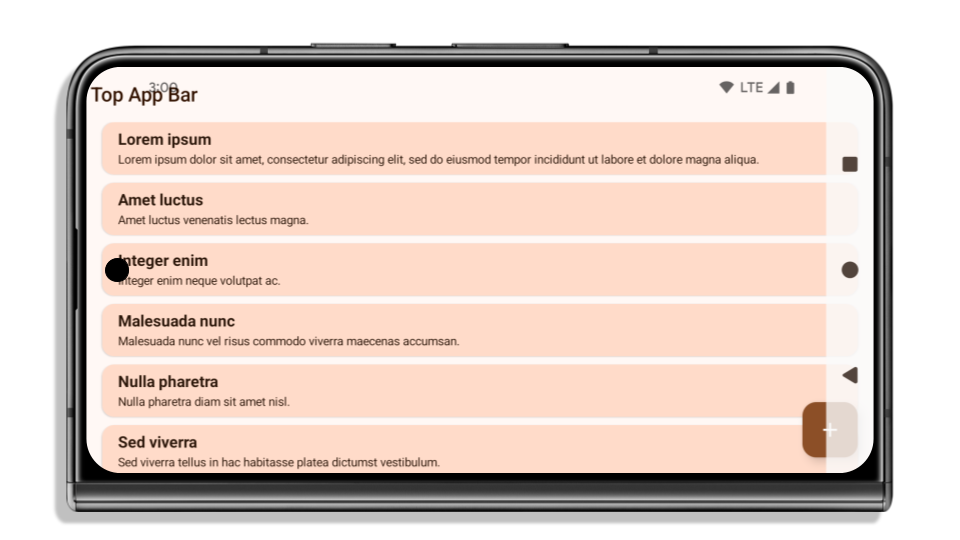
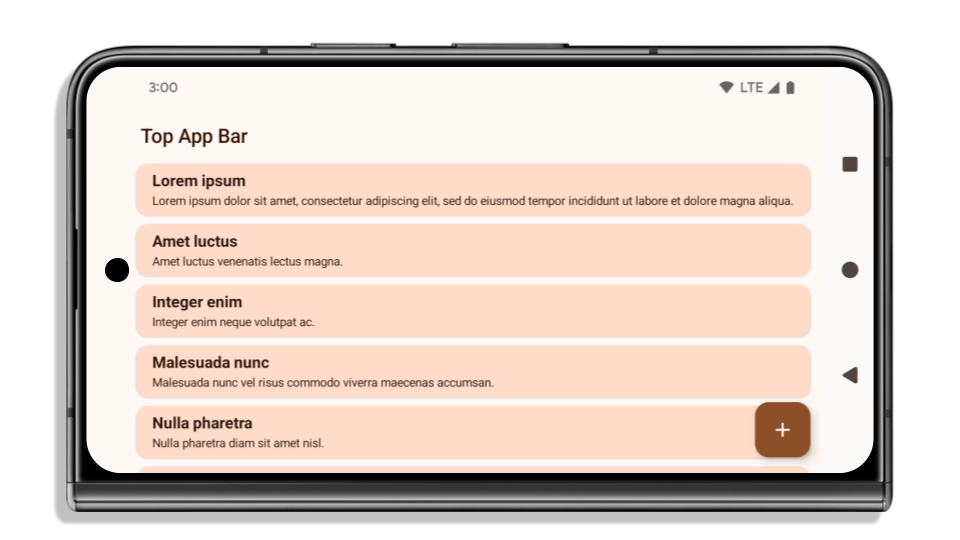
如果应用已采用边到边设计,需要检查哪些内容
如果您的应用已采用边到边设计并应用了边衬区,则您基本上不会受到影响,但以下情况除外。不过,即使您认为自己没有受到影响,我们也建议您测试应用。
- 您有一个非浮动窗口,例如使用
SHORT_EDGES、NEVER或DEFAULT(而非LAYOUT_IN_DISPLAY_CUTOUT_MODE_ALWAYS)的Activity。如果您的应用在启动时崩溃,这可能是由于启动画面所致。您可以将核心启动画面依赖项升级到 1.2.0-alpha01 或更高版本,也可以设置window.attributes.layoutInDisplayCutoutMode = WindowManager.LayoutInDisplayCutoutMode.always。 - 有些屏幕可能流量较低,且界面被遮挡。验证这些不常访问的屏幕是否没有被遮挡的界面。流量较低的屏幕包括:
- 新手入门或登录界面
- “设置”页面
如果您的应用尚未实现全屏显示,需要检查哪些方面
如果您的应用尚未采用边到边设计,则很可能会受到影响。除了已采用边到边设计的应用场景之外,您还应考虑以下情况:
- 如果应用在 Compose 中使用 Material 3 组件 (
androidx.compose.material3),例如TopAppBar、BottomAppBar和NavigationBar,这些组件可能不会受到影响,因为它们会自动处理边衬区。 - 如果应用使用的是 Compose 中的 Material 2 组件 (
androidx.compose.material),这些组件不会自动处理边衬区。不过,您可以获得边衬区的访问权限, 然后手动应用边衬区。在 androidx.compose.material 1.6.0 及更高版本中,使用windowInsets参数可为BottomAppBar、TopAppBar、BottomNavigation以及NavigationRail手动应用边衬区。 同样,请为Scaffold使用contentWindowInsets参数。 - 如果应用使用了视图和 Material 组件 (
com.google.android.material),则大多数基于视图的 Material 组件(例如BottomNavigationView、BottomAppBar、NavigationRailView或NavigationView)都会处理边衬区,因此不需要执行额外的操作。不过,如果使用的是AppBarLayout,则需要添加android:fitsSystemWindows="true"。 - 对于自定义可组合项,请手动应用边衬区作为内边距。如果您的内容位于
Scaffold中,您可以使用Scaffold填充值来使用边衬区。否则,请使用WindowInsets之一应用内边距。 - 如果应用使用的是 View 和
BottomSheet、SideSheet或自定义容器,请使用ViewCompat.setOnApplyWindowInsetsListener应用内边距。对于RecyclerView,请使用此监听器应用内边距,同时添加clipToPadding="false"。
如果您的应用必须提供自定义后台保护,请检查以下事项
如果您的应用必须为三按钮导航或状态栏提供自定义背景保护,则应使用 WindowInsets.Type#tappableElement() 获取三按钮导航栏高度或 WindowInsets.Type#statusBars,在系统栏后面放置一个可组合项或视图。
其他边到边资源
如需了解有关应用 Insets 的其他注意事项,请参阅边到边视图和边到边 Compose 指南。
已弃用的 API
以下 API 已弃用,但未停用:
R.attr#enforceStatusBarContrastR.attr#navigationBarColor(适用于三按钮导航,不透明度为 80%)Window#isStatusBarContrastEnforcedWindow#setNavigationBarColor(适用于三按钮导航,不透明度为 80%)Window#setStatusBarContrastEnforced
以下 API 已弃用并停用:
R.attr#navigationBarColor(用于手势导航)R.attr#navigationBarDividerColorR.attr#statusBarColorWindow#setDecorFitsSystemWindowsWindow#getNavigationBarColorWindow#getNavigationBarDividerColorWindow#getStatusBarColorWindow#setNavigationBarColor(用于手势导航)Window#setNavigationBarDividerColorWindow#setStatusBarColor
Stable configuration
如果您的应用以 Android 15(API 级别 35)或更高版本为目标平台,Configuration 将不再排除系统栏。如果您在 Configuration 类中使用屏幕尺寸进行布局计算,则应根据需要将其替换为更好的替代方案,例如适当的 ViewGroup、WindowInsets 或 WindowMetricsCalculator。
Configuration 从 API 1 开始提供。通常从 Activity.onConfigurationChanged 获取。它提供窗口密度、方向和大小等信息。从 Configuration 返回的窗口大小有一个重要特征,即它之前不包含系统栏。
配置大小通常用于资源选择(例如 /res/layout-h500dp),这仍然是一个有效的用例。不过,我们一直不建议将其用于布局计算。如果您这样做,现在应该停止。您应根据自己的应用场景,将 Configuration 替换为更合适的内容。
如果您使用它来计算布局,请使用适当的 ViewGroup,例如 CoordinatorLayout 或 ConstraintLayout。如果您使用它来确定系统导航栏的高度,请使用 WindowInsets。如果您想知道应用窗口的当前大小,请使用 computeCurrentWindowMetrics。
以下列表介绍了受此变更影响的字段:
Configuration.screenWidthDp和screenHeightDp尺寸不再排除系统栏。Configuration.smallestScreenWidthDp会间接受到screenWidthDp和screenHeightDp更改的影响。Configuration.orientation会间接受到接近方形的设备上screenWidthDp和screenHeightDp更改的影响。Display.getSize(Point)间接受到Configuration中更改的影响。此方法从 API 级别 30 开始已废弃。- 自 API 级别 33 起,
Display.getMetrics()就已经采用这种工作方式。
elegantTextHeight 属性默认为 true
For apps targeting Android 15 (API level 35), the
elegantTextHeight TextView attribute
becomes true by default, replacing the compact font used by default with some
scripts that have large vertical metrics with one that is much more readable.
The compact font was introduced to prevent breaking layouts; Android 13 (API
level 33) prevents many of these breakages by allowing the text layout to
stretch the vertical height utilizing the fallbackLineSpacing
attribute.
In Android 15, the compact font still remains in the system, so your app can set
elegantTextHeight to false to get the same behavior as before, but it is
unlikely to be supported in upcoming releases. So, if your app supports the
following scripts: Arabic, Lao, Myanmar, Tamil, Gujarati, Kannada, Malayalam,
Odia, Telugu or Thai, test your app by setting elegantTextHeight to true.

elegantTextHeight behavior for apps targeting Android 14 (API level 34) and lower.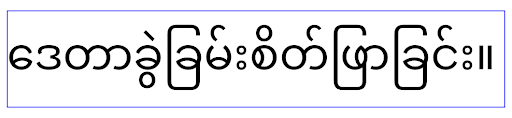
elegantTextHeight behavior for apps targeting Android 15.TextView 宽度会因复杂的字母形状而发生变化
在以前的 Android 版本中,某些具有复杂形状的手写字体或语言可能会在上一个或下一个字符的区域绘制字母。在某些情况下,此类字母会在开头或结尾处被剪裁。从 Android 15 开始,TextView 会分配宽度,以便为此类字母绘制足够的空间,并允许应用请求向左额外添加内边距以防止剪裁。
由于此更改会影响 TextView 确定宽度的方式,因此如果应用以 Android 15(API 级别 35)或更高版本为目标平台,TextView 会默认分配更多宽度。您可以通过对 TextView 调用 setUseBoundsForWidth API 来启用或停用此行为。
由于添加左内边距可能会导致现有布局未对齐,因此默认情况下不会添加内边距,即使以 Android 15 或更高版本为目标平台的应用也是如此。不过,您可以通过调用 setShiftDrawingOffsetForStartOverhang 添加额外的内边距以防止剪裁。
以下示例展示了这些更改如何改进某些字体和语言的文本布局。
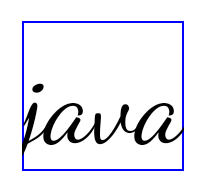
<TextView
    android:fontFamily="cursive"
    android:text="java" />
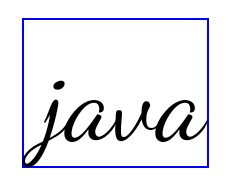
<TextView
    android:fontFamily="cursive"
    android:text="java"
    android:useBoundsForWidth="true"
    android:shiftDrawingOffsetForStartOverhang="true" />
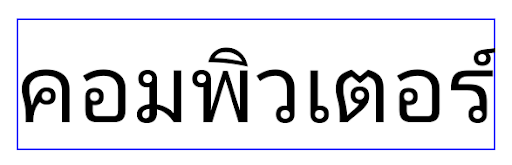
<TextView
    android:text="คอมพิวเตอร์" />
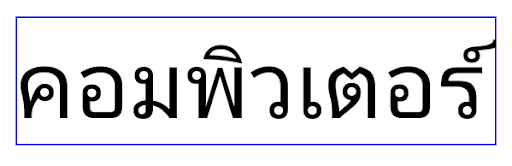
<TextView
    android:text="คอมพิวเตอร์"
    android:useBoundsForWidth="true"
    android:shiftDrawingOffsetForStartOverhang="true" />
EditText 的语言区域感知默认行高
在较低版本的 Android 中,文本布局会拉伸文本的高度,以满足与当前语言区域匹配的字体的行高。例如,如果内容是日语,由于日语字体的行高略高于拉丁字体,因此文本的高度会略高。不过,尽管行高存在这些差异,但无论使用的是哪种语言区域,EditText 元素的大小都是统一的,如下图所示:

EditText 元素。EditText 的高度相同,即使这些语言的行高各不相同。对于以 Android 15(API 级别 35)为目标平台的应用,现在为 EditText 预留了最小行高,以匹配指定语言区域的参考字体,如下图所示:

EditText 元素。EditText 的高度现在包含足够的空间来容纳这些语言字体的默认行高。如有需要,您的应用可以将 useLocalePreferredLineHeightForMinimum 属性指定为 false,以恢复之前的行为;您的应用还可以在 Kotlin 和 Java 中使用 setMinimumFontMetrics API 设置自定义最小垂直指标。
摄像头和媒体
Android 15 针对以 Android 15 或更高版本为目标平台的应用,对相机和媒体行为进行了以下更改。
有关请求音频焦点的限制
Apps that target Android 15 (API level 35) must be the top app or running a
foreground service in order to request audio focus. If an app
attempts to request focus when it does not meet one of these requirements, the
call returns AUDIOFOCUS_REQUEST_FAILED.
You can learn more about audio focus at Manage audio focus.
更新后的非 SDK 限制
Android 15 包含更新后的受限非 SDK 接口列表(基于与 Android 开发者之间的协作以及最新的内部测试)。在限制使用非 SDK 接口之前,我们会尽可能确保有可用的公开替代方案。
如果您的应用并非以 Android 15 为目标平台,其中一些变更可能不会立即对您产生影响。不过,虽然您的应用可以访问某些非 SDK 接口(具体取决于应用的目标 API 级别),但只要您使用任何非 SDK 方法或字段,就很有可能会造成应用功能异常。
如果您不确定自己的应用是否使用了非 SDK 接口,则可以通过测试该应用来进行确认。如果您的应用依赖非 SDK 接口,则应开始计划迁移到 SDK 替代方案。不过,我们知道某些应用存在使用非 SDK 接口的合理场景。如果您无法为应用中的某项功能找到使用非 SDK 接口的替代方案,则应该请求新的公共 API。
如需详细了解此 Android 版本中的变更,请参阅 Android 15 中有关限制非 SDK 接口的更新。如需全面了解有关非 SDK 接口的详细信息,请参阅对非 SDK 接口的限制。