

Android 15 offre aux développeurs de nouvelles fonctionnalités et API. Les sections suivantes récapitulent ces fonctionnalités pour vous aider à vous lancer avec les API associées.
Pour obtenir une liste détaillée des API ajoutées, modifiées et supprimées, consultez le rapport de différences des API. Pour en savoir plus sur les API ajoutées, consultez la documentation de référence des API Android. Pour Android 15, recherchez les API ajoutées au niveau d'API 35. Pour savoir dans quels domaines les changements de plate-forme peuvent affecter vos applications, consultez les modifications de comportement d'Android 15 pour les applications ciblant Android 15 et pour toutes les applications.
Appareil photo et médias
Android 15 inclut diverses fonctionnalités qui améliorent l'expérience de l'appareil photo et des médias, et qui vous donnent accès à des outils et à du matériel pour aider les créateurs à donner vie à leur vision sur Android.
Pour en savoir plus sur les dernières fonctionnalités et solutions pour les développeurs concernant les médias et l'appareil photo Android, consultez la présentation Créer des expériences multimédias et d'appareil photo Android modernes lors de Google I/O.
Amplification luminosité faible
Android 15 introduit l'amplification de la luminosité, un mode d'exposition automatique disponible à la fois pour Camera 2 et l'extension de l'appareil photo en mode Nuit. L'amplification de la luminosité ajuste l'exposition du flux d'aperçu en cas de faible luminosité. Cela diffère de la façon dont l'extension d'appareil photo du mode Nuit crée des images fixes, car le mode Nuit combine une rafale de photos pour créer une seule image améliorée. Bien que le mode Nuit soit très efficace pour créer une image fixe, il ne peut pas créer un flux continu de frames, contrairement au mode Boost en faible luminosité. Ainsi, la fonctionnalité Boost en basse luminosité active les fonctionnalités de l'appareil photo, telles que:
- Fournir un aperçu amélioré des images pour que les utilisateurs puissent mieux cadrer leurs photos prises en basse luminosité
- Scanner des codes QR dans des conditions de faible luminosité
Si vous activez la fonctionnalité Boost en cas de faible luminosité, elle s'active automatiquement lorsque le niveau de luminosité est faible et se désactive lorsque la luminosité est plus élevée.
Les applications peuvent enregistrer le flux d'aperçu par faible luminosité dans le but d'éclaircir les vidéos.
Pour en savoir plus, consultez la section Amélioration en basse luminosité.
Commandes de l'appareil photo dans l'application
Android 15 adds an extension for more control over the camera hardware and its algorithms on supported devices:
- Advanced flash strength adjustments enabling precise control of flash
intensity in both
SINGLEandTORCHmodes while capturing images.
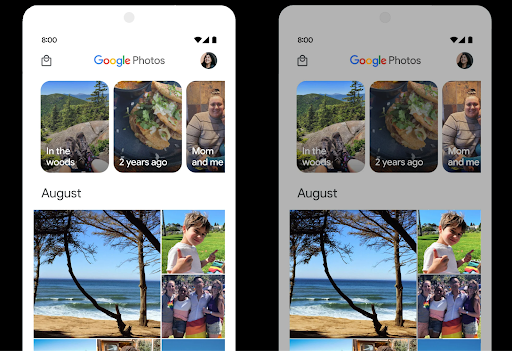
Contrôle de la marge HDR
Android 15 chooses HDR headroom that is appropriate for the underlying device
capabilities and bit-depth of the panel. For pages that have lots of SDR
content, such as a messaging app displaying a single HDR thumbnail, this
behavior can end up adversely influencing the perceived brightness of the SDR
content. Android 15 lets you control the HDR headroom with
setDesiredHdrHeadroom to strike a balance between SDR
and HDR content.
Contrôle du volume sonore

Android 15 introduces support for the CTA-2075 loudness standard to help you avoid audio loudness inconsistencies and ensure users don't have to constantly adjust volume when switching between content. The system leverages known characteristics of the output devices (headphones and speaker) along with loudness metadata available in AAC audio content to intelligently adjust the audio loudness and dynamic range compression levels.
To enable this feature, you need to ensure loudness metadata is available in
your AAC content and enable the platform feature in your app. For this, you
instantiate a LoudnessCodecController object by
calling its create factory method with the audio
session ID from the associated AudioTrack; this
automatically starts applying audio updates. You can pass an
OnLoudnessCodecUpdateListener to modify or filter
loudness parameters before they are applied on the
MediaCodec.
// Media contains metadata of type MPEG_4 OR MPEG_D
val mediaCodec = …
val audioTrack = AudioTrack.Builder()
                                .setSessionId(sessionId)
                                .build()
...
// Create new loudness controller that applies the parameters to the MediaCodec
try {
   val lcController = LoudnessCodecController.create(mSessionId)
   // Starts applying audio updates for each added MediaCodec
}
AndroidX media3 ExoPlayer will also be updated to use the
LoudnessCodecController APIs for a seamless app integration.
Appareils MIDI virtuels 2.0
Android 13 est compatible avec la connexion à des appareils MIDI 2.0 via USB, qui communiquent à l'aide de paquets MIDI universels (UMP). Android 15 étend la compatibilité avec UMP aux applications MIDI virtuelles, ce qui permet aux applications de composition de contrôler les applications de synthétiseur en tant qu'appareil MIDI 2.0 virtuel, comme elles le feraient avec un appareil USB MIDI 2.0.
Décodage logiciel AV1 plus efficace

dav1d, the popular AV1 software decoder from VideoLAN is available for Android devices that don't support AV1 decode in hardware. dav1d is up to 3x more performant than the legacy AV1 software decoder, enabling HD AV1 playback for more users, including some low and mid tier devices.
Your app needs to opt-in to using dav1d by invoking it by name
"c2.android.av1-dav1d.decoder". dav1d will be made the default AV1 software
decoder in a subsequent update. This support is standardized and backported to
Android 11 devices that receive Google Play system updates.
Productivité et outils pour les développeurs
Bien que la plupart de nos efforts pour améliorer votre productivité soient axés sur des outils tels que Android Studio, Jetpack Compose et les bibliothèques Android Jetpack , nous recherchons toujours des moyens dans la plate-forme pour vous aider à concrétiser plus facilement votre vision.
Mises à jour OpenJDK 17
Android 15 poursuit le travail d'actualisation des principales bibliothèques Android afin de s'adapter aux fonctionnalités des dernières versions d'OpenJDK LTS.
Les principales fonctionnalités et améliorations sont les suivantes:
- Améliorations de la qualité de vie concernant les tampons NIO
- Flux
- Méthodes
mathetstrictmathsupplémentaires - Mises à jour de packages
util, y compriscollection,mapetsetséquentielles - Compatibilité avec
ByteBufferdansDeflater - Mises à jour de sécurité telles que
X500PrivateCredentialet mises à jour de clés de sécurité
Ces API sont mises à jour sur plus d'un milliard d'appareils exécutant Android 12 (niveau d'API 31) ou version ultérieure via les mises à jour du système Google Play, ce qui vous permet de cibler les dernières fonctionnalités de programmation.
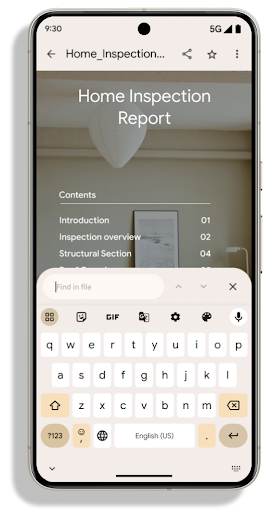
Améliorations des PDF
Android 15 apporte d'importantes améliorations au PdfRenderer
API. Les applications peuvent intégrer des fonctionnalités avancées telles que l'affichage
fichiers protégés par mot de passe, annotations, modification de formulaires,
recherche et sélection avec texte. PDF linéarisé
des optimisations sont prises en charge pour accélérer l'affichage des PDF locaux et réduire l'utilisation des ressources.
La bibliothèque PDF Jetpack utilise ces API pour simplifier l'ajout de PDF
à votre application.
PdfRenderer a été déplacé vers un module pouvant être mis à jour à l'aide de Google
mises à jour du système Play indépendamment de la version de la plate-forme, et nous acceptons
pour revenir à Android 11 (niveau d'API 30) en créant un
version de la surface d'API antérieure à Android 15, appelée
PdfRendererPreV
Améliorations du changement de langue automatique
Android 14 added on-device, multi-language recognition in audio with automatic
switching between languages, but this can cause words to get dropped,
especially when languages switch with less of a pause between the two
utterances. Android 15 adds additional controls to help apps tune this switching
to their use case.
EXTRA_LANGUAGE_SWITCH_INITIAL_ACTIVE_DURATION_TIME_MILLIS
confines the automatic switching to the beginning of the audio session, while
EXTRA_LANGUAGE_SWITCH_MATCH_SWITCHES deactivates the
language switching after a defined number of switches. These options are
particularly useful if you expect that there will be a single language spoken
during the session that should be autodetected.
API OpenType Variable Font améliorée
Android 15 improves the usability of the OpenType variable font. You can create
a FontFamily instance from a variable font without specifying weight axes
with the buildVariableFamily API. The text renderer overrides the value
of wght axis to match the displaying text.
Using the API simplifies the code for creating a Typeface considerably:
Kotlin
val newTypeface = Typeface.CustomFallbackBuilder(
            FontFamily.Builder(
                Font.Builder(assets, "RobotoFlex.ttf").build())
                    .buildVariableFamily())
    .build()
Java
Typeface newTypeface = Typeface.CustomFallbackBuilder(
            new FontFamily.Builder(
                new Font.Builder(assets, "RobotoFlex.ttf").build())
                    .buildVariableFamily())
    .build();
Previously, to create the same Typeface, you would need much more code:
Kotlin
val oldTypeface = Typeface.CustomFallbackBuilder(
            FontFamily.Builder(
                Font.Builder(assets, "RobotoFlex.ttf")
                    .setFontVariationSettings("'wght' 400")
                    .setWeight(400)
                    .build())
                .addFont(
                    Font.Builder(assets, "RobotoFlex.ttf")
                        .setFontVariationSettings("'wght' 100")
                        .setWeight(100)
                        .build()
                )
                .addFont(
                    Font.Builder(assets, "RobotoFlex.ttf")
                        .setFontVariationSettings("'wght' 200")
                        .setWeight(200)
                        .build()
                )
                .addFont(
                    Font.Builder(assets, "RobotoFlex.ttf")
                        .setFontVariationSettings("'wght' 300")
                        .setWeight(300)
                        .build()
                )
                .addFont(
                    Font.Builder(assets, "RobotoFlex.ttf")
                        .setFontVariationSettings("'wght' 500")
                        .setWeight(500)
                        .build()
                )
                .addFont(
                    Font.Builder(assets, "RobotoFlex.ttf")
                        .setFontVariationSettings("'wght' 600")
                        .setWeight(600)
                        .build()
                )
                .addFont(
                    Font.Builder(assets, "RobotoFlex.ttf")
                        .setFontVariationSettings("'wght' 700")
                        .setWeight(700)
                        .build()
                )
                .addFont(
                    Font.Builder(assets, "RobotoFlex.ttf")
                        .setFontVariationSettings("'wght' 800")
                        .setWeight(800)
                        .build()
                )
                .addFont(
                    Font.Builder(assets, "RobotoFlex.ttf")
                        .setFontVariationSettings("'wght' 900")
                        .setWeight(900)
                        .build()
                ).build()
        ).build()
Java
Typeface oldTypeface = new Typeface.CustomFallbackBuilder(
    new FontFamily.Builder(
        new Font.Builder(assets, "RobotoFlex.ttf")
            .setFontVariationSettings("'wght' 400")
            .setWeight(400)
            .build()
    )
    .addFont(
        new Font.Builder(assets, "RobotoFlex.ttf")
            .setFontVariationSettings("'wght' 100")
            .setWeight(100)
            .build()
    )
    .addFont(
        new Font.Builder(assets, "RobotoFlex.ttf")
            .setFontVariationSettings("'wght' 200")
            .setWeight(200)
            .build()
    )
    .addFont(
        new Font.Builder(assets, "RobotoFlex.ttf")
            .setFontVariationSettings("'wght' 300")
            .setWeight(300)
            .build()
    )
    .addFont(
        new Font.Builder(assets, "RobotoFlex.ttf")
            .setFontVariationSettings("'wght' 500")
            .setWeight(500)
            .build()
    )
    .addFont(
        new Font.Builder(assets, "RobotoFlex.ttf")
            .setFontVariationSettings("'wght' 600")
            .setWeight(600)
            .build()
    )
    .addFont(
        new Font.Builder(assets, "RobotoFlex.ttf")
            .setFontVariationSettings("'wght' 700")
            .setWeight(700)
            .build()
    )
    .addFont(
        new Font.Builder(assets, "RobotoFlex.ttf")
            .setFontVariationSettings("'wght' 800")
            .setWeight(800)
            .build()
    )
    .addFont(
        new Font.Builder(assets, "RobotoFlex.ttf")
            .setFontVariationSettings("'wght' 900")
            .setWeight(900)
            .build()
    )
    .build()
).build();
Here's an example of how a Typeface created with both the old and new APIs
renders:
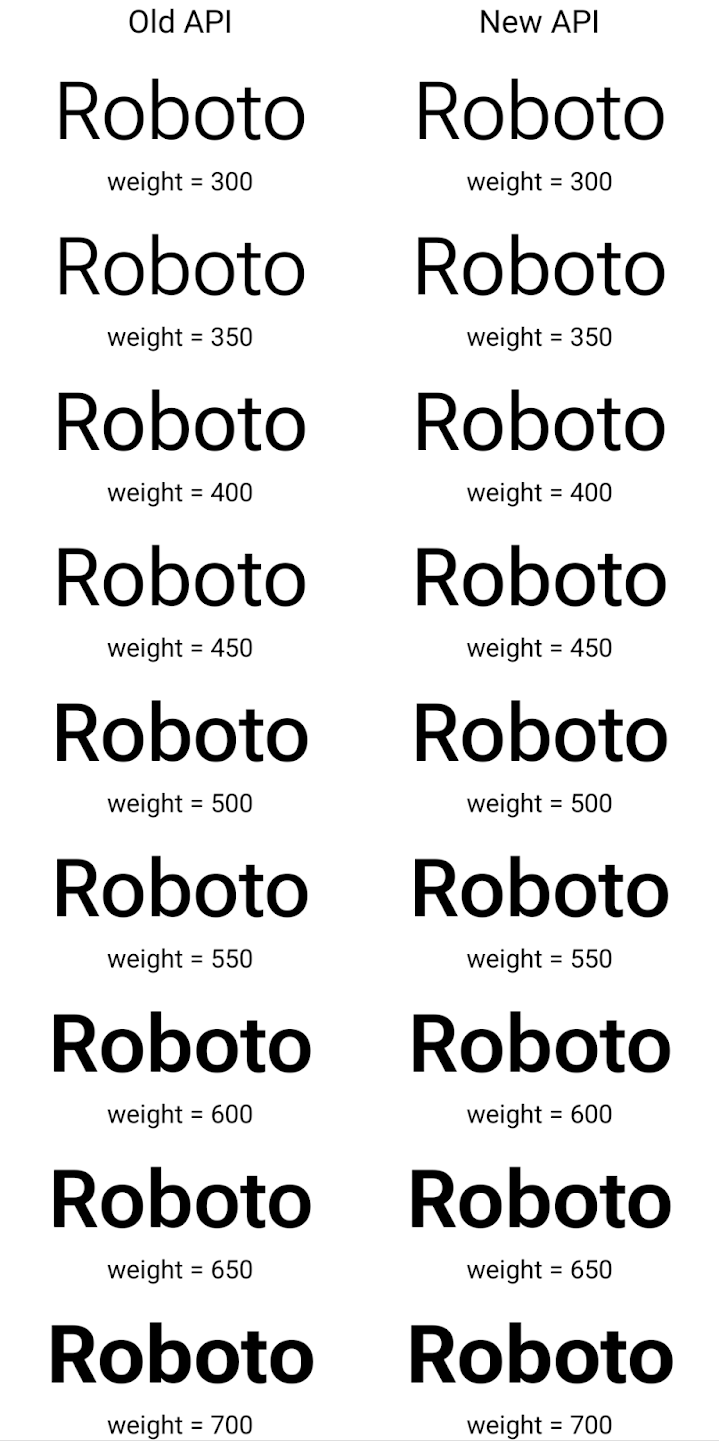
In this example, the Typeface created with the old API doesn't have the
capability to create accurate font weights for the 350, 450, 550 and 650
Font instances, so the renderer falls back to the closest weight. So in
this case, 300 is rendered instead of 350, 400 is rendered instead of 450, and
so on. By contrast, the Typeface created with the new APIs dynamically creates
a Font instance for a given weight, so accurate weights are rendered for 350,
450, 550, and 650 as well.
Contrôles précis des sauts de ligne
À partir d'Android 15, un TextView et le séparateur de ligne sous-jacent peuvent conserver la partie de texte donnée sur la même ligne pour améliorer la lisibilité. Vous pouvez profiter de cette personnalisation de la casse en utilisant la balise <nobreak> dans les ressources de chaîne ou createNoBreakSpan. De même, vous pouvez empêcher la césure des mots à l'aide de la balise <nohyphen> ou createNoHyphenationSpan.
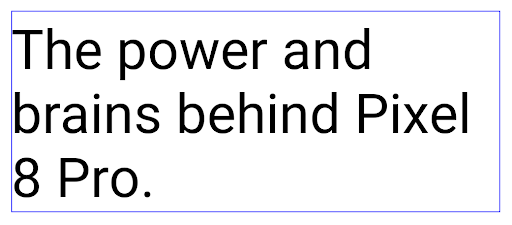
Par exemple, la ressource de chaîne suivante n'inclut pas de saut de ligne et s'affiche avec le texte "Pixel 8 Pro." qui se brise à un endroit indésirable:
<resources>
    <string name="pixel8pro">The power and brains behind Pixel 8 Pro.</string>
</resources>
En revanche, cette ressource de chaîne inclut la balise <nobreak>, qui affiche la phrase "Pixel 8 Pro" et empêche les sauts de ligne:
<resources>
    <string name="pixel8pro">The power and brains behind <nobreak>Pixel 8 Pro.</nobreak></string>
</resources>
La différence d'affichage de ces chaînes est illustrée dans les images suivantes:
<nobreak>.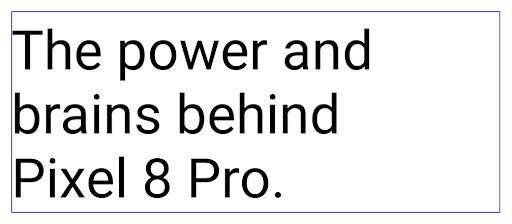
<nobreak>.Archivage des applications
Android et Google Play ont annoncé la prise en charge de l'archivage des applications l'année dernière, ce qui permet aux utilisateurs de libérer de l'espace en supprimant partiellement les applications peu utilisées de l'appareil publiées à l'aide d'Android App Bundle sur Google Play. Android 15 prend en charge l'archivage des applis au niveau de l'OS et le désarchivage, ce qui facilite son implémentation pour toutes les plates-formes de téléchargement d'applications.
Les applications disposant de l'autorisation REQUEST_DELETE_PACKAGES peuvent appeler la
PackageInstaller requestArchive pour demander l'archivage d'une
le package d'application installé, qui supprime l'APK et tous les fichiers mis en cache, mais persiste
données utilisateur. Les applications archivées sont renvoyées en tant qu'applications pouvant être affichées via les API LauncherApps. Les utilisateurs verront un traitement de l'UI pour mettre en évidence que ces applications sont archivées. Si un utilisateur appuie sur une application archivée, le programme d'installation responsable
reçoivent une demande de désarchivage. Le processus de restauration peut être
surveillée par l'annonce ACTION_PACKAGE_ADDED.
Activer le mode 16 ko sur un appareil à l'aide des options pour les développeurs
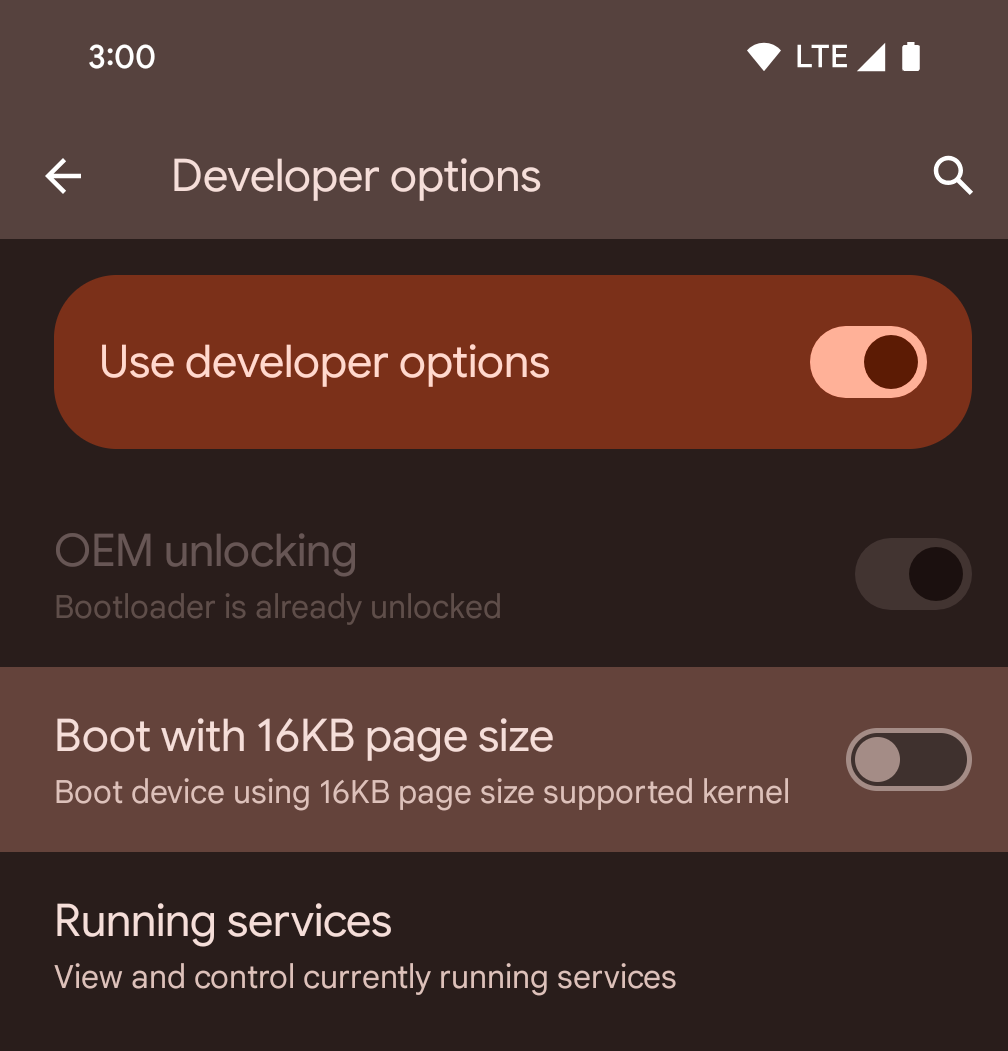
Activez l'option pour les développeurs Démarrer avec une page de 16 ko pour démarrer un appareil en mode 16 ko.
Dans les versions QPR d'Android 15, vous pouvez utiliser l'option pour les développeurs disponible sur certains appareils pour démarrer l'appareil en mode 16 Ko et effectuer des tests sur l'appareil. Avant d'utiliser l'option pour les développeurs, accédez à Paramètres > Système > Mises à jour logicielles et appliquez les mises à jour disponibles.
Cette option pour les développeurs est disponible sur les appareils suivants :
Pixel 8 et 8 Pro (avec Android 15 QPR1 ou version ultérieure)
Pixel 8a (avec Android 15 QPR1 ou version ultérieure)
Pixel 9, 9 Pro et 9 Pro XL (avec Android 15 QPR2 ou version ultérieure)
Pixel 9a (avec Android 16 ou version ultérieure)
Graphiques
Android 15 apporte les dernières améliorations graphiques, y compris ANGLE et des ajouts au système graphique Canvas.
Modernisation de l'accès au GPU d'Android

Le matériel Android a beaucoup évolué depuis les premiers jours, où le noyau de l'OS s'exécutait sur un seul CPU et que les GPU étaient accessibles à l'aide d'API basées sur des pipelines à fonction fixe. L'API graphique Vulkan® est disponible dans le NDK depuis Android 7.0 (niveau d'API 24) avec une abstraction de bas niveau qui reflète mieux le matériel GPU moderne, s'adapte mieux pour prendre en charge plusieurs cœurs de processeur et offre une surcharge de pilote de processeur réduite, ce qui améliore les performances des applications. Vulkan est compatible avec tous les moteurs de jeu modernes.
Vulkan est l'interface préférée d'Android pour le GPU. Par conséquent, Android 15 inclut ANGLE en tant que couche facultative pour exécuter OpenGL® ES sur Vulkan. Le passage à ANGLE permettra de normaliser l'implémentation OpenGL Android pour améliorer la compatibilité et, dans certains cas, les performances. Vous pouvez tester la stabilité et les performances de votre application OpenGL ES avec ANGLE en activant l'option pour les développeurs dans Settings -> System -> Developer Options -> Experimental: Enable ANGLE (Paramètres -> Système -> Options pour les développeurs -> Expérimental : Activer ANGLE) sur Android 15.
Feuille de route Android ANGLE sur Vulkan
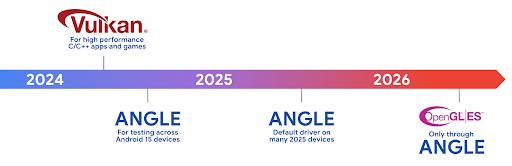
Dans le cadre de la simplification de notre pile GPU, nous allons désormais fournir ANGLE en tant que pilote système GL sur davantage de nouveaux appareils, avec l'espoir qu'OpenGL/ES ne sera disponible que via ANGLE à l'avenir. Cela dit, nous prévoyons de continuer à prendre en charge OpenGL ES sur tous les appareils.
Étapes suivantes recommandées
Utilisez les options pour les développeurs pour sélectionner le pilote ANGLE pour OpenGL ES et tester votre application. Pour les nouveaux projets, nous vous recommandons vivement d'utiliser Vulkan pour C/C++.
Améliorations pour Canvas
Android 15 continues our modernization of Android's Canvas graphics system with additional capabilities:
Matrix44provides a 4x4 matrix for transforming coordinates that should be used when you want to manipulate the canvas in 3D.clipShaderintersects the current clip with the specified shader, whileclipOutShadersets the clip to the difference of the current clip and the shader, each treating the shader as an alpha mask. This supports the drawing of complex shapes efficiently.
Performances et batterie
Android continue de vous aider à améliorer les performances et la qualité de vos applications. Android 15 introduit des API qui permettent d'exécuter plus efficacement les tâches de votre application, d'optimiser les performances de l'application et de recueillir des insights à son sujet.
Pour découvrir les bonnes pratiques en matière d'efficacité énergétique, le débogage de l'utilisation du réseau et de l'alimentation, et des informations sur la façon dont nous améliorons l'efficacité énergétique des tâches en arrière-plan dans Android 15 et les versions récentes d'Android, consultez la présentation Améliorer l'efficacité énergétique des tâches en arrière-plan sur Android lors de Google I/O.
API ApplicationStartInfo
In previous versions of Android, app startup has been a bit of a mystery. It was
challenging to determine within your app whether it started from a cold, warm,
or hot state. It was also difficult to know how long your app spent during the
various launch phases: forking the process, calling onCreate, drawing the
first frame, and more. When your Application class was instantiated, you had no
way of knowing whether the app started from a broadcast, a content provider, a
job, a backup, boot complete, an alarm, or an Activity.
The ApplicationStartInfo API on Android 15 provides
all of this and more. You can even choose to add your own timestamps into the
flow to help collect timing data in one place. In addition to collecting
metrics, you can use ApplicationStartInfo to help directly optimize app
startup; for example, you can eliminate the costly instantiation of UI-related
libraries within your Application class when your app is starting up due to a
broadcast.
Informations détaillées sur la taille de l'application
Since Android 8.0 (API level 26), Android has included the
StorageStats.getAppBytes API that summarizes the installed
size of an app as a single number of bytes, which is a sum of the APK size, the
size of files extracted from the APK, and files that were generated on the
device such as ahead-of-time (AOT) compiled code. This number is not very
insightful in terms of how your app is using storage.
Android 15 adds the
StorageStats.getAppBytesByDataType([type]) API, which lets
you get insight into how your app is using up all that space, including APK file
splits, AOT and speedup related code, dex metadata, libraries, and guided
profiles.
Profilage géré par l'application
Android 15 includes the ProfilingManager class,
which lets you collect profiling information from within your app such as heap
dumps, heap profiles, stack sampling, and more. It provides a callback to your
app with a supplied tag to identify the output file, which is delivered to your
app's files directory. The API does rate limiting to minimize the performance
impact.
To simplify constructing profiling requests in your app, we recommend using the
corresponding Profiling AndroidX API, available
in Core 1.15.0-rc01 or higher.
Améliorations de la base de données SQLite
Android 15 introduces SQLite APIs that expose advanced features from the underlying SQLite engine that target specific performance issues that can manifest in apps. These APIs are included with the update of SQLite to version 3.44.3.
Developers should consult best practices for SQLite performance to get the most out of their SQLite database, especially when working with large databases or when running latency-sensitive queries.
- Read-only deferred transactions: when issuing transactions that are
read-only (don't include write statements), use
beginTransactionReadOnly()andbeginTransactionWithListenerReadOnly(SQLiteTransactionListener)to issue read-onlyDEFERREDtransactions. Such transactions can run concurrently with each other, and if the database is in WAL mode, they can run concurrently withIMMEDIATEorEXCLUSIVEtransactions. - Row counts and IDs: APIs were added to retrieve the count of changed
rows or the last inserted row ID without issuing an additional query.
getLastChangedRowCount()returns the number of rows that were inserted, updated, or deleted by the most recent SQL statement within the current transaction, whilegetTotalChangedRowCount()returns the count on the current connection.getLastInsertRowId()returns therowidof the last row to be inserted on the current connection. - Raw statements: issue a raw SQlite statement, bypassing convenience wrappers and any additional processing overhead that they may incur.
Mises à jour d'Android Dynamic Performance Framework
Android 15 continues our investment in the Android Dynamic Performance Framework (ADPF), a set of APIs that allow games and performance intensive apps to interact more directly with power and thermal systems of Android devices. On supported devices, Android 15 adds ADPF capabilities:
- A power-efficiency mode for hint sessions to indicate that their associated threads should prefer power saving over performance, great for long-running background workloads.
- GPU and CPU work durations can both be reported in hint sessions, allowing the system to adjust CPU and GPU frequencies together to best meet workload demands.
- Thermal headroom thresholds to interpret possible thermal throttling status based on headroom prediction.
To learn more about how to use ADPF in your apps and games, head over to the documentation.
Confidentialité
Android 15 inclut diverses fonctionnalités qui aident les développeurs d'applications à protéger la confidentialité des utilisateurs.
Détection des enregistrements d'écran
Android 15 adds support for apps to detect that they are being recorded. A callback is invoked whenever the app transitions between being visible or invisible within a screen recording. An app is considered visible if activities owned by the registering process's UID are being recorded. This way, if your app is performing a sensitive operation, you can inform the user that they're being recorded.
val mCallback = Consumer<Int> { state ->
  if (state == SCREEN_RECORDING_STATE_VISIBLE) {
    // We're being recorded
  } else {
    // We're not being recorded
  }
}

override fun onStart() {
   super.onStart()
   val initialState =
      windowManager.addScreenRecordingCallback(mainExecutor, mCallback)
   mCallback.accept(initialState)
}

override fun onStop() {
    super.onStop()
    windowManager.removeScreenRecordingCallback(mCallback)
}
Fonctionnalités étendues d'IntentFilter
Android 15 builds in support for more precise Intent resolution through
UriRelativeFilterGroup, which contains a set of
UriRelativeFilter objects that form a set of Intent
matching rules that must each be satisfied, including URL query parameters, URL
fragments, and blocking or exclusion rules.
These rules can be defined in the AndroidManifest XML file with the
<uri-relative-filter-group> tag, which can optionally include an
android:allow tag. These tags can contain <data> tags that use existing data
tag attributes as well as the android:query and android:fragment
attributes.
Here's an example of the AndroidManifest syntax:
<intent-filter android:autoVerify="true">
  <action android:name="android.intent.action.VIEW" />
  <category android:name="android.intent.category.BROWSABLE" />
  <category android:name="android.intent.category.DEFAULT" />
  <data android:scheme="http" />
  <data android:scheme="https" />
  <data android:host="astore.com" />
  <uri-relative-filter-group>
    <data android:pathPrefix="/auth" />
    <data android:query="region=na" />
  </uri-relative-filter-group>
  <uri-relative-filter-group android:allow="false">
    <data android:pathPrefix="/auth" />
    <data android:query="mobileoptout=true" />
  </uri-relative-filter-group>
  <uri-relative-filter-group android:allow="false">
    <data android:pathPrefix="/auth" />
    <data android:fragmentPrefix="faq" />
  </uri-relative-filter-group>
</intent-filter>
Espace privé
Private space lets users create a separate space on their device where they can keep sensitive apps away from prying eyes, under an additional layer of authentication. The private space uses a separate user profile. The user can choose to use the device lock or a separate lock factor for the private space.
Apps in the private space show up in a separate container in the launcher, and are hidden from the recents view, notifications, settings, and from other apps when the private space is locked. User-generated and downloaded content (such as media or files) and accounts are separated between the private space and the main space. The system sharesheet and the photo picker can be used to give apps access to content across spaces when the private space is unlocked.
Users can't move existing apps and their data into the private space. Instead, users select an install option in the private space to install an app using whichever app store they prefer. Apps in the private space are installed as separate copies from any apps in the main space (new copies of the same app).
When a user locks the private space, the profile is stopped. While the profile is stopped, apps in the private space are no longer active and can't perform foreground or background activities, including showing notifications.
We recommend that you test your app with private space to make sure your app works as expected, especially if your app falls into one of the following categories:
- Apps with logic for work profiles that assumes that any installed copies of their app that aren't in the main profile are in the work profile.
- Medical apps
- Launcher apps
- App store apps
Interroger la sélection la plus récente de l'utilisateur pour l'accès aux photos sélectionnées
Les applications ne peuvent désormais mettre en avant que les photos et vidéos sélectionnées le plus récemment lorsqu'un accès partiel aux autorisations multimédias est accordé. Cette fonctionnalité peut améliorer l'expérience utilisateur pour les applications qui demandent fréquemment l'accès aux photos et aux vidéos. Pour utiliser cette fonctionnalité dans votre application, activez l'argument QUERY_ARG_LATEST_SELECTION_ONLY lorsque vous interrogez MediaStore via ContentResolver.
Kotlin
val externalContentUri = MediaStore.Files.getContentUri("external")

val mediaColumns = arrayOf(
   FileColumns._ID,
   FileColumns.DISPLAY_NAME,
   FileColumns.MIME_TYPE,
)

val queryArgs = bundleOf(
   // Return only items from the last selection (selected photos access)
   QUERY_ARG_LATEST_SELECTION_ONLY to true,
   // Sort returned items chronologically based on when they were added to the device's storage
   QUERY_ARG_SQL_SORT_ORDER to "${FileColumns.DATE_ADDED} DESC",
   QUERY_ARG_SQL_SELECTION to "${FileColumns.MEDIA_TYPE} = ? OR ${FileColumns.MEDIA_TYPE} = ?",
   QUERY_ARG_SQL_SELECTION_ARGS to arrayOf(
       FileColumns.MEDIA_TYPE_IMAGE.toString(),
       FileColumns.MEDIA_TYPE_VIDEO.toString()
   )
)
Java
Uri externalContentUri = MediaStore.Files.getContentUri("external");

String[] mediaColumns = {
    FileColumns._ID,
    FileColumns.DISPLAY_NAME,
    FileColumns.MIME_TYPE
};

Bundle queryArgs = new Bundle();
queryArgs.putBoolean(MediaStore.QUERY_ARG_LATEST_SELECTION_ONLY, true);
queryArgs.putString(MediaStore.QUERY_ARG_SQL_SORT_ORDER, FileColumns.DATE_ADDED + " DESC");
queryArgs.putString(MediaStore.QUERY_ARG_SQL_SELECTION, FileColumns.MEDIA_TYPE + " = ? OR " + FileColumns.MEDIA_TYPE + " = ?");
queryArgs.putStringArray(MediaStore.QUERY_ARG_SQL_SELECTION_ARGS, new String[] {
    String.valueOf(FileColumns.MEDIA_TYPE_IMAGE),
    String.valueOf(FileColumns.MEDIA_TYPE_VIDEO)
});
Privacy Sandbox sur Android
Android 15 includes the latest Android Ad Services extensions, incorporating the latest version of the Privacy Sandbox on Android. This addition is part of our work to develop technologies that improve user privacy and enable effective, personalized advertising experiences for mobile apps. Our privacy sandbox page has more information about the Privacy Sandbox on Android developer preview and beta programs to help you get started.
Santé Connect
Android 15 integrates the latest extensions around Health Connect by Android, a secure and centralized platform to manage and share app-collected health and fitness data. This update adds support for additional data types across fitness, nutrition, skin temperature, training plans, and more.
Skin temperature tracking allows users to store and share more accurate temperature data from a wearable or other tracking device.
Training plans are structured workout plans to help a user achieve their fitness goals. Training plans support includes a variety of completion and performance goals:
- Completion goals around calories burned, distance, duration, repetition, and steps.
- Performance goals around as many repetitions as possible (AMRAP), cadence, heart rate, power, perceived rate of exertion, and speed.
Learn more about the latest updates to Health Connect in Android in the Building adaptable experiences with Android Health talk from Google I/O.
Partage du contenu d'une appli à l'écran
Android 15 supports app screen sharing so users can share or record just an
app window rather than the entire device screen. This feature, first enabled in
Android 14 QPR2, includes
MediaProjection callbacks that allow your app
to customize the app screen sharing experience. Note that for apps targeting
Android 14 (API level 34) or higher,
user consent is required for each
MediaProjection capture session.
Expérience utilisateur et UI du système
Android 15 offre aux développeurs d'applications et aux utilisateurs plus de contrôle et de flexibilité pour configurer leur appareil en fonction de leurs besoins.
Pour découvrir comment utiliser les dernières améliorations d'Android 15 afin d'améliorer l'expérience utilisateur de votre application, consultez la présentation Améliorer l'expérience utilisateur de votre application Android lors de Google I/O.
Aperçus de widgets plus riches avec l'API Generated Previews
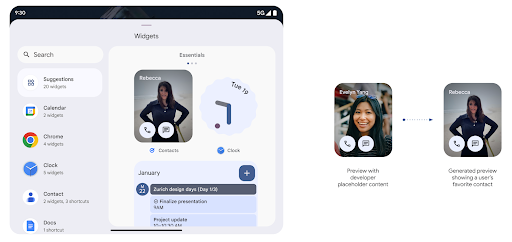
Before Android 15, the only way to provide widget picker previews was to specify a static image or layout resource. These previews often differ significantly from the look of the actual widget when it is placed on the home screen. Also, static resources can't be created with Jetpack Glance, so a Glance developer had to screenshot their widget or create an XML layout to have a widget preview.
Android 15 adds support for generated previews. This means that app widget
providers can generate RemoteViews to use as the picker preview, instead
of a static resource.
Push API
Apps can provide generated previews through a push API. Apps can provide
previews at any point in their lifecycle, and don't receive an explicit request
from the host to provide previews. Previews are persisted in AppWidgetService,
and hosts can request them on-demand. The following example loads an XML widget
layout resource and sets it as the preview:
AppWidgetManager.getInstance(appContext).setWidgetPreview(
   ComponentName(
       appContext,
       SociaLiteAppWidgetReceiver::class.java
   ),
   AppWidgetProviderInfo.WIDGET_CATEGORY_HOME_SCREEN,
   RemoteViews("com.example", R.layout.widget_preview)
)
The expected flow is:
- At any time, the widget provider calls
setWidgetPreview. The provided previews are persisted inAppWidgetServicewith other provider info. setWidgetPreviewnotifies hosts of an updated preview through theAppWidgetHost.onProvidersChangedcallback. In response, the widget host reloads all of its provider information.- When displaying a widget preview, the host checks
AppWidgetProviderInfo.generatedPreviewCategories, and if the chosen category is available, callsAppWidgetManager.getWidgetPreviewto return the saved preview for this provider.
When to call setWidgetPreview
Because there is no callback to provide previews, apps can choose to send previews at any point when they are running. How often to update the preview depends on the widget's use case.
The following list describes the two main categories of preview use cases:
- Providers that show real data in their widget previews, such as personalized or recent information. These providers can set the preview once the user has signed in or has done initial configuration in their app. After this, they can set up a periodic task to update the previews at their chosen cadence. Examples of this type of widget could be a photo, calendar, weather or news widget.
- Providers that show static information in previews or quick-action widgets that don't display any data. These providers can set previews once, when the app first launches. Examples of this type of widget include a drive quick actions widget or chrome shortcuts widget.
Some providers might show static previews on the hub mode picker, but real information on the homescreen picker. These providers should follow the guidance for both of these use cases to set previews.
Picture-in-picture
Android 15 introduces changes in Picture-in-Picture (PiP) ensuring an even smoother transition when entering into PiP mode. This will be beneficial for apps having UI elements overlaid on top of their main UI, which goes into PiP.
Developers use the onPictureInPictureModeChanged callback to define logic
that toggles the visibility of the overlaid UI elements. This callback is
triggered when the PiP enter or exit animation is completed. Beginning in
Android 15, the PictureInPictureUiState class includes another state.
With this UI state, apps targeting Android 15 (API level 35) will observe the
Activity#onPictureInPictureUiStateChanged callback being invoked with
isTransitioningToPip() as soon as the PiP animation starts. There are
many UI elements that are not relevant for the app when it is in PiP mode, for
example views or layout that include information such as suggestions, upcoming
video, ratings, and titles. When the app goes to PiP mode, use the
onPictureInPictureUiStateChanged callback to hide these UI elements. When the
app goes to full screen mode from the PiP window, use
onPictureInPictureModeChanged callback to unhide these elements, as shown in
the following examples:
override fun onPictureInPictureUiStateChanged(pipState: PictureInPictureUiState) {
        if (pipState.isTransitioningToPip()) {
          // Hide UI elements
        }
    }
override fun onPictureInPictureModeChanged(isInPictureInPictureMode: Boolean) {
        if (isInPictureInPictureMode) {
          // Unhide UI elements
        }
    }
This quick visibility toggle of irrelevant UI elements (for a PiP window) helps ensure a smoother and flicker-free PiP enter animation.
Règles améliorées du mode Ne pas déranger
AutomaticZenRule permet aux applications de personnaliser la fonctionnalité Attention
Règles de gestion (Ne pas déranger) et décidez quand l'activer ou le désactiver
de l'IA générative. Android 15 améliore considérablement ces règles dans le but d'améliorer
l'expérience utilisateur. Les améliorations suivantes sont incluses:
- Ajout de types à
AutomaticZenRule, ce qui permet au système d'appliquer un traitement spécial à certaines règles. - Ajout d'une icône à
AutomaticZenRulepour rendre les modes plus reconnaissables. - Ajouter une chaîne
triggerDescriptionàAutomaticZenRulequi décrit les conditions selon lesquelles la règle doit être activée pour l'utilisateur. - Ajoutée(s)
ZenDeviceEffectsàAutomaticZenRule, ce qui permet aux règles de déclencher, par exemple, des niveaux de gris l'affichage, le mode Nuit ou la diminution de la luminosité du fond d'écran.
Définir VibrationEffect pour les canaux de notification
Android 15 supports setting rich vibrations for incoming notifications by
channel using NotificationChannel.setVibrationEffect, so
your users can distinguish between different types of notifications without
having to look at their device.
Pastille de la barre d'état et arrêt automatique de la projection multimédia
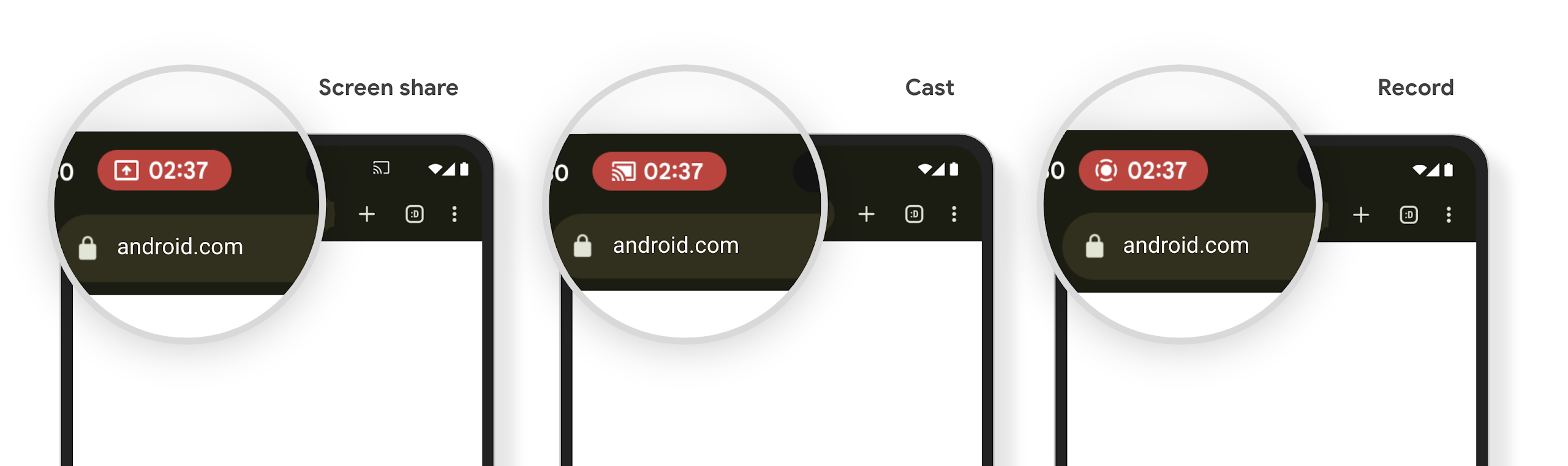
La projection multimédia peut exposer des informations personnelles des utilisateurs. Un nouveau chip de barre d'état proéminent informe les utilisateurs de toute projection d'écran en cours. Les utilisateurs peuvent appuyer sur le chip pour arrêter la diffusion, le partage ou l'enregistrement de l'écran. De plus, pour une expérience utilisateur plus intuitive, toute projection d'écran en cours s'arrête désormais automatiquement lorsque l'écran de l'appareil est verrouillé.
Grands écrans et facteurs de forme
Android 15 permet à vos applications de tirer le meilleur parti des facteurs de forme d'Android, y compris les grands écrans, les appareils à clapet et les pliables.
Amélioration du multitâche sur grand écran
Android 15 gives users better ways to multitask on large screen devices. For example, users can save their favorite split-screen app combinations for quick access and pin the taskbar on screen to quickly switch between apps. This means that making sure your app is adaptive is more important than ever.
Google I/O has sessions on Building adaptive Android apps and Building UI with the Material 3 adaptive library that can help, and our documentation has more to help you Design for large screens.
Compatibilité avec l'écran de couverture
Votre application peut déclarer une propriété qu'Android 15 utilise pour permettre à votre Application ou Activity d'être présenté sur les petits écrans de couverture des appareils à clapet compatibles. Ces écrans sont trop petits pour être considérés comme des cibles compatibles pour les applications Android, mais votre application peut les prendre en charge, ce qui la rend disponible dans plus d'endroits.
Connectivité
Android 15 met à jour la plate-forme pour permettre à votre application d'accéder aux dernières avancées en matière de technologies de communication et sans fil.
Compatibilité avec les satellites
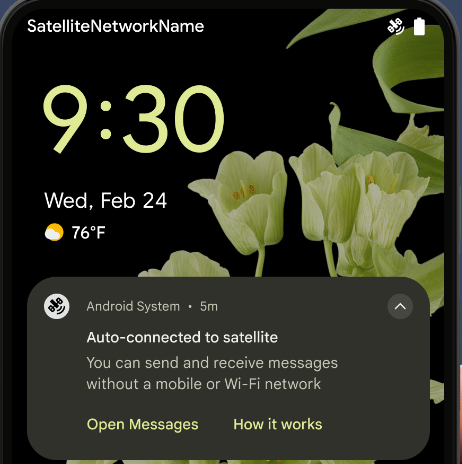
Android 15 continues to extend platform support for satellite connectivity and includes some UI elements to ensure a consistent user experience across the satellite connectivity landscape.
Apps can use ServiceState.isUsingNonTerrestrialNetwork() to
detect when a device is connected to a satellite, giving them more awareness of
why full network services might be unavailable. Additionally, Android 15
provides support for SMS and MMS apps as well as preloaded RCS apps to use
satellite connectivity for sending and receiving messages.
Expériences NFC plus fluides
Android 15 vise à rendre l'expérience de paiement sans contact plus fluide et fiable, tout en continuant à prendre en charge l'écosystème d'applications NFC robuste d'Android. Sur les appareils compatibles, les applications peuvent demander à NfcAdapter de passer en mode observation, où l'appareil écoute, mais ne répond pas aux lecteurs NFC, en envoyant les objets PollingFrame du service NFC de l'application à traiter. Les objets PollingFrame peuvent être utilisés pour l'authentification avant la première communication avec le lecteur NFC, ce qui permet une transaction en un seul geste dans de nombreux cas.
De plus, les applications peuvent enregistrer un filtre sur les appareils compatibles afin d'être informées de l'activité de la boucle de sondage, ce qui permet un fonctionnement fluide avec plusieurs applications compatibles avec la technologie NFC.
Rôle Wallet
Android 15 introduces a Wallet role that allows tighter integration with the user's preferred wallet app. This role replaces the NFC default contactless payment setting. Users can manage the Wallet role holder by navigating to Settings > Apps > Default Apps.
The Wallet role is used when routing NFC taps for AIDs registered in the payment category. Taps always go to the Wallet role holder unless another app that is registered for the same AID is running in the foreground.
This role is also used to determine where the Wallet Quick Access tile should go when activated. When the role is set to "None", the Quick Access tile isn't available and payment category NFC taps are only delivered to the foreground app.
Sécurité
Android 15 vous aide à renforcer la sécurité de votre application, à protéger ses données et à offrir aux utilisateurs plus de transparence et de contrôle sur leurs données. Pour en savoir plus sur ce que nous faisons pour améliorer les mesures de protection des utilisateurs et protéger votre application contre les nouvelles menaces, consultez la présentation Protéger la sécurité des utilisateurs sur Android lors de Google I/O.
Intégrer Credential Manager à la saisie automatique
Starting with Android 15, developers can link specific views like username or password fields with Credential Manager requests, making it easier to provide a tailored user experience during the sign-in process. When the user focuses on one of these views, a corresponding request is sent to Credential Manager. The resulting credentials are aggregated across providers and displayed in autofill fallback UIs, such as inline suggestions or drop-down suggestions. The Jetpack androidx.credentials library is the preferred endpoint for developers to use and will soon be available to further enhance this feature in Android 15 and higher.
Intégrer l'inscription et la connexion en un seul geste aux invites biométriques
Credential Manager integrates biometric prompts into the credential creation and sign-in processes, eliminating the need for providers to manage biometric prompts. As a result, credential providers only need to focus on the results of the create and get flows, augmented with the biometric flow result. This simplified process creates a more efficient and streamlined credential creation and retrieval process.
Gestion des clés pour le chiffrement de bout en bout
We are introducing the E2eeContactKeysManager in Android 15, which
facilitates end-to-end encryption (E2EE) in your Android apps by providing an
OS-level API for the storage of cryptographic public keys.
The E2eeContactKeysManager is designed to integrate with the platform
contacts app to give users a centralized way to manage and verify their
contacts' public keys.
Vérifications des autorisations sur les URI de contenu
Android 15 introduces a set of APIs that perform permission checks on content URIs:
Context.checkContentUriPermissionFull: This performs a full permission check on content URIs.Activitymanifest attributerequireContentUriPermissionFromCaller: This enforces specified permissions on the provided content URIs at activity launch.ComponentCallerclass forActivitycallers: This represents the app that launched the activity.
Accessibilité
Android 15 ajoute des fonctionnalités qui améliorent l'accessibilité pour les utilisateurs.
Braille amélioré
In Android 15, we've made it possible for TalkBack to support Braille displays that are using the HID standard over both USB and secure Bluetooth.
This standard, much like the one used by mice and keyboards, will help Android support a wider range of Braille displays over time.
Internationalisation
Android 15 ajoute des fonctionnalités et des capacités qui complètent l'expérience utilisateur lorsqu'un appareil est utilisé dans différentes langues.
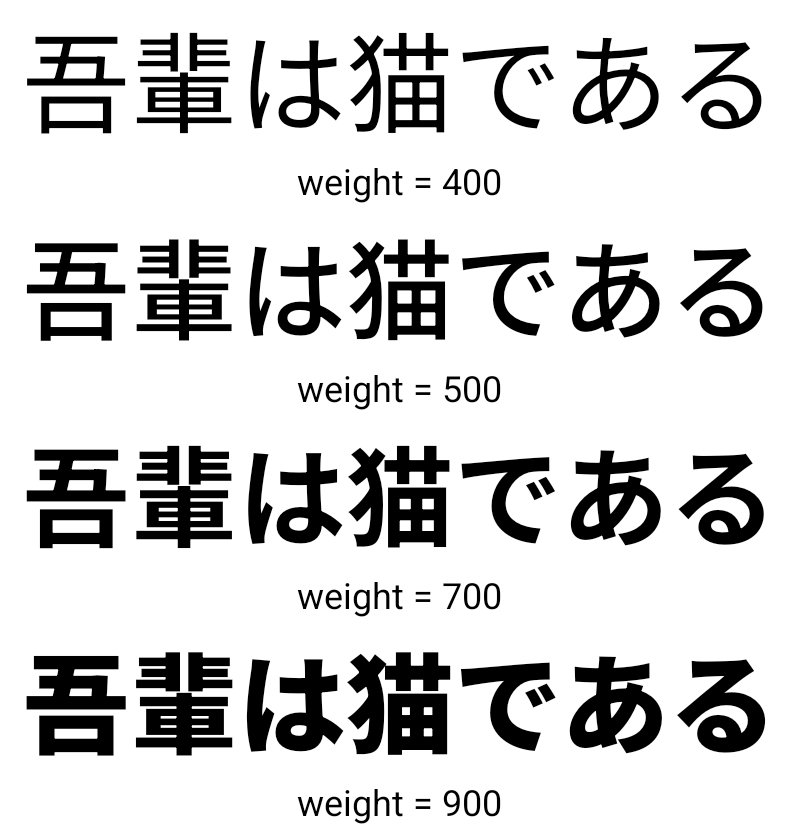
Police variable CJK
À partir d'Android 15, le fichier de police pour les langues chinoise, japonaise et coréenne (CJK), NotoSansCJK, est désormais une police variable. Les polices variables offrent de nouvelles possibilités de typographie créative dans les langues CJK. Les concepteurs peuvent explorer une gamme plus large de styles et créer des mises en page visuellement frappantes qui étaient auparavant difficiles ou impossibles à réaliser.
Justification entre les caractères
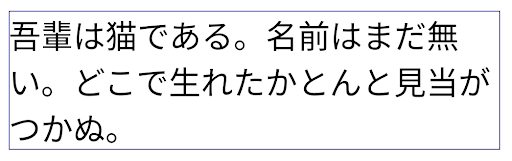
Starting with Android 15, text can be justified utilizing letter spacing by
using JUSTIFICATION_MODE_INTER_CHARACTER. Inter-word justification was
first introduced in Android 8.0 (API level 26), and inter-character
justification provides similar capabilities for languages that use the
whitespace character for segmentation, such as Chinese, Japanese, and others.
JUSTIFICATION_MODE_NONE.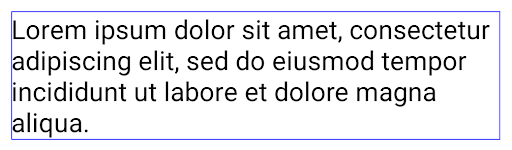
JUSTIFICATION_MODE_NONE.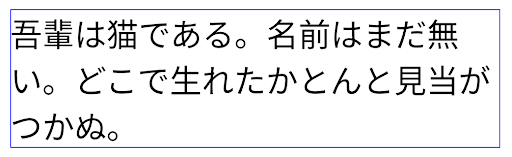
JUSTIFICATION_MODE_INTER_WORD.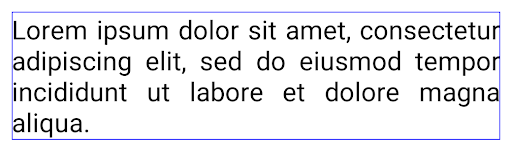
JUSTIFICATION_MODE_INTER_WORD.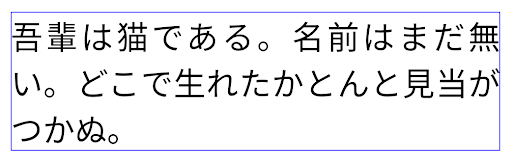
JUSTIFICATION_MODE_INTER_CHARACTER.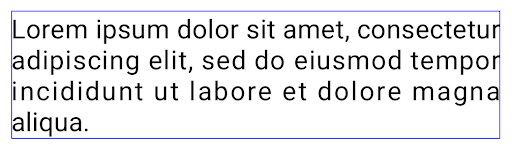
JUSTIFICATION_MODE_INTER_CHARACTER.Configuration automatique des sauts de ligne
Android a commencé à accepter les sauts de ligne basés sur les expressions pour le japonais et le coréen dans
Android 13 (niveau d'API 33). Toutefois, bien que les sauts de ligne basés sur des phrases améliorent la lisibilité des lignes courtes, ils ne fonctionnent pas bien pour les lignes longues.
Sous Android 15, les applications ne peuvent appliquer des sauts de ligne basés sur des expressions que pour les lignes courtes
de texte, à l'aide de la méthode LINE_BREAK_WORD_STYLE_AUTO
. Cette option permet de sélectionner la meilleure option de style de mot pour le texte.
Pour les lignes de texte courtes, des sauts de ligne en fonction d'une expression sont utilisés,
en tant que LINE_BREAK_WORD_STYLE_PHRASE, comme indiqué dans
image suivante:
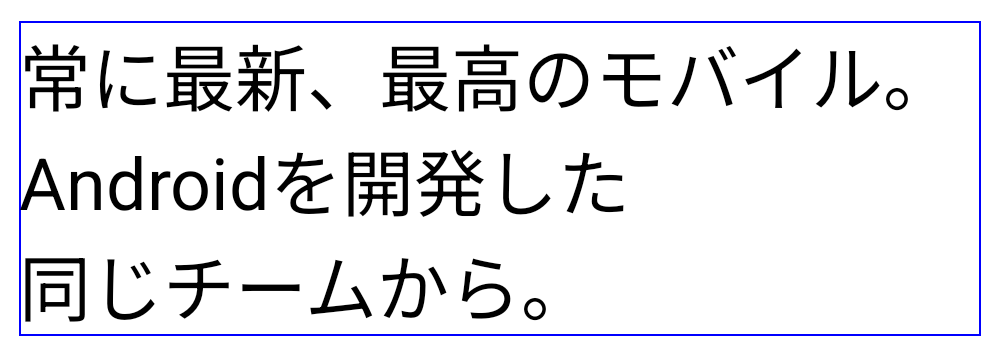
LINE_BREAK_WORD_STYLE_AUTO
applique des sauts de ligne en fonction des expressions pour améliorer la lisibilité du texte.
Cela revient à appliquer
LINE_BREAK_WORD_STYLE_PHRASEPour les lignes de texte plus longues, LINE_BREAK_WORD_STYLE_AUTO utilise un "no"
saut de ligne, qui fonctionne de la même manière que
LINE_BREAK_WORD_STYLE_NONE, comme indiqué dans les
image suivante:
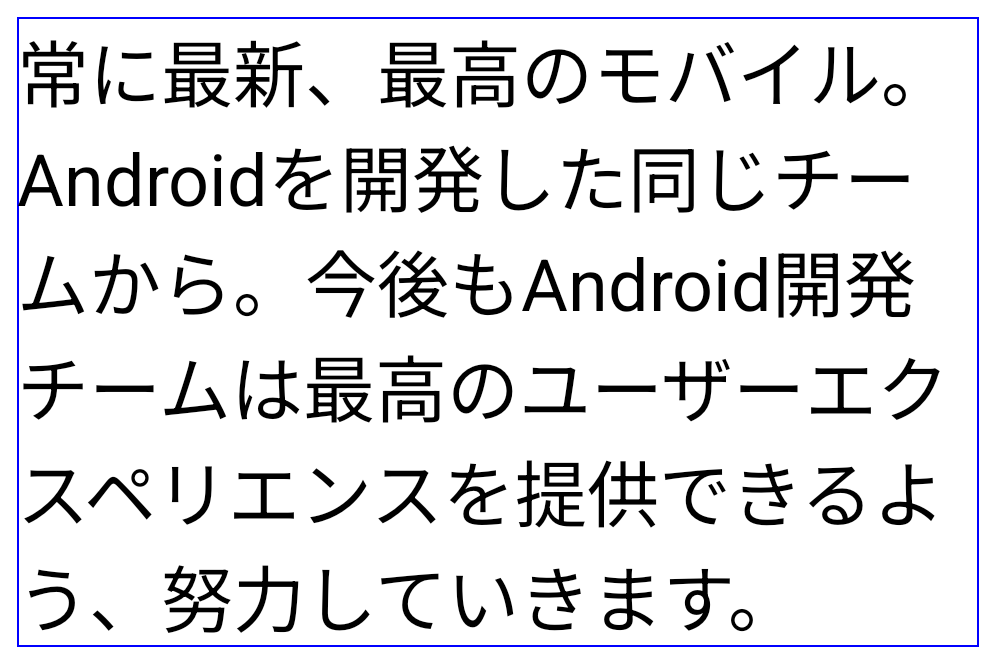
LINE_BREAK_WORD_STYLE_AUTO n'applique aucun style de mot avec saut de ligne pour améliorer la lisibilité du texte.
Cela revient à appliquer LINE_BREAK_WORD_STYLE_NONE.Police Hentaigana japonaise supplémentaire
Dans Android 15, un fichier de police pour l'ancien hiragana japonais (appelé Hentaigana) est regroupé par défaut. Les formes uniques des personnages Hentaigana permettent d'ajouter à l'œuvre ou au design, tout en préservant la précision transmission et compréhension des anciens documents japonais.

Cône VideoLAN Copyright (c) 1996-2010 VideoLAN. Ce logo ou une version modifiée peut être utilisé ou modifié par n'importe qui pour faire référence au projet VideoLAN ou à tout produit développé par l'équipe VideoLAN, mais n'indique pas l'approbation du projet.
Vulkan et le logo Vulkan sont des marques déposées de The Khronos Group Inc.
OpenGL est une marque déposée, et le logo OpenGL ES est une marque de Hewlett Packard Enterprise utilisée avec autorisation par Khronos.