

در دستگاههای دارای Android 8.0 (میانای برنامه کاربردی سطح ۲۶) و بالاتر، جفتسازی دستگاه همراه
اسکن بلوتوث یا Wi-Fi دستگاههای اطراف را ازطرف برنامه شما انجام میدهد
و به
ACCESS_FINE_LOCATION
اجازه نیاز ندارد. این کار به حداکثر رساندن محافظت از حریم خصوصی کاربر کمک میکند. از این روش برای
انجام پیکربندی اولیه دستگاه همراه، مانند ساعت هوشمند
سازگار با BLE استفاده کنید. علاوهبراین، جفتسازی دستگاه همراه نیاز دارد «خدمات مکان» فعال باشد.
جفتسازی دستگاه همراه بهخودی خود اتصال ایجاد نمیکند و اسکن پیوسته را فعال نمیکند. برنامهها میتوانند از میاناهای برنامهسازی کاربردی اتصال Wi-Fi یا بلوتوث برای ایجاد اتصال استفاده کنند.
پساز جفت شدن دستگاه، دستگاه میتواند از
REQUEST_COMPANION_RUN_IN_BACKGROUND
و
REQUEST_COMPANION_USE_DATA_IN_BACKGROUND
اجازهها برای شروع برنامه از پسزمینه استفاده کند. برنامهها همچنین میتوانند از
REQUEST_COMPANION_START_FOREGROUND_SERVICES_FROM_BACKGROUND
اجازه برای شروع سرویس پیشزمینهای از پسزمینه استفاده کنند.
کاربر میتواند دستگاهی را از فهرست انتخاب کند و به برنامه اجازه دهد به دستگاه دسترسی داشته باشد. اگر برنامه را حذف نصب کنید یا با
disassociate() تماس بگیرید، این اجازهها باطل میشود.
اگر کاربر دیگر به برنامههای همپا نیاز نداشته باشد (مثلاً وقتی از سیستم خارج میشود یا دستگاههای پیوندشده را برمیدارد)، برنامه همپا مسئول پاک کردن ارتباطات خود است.
پیادهسازی جفتسازی دستگاه همپا
این بخش نحوه استفاده از CompanionDeviceManager را برای جفت کردن برنامه با دستگاههای همراه ازطریق بلوتوث، BLE، و Wi-Fi توضیح میدهد.
دستگاههای همپا را مشخص کنید
نمونه کد زیر نحوه افزودن پرچم
<uses-feature> به
فایل مانیفست را نشان میدهد. این کار به سیستم میگوید که برنامه شما قصد دارد دستگاههای همراه راهاندازی کند.
<uses-feature android:name="android.software.companion_device_setup"/>
فهرست کردن دستگاهها براساس DeviceFilter
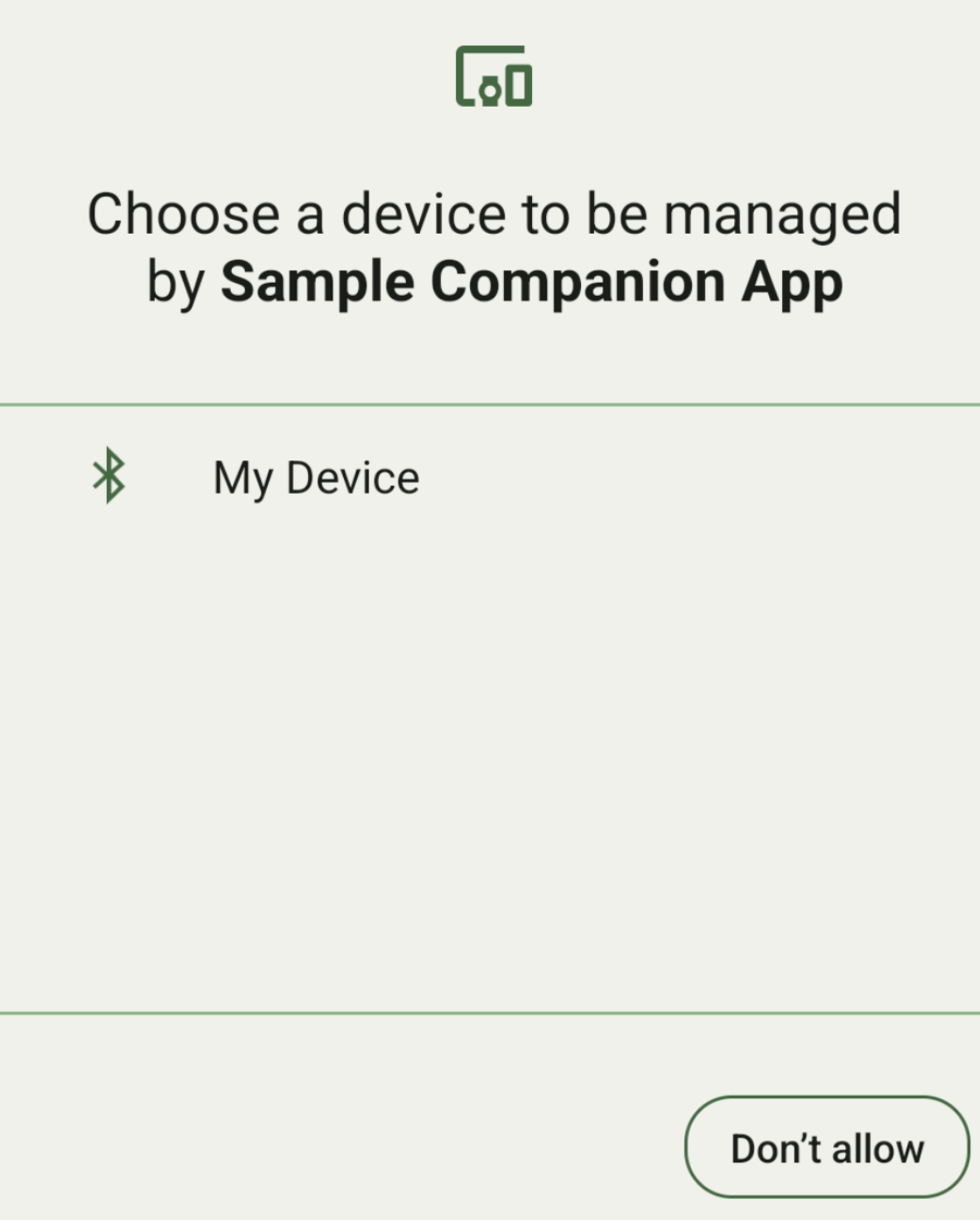
میتوانید همه دستگاههای همراه در محدوده را که با
DeviceFilter
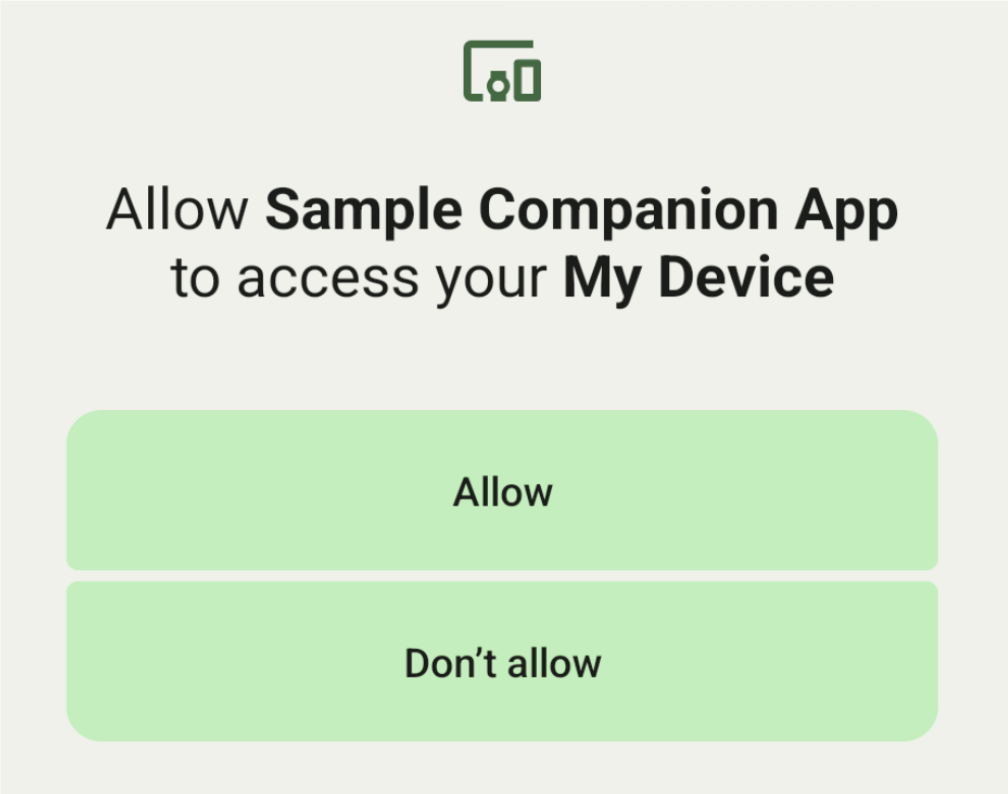
ارائهشده توسط شما مطابقت دارند نمایش دهید (در شکل ۱ نشان داده شده است). اگر میخواهید اسکن فقط به یک دستگاه محدود شود، میتوانید
setSingleDevice()
به true (نشاندادهشده در شکل ۲) بروید.
زیرکلاسهای DeviceFilter که
میتواند در AssociationRequest مشخص شود به شرح زیر است:
هر سه زیرکلاس دارای سازندههایی هستند که پیکربندی فیلترها را ساده میکنند.
در مثال زیر، دستگاهی بهدنبال دستگاه بلوتوثی با BluetoothDeviceFilter میگردد.
کاتلین
val deviceFilter: BluetoothDeviceFilter = BluetoothDeviceFilter.Builder()
        // Match only Bluetooth devices whose name matches the pattern.
        .setNamePattern(Pattern.compile("My device"))
        // Match only Bluetooth devices whose service UUID matches this pattern.
        .addServiceUuid(ParcelUuid(UUID(0x123abcL, -1L)), null)
        .build()
جاوا
BluetoothDeviceFilter deviceFilter = new BluetoothDeviceFilter.Builder()
        // Match only Bluetooth devices whose name matches the pattern.
        .setNamePattern(Pattern.compile("My device"))
        // Match only Bluetooth devices whose service UUID matches this pattern.
        .addServiceUuid(new ParcelUuid(new UUID(0x123abcL, -1L)), null)
        .build();
DeviceFilter را روی AssociationRequest تنظیم کنید تا
CompanionDeviceManager بتواند نوع دستگاههایی را که باید جستجو کند تعیین کند.
کاتلین
val pairingRequest: AssociationRequest = AssociationRequest.Builder()
        // Find only devices that match this request filter.
        .addDeviceFilter(deviceFilter)
        // Stop scanning as soon as one device matching the filter is found.
        .setSingleDevice(true)
        .build()
جاوا
AssociationRequest pairingRequest = new AssociationRequest.Builder()
        // Find only devices that match this request filter.
        .addDeviceFilter(deviceFilter)
        // Stop scanning as soon as one device matching the filter is found.
        .setSingleDevice(true)
        .build();
پساز اینکه برنامهتان AssociationRequest را مقداردهی اولیه کرد، تابع
associate()
را در CompanionDeviceManager اجرا کنید. تابع associate() یک AssociationRequest و یک Callback را میگیرد.
وقتی CompanionDeviceManager دستگاهی را پیدا میکند و آماده راهاندازی کادر گفتگوی موافقت کاربر است، Callback در onAssociationPending مقدار IntentSender را برمیگرداند.
پساز اینکه کاربر دستگاه را تأیید کرد، AssociationInfo دستگاه در onAssociationCreated برگردانده میشود.
اگر برنامه شما هیچ دستگاهی پیدا نکند، تابع برگشتی onFailure
با پیام خطا برمیگردد.
در دستگاههایی که از Android 13 (میانای برنامه کاربردی سطح ۳۳) و بالاتر استفاده میکنند:
کاتلین
val deviceManager =
  requireContext().getSystemService(Context.COMPANION_DEVICE_SERVICE)

val executor: Executor =  Executor { it.run() }

deviceManager.associate(pairingRequest,
    executor,
    object : CompanionDeviceManager.Callback() {
    // Called when a device is found. Launch the IntentSender so the user
    // can select the device they want to pair with.
    override fun onAssociationPending(intentSender: IntentSender) {
        intentSender?.let {
             startIntentSenderForResult(it, SELECT_DEVICE_REQUEST_CODE, null, 0, 0, 0)
        }
    }

    override fun onAssociationCreated(associationInfo: AssociationInfo) {
        // An association is created.
    }

    override fun onFailure(errorMessage: CharSequence?) {
        // To handle the failure.
     }
})
جاوا
CompanionDeviceManager deviceManager =
        (CompanionDeviceManager) getSystemService(Context.COMPANION_DEVICE_SERVICE);

Executor executor = new Executor() {
            @Override
            public void execute(Runnable runnable) {
                runnable.run();
            }
        };
deviceManager.associate(pairingRequest, new CompanionDeviceManager.Callback() {
    executor,
    // Called when a device is found. Launch the IntentSender so the user can
    // select the device they want to pair with.
    @Override
    public void onDeviceFound(IntentSender chooserLauncher) {
        try {
            startIntentSenderForResult(
                    chooserLauncher, SELECT_DEVICE_REQUEST_CODE, null, 0, 0, 0
            );
        } catch (IntentSender.SendIntentException e) {
            Log.e("MainActivity", "Failed to send intent");
        }
    }

    @Override
    public void onAssociationCreated(AssociationInfo associationInfo) {
        // An association is created.
    }

    @Override
    public void onFailure(CharSequence errorMessage) {
        // To handle the failure.
    });
در دستگاههایی که Android 12L (میانای برنامه کاربردی سطح ۳۲) یا پایینتر را اجرا میکنند (منسوخ):
کاتلین
val deviceManager =
      requireContext().getSystemService(Context.COMPANION_DEVICE_SERVICE)

deviceManager.associate(pairingRequest,
    object : CompanionDeviceManager.Callback() {
        // Called when a device is found. Launch the IntentSender so the user
        // can select the device they want to pair with.
        override fun onDeviceFound(chooserLauncher: IntentSender) {
            startIntentSenderForResult(chooserLauncher,
                SELECT_DEVICE_REQUEST_CODE, null, 0, 0, 0)
        }

        override fun onFailure(error: CharSequence?) {
            // To handle the failure.
        }
    }, null)
جاوا
CompanionDeviceManager deviceManager =
        (CompanionDeviceManager) getSystemService(Context.COMPANION_DEVICE_SERVICE);
deviceManager.associate(pairingRequest, new CompanionDeviceManager.Callback() {
    // Called when a device is found. Launch the IntentSender so the user can
    // select the device they want to pair with.
    @Override
    public void onDeviceFound(IntentSender chooserLauncher) {
        try {
            startIntentSenderForResult(
                    chooserLauncher, SELECT_DEVICE_REQUEST_CODE, null, 0, 0, 0
            );
        } catch (IntentSender.SendIntentException e) {
            Log.e("MainActivity", "Failed to send intent");
        }
    }

    @Override
    public void onFailure(CharSequence error) {
        // To handle the failure.
    }
}, null);
نتیجه انتخاب کاربر به قطعه در
onActivityResult()
فعالیت شما برگردانده میشود. سپس میتوانید به دستگاه انتخابشده دسترسی پیدا کنید.
وقتی کاربر دستگاه بلوتوثی را انتخاب میکند، انتظار
BluetoothDevice را داشته باشید.
وقتی کاربر دستگاه «بلوتوث کممصرف» را انتخاب میکند، انتظار
android.bluetooth.le.ScanResult را داشته باشید.
وقتی کاربر دستگاه Wi-Fi را انتخاب میکند، انتظار
android.net.wifi.ScanResult را داشته باشید.
کاتلین
override fun onActivityResult(requestCode: Int, resultCode: Int, data: Intent?) {
    when (requestCode) {
        SELECT_DEVICE_REQUEST_CODE -> when(resultCode) {
            Activity.RESULT_OK -> {
                // The user chose to pair the app with a Bluetooth device.
                val deviceToPair: BluetoothDevice? =
data?.getParcelableExtra(CompanionDeviceManager.EXTRA_DEVICE)
                deviceToPair?.let { device ->
                    device.createBond()
                    // Continue to interact with the paired device.
                }
            }
        }
        else -> super.onActivityResult(requestCode, resultCode, data)
    }
}
جاوا
@Override
protected void onActivityResult(int requestCode, int resultCode, @Nullable Intent data) {
    if (resultCode != Activity.RESULT_OK) {
        return;
    }
    if (requestCode == SELECT_DEVICE_REQUEST_CODE && data != null) {
        BluetoothDevice deviceToPair =
data.getParcelableExtra(CompanionDeviceManager.EXTRA_DEVICE);
        if (deviceToPair != null) {
            deviceToPair.createBond();
            // Continue to interact with the paired device.
        }
    } else {
        super.onActivityResult(requestCode, resultCode, data);
    }
}
مثال کامل را ببینید:
در دستگاههایی که از Android 13 (میانای برنامه کاربردی سطح ۳۳) و بالاتر استفاده میکنند:
کاتلین
private const val SELECT_DEVICE_REQUEST_CODE = 0

class MainActivity : AppCompatActivity() {

    private val deviceManager: CompanionDeviceManager by lazy {
        getSystemService(Context.COMPANION_DEVICE_SERVICE) as CompanionDeviceManager
    }
    val mBluetoothAdapter: BluetoothAdapter by lazy {
        val java = BluetoothManager::class.java
        getSystemService(java)!!.adapter }
    val executor: Executor =  Executor { it.run() }

    override fun onCreate(savedInstanceState: Bundle?) {
        super.onCreate(savedInstanceState)
        setContentView(R.layout.activity_main)

        // To skip filters based on names and supported feature flags (UUIDs),
        // omit calls to setNamePattern() and addServiceUuid()
        // respectively, as shown in the following  Bluetooth example.
        val deviceFilter: BluetoothDeviceFilter = BluetoothDeviceFilter.Builder()
            .setNamePattern(Pattern.compile("My device"))
            .addServiceUuid(ParcelUuid(UUID(0x123abcL, -1L)), null)
            .build()

        // The argument provided in setSingleDevice() determines whether a single
        // device name or a list of them appears.
        val pairingRequest: AssociationRequest = AssociationRequest.Builder()
            .addDeviceFilter(deviceFilter)
            .setSingleDevice(true)
            .build()

        // When the app tries to pair with a Bluetooth device, show the
        // corresponding dialog box to the user.
        deviceManager.associate(pairingRequest,
            executor,
            object : CompanionDeviceManager.Callback() {
                // Called when a device is found. Launch the IntentSender so the user
                // can select the device they want to pair with.
                override fun onAssociationPending(intentSender: IntentSender) {
                intentSender?.let {
                    startIntentSenderForResult(it, SELECT_DEVICE_REQUEST_CODE, null, 0, 0, 0)
              }
            }

             override fun onAssociationCreated(associationInfo: AssociationInfo) {
                 // AssociationInfo object is created and get association id and the
                 // macAddress.
                 var associationId: int = associationInfo.id
                 var macAddress: MacAddress = associationInfo.deviceMacAddress
             }
             override fun onFailure(errorMessage: CharSequence?) {
                // Handle the failure.
            }
    )

    override fun onActivityResult(requestCode: Int, resultCode: Int, data: Intent?) {
        when (requestCode) {
            SELECT_DEVICE_REQUEST_CODE -> when(resultCode) {
                Activity.RESULT_OK -> {
                    // The user chose to pair the app with a Bluetooth device.
                    val deviceToPair: BluetoothDevice? =
                        data?.getParcelableExtra(CompanionDeviceManager.EXTRA_DEVICE)
                    deviceToPair?.let { device ->
                        device.createBond()
                        // Maintain continuous interaction with a paired device.
                    }
                }
            }
            else -> super.onActivityResult(requestCode, resultCode, data)
        }
    }
}
جاوا
class MainActivityJava extends AppCompatActivity {

    private static final int SELECT_DEVICE_REQUEST_CODE = 0;
    Executor executor = new Executor() {
        @Override
        public void execute(Runnable runnable) {
            runnable.run();
        }
    };

    @Override
    protected void onCreate(@Nullable Bundle savedInstanceState) {
        super.onCreate(savedInstanceState);
        setContentView(R.layout.activity_main);

        CompanionDeviceManager deviceManager =
            (CompanionDeviceManager) getSystemService(
                Context.COMPANION_DEVICE_SERVICE
            );

        // To skip filtering based on name and supported feature flags,
        // do not include calls to setNamePattern() and addServiceUuid(),
        // respectively. This example uses Bluetooth.
        BluetoothDeviceFilter deviceFilter =
            new BluetoothDeviceFilter.Builder()
                .setNamePattern(Pattern.compile("My device"))
                .addServiceUuid(
                    new ParcelUuid(new UUID(0x123abcL, -1L)), null
                )
                .build();

        // The argument provided in setSingleDevice() determines whether a single
        // device name or a list of device names is presented to the user as
        // pairing options.
        AssociationRequest pairingRequest = new AssociationRequest.Builder()
            .addDeviceFilter(deviceFilter)
            .setSingleDevice(true)
            .build();

        // When the app tries to pair with the Bluetooth device, show the
        // appropriate pairing request dialog to the user.
        deviceManager.associate(pairingRequest, new CompanionDeviceManager.Callback() {
            executor,
           // Called when a device is found. Launch the IntentSender so the user can
           // select the device they want to pair with.
           @Override
           public void onDeviceFound(IntentSender chooserLauncher) {
               try {
                   startIntentSenderForResult(
                       chooserLauncher, SELECT_DEVICE_REQUEST_CODE, null, 0, 0, 0
                   );
               } catch (IntentSender.SendIntentException e) {
                   Log.e("MainActivity", "Failed to send intent");
               }
           }

          @Override
          public void onAssociationCreated(AssociationInfo associationInfo) {
                 // AssociationInfo object is created and get association id and the
                 // macAddress.
                 int associationId = associationInfo.getId();
                 MacAddress macAddress = associationInfo.getDeviceMacAddress();
          }

          @Override
          public void onFailure(CharSequence errorMessage) {
             // Handle the failure.
        });
    }

    @Override
    protected void onActivityResult(int requestCode, int resultCode, @Nullable Intent data) {
        if (resultCode != Activity.RESULT_OK) {
            return;
        }
        if (requestCode == SELECT_DEVICE_REQUEST_CODE) {
            if (resultCode == Activity.RESULT_OK && data != null) {
                BluetoothDevice deviceToPair = data.getParcelableExtra(
                    CompanionDeviceManager.EXTRA_DEVICE
                );

                if (deviceToPair != null) {
                    deviceToPair.createBond();
                    // ... Continue interacting with the paired device.
                }
            }
        } else {
            super.onActivityResult(requestCode, resultCode, data);
        }
    }
}
در دستگاههایی که Android 12L (میانای برنامه کاربردی سطح ۳۲) یا پایینتر را اجرا میکنند (منسوخ):
کاتلین
private const val SELECT_DEVICE_REQUEST_CODE = 0

class MainActivity : AppCompatActivity() {

    private val deviceManager: CompanionDeviceManager by lazy {
        getSystemService(Context.COMPANION_DEVICE_SERVICE) as CompanionDeviceManager
    }

    override fun onCreate(savedInstanceState: Bundle?) {
        super.onCreate(savedInstanceState)
        setContentView(R.layout.activity_main)

        // To skip filters based on names and supported feature flags (UUIDs),
        // omit calls to setNamePattern() and addServiceUuid()
        // respectively, as shown in the following  Bluetooth example.
        val deviceFilter: BluetoothDeviceFilter = BluetoothDeviceFilter.Builder()
            .setNamePattern(Pattern.compile("My device"))
            .addServiceUuid(ParcelUuid(UUID(0x123abcL, -1L)), null)
            .build()

        // The argument provided in setSingleDevice() determines whether a single
        // device name or a list of them appears.
        val pairingRequest: AssociationRequest = AssociationRequest.Builder()
            .addDeviceFilter(deviceFilter)
            .setSingleDevice(true)
            .build()

        // When the app tries to pair with a Bluetooth device, show the
        // corresponding dialog box to the user.
        deviceManager.associate(pairingRequest,
            object : CompanionDeviceManager.Callback() {

                override fun onDeviceFound(chooserLauncher: IntentSender) {
                    startIntentSenderForResult(chooserLauncher,
                        SELECT_DEVICE_REQUEST_CODE, null, 0, 0, 0)
                }

                override fun onFailure(error: CharSequence?) {
                    // Handle the failure.
                }
            }, null)
    }

    override fun onActivityResult(requestCode: Int, resultCode: Int, data: Intent?) {
        when (requestCode) {
            SELECT_DEVICE_REQUEST_CODE -> when(resultCode) {
                Activity.RESULT_OK -> {
                    // The user chose to pair the app with a Bluetooth device.
                    val deviceToPair: BluetoothDevice? =
                        data?.getParcelableExtra(CompanionDeviceManager.EXTRA_DEVICE)
                    deviceToPair?.let { device ->
                        device.createBond()
                        // Maintain continuous interaction with a paired device.
                    }
                }
            }
            else -> super.onActivityResult(requestCode, resultCode, data)
        }
    }
}
جاوا
class MainActivityJava extends AppCompatActivity {

    private static final int SELECT_DEVICE_REQUEST_CODE = 0;

    @Override
    protected void onCreate(@Nullable Bundle savedInstanceState) {
        super.onCreate(savedInstanceState);
        setContentView(R.layout.activity_main);

        CompanionDeviceManager deviceManager =
            (CompanionDeviceManager) getSystemService(
                Context.COMPANION_DEVICE_SERVICE
            );

        // To skip filtering based on name and supported feature flags,
        // don't include calls to setNamePattern() and addServiceUuid(),
        // respectively. This example uses Bluetooth.
        BluetoothDeviceFilter deviceFilter =
            new BluetoothDeviceFilter.Builder()
                .setNamePattern(Pattern.compile("My device"))
                .addServiceUuid(
                    new ParcelUuid(new UUID(0x123abcL, -1L)), null
                )
                .build();

        // The argument provided in setSingleDevice() determines whether a single
        // device name or a list of device names is presented to the user as
        // pairing options.
        AssociationRequest pairingRequest = new AssociationRequest.Builder()
            .addDeviceFilter(deviceFilter)
            .setSingleDevice(true)
            .build();

        // When the app tries to pair with the Bluetooth device, show the
        // appropriate pairing request dialog to the user.
        deviceManager.associate(pairingRequest,
            new CompanionDeviceManager.Callback() {
                @Override
                public void onDeviceFound(IntentSender chooserLauncher) {
                    try {
                        startIntentSenderForResult(chooserLauncher,
                            SELECT_DEVICE_REQUEST_CODE, null, 0, 0, 0);
                    } catch (IntentSender.SendIntentException e) {
                        // failed to send the intent
                    }
                }

                @Override
                public void onFailure(CharSequence error) {
                    // handle failure to find the companion device
                }
            }, null);
    }

    @Override
    protected void onActivityResult(int requestCode, int resultCode, @Nullable Intent data) {
        if (requestCode == SELECT_DEVICE_REQUEST_CODE) {
            if (resultCode == Activity.RESULT_OK && data != null) {
                BluetoothDevice deviceToPair = data.getParcelableExtra(
                    CompanionDeviceManager.EXTRA_DEVICE
                );

                if (deviceToPair != null) {
                    deviceToPair.createBond();
                    // ... Continue interacting with the paired device.
                }
            }
        } else {
            super.onActivityResult(requestCode, resultCode, data);
        }
    }
}
نمایههای دستگاه همپا
در Android 12 (میانای برنامه کاربردی سطح ۳۱) و بالاتر، برنامههای همراهی که دستگاههایی مثل ساعتها را مدیریت میکنند میتوانند از نمایههای دستگاه همراه برای ساده کردن فرایند راهاندازی با اعطای اجازههای لازم هنگام جفتسازی استفاده کنند. برای اطلاعات بیشتر، به نمایههای دستگاه همراه مراجعه کنید.
بیدار نگه داشتن برنامههای همراه
از Android 16 (سطح API 36) شروع میشود،
CompanionDeviceManager.startObservingDevicePresence(String)
و
CompanionDeviceService.onDeviceAppeared()
منسوخ شدهاند.
برای مدیریت خودکار اتصال
CompanionDeviceServiceپیادهسازیشده، باید ازCompanionDeviceManager.startObservingDevicePresence (ObservingDevicePresenceRequest)استفاده کنید.- وضعیت اتصال
CompanionDeviceServiceبهطور خودکار براساس وضعیت حضور دستگاه همراه مرتبط با آن مدیریت میشود:- وقتی دستگاه همراه در محدوده BLE باشد یا بااستفاده از بلوتوث متصل شود، سرویس محدود میشود.
- وقتی دستگاه همراه از محدوده BLE خارج شود یا اتصال بلوتوث آن قطع شود، سرویس از آن جدا میشود.
- وضعیت اتصال
برنامه براساس
DevicePresenceEventمختلفی تماس برگشتی دریافت خواهد کرد.برای جزئیات، به
CompanionDeviceService.onDeviceEvent()مراجعه کنید.