
Glasses have multiple sources and types of interaction inputs, including hardware and touch, physical gesture, and voice.
Hardware controls
Glasses controls can vary depending on device model, but most will include a camera button, touchpad, display button, and power switch or button. Hardware controls have default interactions, and some can be remapped for your app. Consider that inputs for glasses are more 1-dimensional, where users can make one control input at a time, compared to touchscreen inputs. The glasses hardware controls have default interaction mapping, some of which are handled by the app, and others that are handled by the system.
The system will handle the following inputs:
- Camera button single press to take photos and camera button hold to take videos
- Swiping with two fingers on the touchpad for volume
- Touch & hold on the touchpad and the wake word on the microphone will launch Gemini
- System interprets swipe down on display glasses as system back.
Your app has access to the glasses:
- Microphone
- Point-of-View (POV) camera
- Inertial Measurement Unit (IMU)
- Camera button double-press
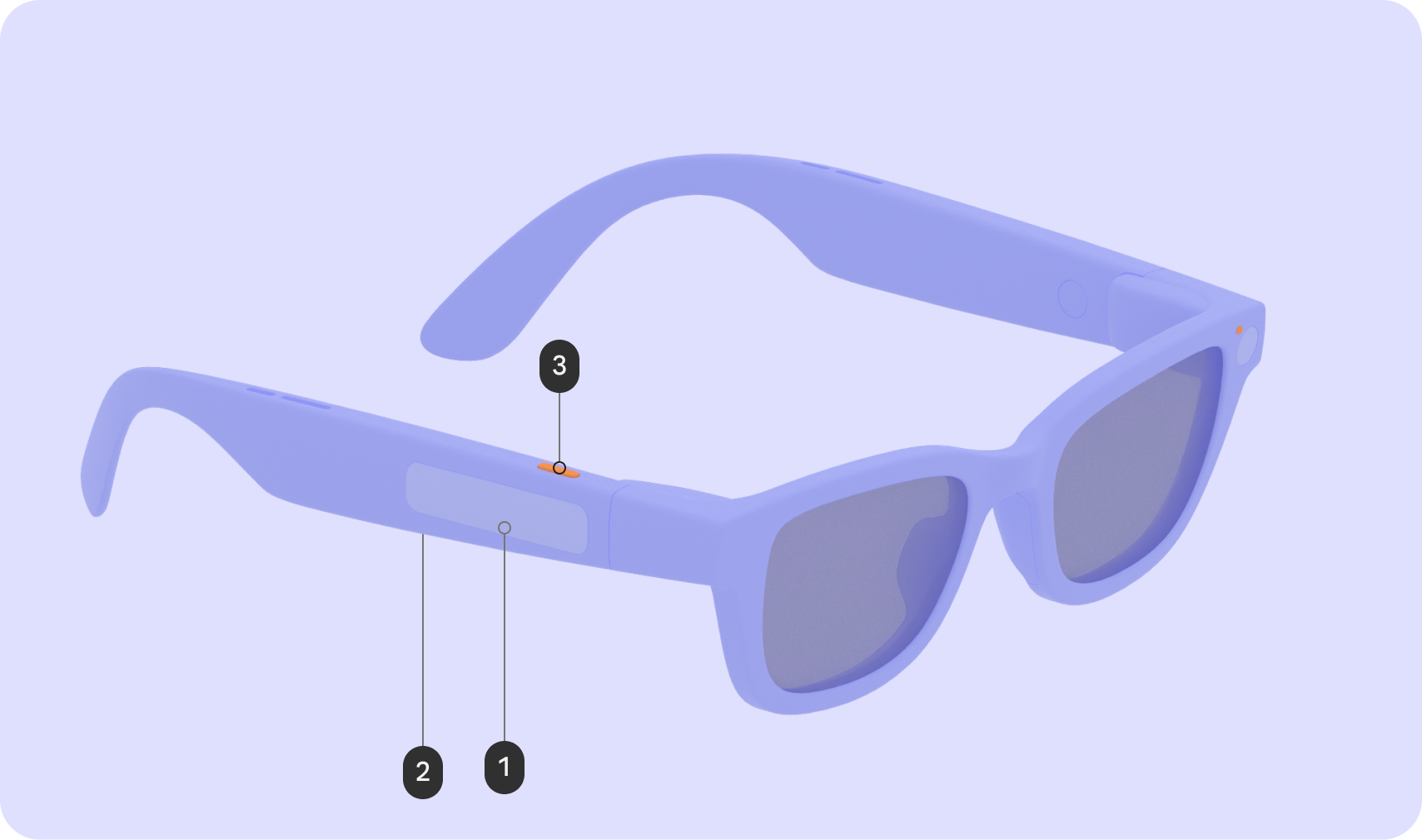
AI Glasses
| Input | Gesture | Interaction affect |
|---|---|---|
| Touchpad (1) | Tap | Play / Pause / Confirm |
| Swipe | Next/Previous/Dismiss | |
| Swipe down | N/A | |
| Touch & hold | Invoke AI | |
| 2-finger swipe | Volume | |
| Display button (2) | Press | N/A |
| Camera button (3) | Press | Photo / Video end |
| Touch & hold | Video start | |
| Double press | Camera |
AI Glasses with Display
| Input | Gesture | Interaction affect |
|---|---|---|
| Touchpad (1) | Tap | Play / Pause / Confirm |
| Swipe | UI Navigation | |
| Swipe down | Back | |
| Touch & hold | Invoke AI | |
| 2-finger swipe | Volume | |
| Display button (2) | Press | Wake/Sleep |
| Camera button (3) | Press | Photo / Video end |
| Touch & hold | Video start | |
| Double press | Camera |
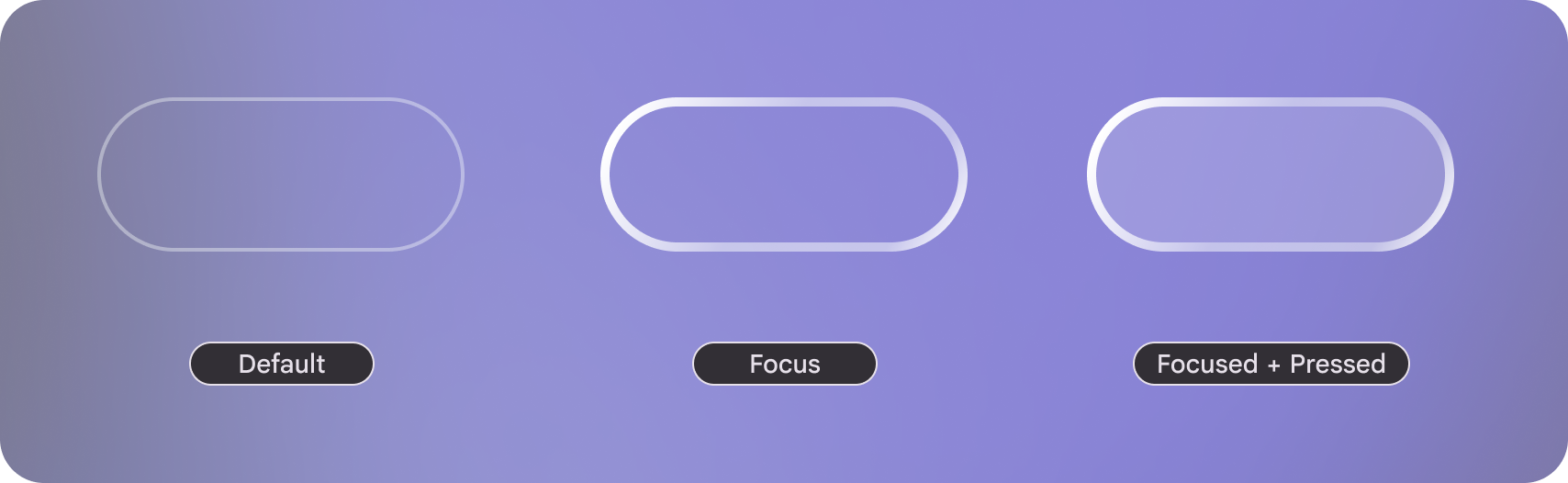 On
display focus states have a visual affordances.
On
display focus states have a visual affordances.