Navigating on glasses should feel just as familiar as with other Android form factors. Your app can use many of the same navigation patterns, like swipe to navigate media content and back stack.
Due to the simplicity of Glasses apps, navigation should remain shallow.
Swipes to navigate content
This model aligns swipe as a way for the user to navigate lateral through all types of content. On Audio glasses, media is content. On Display glasses, visual UI is content.
In-App Back
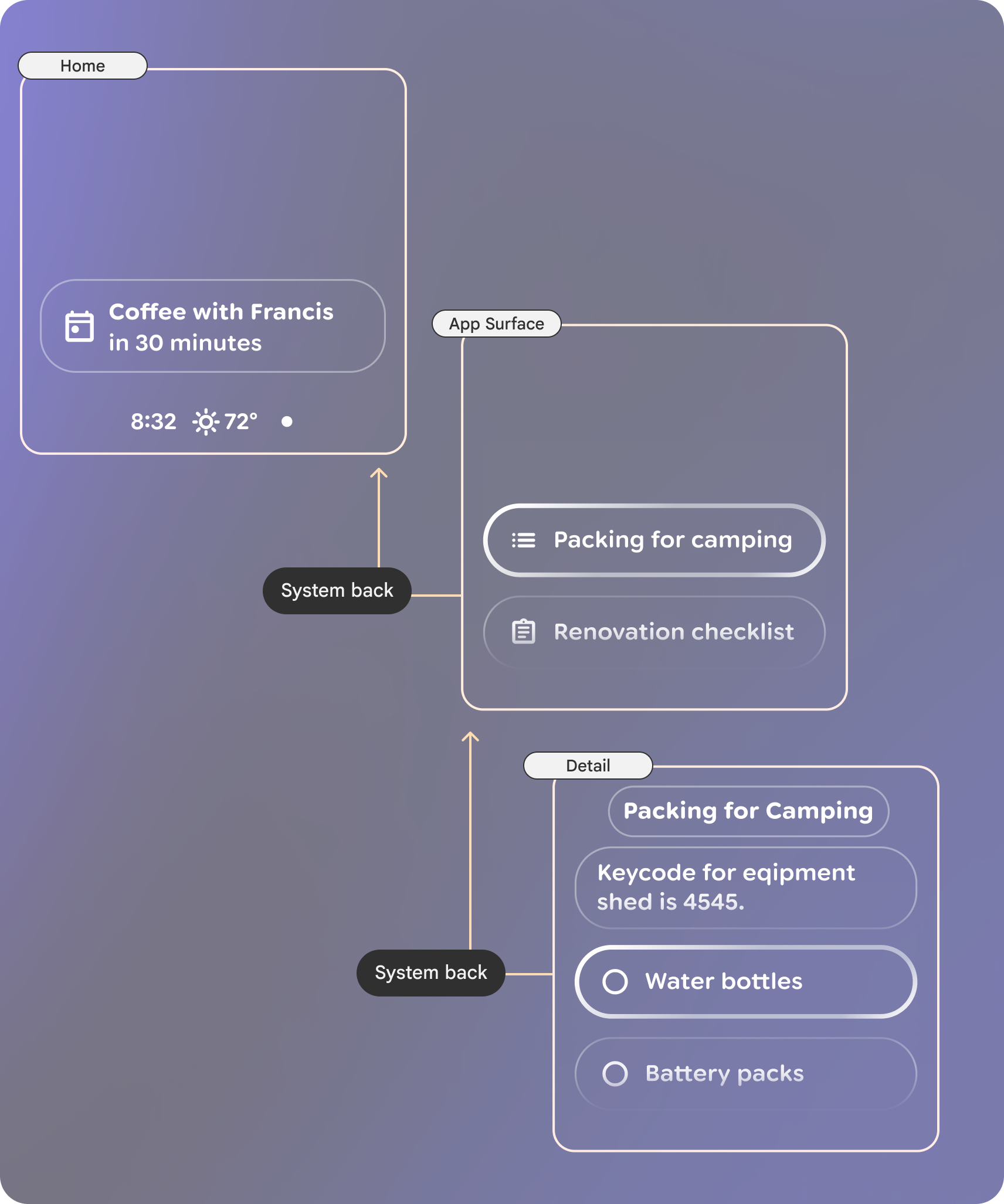
The system back gesture lets users move back a step in the app layer stack. Once on the top-most app surface, the system back will navigate to Home. Keep the levels minimal to reduce cognitive load and allow the user to navigate home quickly.
Back is handled by the system on displayless glasses, but can be customized for display. On display glasses, swiping down on the touchpad will perform a system back.
Ending your glasses activity
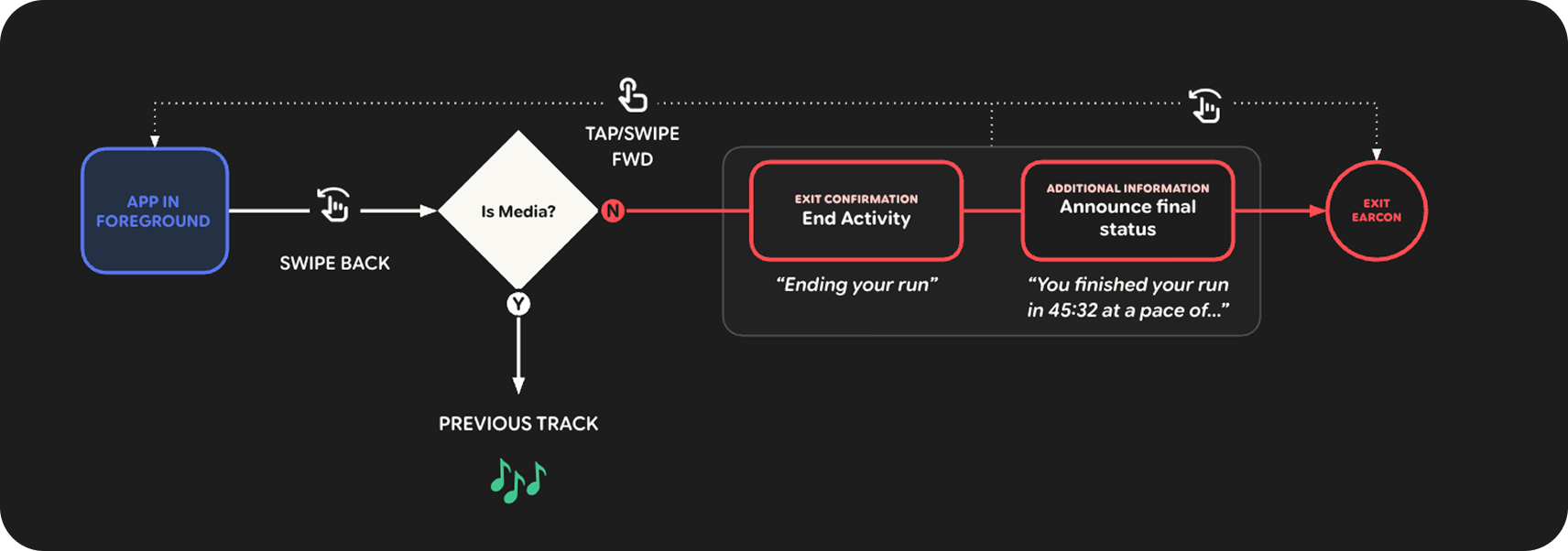
Let the user end the current activity and exit your app. Ending on swipe-back immediately is best for continuous audio streams like calls, translation, and Gemini. Consider introducing a second confirmation step for longer activities where accidentally ending the session would lose progress.
On audio glasses, use swipe-back as the method for exiting. Apps don't play a generic exit earcon; keep exit signals limited to optional, spoken activity wrap-ups.
For destructive actions like ending a call or stopping a workout, consider a secondary confirmation. For example:
- The user swipes back and the app reads out, "End hike? Go back again to confirm."
- The user swipes back again: "Hike ended. You walked 2.8 miles."
- Call exit activity when finished reading out.
On display glasses, you have much more flexibility for how to end your activity. Place a button in your interface to make a clear exit affordance.