
The Android Computer Control framework allows OEM-preloaded AI assistants to perform task automation on selected apps installed on the device ("target apps"). This guide provides an overview of the Computer Control framework and technical considerations for target apps and AI assistant apps.
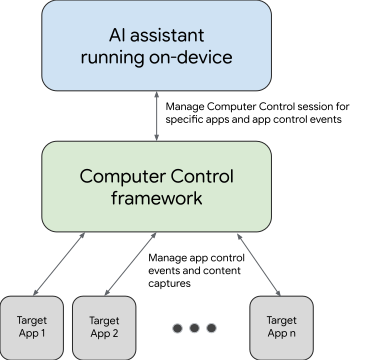
Overview of Android Computer Control
Android's Computer Control capabilities allow an OEM-preloaded assistant app to launch and interact with locally installed target apps in a controlled environment.
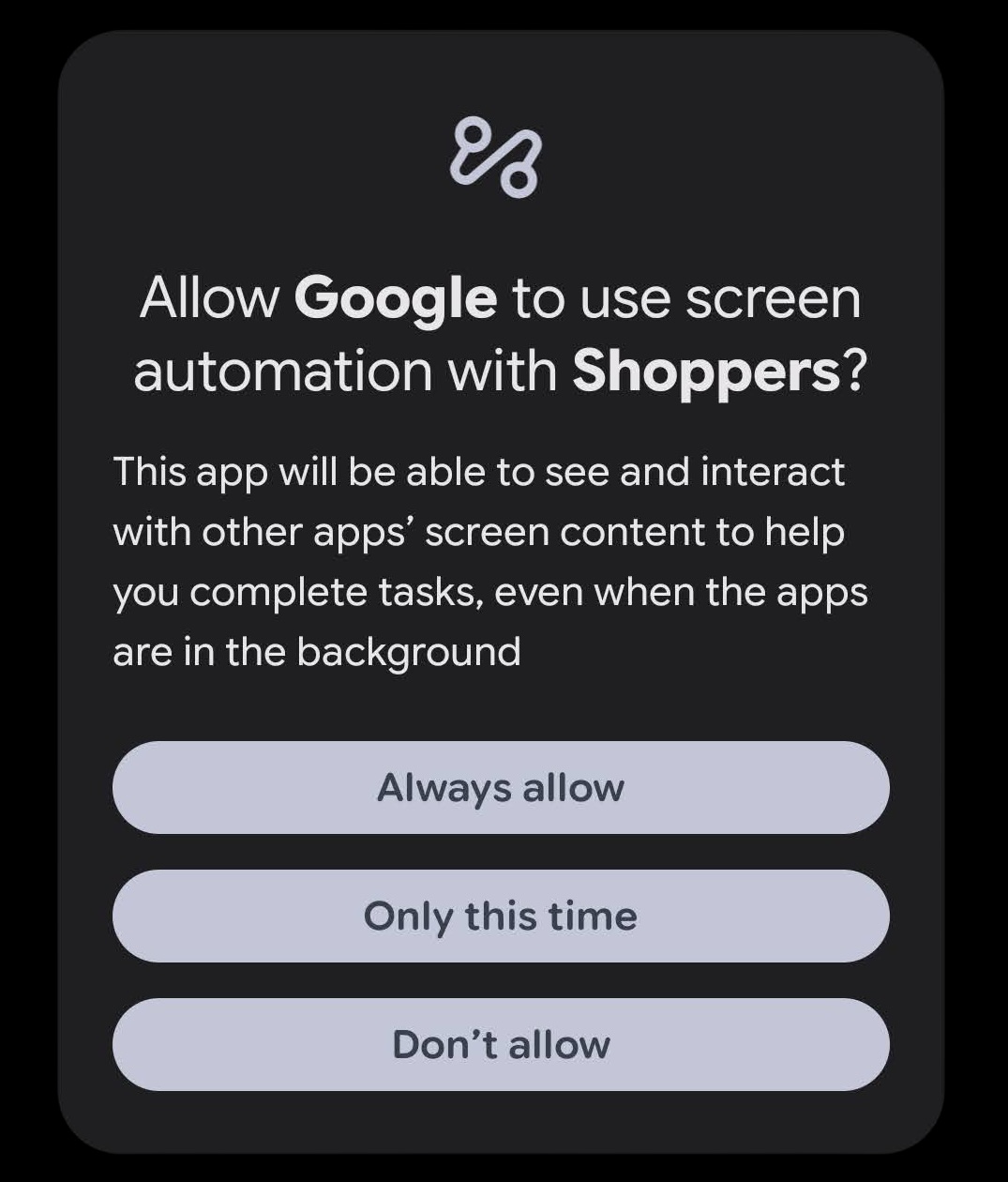
When the Computer Control framework attempts to interact with a target app for the first time, the system automatically displays a permission dialog. Upon obtaining the permission, the assistant app can perform multi-step tasks on the target app, allowing the assistant app to fulfill a user's request using the target app.
Example use cases
To perform task automation on a set of target apps installed on the device, an OEM preloaded assistant can iteratively capture screenshots of these apps, make intelligent decisions to infer actions, and apply actions to control the apps' UI. The interactions with the target apps are based on their existing local data and context.
An assistant app may be designed to complete multi-steps tasks on behalf of users. Examples of how users might use such apps include the following:
- Food ordering: "Order a small tea for pickup at my favorite cafe."
- Ride sharing: "Book a ride to the airport."
- Grocery delivery: "Reorder the groceries I bought last week."
How Computer Control works
The Computer Control framework enables OEM preloaded assistants to launch target apps in a secure background virtual display and operate them.
The typical flow is as follows:
- Request a session: An assistant app must have the privileged
ACCESS_COMPUTER_CONTROLpermission. The app can request a Computer Control session for a set of up to six target apps for sequential execution. The system allows one active session at a given time. - Obtain user permission: When an assistant app requests a session, the framework implicitly triggers a system dialog. This dialog requests the user's permission to allow the assistant to automate requested target apps.
- Automate: If the user grants permission, the system runs target apps on a virtual device, similar to casting. The assistant app uses the session to launch the target app, capture screen content, and simulate user input events including taps, swipes, and text input, to fulfill the user's request.
- Hand over control: The assistant can hand over control to the user for manual intervention or let the user manually request to take over. For example, this is useful for transaction confirmation or contents that require acknowledgements.
Become a target app for Computer Control
You don't need to make any additional changes to integrate a target app with assistant task automation through the Computer Control framework. As long as the user has granted permission, the assistant app determines how to navigate by analyzing screenshots of the target app's UI. Your target app should follow existing best practices such as adaptive design and lifecycle management.
An AI assistant may choose to limit the set of target apps it automates.
About creating an AI assistant app
OEM preloaded AI assistant app can integrate with Computer Control. The integration will follow the flow documented in the "How Computer Control works" section.