
The Restore Credentials feature within Credential Manager ensures a frictionless transition for users moving to a new device. While testing the feature, you can use either of the following approaches:
- Separate devices: Use a source device to perform the backup and a separate target device to perform the restore, or use two separate Android Studio emulators.
- Single device: Use one physical device or an Android Studio emulator. After the app backs up its data, uninstall and reinstall the app, and then perform the restore.
This guide describes how you can use Android Studio to test Restore Credentials for a debuggable app on an emulator, simulating both situations of separate devices or a single device.
Prerequisites
To use Android Studio's Backup and Restore feature to test Restore Credentials, verify the following prerequisites:
- Android Studio Otter | 2025.2.1 or higher.
- A virtual device or physical device running Android 9 (API level 28) or
higher with a Google Play system image and Google Play services version
242200000or higher (verify withadb shell dumpsys package com.google.android.gms | grep versionCode). - A Google Account signed in on the test device or emulator, with a PIN,
pattern, or password screen lock configured under Settings > Security so
cloud end-to-end encryption (E2EE) is active and
E2eeUnavailableExceptionisn't thrown. - An app built with
debuggable trueor running indebugmode. Debugging is enabled by default for emulators.
Use Android Studio's Backup and Restore feature
To test the Restore Credentials functionality using Android Studio, first back up data from a device, and then restore app data on another device. After restoring the app, the authentication state is automatically restored.
Back up authentication data in Android Studio
To test the backup flow in Android Studio, complete the following steps:
- Run your app on the emulator.
- Sign in to the app using any authentication mechanism (for example, username
and password, passkeys, or Sign in with Google) so your app calls
createCredential()withCreateRestoreCredentialRequest. - Click Backup App Data on the device options at the top of the running
device window.
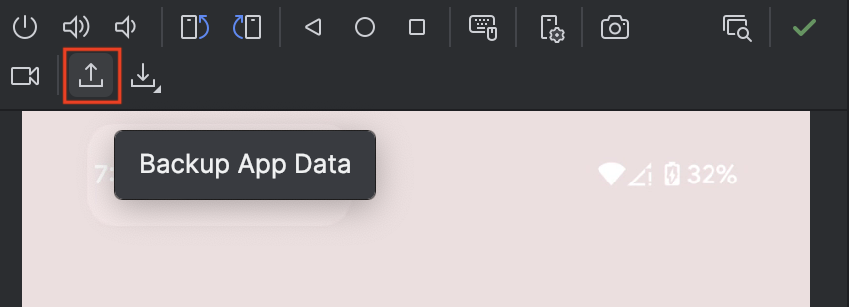
Figure 1: Backup App Data in Android Studio For Backup type, select Device to Device or Cloud.
Click OK.
Test restored authentication
After the backup is completed, either use the same device to test the restore step or use a different device.
To test the restore flow in Android Studio, complete the following steps:
To test with the same device, uninstall and reinstall the app (
adb
uninstall <package_name>
followed byadb install <path_to_apk>). This clears all local app data and the previous restore key on the device. To use it on a new device, install the app on the new device.To test Tier-1 background restoration (
BackupAgent.onRestoreFinished()) without launching theActivityfirst, open Run > Edit Configurations in Android Studio and set Launch Options > Launch to Nothing before installing. If you launch the app before running Restore App Data, you are redirected to the authentication screen because the restore key hasn't been restored to the device yet.Click Restore App data on the device options of the running device window and select the recently created backup.
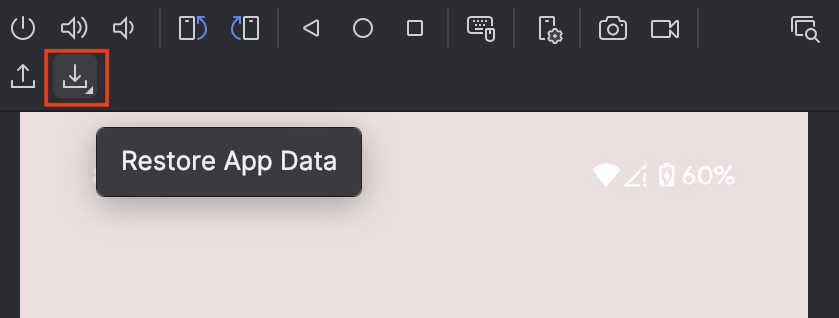
Figure 2: Restore App Data in Android Studio Inspect Logcat to confirm
BackupAgent.onRestoreFinished()retrieved theRestoreCredentialin the background, or open the app to verify that the user is signed in automatically.
Test with adb or automated JUnit 5 test suites
In addition to Android Studio's UI action, you can test backup and restore flows from the command line or in continuous integration (CI):
- Command-line testing with
bmgr: On a physical device or headless emulator, enable the backup manager (adb shell bmgr enable true), trigger a backup (adb shell bmgr backupnow <package_name>), reinstall the app, list available backup sets (adb shell bmgr list sets), and trigger a restore (adb shell bmgr restore <token> <package_name>). For full details, see Test backup and restore. - Automated JUnit 5 host tests (
androidx.test.backup): Write automated JUnit 5 tests usingBackupRestoreControllerto exercise bothBackupTransportMode.CLOUD_ENCRYPTEDandBackupTransportMode.DEVICE_TO_DEVICEacross one or two connected devices. For setup instructions and sample tests, see Automated backup and restore testing.