Android brings a desktop experience to users across a wide variety of form factors and use cases. Learn more about desktop experience across form factors.
Phones and foldable devices
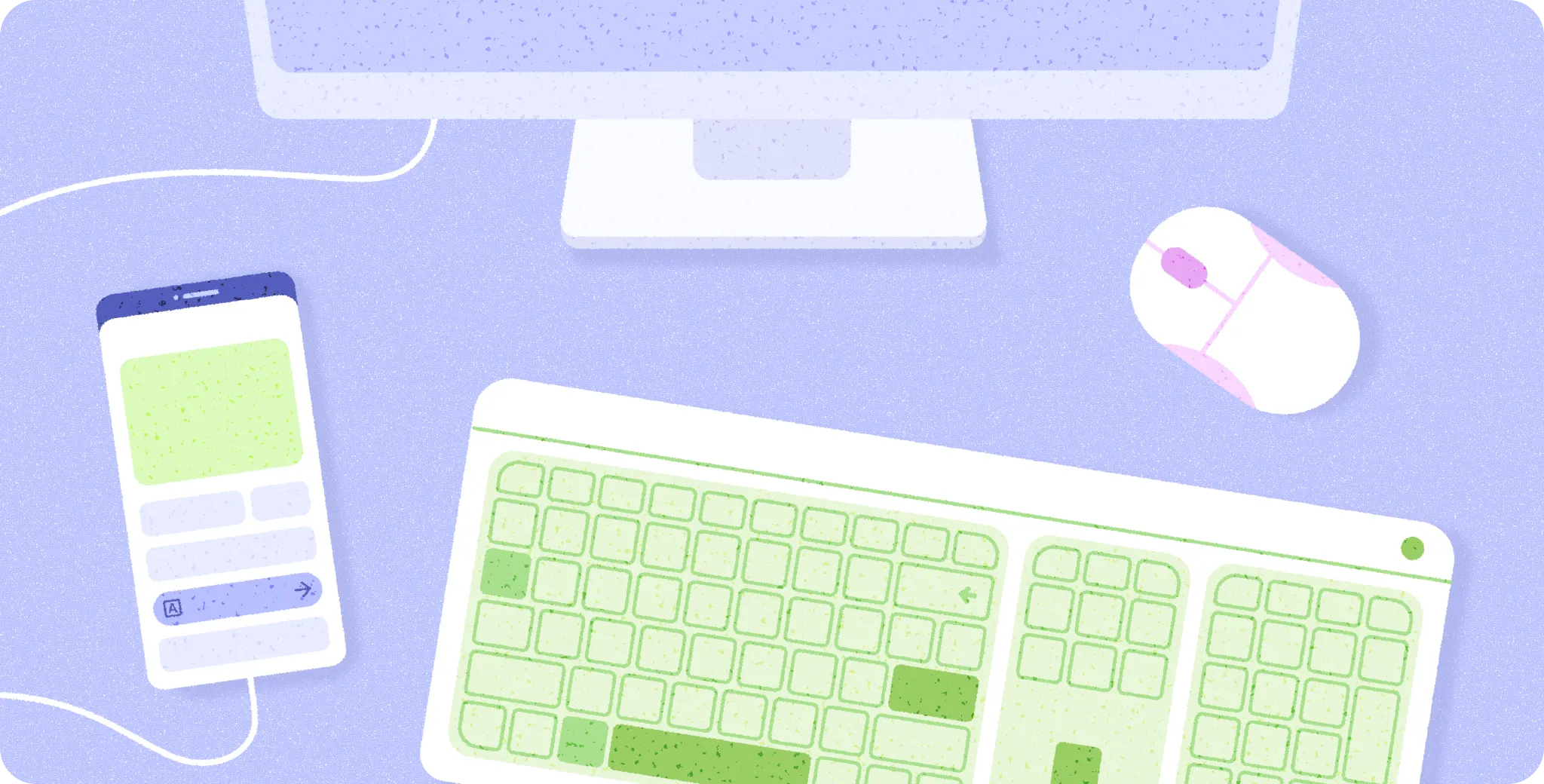
With a connected display, users can set up a desktop experience by connecting an external monitor, a pointer device like a mouse or touchpad, and a physical keyboard. They can continue to interact with the mobile device's display using touch gestures. On the connected display, they can launch apps in free-form windows and interact with the UI using their connected pointer devices and physical keyboard.
Tablets
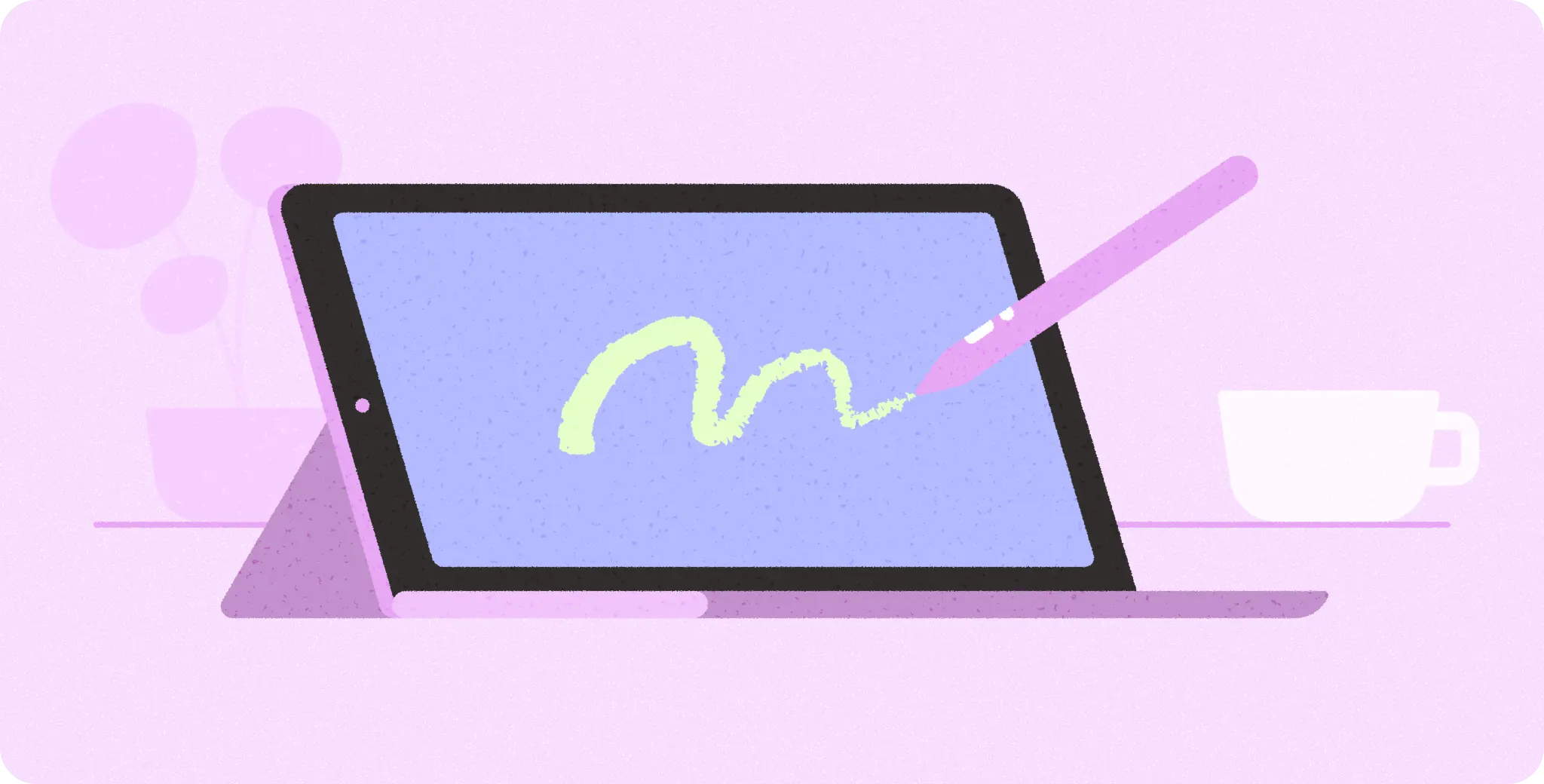
Users can similarly set up a desktop experience with tablets. They can use a folio that comes with a physical keyboard and a touchpad to have a more portable experience. Additionally, when using an external display, both the tablet and connected displays can be used in desktop mode, allowing users to drag windows freely between the displays.
Chromebooks
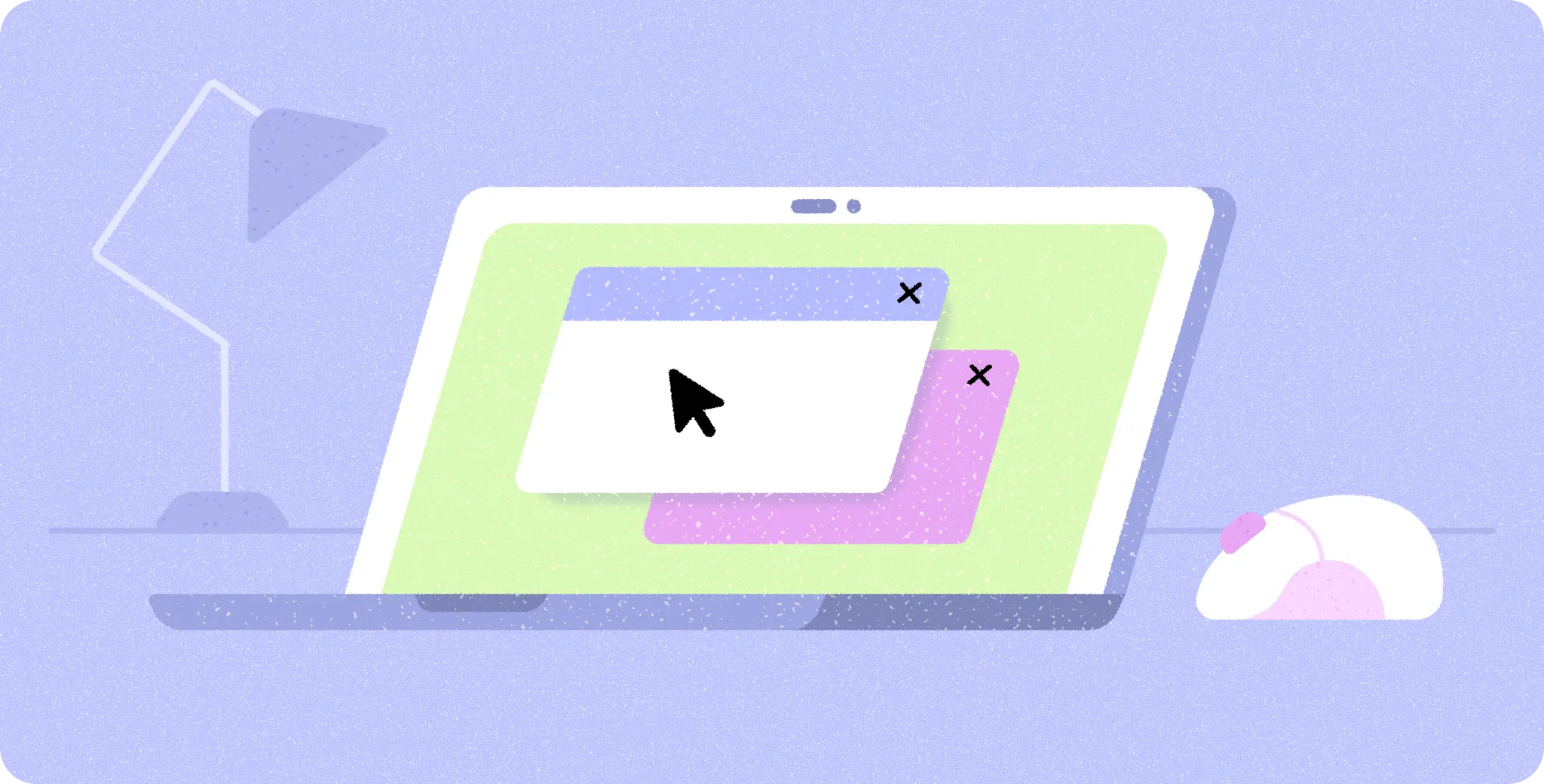
The integrated keyboard and touchpad of a Chromebook let users access your application within a default desktop environment. Some Chromebook models include a touchscreen or stylus support, and others can transition into a tablet mode, offering users a diverse range of input methods for interacting with your application.
XR
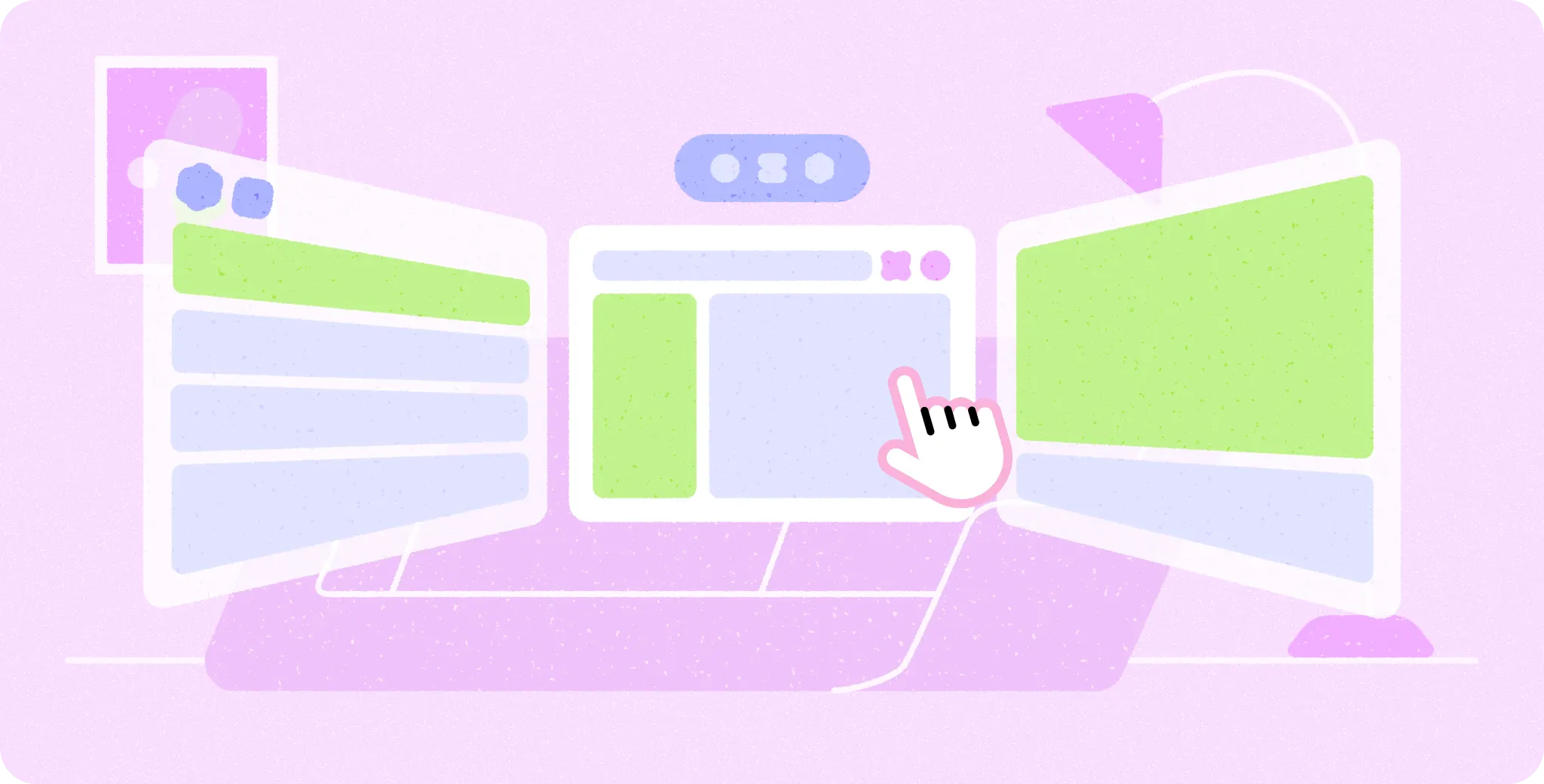
Apps within the Android XR Home Space operate side-by-side and support flexible resizing. Although eye and hand tracking serve as the fundamental input modes for XR, users can achieve a desktop-like experience by connecting keyboards and pointer devices. Compared to a typical desktop experience, XR offers an expansive environment where apps can be positioned freely around users at varying depths.