


Your Android Studio project encompasses all the files and necessary configurations for developing an Android XR app with the Jetpack XR SDK. This includes source code, assets, test code, and build configurations.
If you're adding XR experiences to an existing app:
- Open your existing Android Studio project in the latest Canary build of Android Studio.
- Set up the Jetpack XR SDK.
- See the following topics for more information, depending on what types of
experiences you're trying to build:
- Building immersive experiences: If you're spatializing an existing app for XR headsets and XR glasses, see Bring your Android app into 3D with XR for more information.
- Building augmented experiences: If you're extending your mobile app to audio glasses or display glasses, see Start building for audio glasses and display glasses to get started.
Create a new project
If you want to start a new Android XR project in Android Studio, follow these steps:
Open Android Studio.
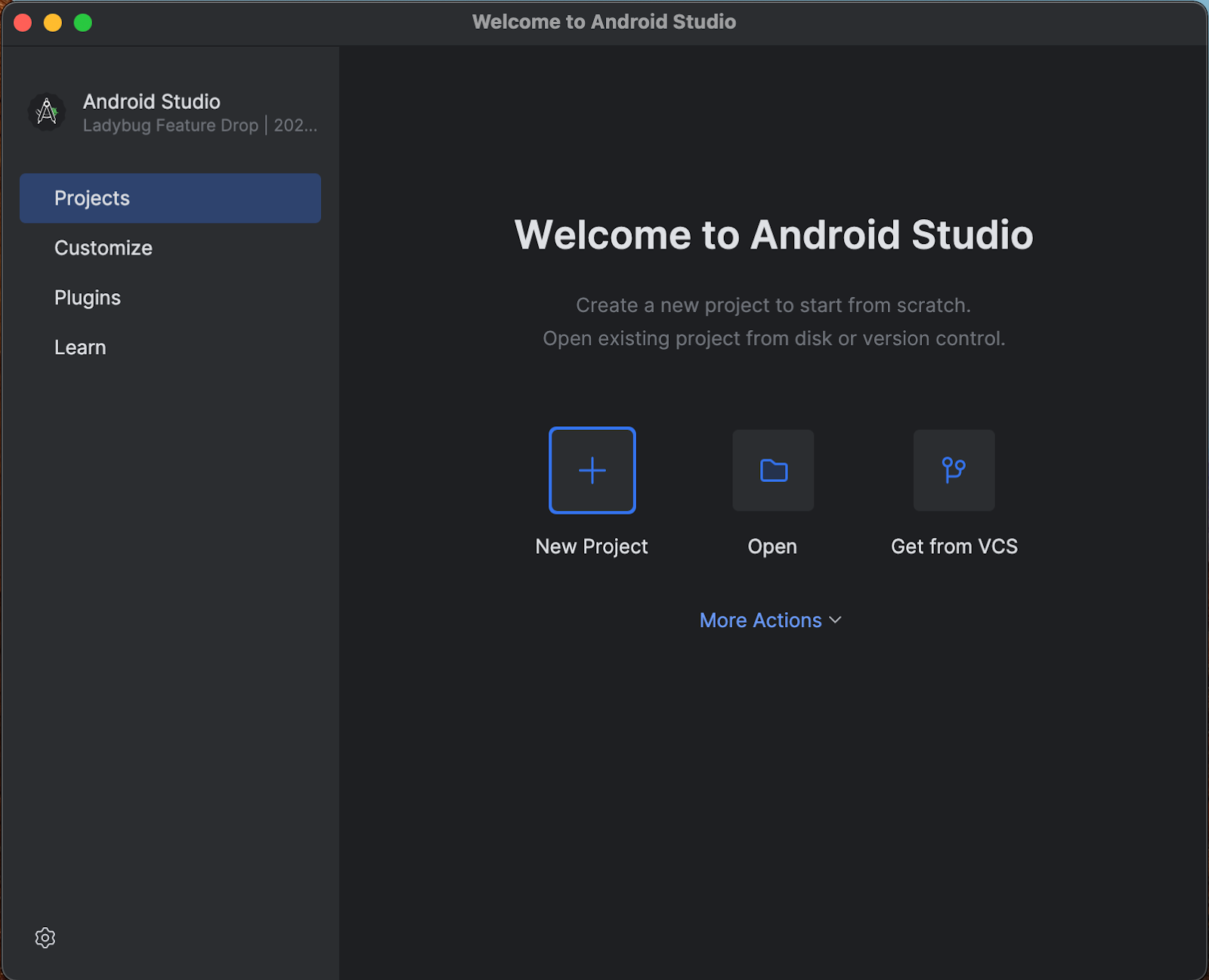
- If you see the Welcome to Android Studio window, click New Project.
- If Android Studio reopened an existing project, select File > New > New Project from the menu bar.
From the list of Templates, select XR, and then choose the template that corresponds to the type of XR device you want to build for.
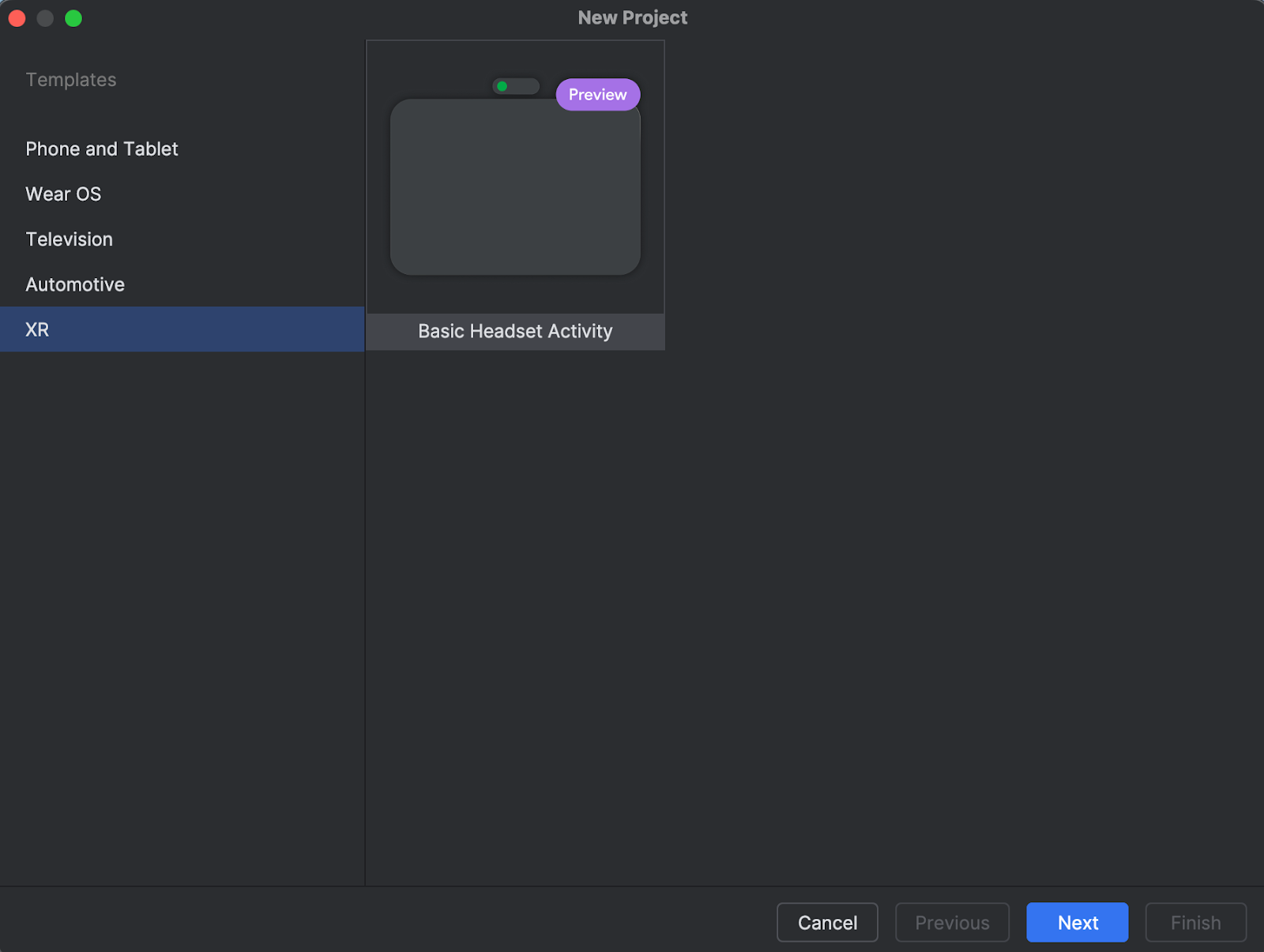
Click Next.
Choose a name for your project, and then click Finish.
Next steps
Explore the code provided in the template, set up the Jetpack XR SDK, and check out the documentation for building immersive experiences for XR headsets and XR glasses, and the documentation for building augmented experiences for audio glasses and display glasses.