


Before customizing a 3D model, you first need to add it into your app. After you've added a 3D model to your app, you can enhance the visual and interactive experience by customizing how the 3D model looks and moves.
For example, you can play and control embedded glTF animations, access and move nodes that make up your model, or even load custom textures and define material properties to override internal meshes. These capabilities let you dynamically alter an object's appearance and behavior at runtime.
3D objects in Android XR
The Jetpack XR SDK supports the glTF 2.0 open standard by Khronos Group for 3D models and renders these objects with physically based rendering (PBR) techniques specified in the glTF 2.0 standard (along with supported extensions). A glTF (Graphics Library Transmission Format) is a standard file format for transmitting and loading 3D scenes and models. A glTF model is composed of a hierarchical structure of internal components.
Here are the key components to understand:
- Nodes: These define the structure and hierarchy of the model. Each node can have its own position, rotation, and scale.
- Meshes: The structural, 3D geometry that forms the shape of a 3D object.
- Materials: These define the visual appearance of the meshes, such as their color, roughness, or how they react to lighting.
- Textures: An image asset, such as a PNG file, that you can apply to the surface of a 3D model to create custom patterns, color, detail, or other visual effects.
In Jetpack Compose for XR, you render these files using SpatialGltfModel
and track its loading status using a SpatialGltfModelState.
For more information, see Add 3D models to your app.
Manipulate Nodes: Poses and Rotation
To manipulate specific parts of a model and change its properties like rotation
or pose, you'll need to query the internal nodes of the glTF model using
SpatialGltfModelState.
// Retrieve the list of nodes (individual components/meshes) defined within the glTF model. val entityNodes = modelState.nodes // Find a specific node by name to apply modifications, such as material overrides. val node = entityNodes.find { it.name == "node_name" }
After you find the correct node, you can set its localPose to change its 3D
position and rotation relative to its immediate parent GltfModelNode or
use modelPose to set the position relative to the
GltfModelEntity root. Similarly, you can use localScale/modelScale to
change the scale of the model relative to its parent or root.
LaunchedEffect(node, degrees) { val rotation = Quaternion.fromEulerAngles(degrees, 0f, degrees) node?.let { it.localPose = Pose(it.localPose.translation, rotation) } }
Customize the material properties of your 3D model
You can adjust material attributes during runtime to change an object's appearance dynamically based on user input or the current state of the app.
In Jetpack XR, the KhronosPbrMaterial and KhronosUnlitMaterial
classes are used to create and manipulate these materials. As the name implies,
KhronosUnlitMaterials are unlit and not impacted by scene lighting.
KhronosPbrMaterial lets you customize a wider range of properties, such
as sheen color, how metallic or rough an object is, and whether it emits light.
For more information about each supported property and the customizable parameters in Android XR, see our reference documentation. To better understand these properties, see the Khronos glossary.
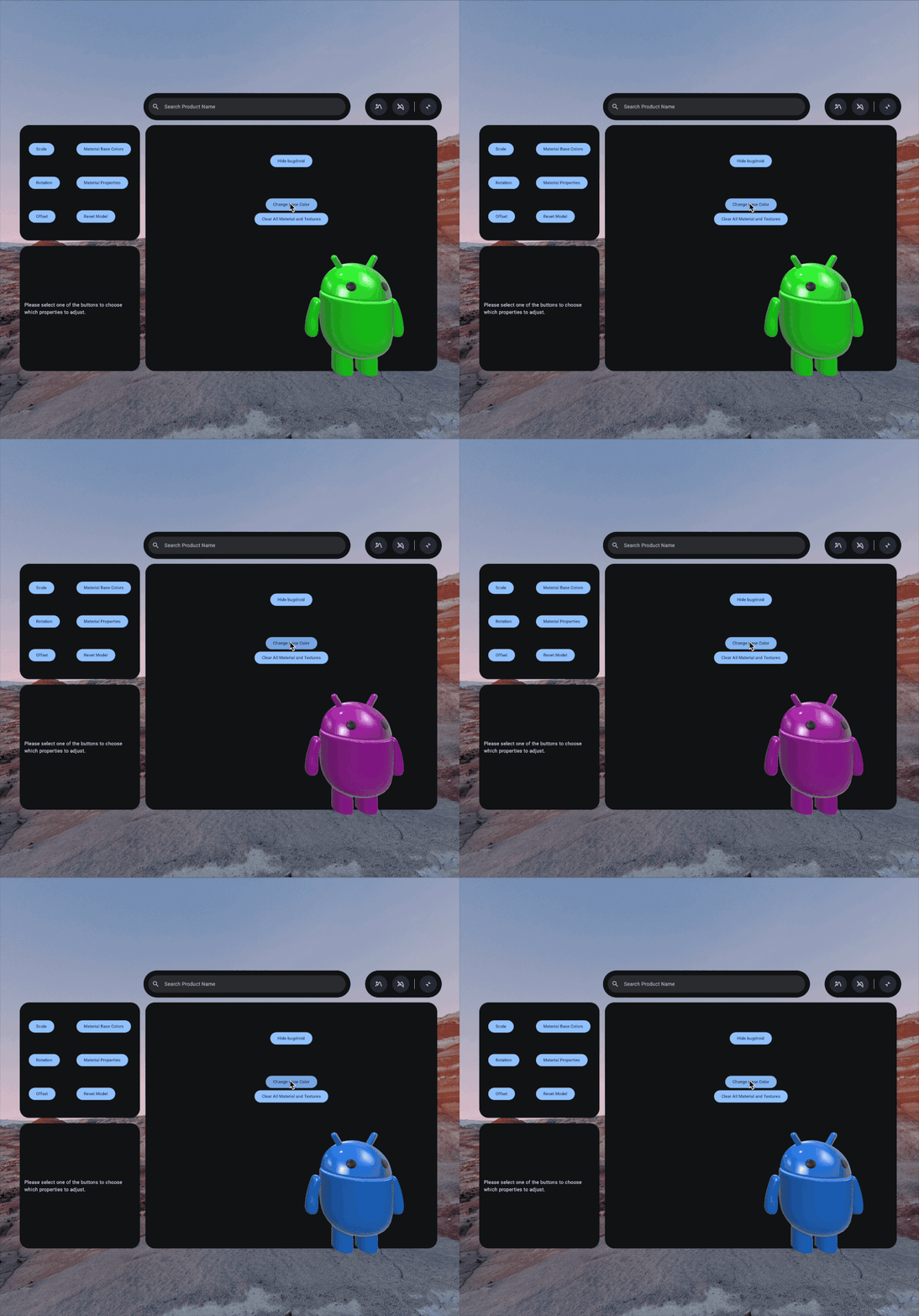
To customize the material properties of your 3D model, first you'll create the
new material using KhronosPbrMaterial. You'll need to set the
appropriate AlphaMode for the visual appearance you are trying to
achieve:
Next, define the properties you want to modify. This example uses
setBaseColorFactor to change the base color of the mesh to purple. This
method requires a Vector4, where the x, y, z, and w components correspond
to the RGBA (Red, Green, Blue, and Alpha) values respectively:
// Maintain a reference to the custom material to avoid re-creating it on every recomposition. var pbrMaterial by remember { mutableStateOf<KhronosPbrMaterial?>(null) } // Create and apply the custom material once the session is ready and the target node is available. LaunchedEffect(node) { val material = KhronosPbrMaterial.create( session = xrSession, alphaMode = AlphaMode.OPAQUE ).also { pbrMaterial = it // Apply a base color factor (RGBA) to change the color of the model. it.setBaseColorFactor( Vector4( x = 0.5f, y = 0.0f, z = 0.5f, w = 1.0f ) ) }
Load custom textures for your 3D model
A Texture is an image asset that you can apply to the surface of a 3D
model to provide color, detail, or other surface information. The Jetpack XR
Texture API lets you load image data, such as PNG files, from your app's
/assets/ folder asynchronously.
When loading a texture, you can specify a TextureSampler, which controls
how the texture is rendered. The sampler defines filtering properties (for when
the texture appears smaller or larger than its original size) and wrapping modes
(for handling coordinates outside the standard [0, 1] range). A Texture must
be assigned to a KhronosPbrMaterial to have a visual effect on a 3D
model.
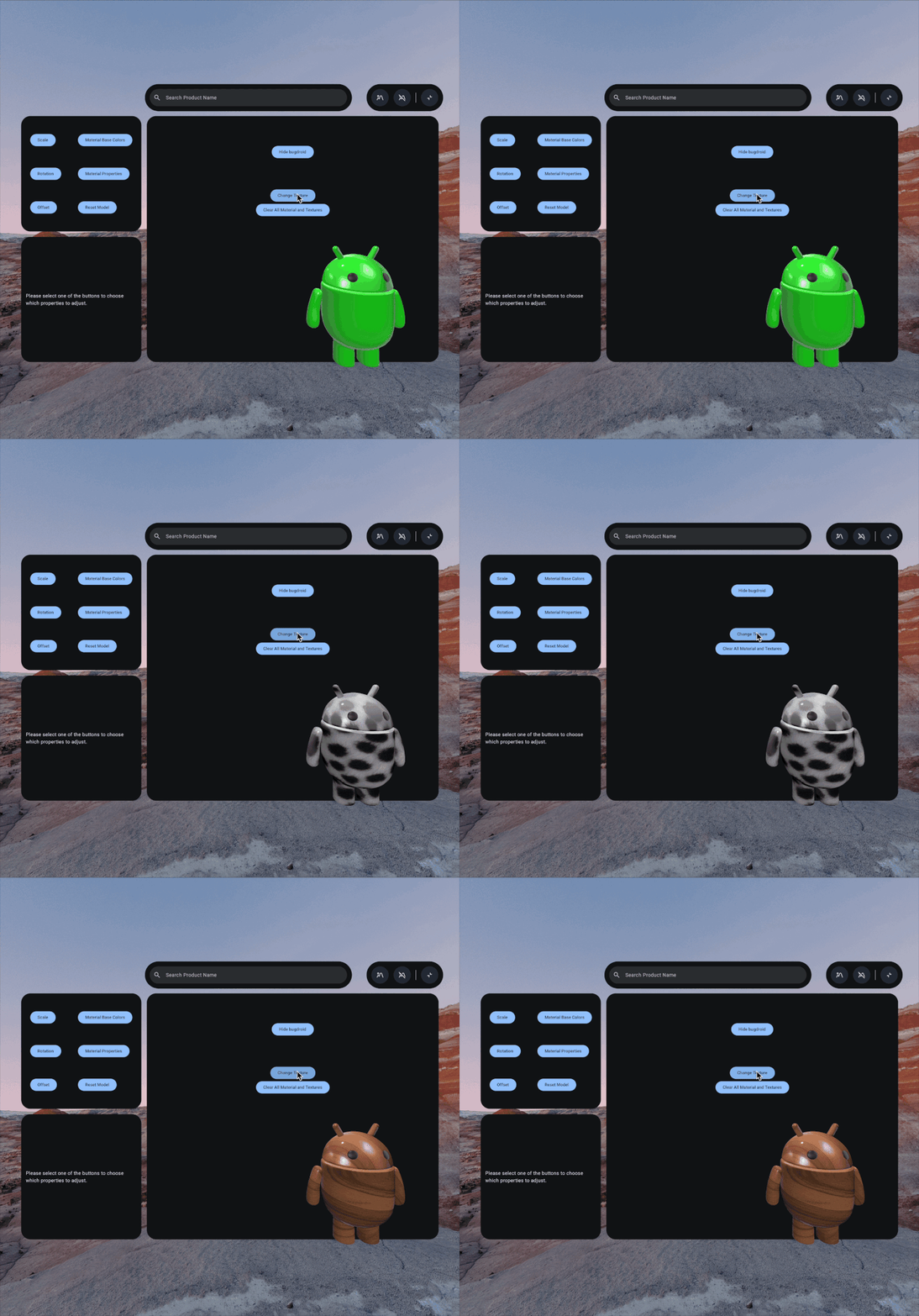
To load a custom texture, first you'll need to save the image file to your
/assets/ folder. As a best practice, you might want to create a textures
subdirectory in that folder as well.
After you've saved the file in the appropriate directory, create the texture
with the Texture API. This is also where you would apply an optional
TextureSampler if needed.
This example applies an occlusion texture and sets the occlusion strength:
LaunchedEffect(node) { val material = KhronosPbrMaterial.create( session = xrSession, alphaMode = AlphaMode.OPAQUE ).also { pbrMaterial = it // Load a texture val texture = Texture.create( session = xrSession, path = Path("textures/texture_name.png") ) // Set the texture and configure occlusion to define how the material surface handles ambient lighting. it.setOcclusionTexture( texture = texture, strength = 1.0f ) } node?.setMaterialOverride( material = material ) }
Apply materials and textures to your 3D objects
To apply the new material or texture, override the existing material for a
specific node on your glTF node. Do this by calling
setMaterialOverride:
node?.setMaterialOverride( material = material )
To remove the newly-created materials, call clearMaterialOverride on the
previously overridden node. This returns your 3D Model to its default
state:
if (removeMaterial) { node?.clearMaterialOverride() }
Animate 3D models
3D models can have embedded animations. Internally, animations use
samplers to define the timing and values of a movement, and
channels to connect those movements to individual nodes and
meshes. Skeletal animations and material animations created with the
KHR_animation_pointer glTF extension are
supported in the Jetpack XR SDK.
Animations can only be controlled using SceneCore's GltfAnimation with
a GltfModelEntity. To add this entity to a Compose for XR layout,
you'll need to use a SceneCoreEntity instead of a SpatialGltfModel.
Specify the name of the specific track from
the list of animations in your GltfModelEntity. Use
GltfAnimationStartOptions to control the animation playback. Optionally,
you can specify the speed, the seek time, and whether the animation
should loop:
val animation = gltfEntity.getAnimations().find { it.name == "Walk" } ?: return animation.start(GltfAnimationStartOptions(shouldLoop = true))
glTF and the glTF logo are trademarks of the Khronos Group Inc.