
The following are new features in Android Studio Panda 2.
Custom View Preview deprecation
We are deprecating the Custom View Preview feature in the coming releases.
As the Android ecosystem shifts toward Jetpack Compose, building custom UI components has become significantly more efficient and intuitive. Compose includes a powerful, built-in @Preview system that provides a superior workflow for developing custom UI elements compared to the legacy XML-based approach.
By deprecating the Custom View Preview, we are able to focus our resources on enhancing the preview experience within the Compose ecosystem while providing a leaner, more performant IDE.
Create a new project with AI
Use the power of generative AI to accelerate your Android development workflow. Starting with Android Studio Panda 2, the AI agent enables you go from idea to app prototype in minutes.
The agent is capable of generating a variety of multiscreen applications:
- Single-screen apps: Build basic apps with static UI layouts.
- Multipage apps: Create applications with basic navigation between screens.
- AI-enhanced apps: Integrate Gemini APIs to add generative AI features.
- Apps with public API integration: Build apps that display data from public APIs.
To use the project setup agent, do the following:
- Start Android Studio.
Select New Project on the Welcome to Android Studio screen (or File > New > New Project from within a project).
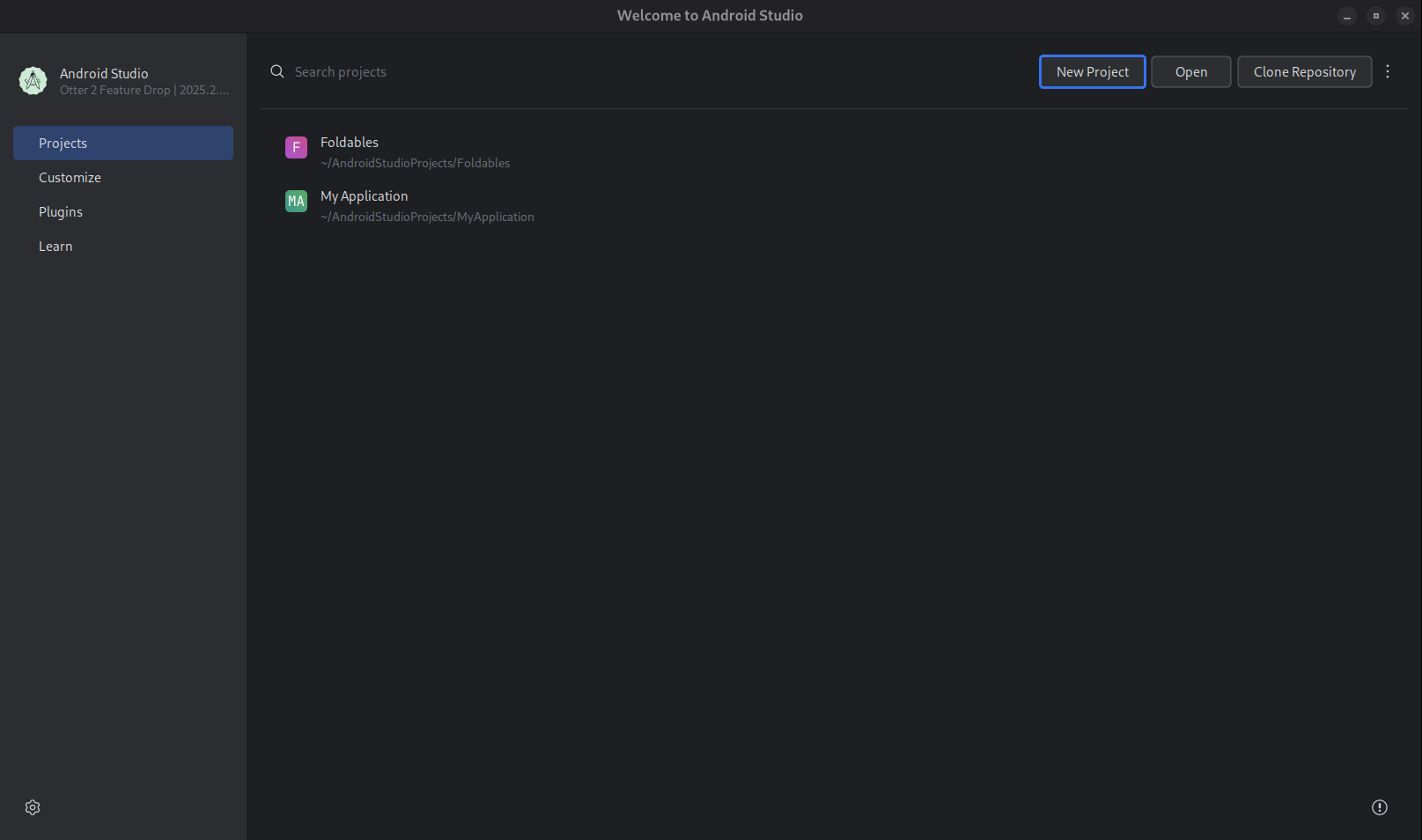
Start a new project. Select Create with AI.
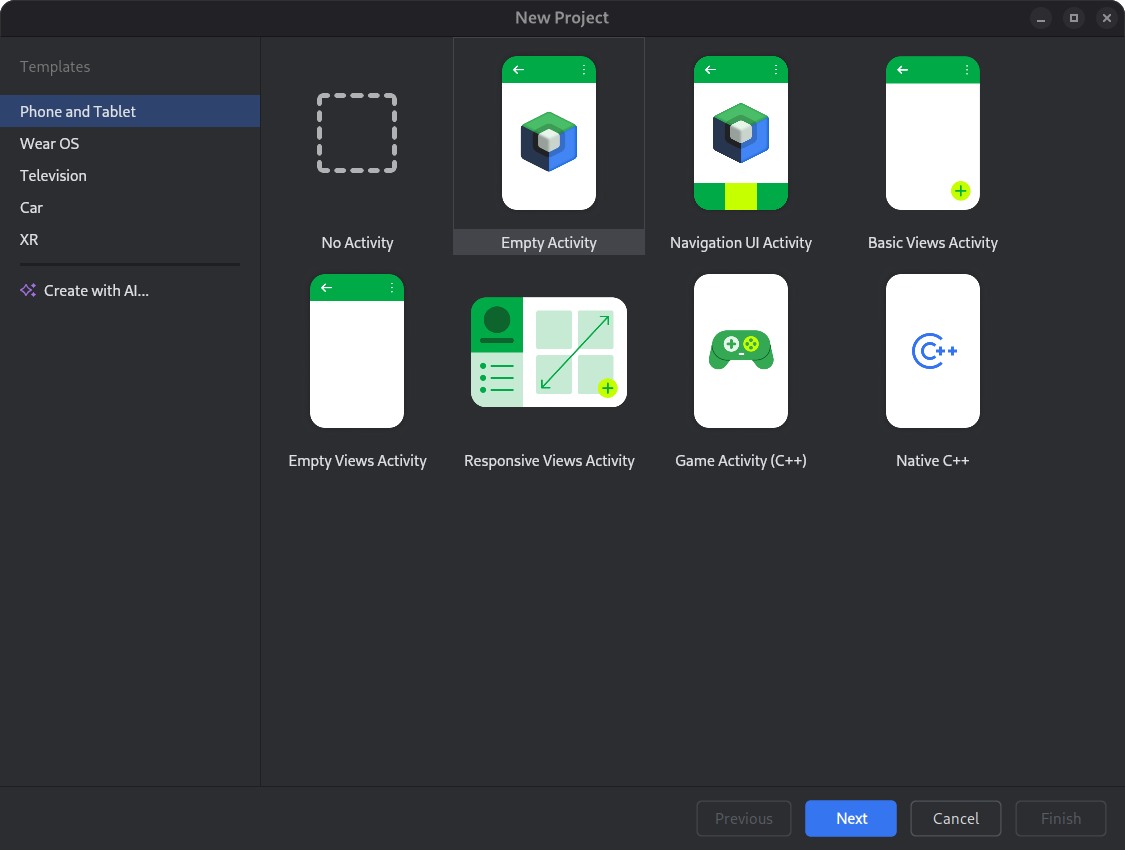
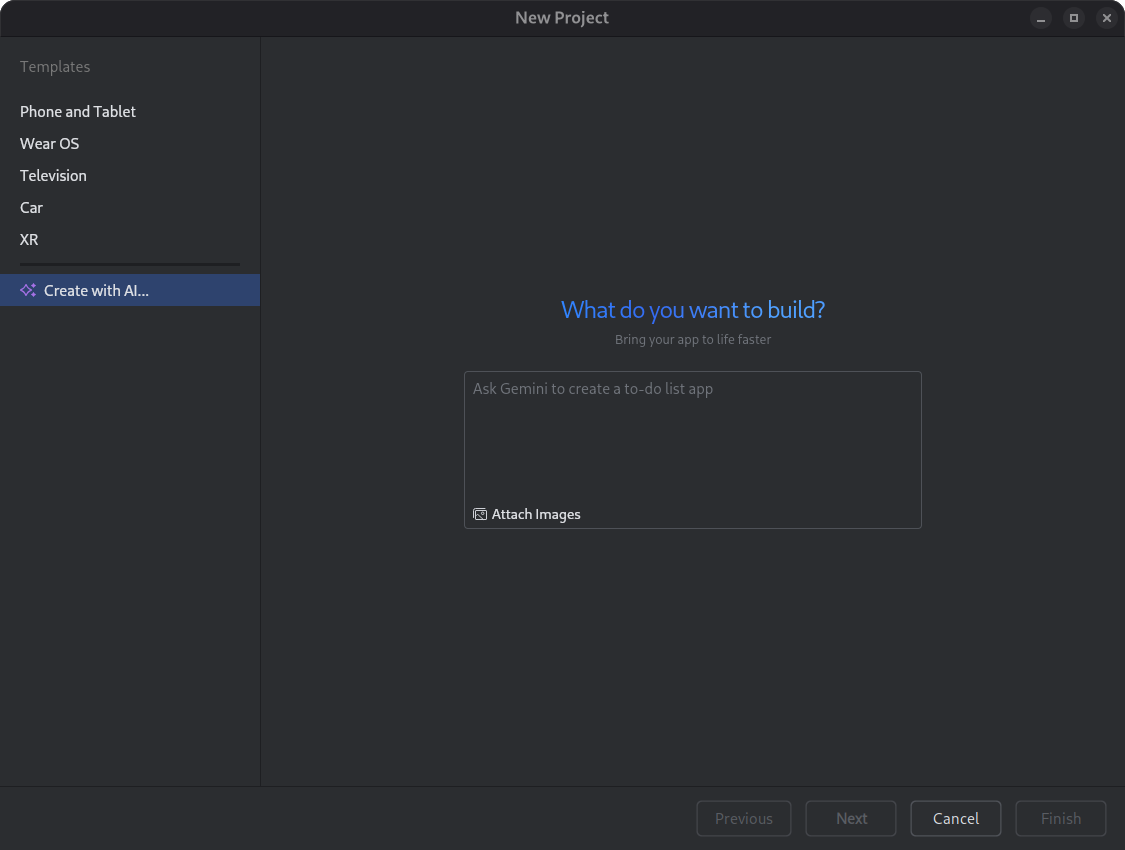
Select a project template or create your app with Gemini. Type your prompt into the text entry field and click Next.
Dialog for setting up a new project. Name your app and click Finish to start the generation process.
Based on your prompt, Gemini in Android Studio generates a structured plan for your app. Once you approve the plan, the agent begins an autonomous generation loop to configure and build your app.
Update dependencies with the AI agent
Upgrading dependencies can be a complex and time-consuming task. Starting with Android Studio Otter 1 Canary 5, the AI agent automates and simplifies the dependency upgrade process, eliminating tedious work and improving project maintainability. With just a few clicks, you can seamlessly upgrade all your dependencies and get the benefits of the latest versions, so you can focus on building high-quality apps.
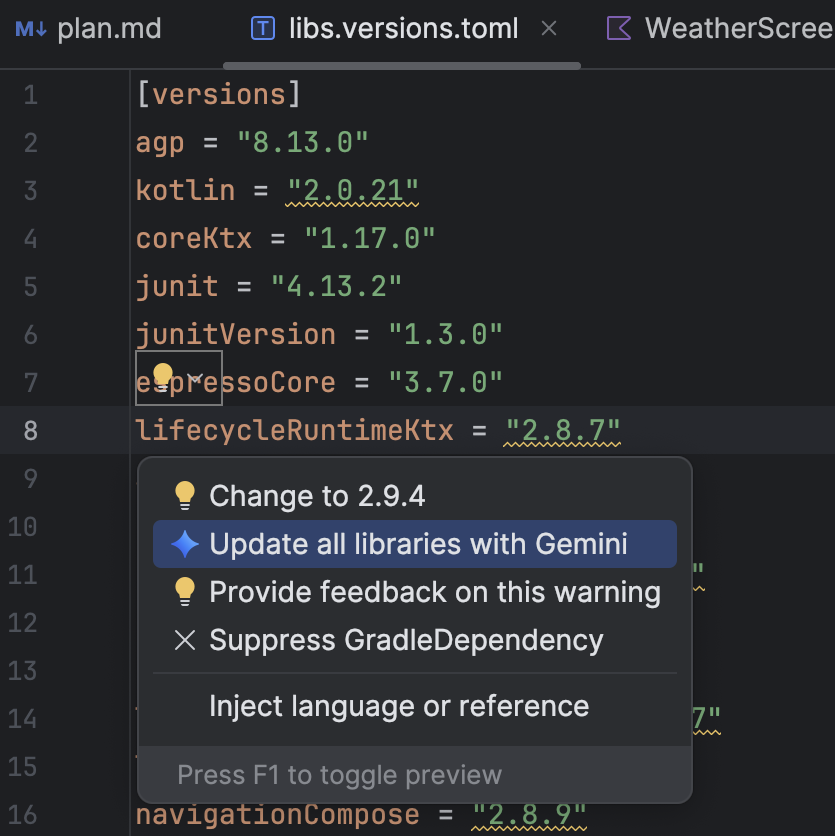
To update dependencies using the AI agent, do one of the following:
- Click Refactor (or right-click in the editor or project view) > Update dependencies.
In the
libs.versions.tomlfile, hover over a version that is underlined, click the Show Context Actions menu that appears, and then click Update all libraries with Gemini.
During the process, the agent provides a high-level overview of its upgrade plan so you can monitor progress step by step and review all changes before applying them. The agent iterates through the build process, resolving any build errors that arise from the upgrades. You can review, accept, or rollback changes or stop the agent at any point.
Monochrome icon support in Asset Studio
Android Studio Narwhal Feature Drop 2025.1.3 Canary 2 and higher simplify the creation of themed app icons. With Android 13 (API level 33) and higher, users can opt for themed app icons, which adapt to the wallpaper and theme of the user's device.
To support this feature, Android Studio integrates a new monochrome icon option directly into the Image Asset Studio wizard. When you're creating an adaptive app icon, you now see a dedicated Monochrome tab in addition to the existing Foreground and Background tabs. You can either provide a separate monochrome app icon (see the design specs), or allow Android Studio to default to reusing the foreground layer of the adaptive icon for the monochrome layer.
You can access Image Asset Studio through the Resource Manager, or by right-clicking a project directory and navigating to New > Image Asset.
Select Launcher icons (Adaptive and Legacy) as the icon type to see the new Monochrome tab.
After importing the icons, you can preview your themed app icons.

Layout Inspector 3D mode deprecation
In Android Studio Panda 2, we deprecated the 3D Mode feature in the Layout Inspector. While 3D Mode provided a way to visualize deep hierarchies, usage data indicates that the standard 2D view and Component Tree meet the vast majority of debugging needs. By removing this feature, we can direct our resources toward improving the overall support, performance, and stability of the Layout Inspector. You can continue to inspect view nesting and z-ordering using the Component Tree and the standard 2D layout view.