

使用者喜歡圖片、影片和其他生動的內容,但在應用程式中插入及移動這類內容並不容易。為了讓應用程式接收多媒體內容變得更簡單,Android 12 版 (API 級別 31) 導入了統合式 API,讓您的應用程式能夠接受任何來源的內容:剪貼簿、鍵盤或拖曳。
您可以將 OnReceiveContentListener 等介面附加至 UI 元件,並在透過任何機制插入內容時接收回呼。回呼會成為程式碼的單一位置,處理接收從純文字和樣式化文字到標記、圖片、影片、音訊檔案等所有內容。
為了回溯與先前的 Android 版本相容,這個 API 也適用於 AndroidX (從 Core 1.7 和 Appcompat 1.4 開始),我們建議您在導入這項功能時使用這個 API。
總覽
與其他現有的 API 不同,每個使用者介面機制 (例如觸控並按住選單或拖曳) 都各有專屬對應的 API。這表示您必須分別整合每個 API,針對插入內容的每個機制新增類似的程式碼:
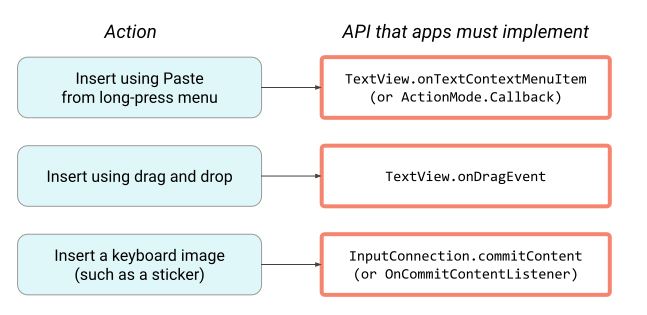
OnReceiveContentListener API 會建立用於導入的單一 API 來整合這些不同程式碼的路徑,以便您可以專心處理應用程式的專屬邏輯,讓平台處理其餘的工作:
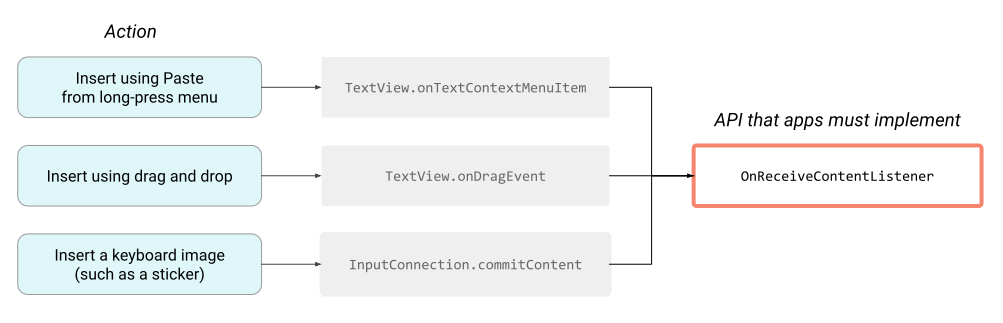
此外,如果平台新增了插入內容的方式,您也不需要進行額外的程式碼變更,即可在應用程式中啟用支援功能。如果應用程式需要針對特定用途實作完整自訂功能,您仍可使用現有 API,這些 API 的運作方式不會改變。
導入作業
API 是具有單一方法 OnReceiveContentListener 的事件監聽器介面。如要支援較舊版本的 Android 平台,建議您使用 AndroidX Core 程式庫中比對符合的 OnReceiveContentListener 介面。
如要使用這個 API,請指定應用程式可處理的內容類型,然後導入事件監聽器:
Kotlin
object MyReceiver : OnReceiveContentListener {
    val MIME_TYPES = arrayOf("image/*", "video/*")

    // ...

    override fun onReceiveContent(view: View, payload: ContentInfoCompat): ContentInfoCompat? {
        TODO("Not yet implemented")
    }
}
Java
public class MyReceiver implements OnReceiveContentListener {
     public static final String[] MIME_TYPES = new String[] {"image/*", "video/*"};
     // ...
}
指定應用程式支援的所有內容 MIME 類型後,再導入事件監聽器的其餘部分:
Kotlin
class MyReceiver : OnReceiveContentListener {
    override fun onReceiveContent(view: View, contentInfo: ContentInfoCompat): ContentInfoCompat {
        val split = contentInfo.partition { item: ClipData.Item -> item.uri != null }
        val uriContent = split.first
        val remaining = split.second
        if (uriContent != null) {
            // App-specific logic to handle the URI(s) in uriContent.
        }
        // Return anything that your app didn't handle. This preserves the
        // default platform behavior for text and anything else that you aren't
        // implementing custom handling for.
        return remaining
    }

    companion object {
        val MIME_TYPES = arrayOf("image/*", "video/*")
    }
}
Java
 public class MyReceiver implements OnReceiveContentListener {
     public static final String[] MIME_TYPES = new String[] {"image/*", "video/*"};

     @Override
     public ContentInfoCompat onReceiveContent(View view, ContentInfoCompat contentInfo) {
         Pair<ContentInfoCompat, ContentInfoCompat> split = contentInfo.partition(
                 item -> item.getUri() != null);
         ContentInfo uriContent = split.first;
         ContentInfo remaining = split.second;
         if (uriContent != null) {
             // App-specific logic to handle the URI(s) in uriContent.
         }
         // Return anything that your app didn't handle. This preserves the
         // default platform behavior for text and anything else that you aren't
         // implementing custom handling for.
         return remaining;
     }
 }
如果您的應用程式已支援與 Intent 共用資料,您可以重複使用應用程式指定的邏輯來處理內容 URI。傳回任何其餘資料,委派給平台進行資料處理。
導入事件監聽器後,請將其設定在應用程式中的適當 UI 元素上:
Kotlin
class MyActivity : Activity() {
    public override fun onCreate(savedInstanceState: Bundle?) {
        super.onCreate(savedInstanceState)
        // ...
        val myInput = findViewById(R.id.my_input)
        ViewCompat.setOnReceiveContentListener(myInput, MyReceiver.MIME_TYPES, MyReceiver())
    }
}
Java
public class MyActivity extends Activity {
     @Override
     public void onCreate(Bundle savedInstanceState) {
         // ...

         AppCompatEditText myInput = findViewById(R.id.my_input);
         ViewCompat.setOnReceiveContentListener(myInput, MyReceiver.MIME_TYPES, new MyReceiver());
     }
}
URI 權限
對於傳遞至 OnReceiveContentListener 酬載中的任何內容 URI,平台會自動授予及撤銷讀取權限。
通常,您的應用程式會在服務或活動中處理內容 URI。對於長時間執行的處理工作,請使用 WorkManager。導入這個元件時,應使用 Intent.setClipData 傳遞內容,並 設定 旗標 FLAG_GRANT_READ_URI_PERMISSION,以便將權限擴展到目標服務或活動。
或者,您也可以透過目前的結構定義,使用背景執行緒來處理內容。在這種情況下,您必須維護事件監聽器所收到的 payload 物件參照,以確保平台不會提早撤銷權限。
自訂檢視畫面
如果您的應用程式使用自訂 View 子類別,請務必注意,系統並未略過 OnReceiveContentListener。
如果 View 類別覆寫 onCreateInputConnection 方法,請使用 Jetpack API InputConnectionCompat.createWrapper 設定 InputConnection。
如果 View 類別會覆寫 onTextContextMenuItem 方法,請在選單項目為 R.id.paste 或 R.id.pasteAsPlainText 時委派給超級類別。
與鍵盤圖片 API 比較
您可以將 OnReceiveContentListener API 想成是現有 鍵盤映像檔 API 的下一個版本。這個統合式 API 支援鍵盤映像檔 API 的功能,以及一些其他功能。視您使用 Jetpack 程式庫或 Android SDK 中的原生 API 而定,裝置和功能相容性會有所不同。
| 動作或功能 | 鍵盤映像檔 API 支援 | 統合式 API 支援 |
|---|---|---|
| 透過鍵盤插入 | 是 (API 級別 13 以上) | 是 (API 級別 13 以上) |
| 透過按住選單插入使用「貼上」 | 否 | 是 |
| 使用拖曳功能插入 | 否 | 是 (API 級別 24 以上) |
| 動作或功能 | 鍵盤映像檔 API 支援 | 統合式 API 支援 |
|---|---|---|
| 透過鍵盤插入 | 是 (API 級別 25 以上) | 是 (Android 12 以上版本) |
| 透過按住選單插入使用「貼上」 | 否 | |
| 使用拖曳功能插入 | 否 |