
Android 17 introduces the MetricStyle notifications template to support
health and fitness apps, timers, and travel app use cases.
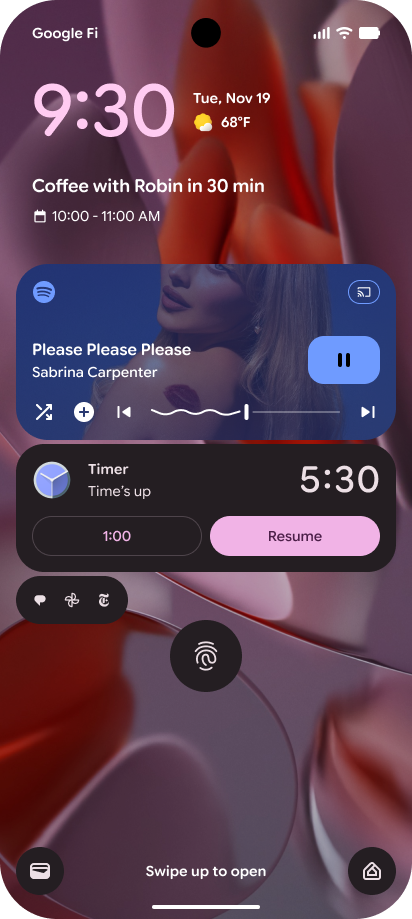
MetricStyle notification template and Live Update for a clock app
Capabilities
Metric style notifications have the following capabilities:
- Supports using the
setContentTitlemethod. - Doesn't show the context text.
- Supports up to 3 action buttons.
- Supports measurement of up to 3 metrics.
- Each
Notification.Metricrequires a label, value, and an optional unit. - Expanded layout appearance varies depending on the number of metrics taken.
- Each
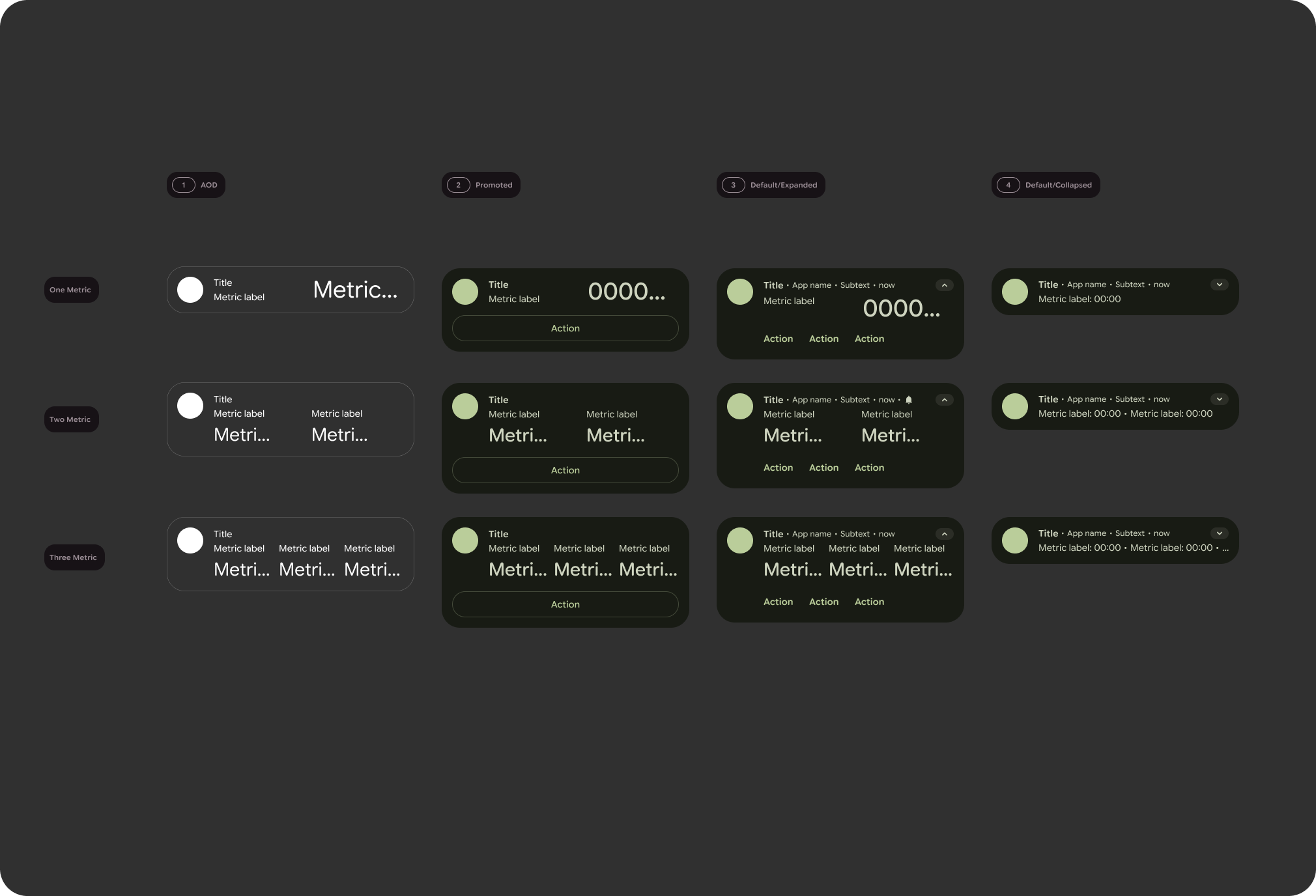
MetricStyle template in various
states. From left to right, always-on-display (AOD), promoted as a Live
Update, default/expanded, and default/collapsed.
Behavior
The metric style notification changes behaviors based on its state:
- Metric units are appended to the label in the expanded state.
- The collapsed state's second line shows the metrics contents concatenated into a single line. The second and third metric appear only if they fit completely when concatenated.
- The unit is omitted in the collapsed state.
- Each metric receives equal horizontal space, regardless of its content.
As a Live Update
When a metric style notification is promoted to a Live Update, keep in mind the following considerations:
- No need to provide
Notification.Builder#setContentTitlebecause the metric value is used instead. If no title is provided, the app name is shown. - If
Notification.Builder#setSubtextis provided, it is shown in the header line, rather than moved to a new line as for other promoted styles. - Action buttons have the same pill visual treatment.
Key points about the code
- The following is a list of relevant classes and reference documentation:
See also
- Notification.MetricStyle API reference
- Notification.Metric API reference
- Notification.Action API reference