

ExoPlayer 提供下載媒體的功能,方便使用者離線播放。在大多數情況下,即使應用程式在背景執行,也應繼續下載。在這些情況下,應用程式應將 DownloadService 設為子類別,並將指令傳送至服務,以新增、移除及控管下載作業。下圖顯示相關的主要類別。
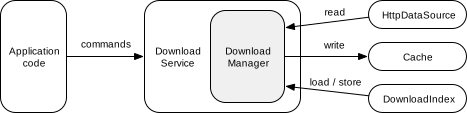
DownloadService:包裝DownloadManager並將指令轉送至該指令。這項服務可讓DownloadManager即使在應用程式處於背景時,也能持續執行。DownloadManager:管理多個下載作業、從DownloadIndex載入 (及儲存) 狀態,並根據網路連線等需求啟動及停止下載作業。如要下載內容,管理員通常會從HttpDataSource讀取要下載的資料,然後寫入Cache。DownloadIndex:保存下載狀態。
建立 DownloadService
如要建立 DownloadService,請將其設為子類別,並實作抽象方法:
getDownloadManager():傳回要使用的DownloadManager。getScheduler():傳回選用的Scheduler,當待處理下載作業的必要條件符合時,即可重新啟動服務。ExoPlayer 提供下列實作項目:PlatformScheduler,使用JobScheduler(最低 API 級別為 21)。請參閱應用程式權限需求的PlatformSchedulerJavadoc。WorkManagerScheduler,使用 WorkManager。
getForegroundNotification():傳回要在服務於前景執行時顯示的通知。您可以使用DownloadNotificationHelper.buildProgressNotification建立預設樣式的通知。
最後,請在 AndroidManifest.xml 檔案中定義服務:
<uses-permission android:name="android.permission.FOREGROUND_SERVICE"/>
<uses-permission android:name="android.permission.FOREGROUND_SERVICE_DATA_SYNC"/>
<application>
  <service android:name="com.myapp.MyDownloadService"
      android:exported="false"
      android:foregroundServiceType="dataSync">
    <!-- This is needed for Scheduler -->
    <intent-filter>
      <action android:name="androidx.media3.exoplayer.downloadService.action.RESTART"/>
      <category android:name="android.intent.category.DEFAULT"/>
    </intent-filter>
  </service>
</application>
如需具體範例,請參閱 ExoPlayer 示範應用程式中的 DemoDownloadService 和 AndroidManifest.xml。
建立 DownloadManager
下列程式碼片段示範如何例項化 DownloadManager,這可由 DownloadService 中的 getDownloadManager() 傳回:
Kotlin
// Note: This should be a singleton in your app. val databaseProvider = StandaloneDatabaseProvider(context) // A download cache should not evict media, so should use a NoopCacheEvictor. val downloadCache = SimpleCache(downloadDirectory, NoOpCacheEvictor(), databaseProvider) // Create a factory for reading the data from the network. val dataSourceFactory = DefaultHttpDataSource.Factory() // Choose an executor for downloading data. Using Runnable::run will cause each download task to // download data on its own thread. Passing an executor that uses multiple threads will speed up // download tasks that can be split into smaller parts for parallel execution. Applications that // already have an executor for background downloads may wish to reuse their existing executor. val downloadExecutor = Executor(Runnable::run) // Create the download manager. val downloadManager = DownloadManager(context, databaseProvider, downloadCache, dataSourceFactory, downloadExecutor) // Optionally, properties can be assigned to configure the download manager. downloadManager.requirements = requirements downloadManager.maxParallelDownloads = 3
Java
// Note: This should be a singleton in your app. databaseProvider = new StandaloneDatabaseProvider(context); // A download cache should not evict media, so should use a NoopCacheEvictor. downloadCache = new SimpleCache(downloadDirectory, new NoOpCacheEvictor(), databaseProvider); // Create a factory for reading the data from the network. dataSourceFactory = new DefaultHttpDataSource.Factory(); // Choose an executor for downloading data. Using Runnable::run will cause each download task to // download data on its own thread. Passing an executor that uses multiple threads will speed up // download tasks that can be split into smaller parts for parallel execution. Applications that // already have an executor for background downloads may wish to reuse their existing executor. Executor downloadExecutor = Runnable::run; // Create the download manager. downloadManager = new DownloadManager( context, databaseProvider, downloadCache, dataSourceFactory, downloadExecutor); // Optionally, setters can be called to configure the download manager. downloadManager.setRequirements(requirements); downloadManager.setMaxParallelDownloads(3);
如需具體範例,請參閱試用版應用程式中的 DemoUtil。
新增下載項目
如要新增下載項目,請建立 DownloadRequest 並傳送至 DownloadService。如果是自動調整串流,請使用 DownloadHelper 協助建構 DownloadRequest。以下範例說明如何建立下載要求:
Kotlin
val downloadRequest = DownloadRequest.Builder(contentId, contentUri).build()
Java
DownloadRequest downloadRequest = new DownloadRequest.Builder(contentId, contentUri).build();
在這個範例中,contentId 是內容的專屬 ID。contentUri通常可用做 contentId,但應用程式可自由使用最符合自身用途的 ID 配置。DownloadRequest.Builder 也有一些選用設定器。舉例來說,setKeySetId 和 setData 可分別用於設定 DRM 和應用程式要與下載內容建立關聯的自訂資料。您也可以使用 setMimeType 指定內容的 MIME 類型,做為無法從 contentUri 推斷 MIME 類型時的提示。
建立要求後,即可傳送至 DownloadService,新增下載項目:
Kotlin
DownloadService.sendAddDownload( context, MyDownloadService::class.java, downloadRequest, /* foreground= */ false, )
Java
DownloadService.sendAddDownload( context, MyDownloadService.class, downloadRequest, /* foreground= */ false);
在本範例中,MyDownloadService 是應用程式的 DownloadService 子類別,而 foreground 參數則會控管服務是否要在前景啟動。如果應用程式已在前台,則通常應將 foreground 參數設為 false,因為 DownloadService 會判斷是否有工作要執行,並視情況將自己放在前台。
正在移除下載內容
如要移除下載內容,請將移除指令傳送至 DownloadService,其中 contentId 會識別要移除的下載內容:
Kotlin
DownloadService.sendRemoveDownload( context, MyDownloadService::class.java, contentId, /* foreground= */ false, )
Java
DownloadService.sendRemoveDownload( context, MyDownloadService.class, contentId, /* foreground= */ false);
你也可以使用 DownloadService.sendRemoveAllDownloads 移除所有已下載的資料。
開始及停止下載
必須符合下列四項條件,下載作業才會繼續進行:
- 下載作業沒有停止原因。
- 下載作業未暫停。
- 符合下載進度的規定。需求條件可以指定允許的網路類型限制,以及裝置是否應處於閒置狀態或連接充電器。
- 並未超過並行下載數量上限。
只要傳送指令給 DownloadService,即可控制上述所有條件。
設定及清除下載停止原因
你可以為停止下載作業設定原因,適用於單一或所有下載項目:
Kotlin
// Set the stop reason for a single download. DownloadService.sendSetStopReason( context, MyDownloadService::class.java, contentId, stopReason, /* foreground= */ false, ) // Clear the stop reason for a single download. DownloadService.sendSetStopReason( context, MyDownloadService::class.java, contentId, Download.STOP_REASON_NONE, /* foreground= */ false, )
Java
// Set the stop reason for a single download. DownloadService.sendSetStopReason( context, MyDownloadService.class, contentId, stopReason, /* foreground= */ false); // Clear the stop reason for a single download. DownloadService.sendSetStopReason( context, MyDownloadService.class, contentId, Download.STOP_REASON_NONE, /* foreground= */ false);
stopReason 可以是任何非零值 (Download.STOP_REASON_NONE = 0 是特殊值,表示下載作業不會停止)。如果應用程式有多個停止下載的原因,可以使用不同的值來追蹤每個下載作業的停止原因。設定及清除所有下載作業的停止原因,與設定及清除單一下載作業的停止原因相同,但 contentId 應設為 null。
如果下載作業的停止原因不是零,就會處於 Download.STATE_STOPPED 狀態。停止原因會保留在 DownloadIndex 中,因此如果應用程式程序終止並在稍後重新啟動,停止原因仍會保留。
暫停及繼續所有下載作業
你可以按照下列步驟暫停及繼續所有下載作業:
Kotlin
// Pause all downloads. DownloadService.sendPauseDownloads( context, MyDownloadService::class.java, /* foreground= */ false, ) // Resume all downloads. DownloadService.sendResumeDownloads( context, MyDownloadService::class.java, /* foreground= */ false, )
Java
// Pause all downloads. DownloadService.sendPauseDownloads(context, MyDownloadService.class, /* foreground= */ false); // Resume all downloads. DownloadService.sendResumeDownloads(context, MyDownloadService.class, /* foreground= */ false);
下載作業暫停時,會處於 Download.STATE_QUEUED 狀態。
與設定停止原因不同,這種做法不會保留任何狀態變更。這只會影響 DownloadManager 的執行階段狀態。
設定下載作業的進度條件
Requirements 可用來指定下載作業必須符合的限制。建立 DownloadManager 時,可以呼叫 DownloadManager.setRequirements() 設定需求,如上述範例所示。您也可以將指令傳送至 DownloadService,動態變更這些值:
Kotlin
// Set the download requirements. DownloadService.sendSetRequirements( context, MyDownloadService::class.java, requirements, /* foreground= */ false, )
Java
// Set the download requirements. DownloadService.sendSetRequirements( context, MyDownloadService.class, requirements, /* foreground= */ false);
如果下載作業因不符合規定而無法繼續,就會處於 Download.STATE_QUEUED 狀態。您可以使用 DownloadManager.getNotMetRequirements() 查詢未達成的條件。
設定並行下載數量上限
您可以呼叫 DownloadManager.setMaxParallelDownloads(),設定平行下載數量上限。建立 DownloadManager 時通常會執行這項操作,如上例所示。
如果下載作業無法繼續,因為並行下載作業數量已達上限,則會處於 Download.STATE_QUEUED 狀態。
查詢下載內容
您可以查詢 DownloadManager 的 DownloadIndex,瞭解所有下載作業的狀態,包括已完成或失敗的下載作業。呼叫 DownloadManager.getDownloadIndex() 即可取得 DownloadIndex。然後呼叫 DownloadIndex.getDownloads() 即可取得可疊代所有下載項目的游標。或者,您可以呼叫 DownloadIndex.getDownload(),查詢單一下載作業的狀態。
DownloadManager 也提供 DownloadManager.getCurrentDownloads(),但只會傳回目前 (即未完成或失敗) 的下載狀態。這個方法可用於更新通知和其他 UI 元件,顯示目前下載作業的進度和狀態。
聆聽下載內容
您可以將事件監聽器新增至 DownloadManager,在目前下載項目變更狀態時收到通知:
Kotlin
downloadManager.addListener( object : DownloadManager.Listener { // Override methods of interest here. } )
Java
downloadManager.addListener( new DownloadManager.Listener() { // Override methods of interest here. });
如需具體範例,請參閱示範應用程式的 DownloadManagerListener DownloadTracker 類別。
播放下載的內容
播放下載內容的方式與播放線上內容類似,但資料是從下載內容 Cache 讀取,而非透過網路讀取。
如要播放下載的內容,請使用與下載時相同的 Cache 執行個體建立 CacheDataSource.Factory,並在建構播放器時將其插入 DefaultMediaSourceFactory:
Kotlin
// Create a read-only cache data source factory using the download cache. val cacheDataSourceFactory: DataSource.Factory = CacheDataSource.Factory() .setCache(downloadCache) .setUpstreamDataSourceFactory(httpDataSourceFactory) .setCacheWriteDataSinkFactory(null) // Disable writing. val player = ExoPlayer.Builder(context) .setMediaSourceFactory( DefaultMediaSourceFactory(context).setDataSourceFactory(cacheDataSourceFactory) ) .build()
Java
// Create a read-only cache data source factory using the download cache. DataSource.Factory cacheDataSourceFactory = new CacheDataSource.Factory() .setCache(downloadCache) .setUpstreamDataSourceFactory(httpDataSourceFactory) .setCacheWriteDataSinkFactory(null); // Disable writing. ExoPlayer player = new ExoPlayer.Builder(context) .setMediaSourceFactory( new DefaultMediaSourceFactory(context).setDataSourceFactory(cacheDataSourceFactory)) .build();
如果同一個播放器執行個體也會用於播放非下載內容,則應將 CacheDataSource.Factory 設為唯讀,以免在播放期間下載該內容。
使用 CacheDataSource.Factory 設定播放器後,播放器就能存取已下載的內容並播放。如要播放下載內容,請將對應的 MediaItem 傳遞至播放器。您可以透過 Download.request.toMediaItem 從 Download 取得 MediaItem,也可以透過 DownloadRequest.toMediaItem 直接從 DownloadRequest 取得。
MediaSource 設定
上述範例會提供下載快取,供播放所有 MediaItem。您也可以為個別 MediaSource 執行個體提供下載快取,直接傳遞至播放器:
Kotlin
val mediaSource = ProgressiveMediaSource.Factory(cacheDataSourceFactory) .createMediaSource(MediaItem.fromUri(contentUri)) player.setMediaSource(mediaSource) player.prepare()
Java
ProgressiveMediaSource mediaSource = new ProgressiveMediaSource.Factory(cacheDataSourceFactory) .createMediaSource(MediaItem.fromUri(contentUri)); player.setMediaSource(mediaSource); player.prepare();
下載及播放自動調整的串流
自動調整串流 (例如 DASH、SmoothStreaming 和 HLS) 通常包含多個媒體軌。通常會有不同品質的相同內容 (例如 SD、HD 和 4K 視訊軌)。此外,相同類型的曲目也可能有多個,且包含不同內容 (例如不同語言的多個音軌)。
如果是串流播放,可以使用音軌選取器選擇要播放的音軌。同樣地,下載時可以使用 DownloadHelper 選擇要下載的曲目。DownloadHelper 的一般用法如下:
- 使用
DownloadHelper.Factory執行個體建構DownloadHelper。準備輔助程式並等待回呼。 - 您可以選擇使用
getMappedTrackInfo和getTrackSelections檢查預設選取的軌,並使用clearTrackSelections、replaceTrackSelections和addTrackSelection進行調整。 - 呼叫
getDownloadRequest,為所選曲目建立DownloadRequest。如前所述,要求可傳遞至DownloadService,以新增下載項目。 - 使用
release()發布輔助程式。
Kotlin
val downloadHelper = DownloadHelper.Factory() .setRenderersFactory(DefaultRenderersFactory(context)) .setDataSourceFactory(dataSourceFactory) .create(MediaItem.fromUri(contentUri)) downloadHelper.prepare(callback)
Java
DownloadHelper downloadHelper = new DownloadHelper.Factory() .setRenderersFactory(new DefaultRenderersFactory(context)) .setDataSourceFactory(dataSourceFactory) .create(MediaItem.fromUri(contentUri)); downloadHelper.prepare(callback);
如要播放下載的自適應內容,必須設定播放器並傳遞相應的 MediaItem,如先前所述。
建構 MediaItem 時,MediaItem.localConfiguration.streamKeys 必須設為與 DownloadRequest 中的項目相符,這樣播放器才會嘗試播放已下載的曲目子集。使用 Download.request.toMediaItem 和 DownloadRequest.toMediaItem 建構 MediaItem 時,系統會為您處理這項作業。