
ExoPlayer plays most adaptive live streams out-of-the-box without any special configuration. See the Supported Formats page for more details.
Adaptive live streams offer a window of available media that is updated in regular intervals to move with the current real-time. That means the playback position will always be somewhere in this window, in most cases close to the current real-time at which the stream is being produced. The difference between the current real-time and the playback position is called the live offset.
Detecting and monitoring live playbacks
Every time a live window is updated, registered Player.Listener instances will
receive an onTimelineChanged event. You can retrieve details about the current
live playback by querying various Player and Timeline.Window methods, as
listed later and shown in the following figure.
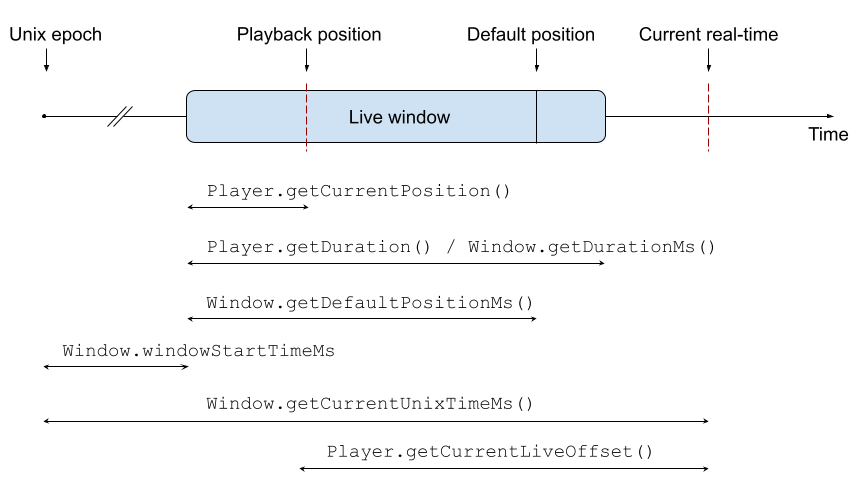
Player.isCurrentWindowLiveindicates whether the currently playing media item is a livestream. This value is still true even if the livestream has ended.Player.isCurrentWindowDynamicindicates whether the currently playing media item is still being updated. This is usually true for livestreams that are not yet ended. Note that this flag is also true for non-live streams in some cases.Player.getCurrentLiveOffsetreturns the offset between the current real time and the playback position (if available).Player.getDurationreturns the length of the current live window.Player.getCurrentPositionreturns the playback position relative to the start of the live window.Player.getCurrentMediaItemreturns the current media item, whereMediaItem.liveConfigurationcontains app-provided overrides for the target live offset and live offset adjustment parameters.Player.getCurrentTimelinereturns the current media structure in aTimeline. The currentTimeline.Windowcan be retrieved from theTimelineusingPlayer.getCurrentMediaItemIndexandTimeline.getWindow. Within theWindow:Window.liveConfigurationcontains the target live offset and live offset adjustment parameters. These values are based on information in the media and any app-provided overrides set inMediaItem.liveConfiguration.Window.windowStartTimeMsis the time since the Unix epoch at which the live window starts.Window.getCurrentUnixTimeMsis the time since the Unix epoch of the current real-time. This value may be corrected by a known clock difference between the server and the client.Window.getDefaultPositionMsis the position in the live window at which the player will start playback by default.
Seeking in live streams
You can seek to anywhere within the live window using Player.seekTo. The seek
position passed is relative to the start of the live window. For example,
seekTo(0) will seek to the start of the live window. The player will try to
keep the same live offset as the seeked-to position after a seek.
The live window also has a default position at which playback is supposed to
start. This position is usually somewhere close to the live edge. You can seek
to the default position by calling Player.seekToDefaultPosition.
Live playback UI
ExoPlayer's default UI components show the duration of the live window and
the current playback position within it. This means the position appears to jump
backward each time the live window is updated. If you need different behavior,
for example showing the Unix epoch time or the current live offset, you can fork
PlayerControlView and modify it to suit your needs.
Configuring live playback parameters
ExoPlayer uses some parameters to control the offset of the playback position from the live edge, and the range of playback speeds that can be used to adjust this offset.
ExoPlayer gets values for these parameters from three places, in descending order of priority (the first value found is used):
- Per
MediaItemvalues passed toMediaItem.Builder.setLiveConfiguration. - Global default values set on
DefaultMediaSourceFactory. - Values read directly from the media.
Kotlin
// Global settings. val player = ExoPlayer.Builder(context) .setMediaSourceFactory(DefaultMediaSourceFactory(context).setLiveTargetOffsetMs(5000)) .build() // Per MediaItem settings. val mediaItem = MediaItem.Builder() .setUri(mediaUri) .setLiveConfiguration( MediaItem.LiveConfiguration.Builder().setMaxPlaybackSpeed(1.02f).build() ) .build() player.setMediaItem(mediaItem)
Java
// Global settings. ExoPlayer player = new ExoPlayer.Builder(context) .setMediaSourceFactory( new DefaultMediaSourceFactory(context).setLiveTargetOffsetMs(5000)) .build(); // Per MediaItem settings. MediaItem mediaItem = new MediaItem.Builder() .setUri(mediaUri) .setLiveConfiguration( new MediaItem.LiveConfiguration.Builder().setMaxPlaybackSpeed(1.02f).build()) .build(); player.setMediaItem(mediaItem);
Available configuration values are:
targetOffsetMs: The target live offset. The player will attempt to get close to this live offset during playback if possible.minOffsetMs: The minimum allowed live offset. Even when adjusting the offset to current network conditions, the player won't attempt to go lower than this offset during playback.maxOffsetMs: The maximum allowed live offset. Even when adjusting the offset to current network conditions, the player won't attempt to exceed this offset during playback.minPlaybackSpeed: The minimum playback speed the player can use to fall back when trying to reach the target live offset.maxPlaybackSpeed: The maximum playback speed the player can use to catch up when trying to reach the target live offset.
Playback speed adjustment
When playing a low-latency livestream, ExoPlayer adjusts the live offset by slightly changing the playback speed. The player will try to match the target live offset provided by the media or the app, but will also try to react to changing network conditions. For example, if rebuffers occur during playback, the player will slow down playback slightly to move further away from the live edge. If the network then becomes stable enough to support playing closer to the live edge again, the player will speed up playback to move back toward the target live offset.
If automatic playback speed adjustment isn't needed, it can be disabled by
setting minPlaybackSpeed and maxPlaybackSpeed properties to 1.0f.
Similarly, it can be enabled for non-low-latency livestreams by setting these
explicitly to values other than 1.0f. See the
configuration section for more details
on how these properties can be set.
Customizing the playback speed adjustment algorithm
If speed adjustment is enabled, a LivePlaybackSpeedControl defines what
adjustments are made. It's possible to implement a custom
LivePlaybackSpeedControl, or to customize the default implementation, which is
DefaultLivePlaybackSpeedControl. In both cases, an instance can be set when
building the player:
Kotlin
val player = ExoPlayer.Builder(context) .setLivePlaybackSpeedControl( DefaultLivePlaybackSpeedControl.Builder().setFallbackMaxPlaybackSpeed(1.04f).build() ) .build()
Java
ExoPlayer player = new ExoPlayer.Builder(context) .setLivePlaybackSpeedControl( new DefaultLivePlaybackSpeedControl.Builder() .setFallbackMaxPlaybackSpeed(1.04f) .build()) .build();
Relevant customization parameters of DefaultLivePlaybackSpeedControl are:
fallbackMinPlaybackSpeedandfallbackMaxPlaybackSpeed: The minimum and maximum playback speeds that can be used for adjustment if neither the media nor the app-providedMediaItemdefine limits.proportionalControlFactor: Controls how smooth the speed adjustment is. A high value makes adjustments more sudden and reactive, but also more likely to be audible. A smaller value results in a smoother transition between speeds, at the cost of being slower.targetLiveOffsetIncrementOnRebufferMs: This value is added to the target live offset whenever a rebuffer occurs, to proceed more cautiously. This feature can be disabled by setting the value to 0.minPossibleLiveOffsetSmoothingFactor: An exponential smoothing factor that is used to track the minimum possible live offset based on the currently buffered media. A value very close to 1 means that the estimation is more cautious and may take longer to adjust to improved network conditions, whereas a lower value means the estimation will adjust faster at a higher risk of running into rebuffers.
BehindLiveWindowException and ERROR_CODE_BEHIND_LIVE_WINDOW
The playback position may fall behind the live window, for example if the player
is paused or buffering for a long enough period of time. If this happens then
playback will fail and an exception with error code
ERROR_CODE_BEHIND_LIVE_WINDOW will be reported using
Player.Listener.onPlayerError. You may want to handle such errors by resuming
playback at the default position. The PlayerActivity of the demo app
exemplifies this approach.
Kotlin
override fun onPlayerError(error: PlaybackException) { if (error.errorCode == PlaybackException.ERROR_CODE_BEHIND_LIVE_WINDOW) { // Re-initialize player at the live edge. player.seekToDefaultPosition() player.prepare() } else { // Handle other errors } }
Java
@Override public void onPlayerError(PlaybackException error) { if (error.errorCode == PlaybackException.ERROR_CODE_BEHIND_LIVE_WINDOW) { // Re-initialize player at the live edge. player.seekToDefaultPosition(); player.prepare(); } else { // Handle other errors } }