
The media3-ui-compose library provides the foundational components for
building a media UI in Jetpack Compose. It's designed for developers who need
more customization than what's offered by the media3-ui-compose-material3
library. This page explains how to use the core components and state holders to
create a custom media player UI.
Mixing Material3 and custom Compose components
The media3-ui-compose-material3 library is designed to be flexible. You can
use the prebuilt components for most of your UI, but swap out a single component
for a custom implementation when you need more control. This is when
media3-ui-compose library comes into play.
For example, imagine you want to use the standard
PreviousButton and NextButton from the
Material3 library, but you need a completely custom PlayPauseButton. You can
achieve this by using PlayPauseButton from the core media3-ui-compose
library and place it alongside the prebuilt components.
Row { // Use prebuilt component from the Media3 UI Compose Material3 library PreviousButton(player) // Use the scaffold component from Media3 UI Compose library PlayPauseButton(player) { // `this` is PlayPauseButtonState FilledTonalButton( onClick = { Log.d("PlayPauseButton", "Clicking on play-pause button") this.onClick() }, enabled = this.isEnabled, ) { Icon( imageVector = if (showPlay) Icons.Default.PlayArrow else Icons.Default.Pause, contentDescription = if (showPlay) "Play" else "Pause", ) } } // Use prebuilt component from the Media3 UI Compose Material3 library NextButton(player) }
Available components
The media3-ui-compose library provides a set of prebuilt composables for
common player controls. Here are some of the components you can use directly in
your app:
| Component | Description |
|---|---|
PlayPauseButton |
A state container for a button that toggles between play and pause. |
SeekBackButton |
A state container for a button that seeks backward by a defined increment. |
SeekForwardButton |
A state container for a button that seeks forward by a defined increment. |
NextButton |
A state container for a button that seeks to the next media item. |
PreviousButton |
A state container for a button that seeks to the previous media item. |
RepeatButton |
A state container for a button that cycles through repeat modes. |
ShuffleButton |
A state container for a button that toggles shuffle mode. |
MuteButton |
A state container for a button that mutes and unmutes the player. |
TimeText |
A state container for a composable that displays the player progress. |
ContentFrame |
A surface for displaying media content that handles aspect ratio management, resizing, and a shutter |
PlayerSurface |
Raw surface which wraps SurfaceView and TextureView in AndroidView. |
Customize the Player composable
When using the media3-ui-compose-material3 library, the
Player composable provides a complete media playback
experience. You can customize its layout by providing your own composables to
its content slots, or you can leverage the PlayerDefaults object to
customize specific parts of the UI, such as TopControls, CenterControls,
BottomControls, and ErrorOverlay.
Figure 1 shows where the Player composable places its slots. Figure 2 shows
the order in which it draws its layers.
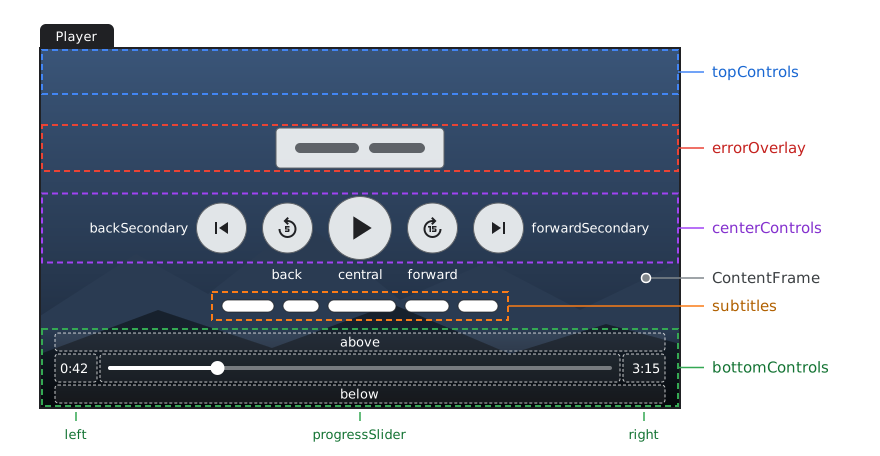
Player composable.
The center and bottom controls show the slots of
PlayerDefaults.CenterControls and
PlayerDefaults.BottomControls. The topControls,
above, and below slots are empty by
default.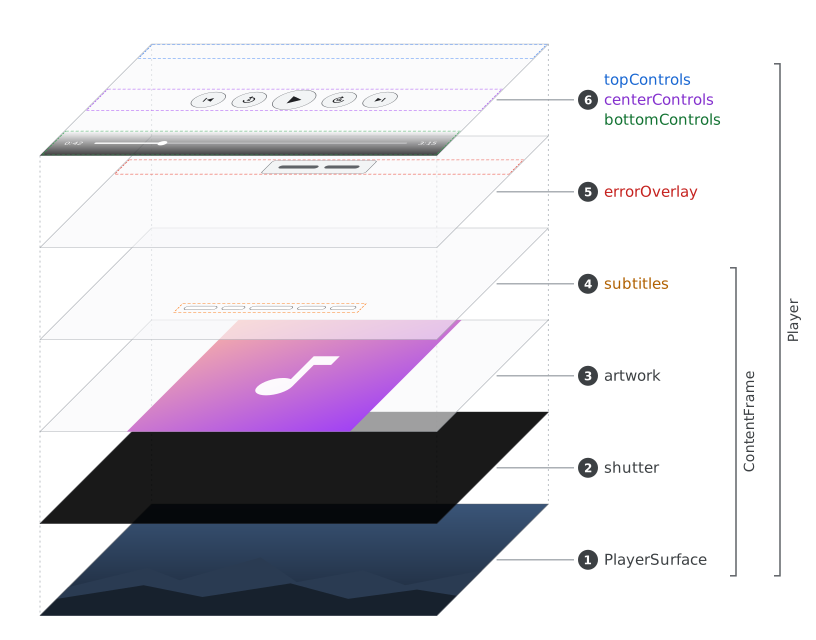
Player composable,
numbered in the order they're drawn.For example, you can use PlayerDefaults.CenterControls to override just the
central play/pause button while leaving the rest of the center controls intact.
You can also pass a fully custom composable for a parameter like topControls,
and completely omit others like bottomControls to leave them at their default.
@Composable fun CustomPlayerSlots(player: Player, showControls: Boolean, modifier: Modifier = Modifier) { Player( player = player, modifier = modifier, showControls = showControls, topControls = { // Fully custom top controls Text("My custom title") }, centerControls = { // Use default CenterControls but override the central button PlayerDefaults.CenterControls( player = player, central = { // A custom play/pause button Material3PlayPauseButton(player, modifier = Modifier.size(64.dp)) }, ) }, // bottomControls are left as default ) }
UI state holders
If none of the scaffolding components meet your needs, you can also use the
state objects directly. It's generally advisable to use the corresponding
remember methods to preserve your UI look between recompositions.
To better understand how you can use the flexibility of UI state holders versus composables, read about how Compose manages State.
Button state holders
For some UI states, the library makes the assumption that they will most likely be consumed by button-like composables.
| State | remember*State | Type |
|---|---|---|
PlayPauseButtonState |
rememberPlayPauseButtonState |
2-Toggle |
PreviousButtonState |
rememberPreviousButtonState |
Constant |
NextButtonState |
rememberNextButtonState |
Constant |
RepeatButtonState |
rememberRepeatButtonState |
3-Toggle |
ShuffleButtonState |
rememberShuffleButtonState |
2-Toggle |
PlaybackSpeedState |
rememberPlaybackSpeedState |
Menu or N-Toggle |
Example usage of PlayPauseButtonState:
val state = rememberPlayPauseButtonState(player) IconButton(onClick = state::onClick, modifier = modifier, enabled = state.isEnabled) { Icon( imageVector = if (state.showPlay) Icons.Default.PlayArrow else Icons.Default.Pause, contentDescription = if (state.showPlay) stringResource(R.string.playpause_button_play) else stringResource(R.string.playpause_button_pause), ) }
Visual output state holders
CurrentMediaItemState provides information about the currently playing
MediaItem, while PlaylistState exposes information about the MediaItems
set on the player. These are useful for displaying metadata information in your
custom UI.
ErrorState provides information about the current error state of the player,
which can be used to display an error overlay.
PresentationState holds to information for when the video output in a
PlayerSurface can be shown or should be covered by a placeholder UI element.
ContentFrame composable combines the aspect ratio handling with taking care
of showing the shutter over a surface that is not ready yet.
@Composable fun ContentFrame( player: Player?, modifier: Modifier = Modifier, surfaceType: @SurfaceType Int = SURFACE_TYPE_SURFACE_VIEW, contentScale: ContentScale = ContentScale.Fit, keepContentOnReset: Boolean = false, shutter: @Composable () -> Unit = { Box(Modifier.fillMaxSize().background(Color.Black)) }, ) { val presentationState = rememberPresentationState(player, keepContentOnReset) val scaledModifier = modifier.resizeWithContentScale(contentScale, presentationState.videoAspectRatio) // Always leave PlayerSurface to be part of the Compose tree because it will be initialized in // the process. If this composable is guarded by some condition, it might never become visible // because the Player won't emit the relevant event, e.g. the first frame being ready. PlayerSurface(player, scaledModifier, surfaceType) if (presentationState.coverSurface) { // Cover the surface that is being prepared with a shutter shutter() } }
Here, we can use both presentationState.videoAspectRatio to scale the Surface
to the chosen aspect ratio (see Content scale for more types) and
presentationState.coverSurface to know when the timing is not right to be
showing the Surface. In this case, you can position an opaque shutter on top of
the surface, which will disappear when the surface becomes ready.
ContentFrame lets you customize the shutter as a trailing lambda, but by
default it will be a black @Composable Box filling the size of the parent
container.
Where are Flows?
Many Android developers are familiar with using Kotlin Flow objects to collect
ever-changing UI data. For example, you might be on the lookout for
Player.isPlaying flow that you can collect in a lifecycle-aware manner. Or
something like Player.eventsFlow to provide you with a Flow<Player.Events>
that you can filter the way you want.
However, using flows for Player UI state has some drawbacks. One of the main
concerns is the asynchronous nature of data transfer. We want to achieve as
little latency as possible between a Player.Event and its consumption on the
UI side, avoiding showing UI elements that are out-of-sync with the Player.
Other points include:
- A flow with all the
Player.Eventswouldn't adhere to a single responsibility principle, each consumer would have to filter out the relevant events. - Creating a flow for each
Player.Eventwill require you to combine them (withcombine) for each UI element. There is a many-to-many mapping between a Player.Event and a UI element change. Having to usecombinecould lead the UI to potentially illegal states.
Create custom UI states
You can add custom UI states if the existing ones don't fulfill your needs. Check out the source code of the existing state to copy the pattern. A typical UI state holder class does the following:
- Takes in a
Playerobject. - Subscribes to the
Playerusing coroutines. SeePlayer.listenfor more details. - Responds to particular
Player.Eventsby updating its internal state. - Accepts business-logic commands that will be transformed into an appropriate
Playerupdate. - Can be created in multiple places across the UI tree and will always maintain a consistent view of Player's state.
- Exposes Compose
Statefields that can be consumed by a composable to dynamically respond to changes. - Comes with a
remember*Statefunction for remembering the instance between compositions.
What happens behind the scenes:
class SomeButtonState(private val player: Player) { var isEnabled by mutableStateOf(player.isCommandAvailable(COMMAND_ACTION_A)) private set var someFieldValue by mutableStateOf(someFieldDefault) private set fun onClick() { player.actionA() } suspend fun observe(): Nothing = player.listen { events -> if (events.containsAny(EVENT_B_CHANGED, EVENT_C_CHANGED, EVENT_AVAILABLE_COMMANDS_CHANGED)) { someFieldValue = this.someField isEnabled = this.isCommandAvailable(COMMAND_ACTION_A) } } }
To react to your own Player.Events, you can catch them using Player.listen
which is a suspend fun that lets you enter the coroutine world and
indefinitely listen to Player.Events. Media3 implementation of various UI
states helps the end developer not to concern themselves with learning about
Player.Events.