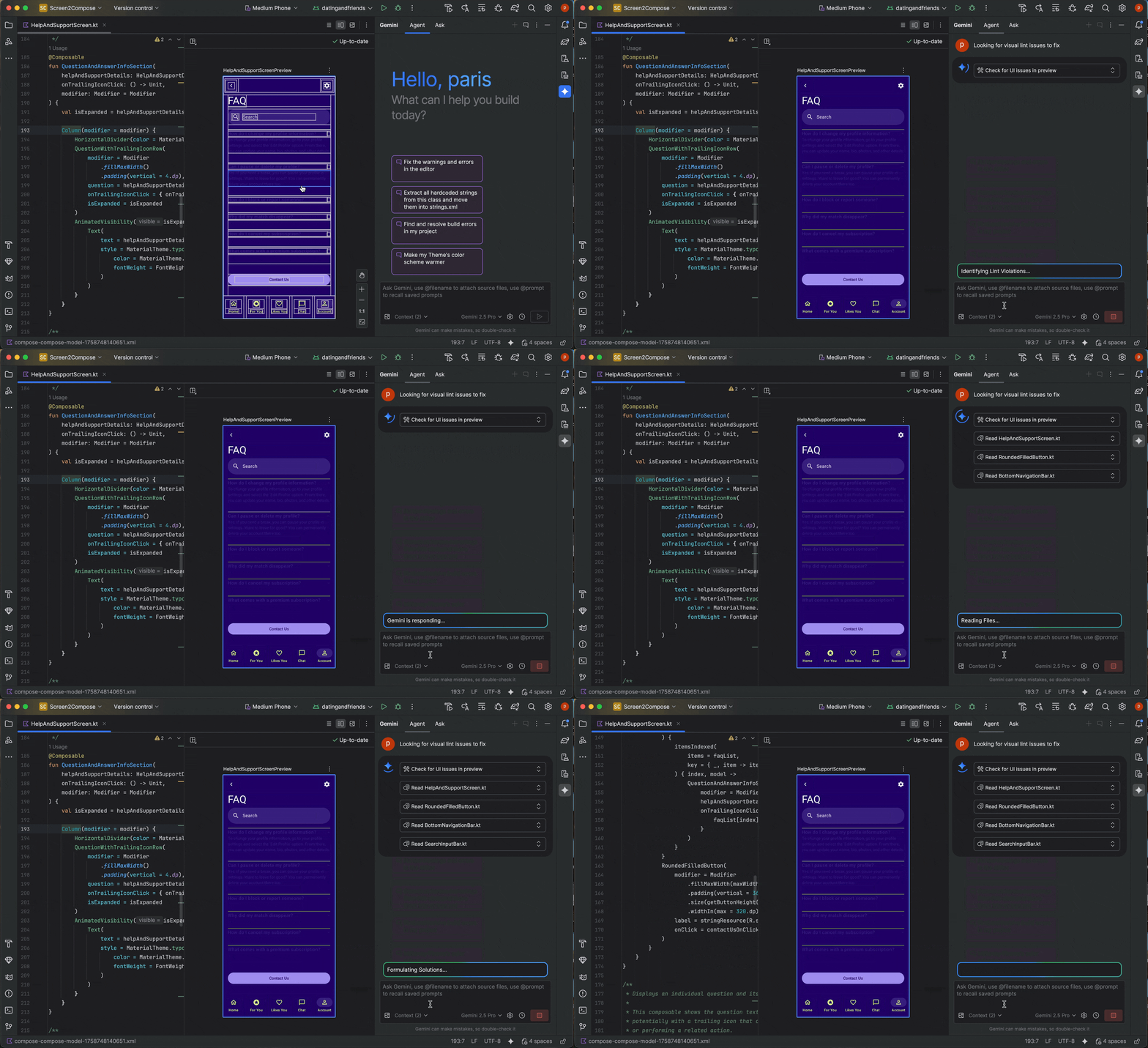
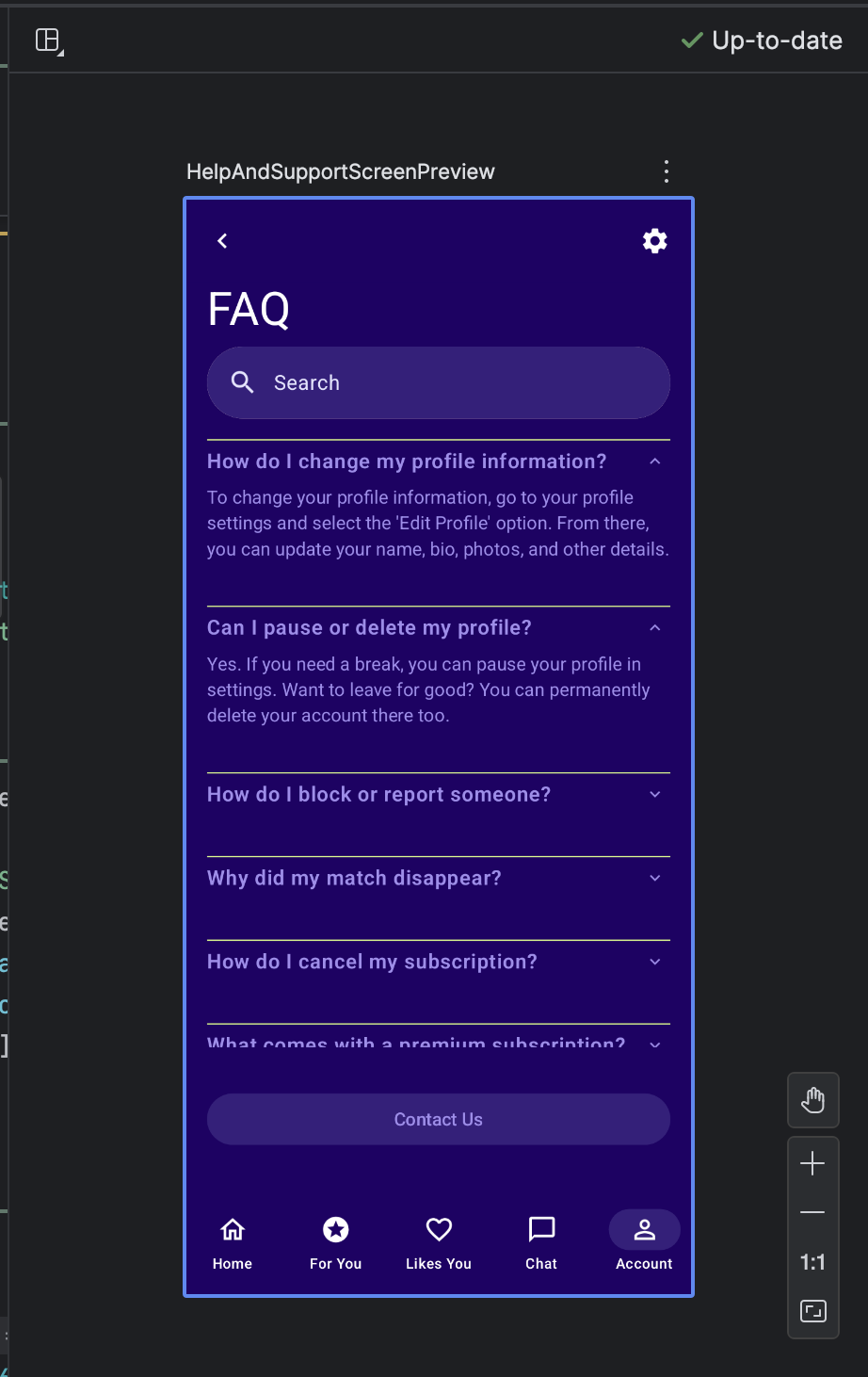
The AI agent is uniquely equipped to help you make your Android app UI vision a reality, using Jetpack Compose and following Android best practices. This page describes how to create and iterate on an app UI with AI.
To generate a UI with AI, follow these general steps:
Create a mockup of the app UI that you want. You can export a PNG from a design tool or even use a hand-drawn image.
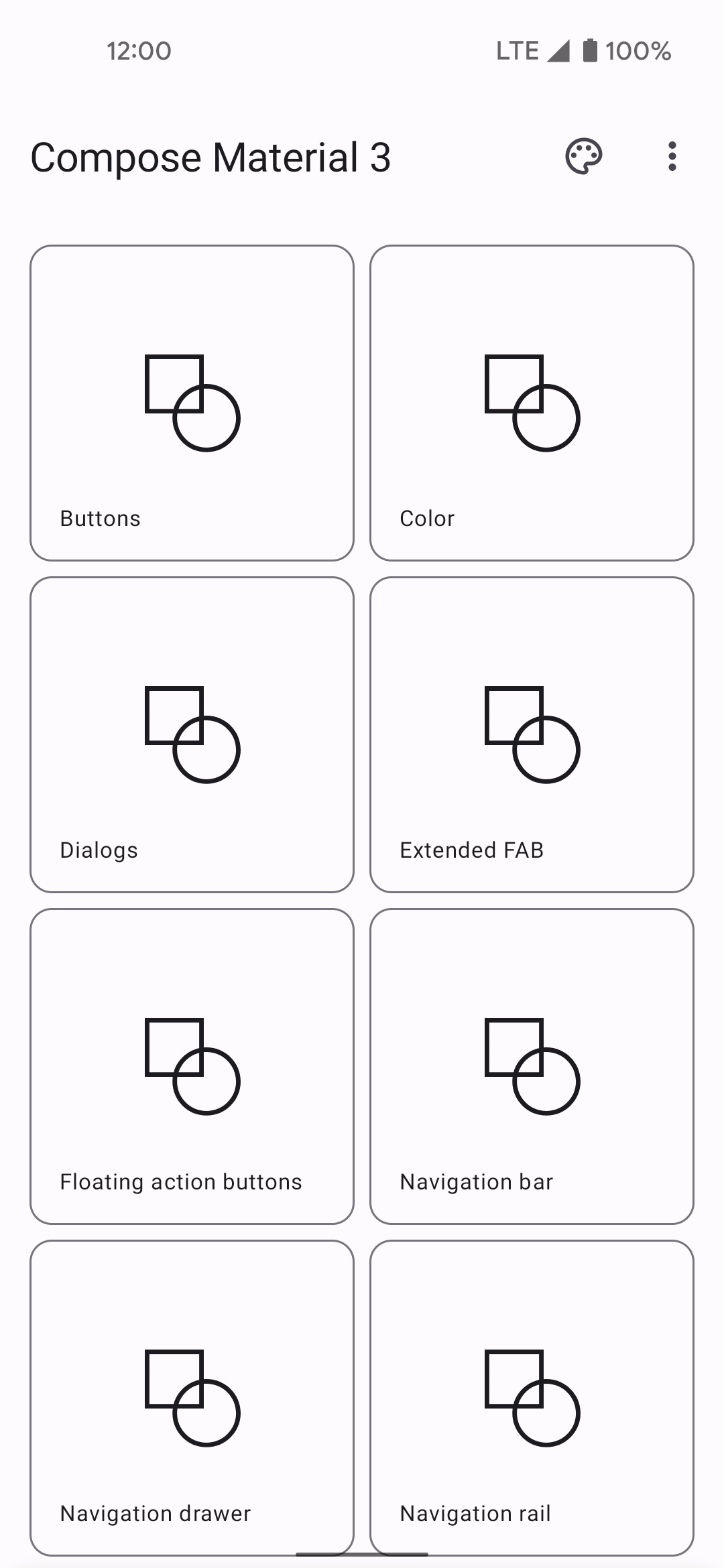
Figure 1: A wireframe of an app user interface. Attach the image to your query by clicking the Attach image file button
 . You can also click
Generate Code From Screenshot directly from the Preview panel
in a file without an existing preview.
. You can also click
Generate Code From Screenshot directly from the Preview panel
in a file without an existing preview.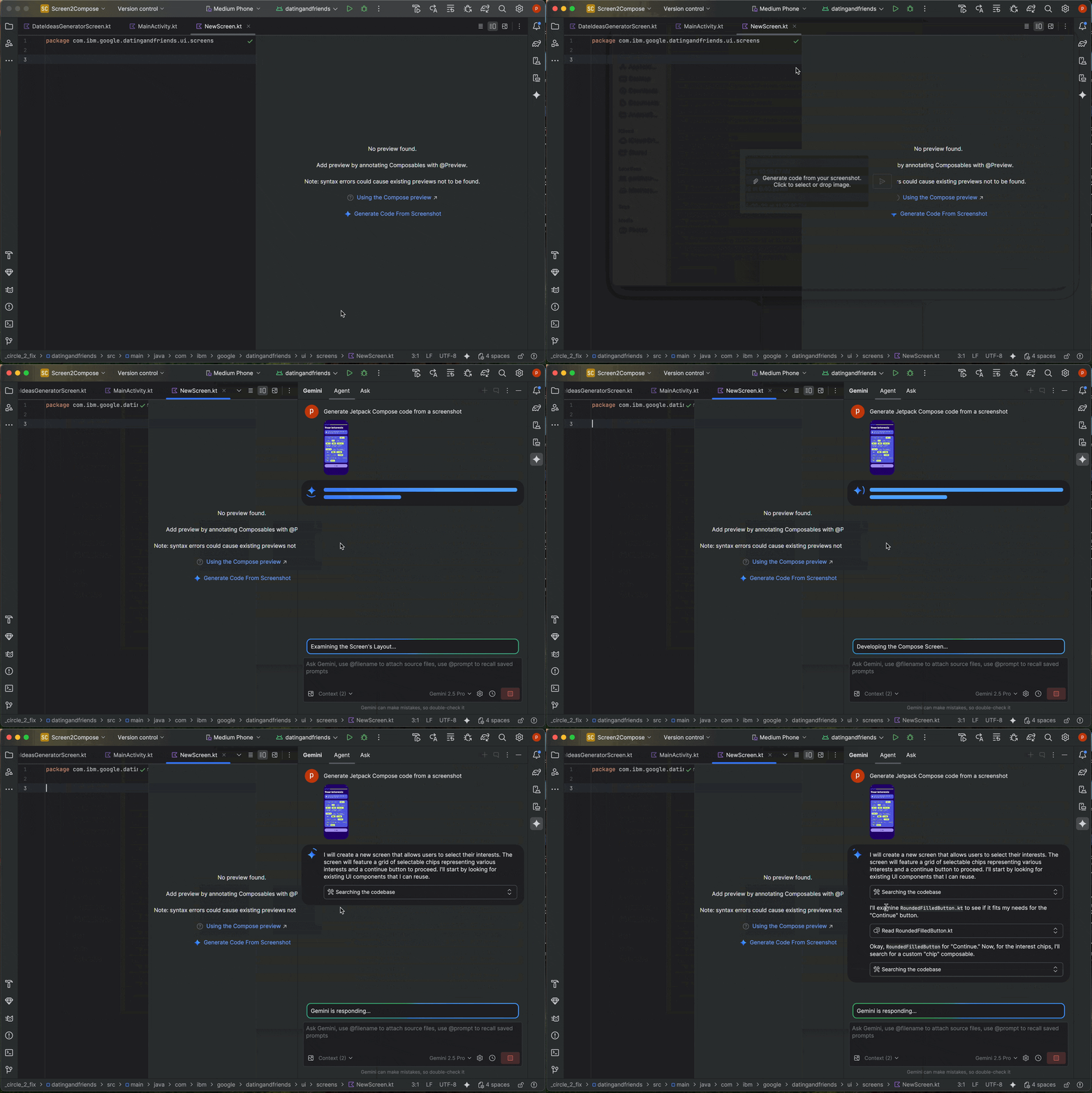
Figure 2: Generate code from a screenshot in an empty Preview panel. In the chat field, as the AI agent to generate the UI code, for example "Generate Jetpack Compose code for the image provided." When you submit the query and image the AI agent suggests code to create the proposed UI. The AI agent usually provides the code for the Compose preview too, so you can quickly visualize the UI once you import it into your project—if it doesn't, ask it to generate the Compose previews.
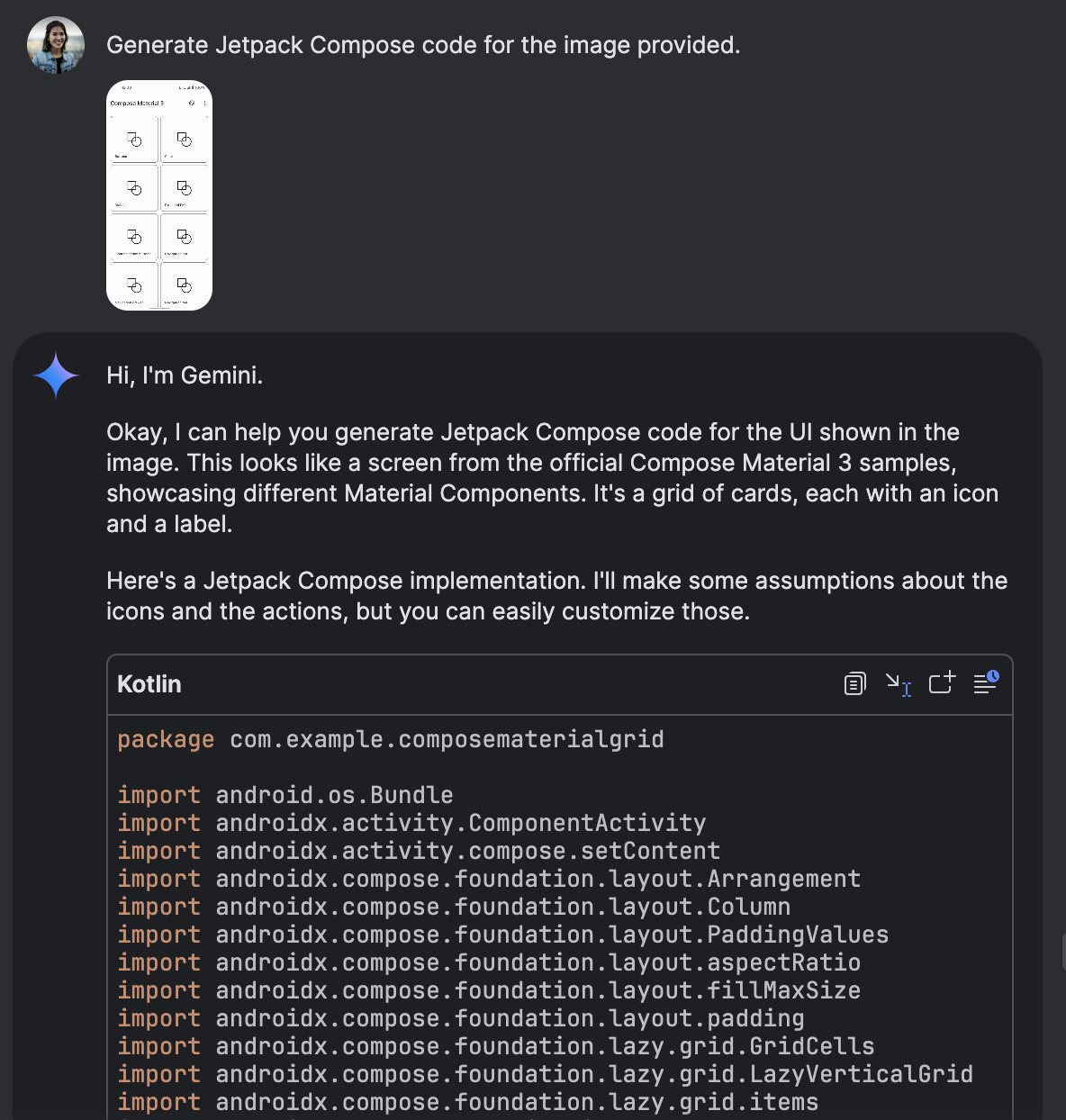
Figure 2: Gemini generating Jetpack Compose code from an attached image. Once you import the code and can see the Compose preview in the preview panel, you can iterate on the UI by clicking directly on the preview and asking Gemini to transform it. If you have an image of what you want, you can also iterate on the UI by right-clicking the preview and selecting AI Actions > Match UI to Target Image.
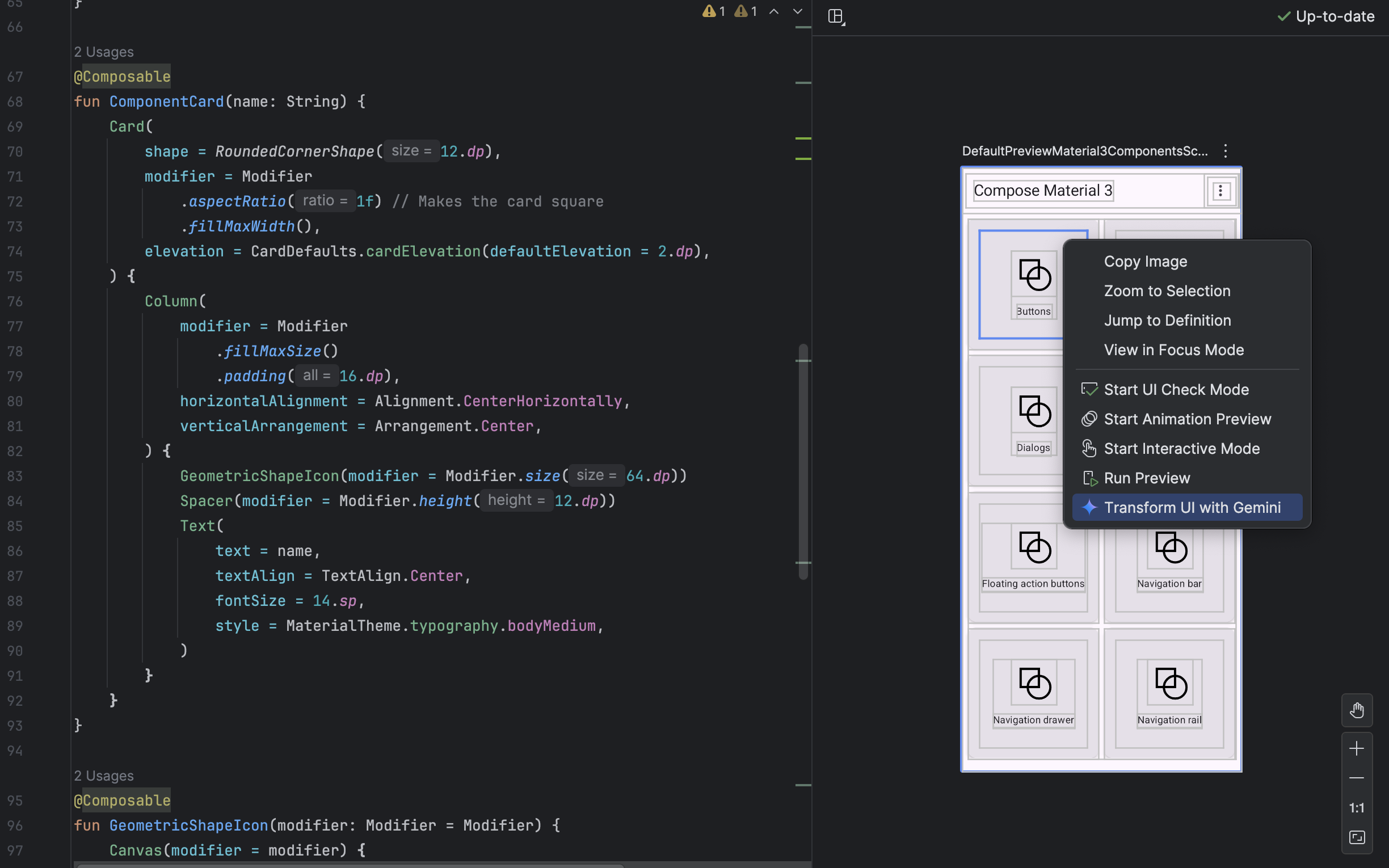
Figure 5: Using Gemini to transform UI elements directly from the Compose preview. 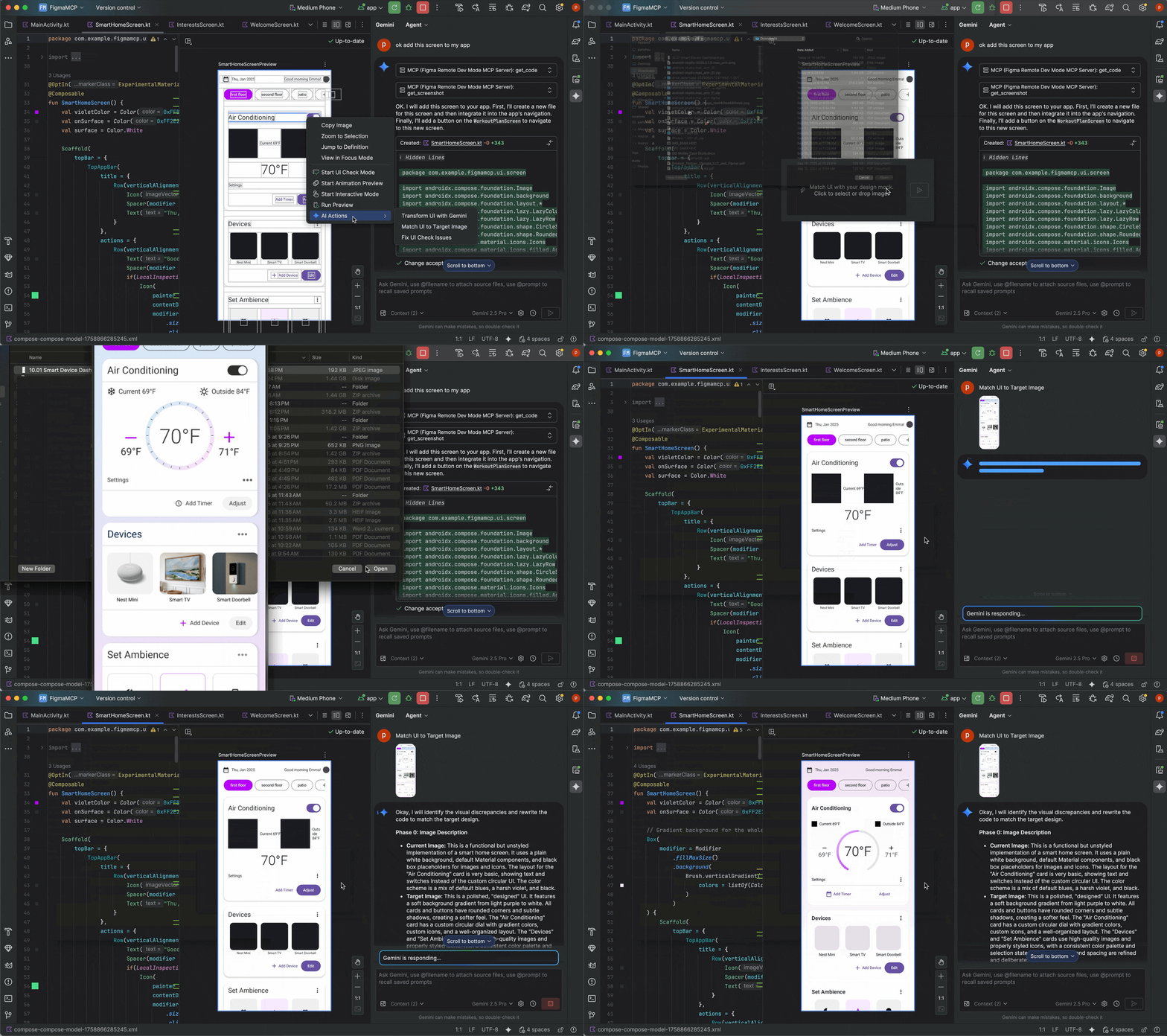
Figure 6: Example of using "Match UI to Target Image"
Find and fix UI quality issues
The AI agent can also help you ensure your UI is high-quality and accessible. Right-click on your Compose preview and select AI Actions > Fix all UI check issues. The agent audits your UI for common problems, such as accessibility issues, and proposes code fixes to resolve them.