

כשמשלבים את התכונה 'העברת נכסים', משחקי Unity יכולים לגשת לחבילות נכסים באמצעות Addressables או AssetBundles. Addressables הוא פתרון חדש יותר ומומלץ יותר להעברת נכסים למשחקים שנוצרו באמצעות Unity מגרסה 2019.4 ואילך, בעוד ש-AssetBundles מספק תמיכה בחבילות נכסים ב-Unity מגרסאות 2017.4 ו-2018.4.
Unity Addressables
במשחקים שנוצרו באמצעות Unity 2019.4 ואילך, צריך להשתמש ב-Addressables כדי להעביר נכסים ב-Android. Unity מספקת Play Asset Delivery (PAD) API לטיפול בחבילות נכסים של Android באמצעות Addressables. למידע על השימוש ב-Addressables, אפשר לעיין במאמרים הבאים:
- כתובות שאפשר לפנות אליהן בחבילת Android
- מדריך PAD ל-Unity
- מאמרי העזרה של PAD API for Unity
שימוש בקובצי AssetBundle
משחקים שנבנו באמצעות Unity 2017.4 ו-2018.4 יכולים להשתמש בקובצי AssetBundle להעברת נכסים ב-Android. קבצים של AssetBundle ב-Unity מכילים נכסים שעברו סריאליזציה, שאפשר לטעון אותם על ידי מנוע Unity בזמן שהאפליקציה פועלת. הקובצים האלה הם ספציפיים לפלטפורמה (לדוגמה, נוצרו ל-Android) ואפשר להשתמש בהם בשילוב עם חבילות Asset Pack. ברוב המקרים, קובץ AssetBundle אחד נארז בחבילת נכסים אחת, והחבילה מקבלת את אותו שם כמו קובץ ה-AssetBundle. אם רוצים יותר גמישות ביצירת חבילת נכסים, אפשר להגדיר את חבילת הנכסים באמצעות ה-API.
בזמן הריצה, משתמשים במחלקה Play Asset Delivery for Unity כדי לאחזר חבילת נכסים (AssetBundle) שנארזה בחבילת נכסים.
דרישות מוקדמות
- מגדירים את סביבת הפיתוח:
OpenUPM-CLI
אם OpenUPM CLI מותקן, אפשר להתקין את מאגר OpenUPM באמצעות הפקודה הבאה:
openupm add com.google.play.assetdeliveryOpenUPM
פותחים את ההגדרות של מנהל החבילות על ידי בחירה באפשרות בתפריט Unity Edit > Project Settings > Package Manager (עריכה > הגדרות הפרויקט > מנהל החבילות).
מוסיפים את OpenUPM כמאגר חבילות בהיקף מסוים לחלון Package Manager:
Name: package.openupm.com
URL: https://package.openupm.com
Scopes: com.google.external-dependency-manager
  com.google.play.common
  com.google.play.core
  com.google.play.assetdelivery
  com.google.android.appbundle
פותחים את תפריט מנהל החבילות על ידי בחירה באפשרות בתפריט Unity Window > Package Manager (חלון > מנהל החבילות).
בתפריט הנפתח 'היקף חשבון הניהול' בוחרים באפשרות הרישומים שלי.
בוחרים את חבילת Google Play Integrity plugin for Unity מרשימת החבילות ולוחצים על Install (התקנה).
ייבוא מ-GitHub
מורידים את הגרסה האחרונה של
.unitypackageמ-GitHub.מייבאים את הקובץ
.unitypackageעל ידי בחירה באפשרות התפריט של Unity Assets > Import package > Custom Package (נכסים > ייבוא חבילה > חבילה מותאמת אישית) ומייבאים את כל הפריטים.
הגדרת חבילות נכסים באמצעות ממשק המשתמש
מגדירים כל AssetBundle בחבילת נכסים:
- בוחרים באפשרות Google > קובץ Android App Bundle > Asset Delivery Settings (Google > קובץ Android App Bundle > הגדרות של Asset Delivery).
- כדי לבחור תיקיות שמכילות ישירות קובצי AssetBundle, לוחצים על הוספת תיקייה.
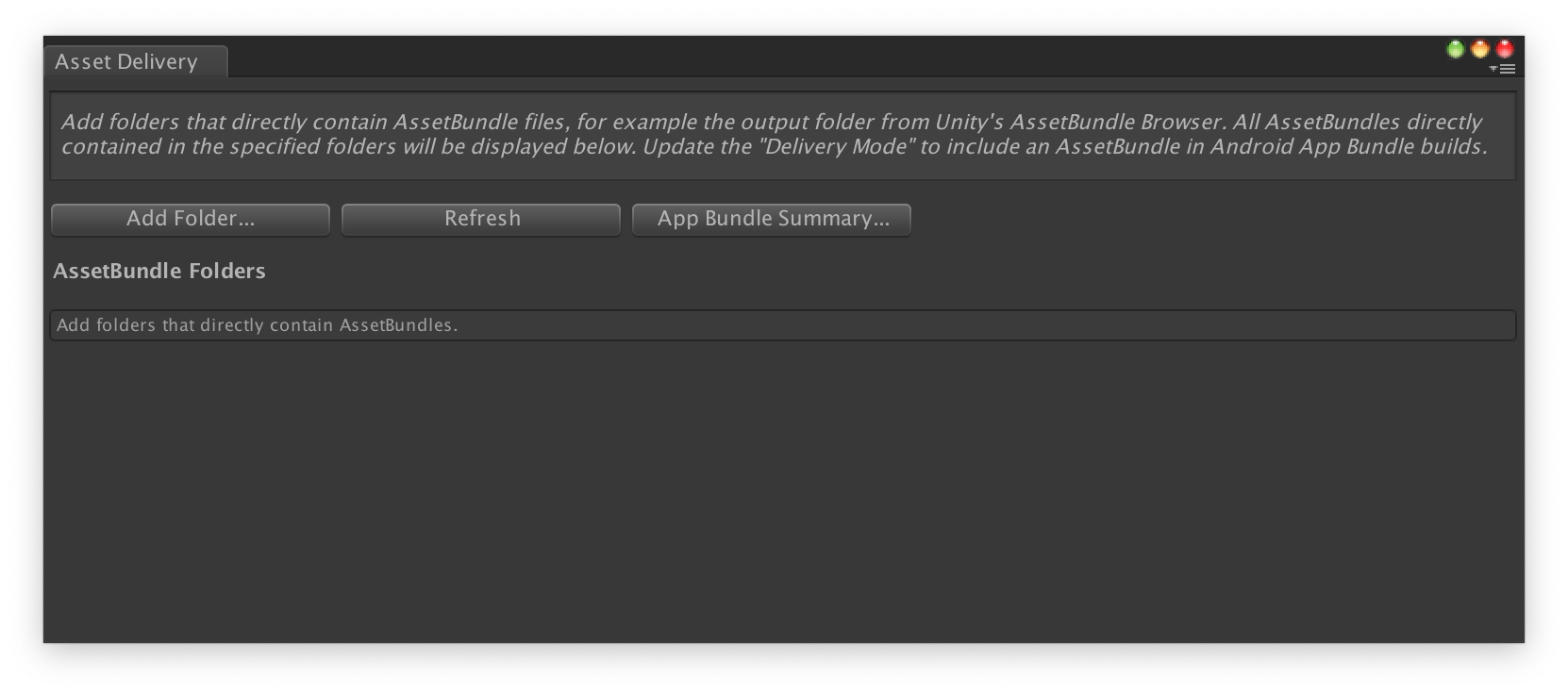
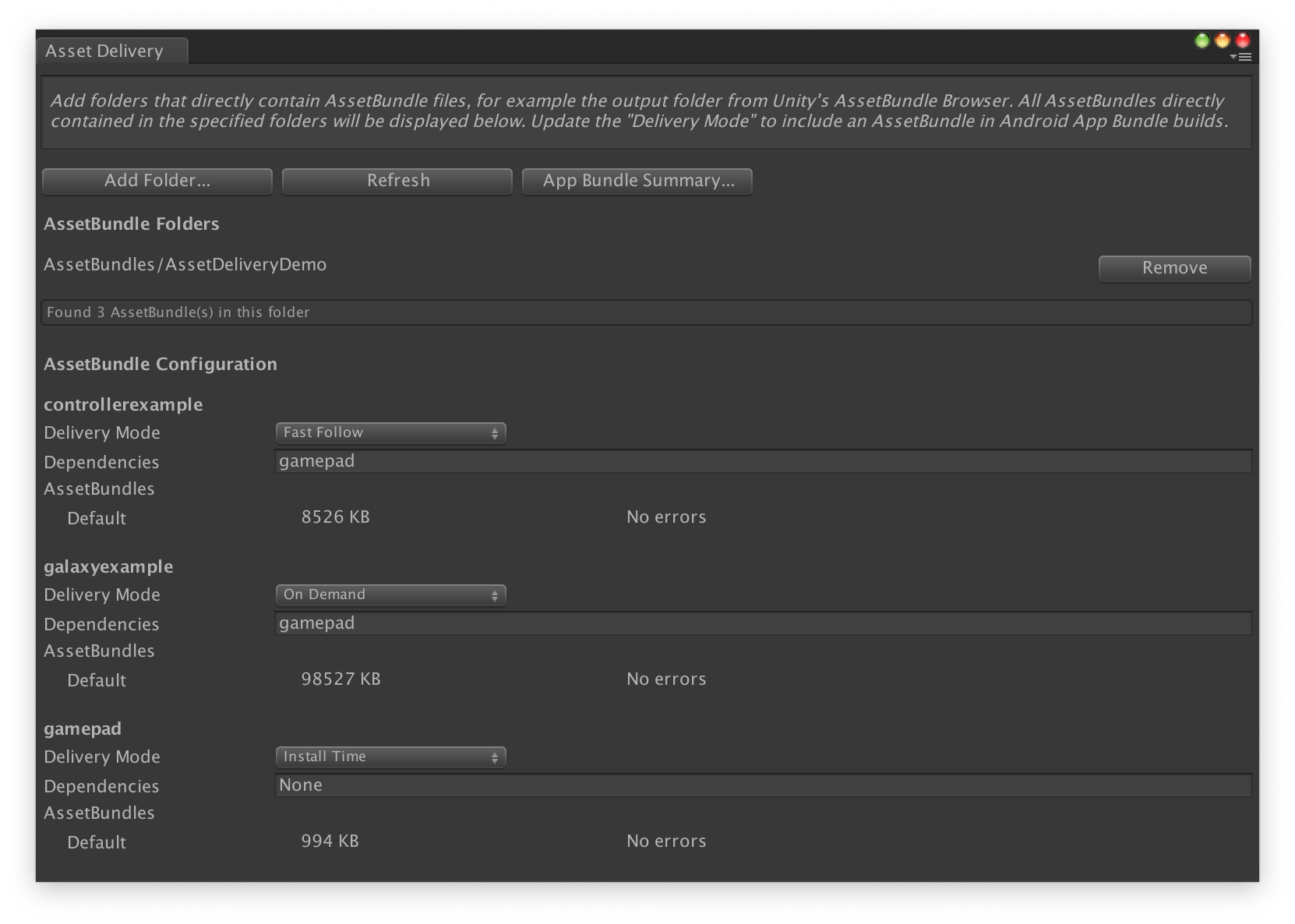
בכל חבילה, משנים את מצב ההצגה לזמן ההתקנה, הצגה מהירה או על פי דרישה. פותרים את השגיאות או התלויות וסוגרים את החלון.
בוחרים באפשרות Google > Build Android App Bundle (Google > יצירת קובץ Android App Bundle) כדי ליצור את קובץ ה-AAB.
(אופציונלי) מגדירים את קובץ ה-AAB כך שיתמוך בפורמטים שונים של דחיסת טקסטורה.
הגדרת חבילות נכסים באמצעות ה-API
אתם יכולים להגדיר את העברת הנכסים באמצעות סקריפטים של עורך, שאפשר להריץ כחלק ממערכת build אוטומטית.
אפשר להשתמש במחלקה
AssetPackConfig
כדי להגדיר אילו נכסים ייכללו בגרסת קובץ Android App Bundle, וגם את אופן השליחה של הנכסים. חבילות ה-Asset Pack האלה לא צריכות להכיל AssetBundle.
public void ConfigureAssetPacks {
   // Creates an AssetPackConfig with a single asset pack, named
   // examplePackName, containing all the files in path/to/exampleFolder.
   var assetPackConfig = new AssetPackConfig();
   assetPackConfig.AddAssetsFolder("examplePackName",
                                   "path/to/exampleFolder",
                                   AssetPackDeliveryMode.OnDemand);

   // Configures the build system to use the newly created assetPackConfig when
   // calling Google > Build and Run or Google > Build Android App Bundle.
   AssetPackConfigSerializer.SaveConfig(assetPackConfig);

   // Alternatively, use BundleTool.BuildBundle to build an App Bundle from script.
   BuildBundle(new buildPlayerOptions(), assetPackConfig);
}
אפשר גם להשתמש ב-method הסטטי BuildBundle בכיתה Bundletool כדי ליצור קובץ Android App Bundle עם חבילות נכסים, בהינתן BuildPlayerOptions ו-AssetPackConfig.
מדריך מפורט זמין ב-Codelab בנושא שימוש ב-Play Asset Delivery במשחקי Unity.
שילוב עם Play Asset Delivery Unity API
Play Asset Delivery Unity API מספק את הפונקציונליות לבקשת חבילות נכסים, לניהול הורדות ולגישה לנכסים. קודם צריך להוסיף את הפלאגין של Unity לפרויקט.
הפונקציות שבהן משתמשים ב-API תלויות באופן שבו יצרתם את חבילות הנכסים.
אם יצרתם חבילות נכסים באמצעות ממשק המשתמש של הפלאגין, בוחרים באפשרות Plugin-configured asset packs (חבילות נכסים שהוגדרו באמצעות הפלאגין).
אם יצרתם חבילות נכסים באמצעות ה-API (או ממשק המשתמש של הפלאגין), בוחרים באפשרות חבילות נכסים שהוגדרו באמצעות API.
מטמיעים את ה-API בהתאם לסוג המסירה של חבילת הנכסים שרוצים לגשת אליה. השלבים האלה מוצגים בתרשים הזרימה הבא.
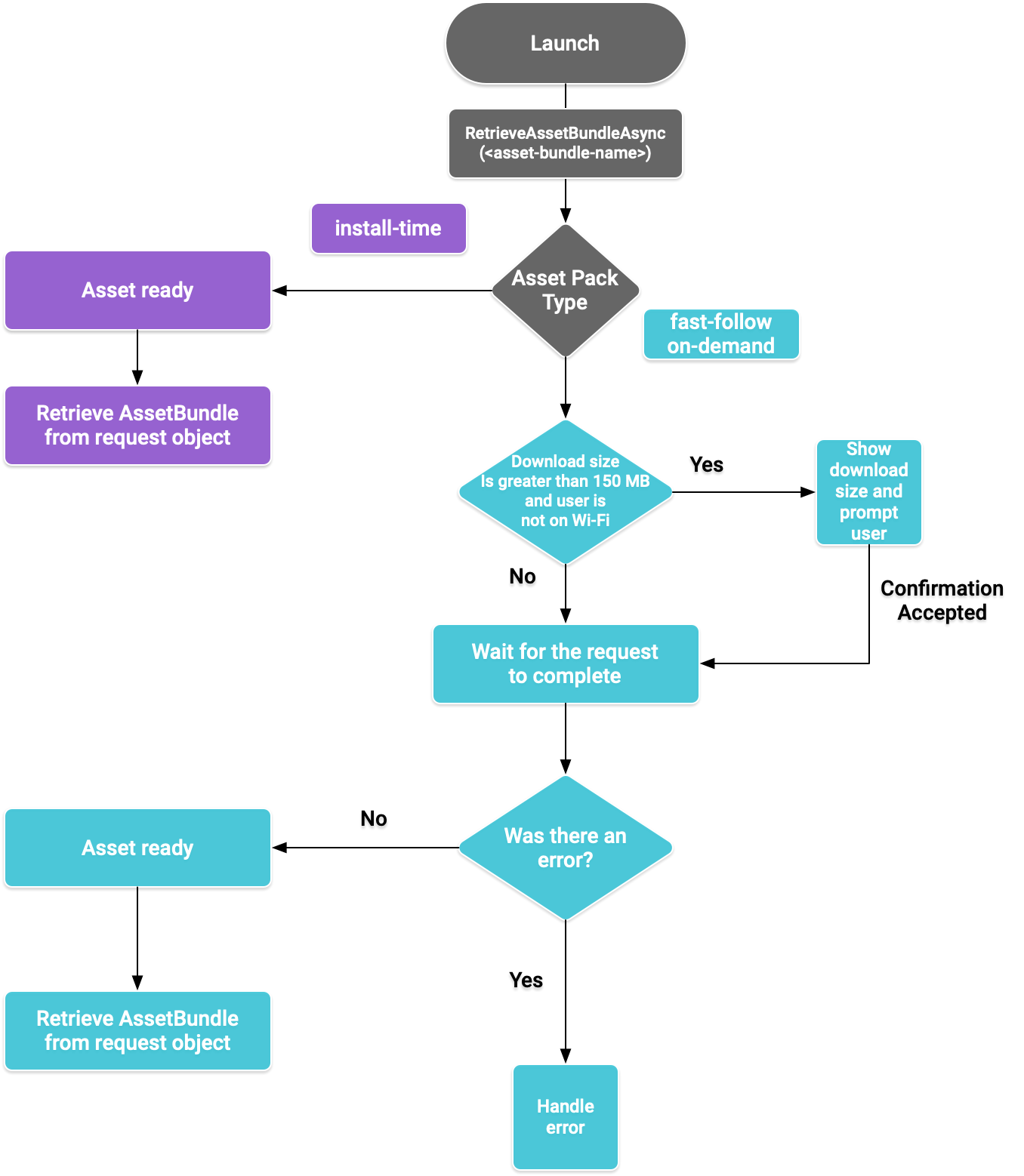
איור 1. תרשים זרימה לגישה לחבילות נכסים
אחזור של חבילות נכסים
מייבאים את ספריית Play Asset Delivery ומבצעים קריאה ל-method RetrieveAssetBundleAsync() כדי לאחזר AssetBundle.
using Google.Play.AssetDelivery;

// Loads the AssetBundle from disk, downloading the asset pack containing it if necessary.
PlayAssetBundleRequest bundleRequest = PlayAssetDelivery.RetrieveAssetBundleAsync(asset-bundle-name);
העברה בזמן ההתקנה
חבילות נכסים שהוגדרו כ-install-time זמינות באופן מיידי בהפעלת האפליקציה. אפשר להשתמש בקוד הבא כדי לטעון סצנה מ-AssetBundle:
AssetBundle assetBundle = bundleRequest.AssetBundle;

// You may choose to load scenes from the AssetBundle. For example:
string[] scenePaths = assetBundle.GetAllScenePaths();
SceneManager.LoadScene(scenePaths[path-index]);
משלוח מהיר ומשלוח על פי דרישה
הסעיפים האלה רלוונטיים לחבילות נכסים מסוג fast-follow ו-on-demand.
בדיקת הסטטוס
כל חבילת נכסים מאוחסנת בתיקייה נפרדת באחסון הפנימי של האפליקציה.
משתמשים בשיטה isDownloaded() כדי לקבוע אם חבילת נכסים כבר הורדה.
מעקב אחר ההורדה
מריצים שאילתה על אובייקט PlayAssetBundleRequest כדי לעקוב אחרי סטטוס הבקשה:
// Download progress of request, between 0.0f and 1.0f. The value will always be
// 1.0 for assets delivered as install-time.
// NOTE: A value of 1.0 will only signify the download is complete. It will still need to be loaded.
float progress = bundleRequest.DownloadProgress;

// Returns true if:
//   * it had either completed the download, installing, and loading of the AssetBundle,
//   * OR if it has encountered an error.
bool done = bundleRequest.IsDone;

// Returns status of retrieval request.
AssetDeliveryStatus status = bundleRequest.Status;
switch(status) {
    case AssetDeliveryStatus.Pending:
        // Asset pack download is pending - N/A for install-time assets.
    case AssetDeliveryStatus.Retrieving:
        // Asset pack is being downloaded and transferred to app storage.
        // N/A for install-time assets.
    case AssetDeliveryStatus.Available:
        // Asset pack is downloaded on disk but NOT loaded into memory.
        // For PlayAssetPackRequest(), this indicates that the request is complete.
    case AssetDeliveryStatus.Loading:
        // Asset pack is being loaded.
    case AssetDeliveryStatus.Loaded:
        // Asset pack has finished loading, assets can now be loaded.
        // For PlayAssetBundleRequest(), this indicates that the request is complete.
    case AssetDeliveryStatus.Failed:
        // Asset pack retrieval has failed.
    case AssetDeliveryStatus.WaitingForWifi:
        // Asset pack retrieval paused until either the device connects via Wi-Fi,
        // or the user accepts the PlayAssetDelivery.ShowConfirmationDialog dialog.
    case AssetDeliveryStatus.RequiresUserConfirmation:
        // Asset pack retrieval paused until the user accepts the
        // PlayAssetDelivery.ShowConfirmationDialog dialog.
    default:
        break;
}
הורדות גדולות
חבילות Asset Pack גדולות מ-200MB יכולות להוריד אוטומטית, אבל רק ב-Wi-Fi. אם המשתמש לא מחובר ל-Wi-Fi, הסטטוס של PlayAssetBundleRequest מוגדר ל-AssetDeliveryStatus.WaitingForWifi וההורדה מושהית. במקרה כזה, אפשר לחכות עד שהמכשיר יתחבר ל-Wi-Fi וההורדה תתחדש, או לבקש מהמשתמש אישור להורדת החבילה דרך חיבור לרשת סלולרית.
נדרש אישור של המשתמש
אם לחבילה יש סטטוס AssetDeliveryStatus.RequiresUserConfirmation, ההורדה לא תמשיך עד שהמשתמש יאשר את תיבת הדו-שיח שמוצגת עם PlayAssetDelivery.ShowConfirmationDialog(). הסטטוס הזה יכול להופיע אם האפליקציה לא מזוהה על ידי Play. שימו לב: במקרה הזה, קריאה ל-PlayAssetDelivery.ShowConfirmationDialog() גורמת לעדכון האפליקציה. אחרי העדכון, שולחים שוב בקשה לקבלת הנכסים.
if(request.Status == AssetDeliveryStatus.RequiresUserConfirmation
   || request.Status == AssetDeliveryStatus.WaitingForWifi) {
    var userConfirmationOperation = PlayAssetDelivery.ShowConfirmationDialog();
    yield return userConfirmationOperation;

    switch(userConfirmationOperation.GetResult()) {
        case ConfirmationDialogResult.Unknown:
            // userConfirmationOperation finished with an error. Something went
            // wrong when displaying the prompt to the user, and they weren't
            // able to interact with the dialog.
        case ConfirmationDialogResult.Accepted:
            // User accepted the confirmation dialog--an update will start.
        case ConfirmationDialogResult.Declined:
            // User canceled or declined the dialog. It can be shown again.
        default:
            break;
    }
}
ביטול בקשה (על פי דרישה בלבד)
אם אתם צריכים לבטל את הבקשה לפני שה-AssetBundles נטענים לזיכרון, צריך לבצע קריאה ל-method AttemptCancel() באובייקט PlayAssetBundleRequest:
// Will only attempt if the status is Pending, Retrieving, or Available - otherwise
// it will be a no-op.
bundleRequest.AttemptCancel();

// Check to see if the request was successful by checking if the error code is Canceled.
if(bundleRequest.Error == AssetDeliveryErrorCode.Canceled) {
    // Request was successfully canceled.
}
בקשה אסינכרונית של חבילות נכסים
ברוב המקרים, כדאי להשתמש בקורוטינות כדי לבקש חבילות נכסים באופן אסינכרוני ולעקוב אחרי ההתקדמות, כמו בדוגמה הבאה:
private IEnumerator LoadAssetBundleCoroutine(string assetBundleName) {

    PlayAssetBundleRequest bundleRequest =
        PlayAssetDelivery.RetrieveAssetBundleAsync(assetBundleName);

    while (!bundleRequest.IsDone) {
        if(bundleRequest.Status == AssetDeliveryStatus.WaitingForWifi) {
            var userConfirmationOperation = PlayAssetDelivery.ShowCellularDataConfirmation();

            // Wait for confirmation dialog action.
            yield return userConfirmationOperation;

            if((userConfirmationOperation.Error != AssetDeliveryErrorCode.NoError) ||
               (userConfirmationOperation.GetResult() != ConfirmationDialogResult.Accepted)) {
                // The user did not accept the confirmation. Handle as needed.
            }

            // Wait for Wi-Fi connection OR confirmation dialog acceptance before moving on.
            yield return new WaitUntil(() => bundleRequest.Status != AssetDeliveryStatus.WaitingForWifi);
        }

        // Use bundleRequest.DownloadProgress to track download progress.
        // Use bundleRequest.Status to track the status of request.

        yield return null;
    }

    if (bundleRequest.Error != AssetDeliveryErrorCode.NoError) {
        // There was an error retrieving the bundle. For error codes NetworkError
        // and InsufficientStorage, you may prompt the user to check their
        // connection settings or check their storage space, respectively, then
        // try again.
        yield return null;
    }

    // Request was successful. Retrieve AssetBundle from request.AssetBundle.
    AssetBundle assetBundle = bundleRequest.AssetBundle;
מידע נוסף על טיפול בשגיאות מופיע ברשימה של AssetDeliveryErrorCodes.
שיטות אחרות ב-Play Core API
בהמשך מפורטות כמה שיטות API נוספות שכדאי להשתמש בהן באפליקציה.
בדיקת גודל ההורדה
כדי לבדוק את הגודל של AssetBundle, מבצעים קריאה אסינכרונית ל-Google Play ומגדירים שיטת קריאה חוזרת להשלמת הפעולה:
public IEnumerator GetDownloadSize() {
   PlayAsyncOperation<long> getSizeOperation =
   PlayAssetDelivery.GetDownloadSize(assetPackName);

   yield return getSizeOperation;
   if(operation.Error != AssetDeliveryErrorCode.NoError) {
       // Error while retrieving download size.
    } else {
        // Download size is given in bytes.
        long downloadSize = operation.GetResult();
    }
}
הסרת חבילות נכסים
אפשר להסיר חבילות נכסים דיגיטליים (AssetBundles) Fast-Follow ועל פי דרישה שלא נטענות כרגע לזיכרון. מבצעים את הקריאה האסינכרונית הבאה ומגדירים שיטת קריאה חוזרת (callback) למועד השלמתה:
PlayAsyncOperation<string> removeOperation = PlayAssetDelivery.RemoveAssetPack(assetBundleName);

removeOperation.Completed += (operation) =>
            {
                if(operation.Error != AssetDeliveryErrorCode.NoError) {
                    // Error while attempting to remove AssetBundles.
                } else {
                    // Files were deleted OR files did not exist to begin with.
                }
            };
השלבים הבאים
בדיקת העברת נכסים באופן מקומי ומ-Google Play.