

هنگام ادغام تحویل دارایی، بازیهای Unity میتوانند با استفاده از Addressables یا AssetBundles به بستههای دارایی دسترسی پیدا کنند. Addressables جدیدترین و توصیهشدهترین راهحل تحویل دارایی برای بازیهای ساخته شده با Unity 2019.4 یا بالاتر هستند، در حالی که AssetBundles از بستههای دارایی در Unity 2017.4 و 2018.4 پشتیبانی میکند.
آدرسپذیرهای یونیتی
بازیهای ساخته شده با Unity 2019.4 یا بالاتر باید از Addressables برای تحویل دارایی در اندروید استفاده کنند. Unity یک API برای تحویل داراییهای Play (PAD) برای مدیریت بستههای دارایی اندروید با استفاده از Addressables ارائه میدهد. برای اطلاعات بیشتر در مورد استفاده از Addressables، به موارد زیر مراجعه کنید:
- آدرسپذیرها برای بسته اندروید
- راهنمای PAD برای یونیتی
- API PAD برای مستندات مرجع Unity
استفاده از فایلهای AssetBundle
بازیهای ساخته شده با Unity 2017.4 و 2018.4 میتوانند از فایلهای AssetBundle برای تحویل داراییها در اندروید استفاده کنند. فایلهای Unity AssetBundle حاوی داراییهای سریالی هستند که میتوانند توسط موتور Unity در حین اجرای برنامه بارگیری شوند. این فایلها مختص پلتفرم هستند (به عنوان مثال، برای اندروید ساخته شدهاند) و میتوانند در ترکیب با بستههای دارایی استفاده شوند. معمولاً یک فایل AssetBundle در یک بسته دارایی واحد بستهبندی میشود و بسته از همان نام AssetBundle استفاده میکند. اگر میخواهید در ایجاد یک بسته دارایی انعطافپذیری بیشتری داشته باشید، بسته دارایی را با استفاده از API پیکربندی کنید.
در زمان اجرا، از کلاس Play Asset Delivery for Unity برای بازیابی یک AssetBundle که در یک بستهی دارایی بستهبندی شده است، استفاده کنید.
پیشنیازها
- محیط توسعه خود را تنظیم کنید:
رابط خط فرمان OpenUPM
اگر رابط خط فرمان OpenUPM را نصب کردهاید، میتوانید رجیستری OpenUPM را با دستور زیر نصب کنید:
openupm add com.google.play.assetdeliveryاوپنیوپیام
با انتخاب گزینه منوی Unity، Edit > Project Settings > Package Manager، تنظیمات مدیریت بسته را باز کنید.
OpenUPM را به عنوان یک رجیستری محدود به پنجره Package Manager اضافه کنید:
Name: package.openupm.com
URL: https://package.openupm.com
Scopes: com.google.external-dependency-manager
  com.google.play.common
  com.google.play.core
  com.google.play.assetdelivery
  com.google.android.appbundle
با انتخاب گزینهی منوی Unity یعنی Window > Package Manager، منوی مدیریت بستهها را باز کنید.
منوی کشویی «دامنه مدیریت» را روی «ثبتهای من» تنظیم کنید.
بسته افزونه Google Play Integrity for Unity را از لیست بستهها انتخاب کرده و روی نصب کلیک کنید.
وارد کردن از گیتهاب
آخرین نسخه
.unitypackageرا از گیتهاب دانلود کنید.با انتخاب گزینهی منوی Unity ، Assets > Import package > Custom Package و وارد کردن تمام موارد، فایل
.unitypackageرا وارد کنید.
پیکربندی AssetBundles با استفاده از رابط کاربری
پیکربندی هر AssetBundle در یک بسته دارایی:
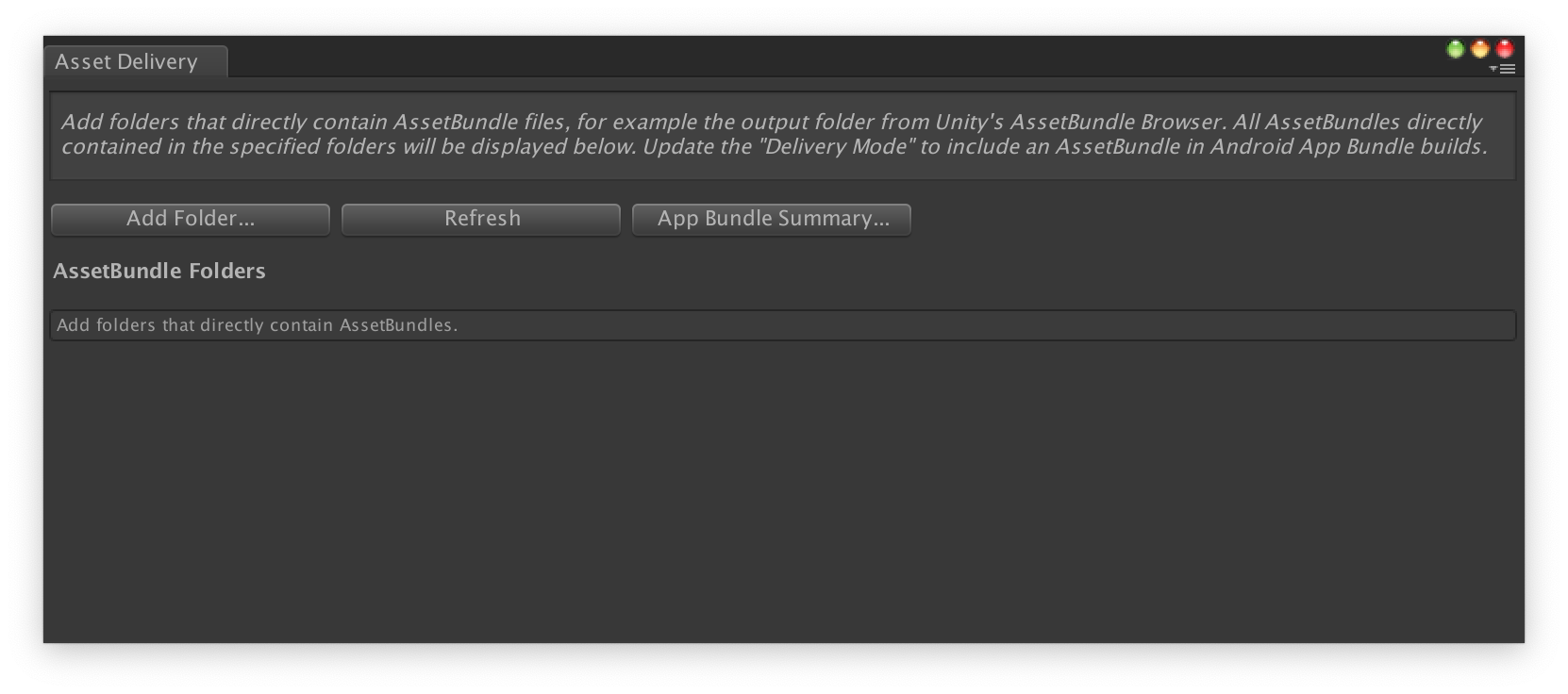
- گوگل > بسته نرمافزاری اندروید > تنظیمات تحویل دارایی را انتخاب کنید.
- برای انتخاب پوشههایی که مستقیماً حاوی فایلهای AssetBundle هستند، روی «افزودن پوشه» کلیک کنید.
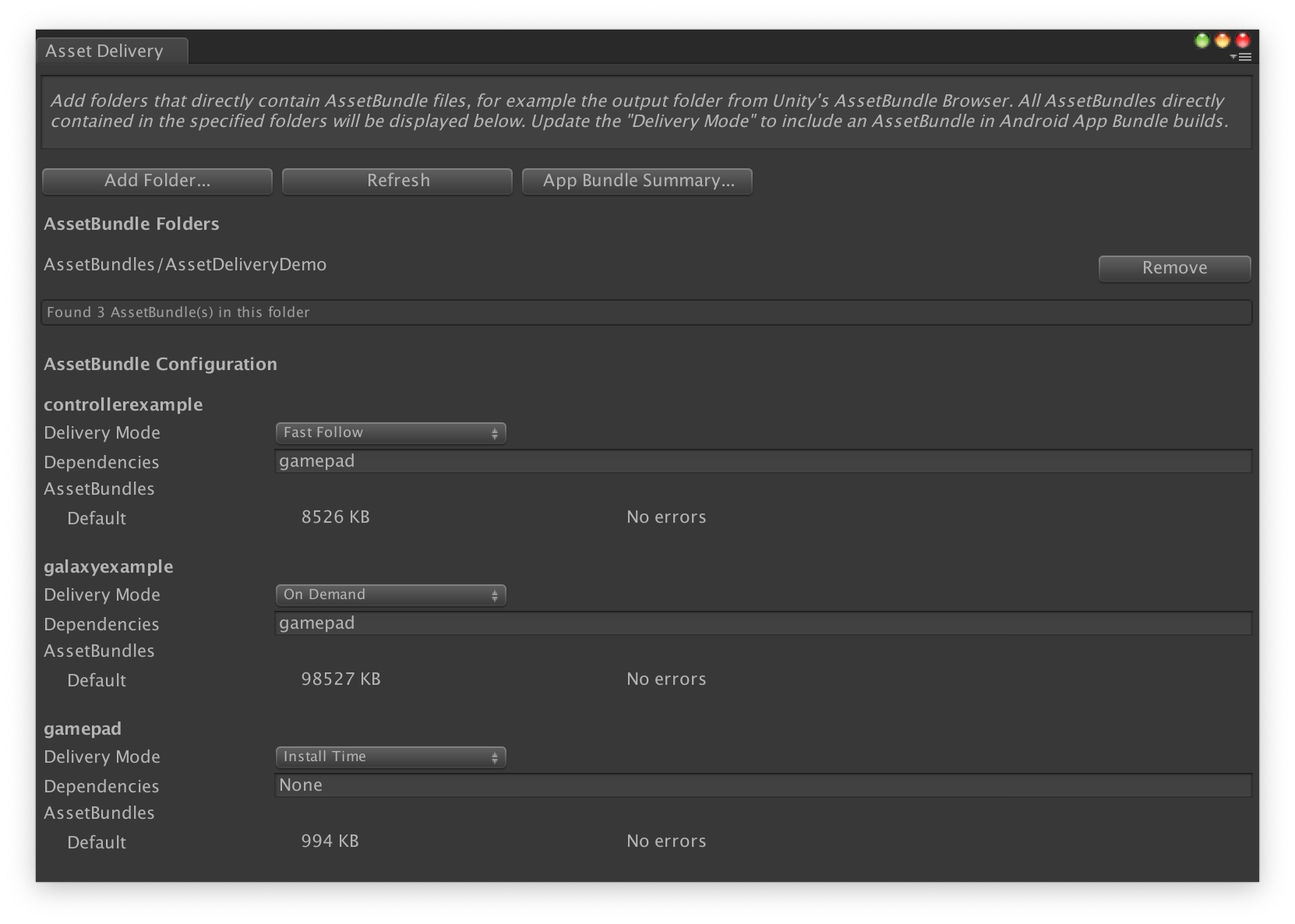
برای هر بسته، حالت تحویل (Delivery Mode) را به زمان نصب (Install Time) ، پیگیری سریع (Fast Follow ) یا بنا به تقاضا (On Demand) تغییر دهید. هرگونه خطا یا وابستگی را برطرف کنید و پنجره را ببندید.
برای ساخت بستهی برنامه، Google > Build Android App Bundle را انتخاب کنید.
(اختیاری) بسته برنامه خود را برای پشتیبانی از قالبهای مختلف فشردهسازی بافت پیکربندی کنید.
پیکربندی بستههای دارایی با استفاده از API
شما میتوانید تحویل داراییها را از طریق اسکریپتهای ویرایشگر که میتوانند به عنوان بخشی از یک سیستم ساخت خودکار اجرا شوند، پیکربندی کنید.
از کلاس AssetPackConfig برای تعریف اینکه کدام داراییها باید در ساخت Android App Bundle گنجانده شوند و همچنین نحوه تحویل داراییها استفاده کنید. این بستههای دارایی نیازی به داشتن AssetBundle ندارند.
public void ConfigureAssetPacks {
   // Creates an AssetPackConfig with a single asset pack, named
   // examplePackName, containing all the files in path/to/exampleFolder.
   var assetPackConfig = new AssetPackConfig();
   assetPackConfig.AddAssetsFolder("examplePackName",
                                   "path/to/exampleFolder",
                                   AssetPackDeliveryMode.OnDemand);

   // Configures the build system to use the newly created assetPackConfig when
   // calling Google > Build and Run or Google > Build Android App Bundle.
   AssetPackConfigSerializer.SaveConfig(assetPackConfig);

   // Alternatively, use BundleTool.BuildBundle to build an App Bundle from script.
   BuildBundle(new buildPlayerOptions(), assetPackConfig);
}
همچنین میتوانید از متد استاتیک BuildBundle در کلاس Bundletool برای تولید یک Android App Bundle با بستههای دارایی، با استفاده از BuildPlayerOptions و AssetPackConfig استفاده کنید.
برای یک آموزش هدایتشده، به بخش «استفاده از Play Asset Delivery در بازیهای Unity» در Codelab مراجعه کنید.
ادغام با API Unity Delivery Play Asset
رابط برنامهنویسی کاربردی (API) یونیتی Play Asset Delivery قابلیت درخواست بستههای دارایی، مدیریت دانلودها و دسترسی به داراییها را فراهم میکند. ابتدا مطمئن شوید که افزونه یونیتی را به پروژه خود اضافه کردهاید .
توابعی که در API استفاده میکنید به نحوه ایجاد بستههای دارایی بستگی دارد.
اگر بستههای دارایی را با استفاده از رابط کاربری افزونه ایجاد کردهاید ، بستههای دارایی پیکربندیشده توسط افزونه را انتخاب کنید.
اگر بستههای دارایی را با استفاده از API (یا رابط کاربری افزونه) ایجاد کردهاید ، بستههای دارایی پیکربندیشده با API را انتخاب کنید.
شما API را بر اساس نوع تحویل بسته دارایی که میخواهید به آن دسترسی داشته باشید، پیادهسازی میکنید. این مراحل در نمودار جریان زیر نشان داده شده است.
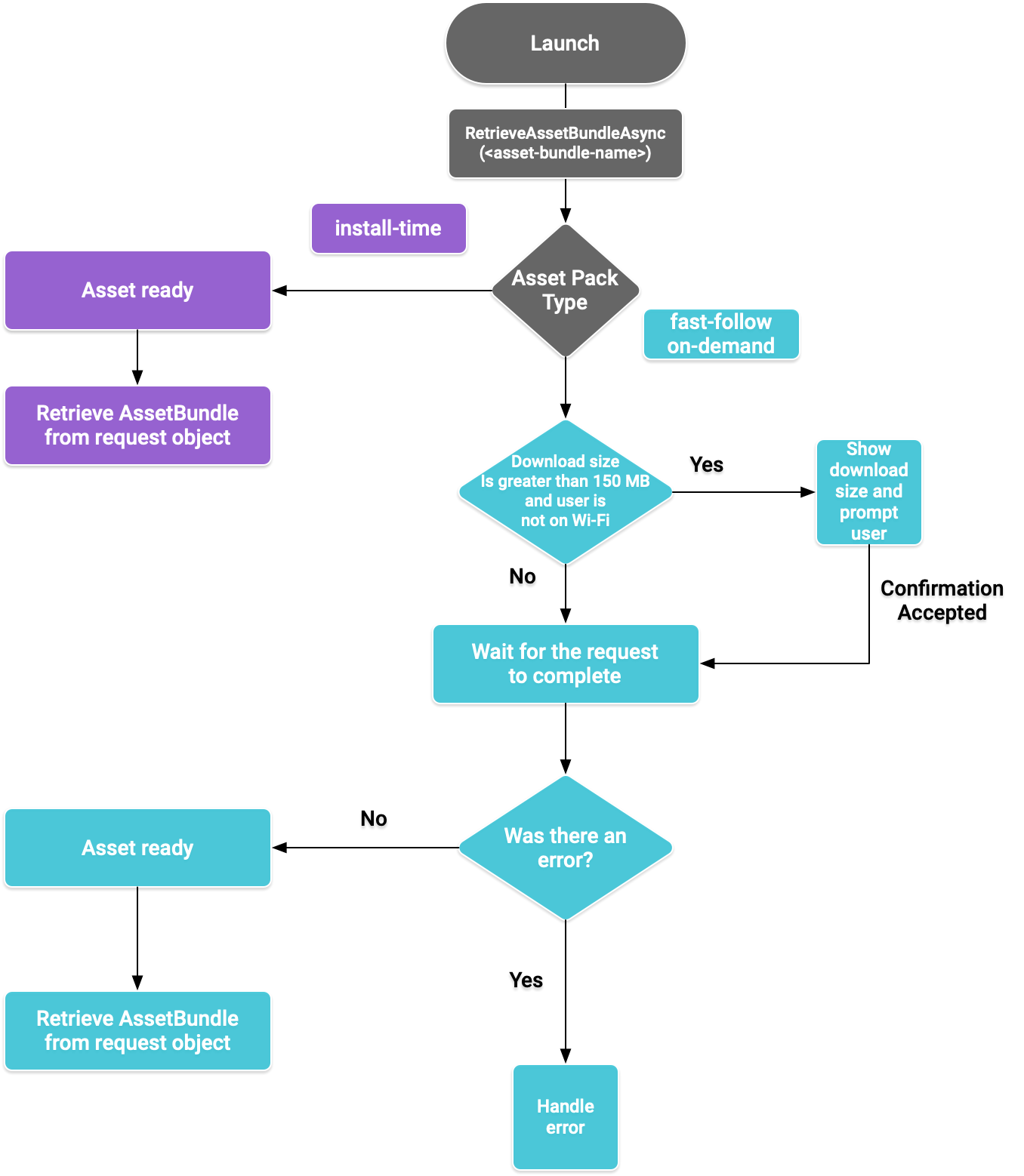
شکل ۱. نمودار جریان دسترسی به بستههای دارایی
بازیابی AssetBundles
کتابخانه Play Asset Delivery را وارد کنید و متد RetrieveAssetBundleAsync() را برای بازیابی یک AssetBundle فراخوانی کنید.
using Google.Play.AssetDelivery;

// Loads the AssetBundle from disk, downloading the asset pack containing it if necessary.
PlayAssetBundleRequest bundleRequest = PlayAssetDelivery.RetrieveAssetBundleAsync(asset-bundle-name);
تحویل زمان نصب
بستههای دارایی پیکربندیشده به عنوان install-time بلافاصله در هنگام راهاندازی برنامه در دسترس هستند. میتوانید از موارد زیر برای بارگذاری صحنهای از AssetBundle استفاده کنید:
AssetBundle assetBundle = bundleRequest.AssetBundle;

// You may choose to load scenes from the AssetBundle. For example:
string[] scenePaths = assetBundle.GetAllScenePaths();
SceneManager.LoadScene(scenePaths[path-index]);
تحویل سریع و بر اساس تقاضا
این بخشها مربوط به بستههای دارایی fast-follow و on-demand هستند.
بررسی وضعیت
هر بستهی دارایی در یک پوشهی جداگانه در حافظهی داخلی برنامه ذخیره میشود. برای تعیین اینکه آیا یک بستهی دارایی قبلاً دانلود شده است یا خیر، از متد isDownloaded() استفاده کنید.
نظارت بر دانلود
برای نظارت بر وضعیت درخواست، شیء PlayAssetBundleRequest را کوئری کنید:
// Download progress of request, between 0.0f and 1.0f. The value will always be
// 1.0 for assets delivered as install-time.
// NOTE: A value of 1.0 will only signify the download is complete. It will still need to be loaded.
float progress = bundleRequest.DownloadProgress;

// Returns true if:
//   * it had either completed the download, installing, and loading of the AssetBundle,
//   * OR if it has encountered an error.
bool done = bundleRequest.IsDone;

// Returns status of retrieval request.
AssetDeliveryStatus status = bundleRequest.Status;
switch(status) {
    case AssetDeliveryStatus.Pending:
        // Asset pack download is pending - N/A for install-time assets.
    case AssetDeliveryStatus.Retrieving:
        // Asset pack is being downloaded and transferred to app storage.
        // N/A for install-time assets.
    case AssetDeliveryStatus.Available:
        // Asset pack is downloaded on disk but NOT loaded into memory.
        // For PlayAssetPackRequest(), this indicates that the request is complete.
    case AssetDeliveryStatus.Loading:
        // Asset pack is being loaded.
    case AssetDeliveryStatus.Loaded:
        // Asset pack has finished loading, assets can now be loaded.
        // For PlayAssetBundleRequest(), this indicates that the request is complete.
    case AssetDeliveryStatus.Failed:
        // Asset pack retrieval has failed.
    case AssetDeliveryStatus.WaitingForWifi:
        // Asset pack retrieval paused until either the device connects via Wi-Fi,
        // or the user accepts the PlayAssetDelivery.ShowConfirmationDialog dialog.
    case AssetDeliveryStatus.RequiresUserConfirmation:
        // Asset pack retrieval paused until the user accepts the
        // PlayAssetDelivery.ShowConfirmationDialog dialog.
    default:
        break;
}
دانلودهای بزرگ
بستههای Asset بزرگتر از ۲۰۰ مگابایت میتوانند به صورت خودکار دانلود شوند، اما فقط از طریق Wi-Fi. اگر کاربر به Wi-Fi متصل نباشد، وضعیت PlayAssetBundleRequest روی AssetDeliveryStatus.WaitingForWifi تنظیم میشود و دانلود متوقف میشود. در این حالت، یا منتظر بمانید تا دستگاه به Wi-Fi متصل شود و دانلود از سر گرفته شود، یا از کاربر درخواست تأیید برای دانلود بسته از طریق اتصال تلفن همراه شود.
تایید کاربر الزامی
اگر یک بسته وضعیت AssetDeliveryStatus.RequiresUserConfirmation داشته باشد، دانلود ادامه پیدا نمیکند تا زمانی که کاربر کادر محاورهای نمایش داده شده با PlayAssetDelivery.ShowConfirmationDialog() را بپذیرد. این وضعیت میتواند در صورتی ایجاد شود که برنامه توسط Play شناسایی نشود. توجه داشته باشید که فراخوانی PlayAssetDelivery.ShowConfirmationDialog() در این حالت باعث بهروزرسانی برنامه میشود. پس از بهروزرسانی، دوباره درخواست دریافت فایلها را بدهید.
if(request.Status == AssetDeliveryStatus.RequiresUserConfirmation
   || request.Status == AssetDeliveryStatus.WaitingForWifi) {
    var userConfirmationOperation = PlayAssetDelivery.ShowConfirmationDialog();
    yield return userConfirmationOperation;

    switch(userConfirmationOperation.GetResult()) {
        case ConfirmationDialogResult.Unknown:
            // userConfirmationOperation finished with an error. Something went
            // wrong when displaying the prompt to the user, and they weren't
            // able to interact with the dialog.
        case ConfirmationDialogResult.Accepted:
            // User accepted the confirmation dialog--an update will start.
        case ConfirmationDialogResult.Declined:
            // User canceled or declined the dialog. It can be shown again.
        default:
            break;
    }
}
لغو درخواست (فقط در صورت درخواست)
اگر نیاز دارید درخواست را قبل از بارگذاری AssetBundleها در حافظه لغو کنید، متد AttemptCancel() را روی شیء PlayAssetBundleRequest فراخوانی کنید:
// Will only attempt if the status is Pending, Retrieving, or Available - otherwise
// it will be a no-op.
bundleRequest.AttemptCancel();

// Check to see if the request was successful by checking if the error code is Canceled.
if(bundleRequest.Error == AssetDeliveryErrorCode.Canceled) {
    // Request was successfully canceled.
}
درخواست بستههای دارایی به صورت غیرهمزمان
در بیشتر موارد، شما باید از Coroutineها برای درخواست بستههای دارایی به صورت ناهمگام و نظارت بر پیشرفت استفاده کنید، همانطور که در زیر نشان داده شده است:
private IEnumerator LoadAssetBundleCoroutine(string assetBundleName) {

    PlayAssetBundleRequest bundleRequest =
        PlayAssetDelivery.RetrieveAssetBundleAsync(assetBundleName);

    while (!bundleRequest.IsDone) {
        if(bundleRequest.Status == AssetDeliveryStatus.WaitingForWifi) {
            var userConfirmationOperation = PlayAssetDelivery.ShowCellularDataConfirmation();

            // Wait for confirmation dialog action.
            yield return userConfirmationOperation;

            if((userConfirmationOperation.Error != AssetDeliveryErrorCode.NoError) ||
               (userConfirmationOperation.GetResult() != ConfirmationDialogResult.Accepted)) {
                // The user did not accept the confirmation. Handle as needed.
            }

            // Wait for Wi-Fi connection OR confirmation dialog acceptance before moving on.
            yield return new WaitUntil(() => bundleRequest.Status != AssetDeliveryStatus.WaitingForWifi);
        }

        // Use bundleRequest.DownloadProgress to track download progress.
        // Use bundleRequest.Status to track the status of request.

        yield return null;
    }

    if (bundleRequest.Error != AssetDeliveryErrorCode.NoError) {
        // There was an error retrieving the bundle. For error codes NetworkError
        // and InsufficientStorage, you may prompt the user to check their
        // connection settings or check their storage space, respectively, then
        // try again.
        yield return null;
    }

    // Request was successful. Retrieve AssetBundle from request.AssetBundle.
    AssetBundle assetBundle = bundleRequest.AssetBundle;
برای اطلاعات بیشتر در مورد مدیریت خطاها، به لیست AssetDeliveryErrorCodes مراجعه کنید.
سایر متدهای Play Core API
در ادامه چند متد API اضافی که ممکن است بخواهید در برنامه خود استفاده کنید، آورده شده است.
بررسی حجم دانلود
با انجام یک فراخوانی غیرهمزمان به Google Play و تنظیم یک متد فراخوانی برای زمان اتمام عملیات، اندازه یک AssetBundle را بررسی کنید:
public IEnumerator GetDownloadSize() {
   PlayAsyncOperation<long> getSizeOperation =
   PlayAssetDelivery.GetDownloadSize(assetPackName);

   yield return getSizeOperation;
   if(operation.Error != AssetDeliveryErrorCode.NoError) {
       // Error while retrieving download size.
    } else {
        // Download size is given in bytes.
        long downloadSize = operation.GetResult();
    }
}
حذف AssetBundles
شما میتوانید AssetBundleهای fast-follow و on-demand را که در حال حاضر در حافظه بارگذاری نشدهاند، حذف کنید. فراخوانی غیرهمزمان زیر را انجام دهید و یک متد callback برای زمان تکمیل آن تنظیم کنید:
PlayAsyncOperation<string> removeOperation = PlayAssetDelivery.RemoveAssetPack(assetBundleName);

removeOperation.Completed += (operation) =>
            {
                if(operation.Error != AssetDeliveryErrorCode.NoError) {
                    // Error while attempting to remove AssetBundles.
                } else {
                    // Files were deleted OR files did not exist to begin with.
                }
            };
مراحل بعدی
تحویل دارایی را به صورت محلی و از Google Play آزمایش کنید .