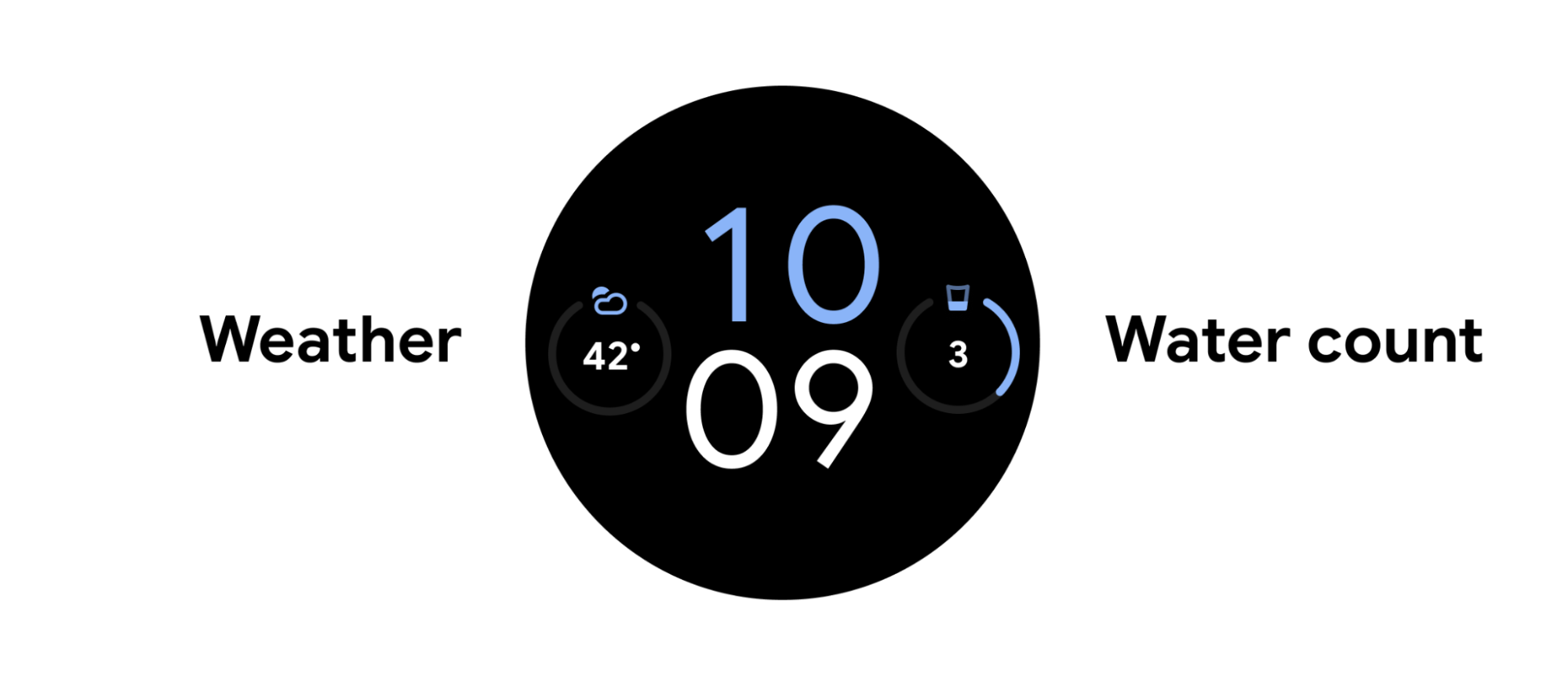
Wear OS lets users engage with experiences that are optimized for a watch. These experiences can appear on a variety of containers, or surfaces, within the Wear OS system UI.
When choosing a surface on Wear OS, keep your experience's main job in mind. For example, if you have a single unit of information that users are likely to want to glance at multiple times a day, consider providing a complication. If your content is high-value and highly contextual, consider a notification instead.
Display the highest-priority content in complications and notifications, and then use the larger space on widgets, tiles, and your app to display more content appropriately.
The following sections cover each of these surfaces in more detail.
Apps
An app is a focused view that can serve a complex or less-common task or a cluster of tasks. An app is immersive, and it's similar to a mobile app's main user interface (UI), though there are some differences.
Other surfaces can link into an app to let users carry out more complex tasks.
Tiles
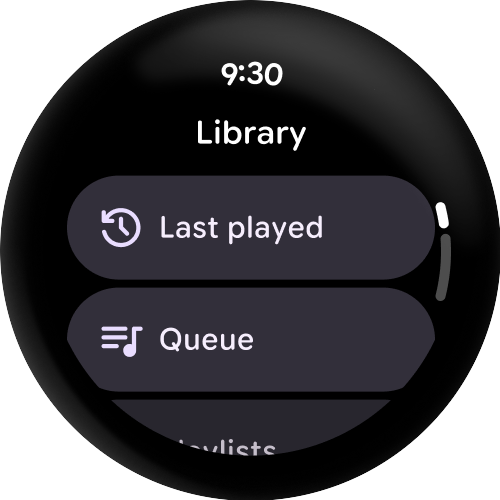
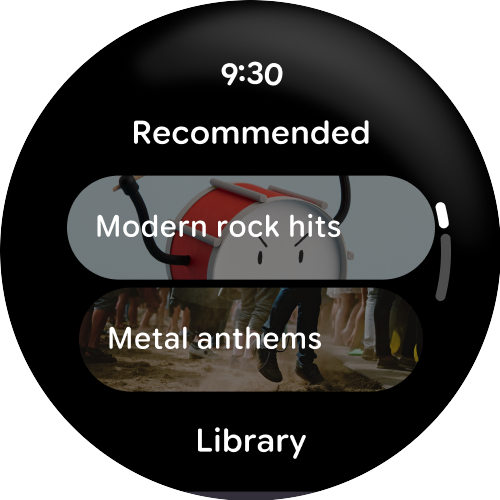
Tiles provide quick, predictable access to information and actions to solve user needs.
While apps can be immersive, tiles are fast-loading and focus on the user's immediate needs. If users want more information, they can tap tiles to open an app on the watch.
Widgets
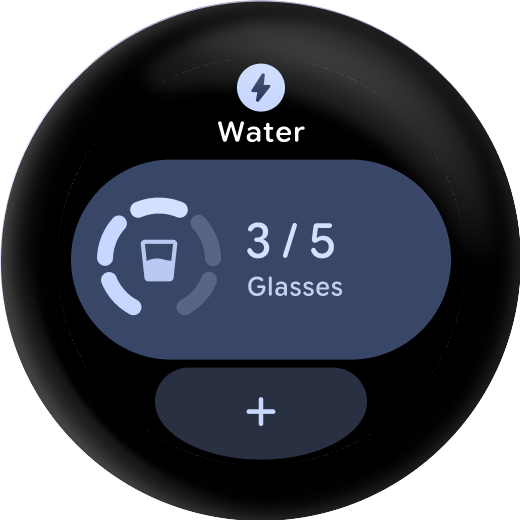
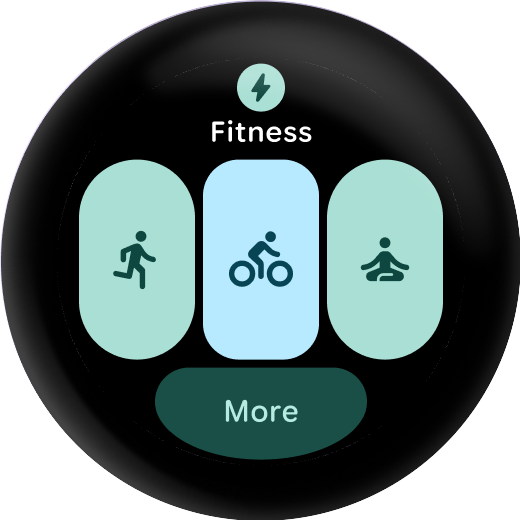
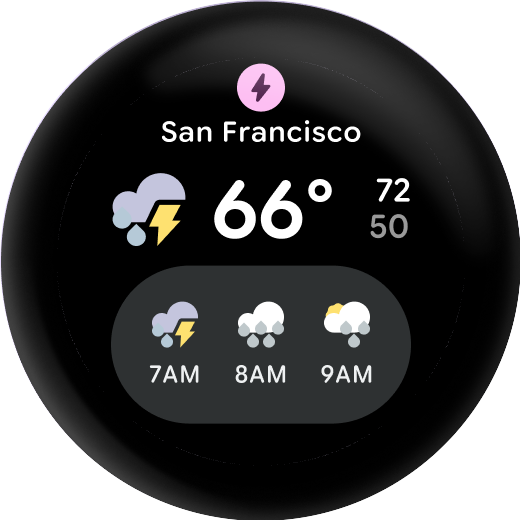
Widgets provide flexible, dynamic, and glanceable access to information and actions. They offer a more responsive design than tiles.
While tiles are full screen, widgets support different sizes, including small and large formats. Widgets are built using Jetpack Glance and the Remote Compose framework. Users can tap widgets to open the corresponding app for a deeper experience.
Notifications
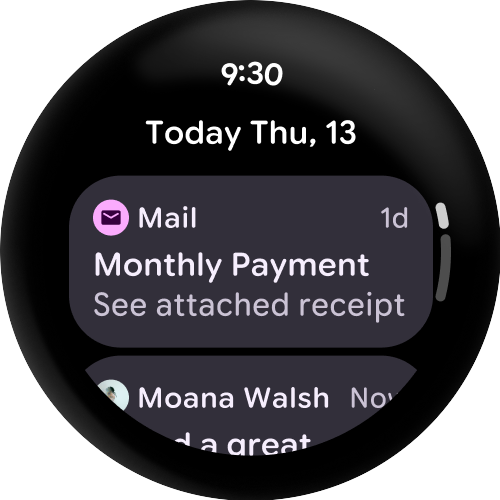
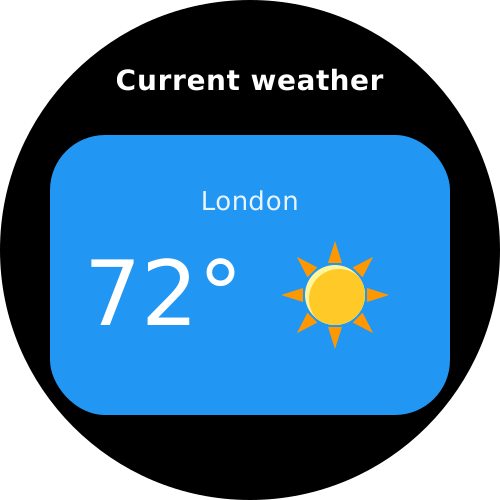
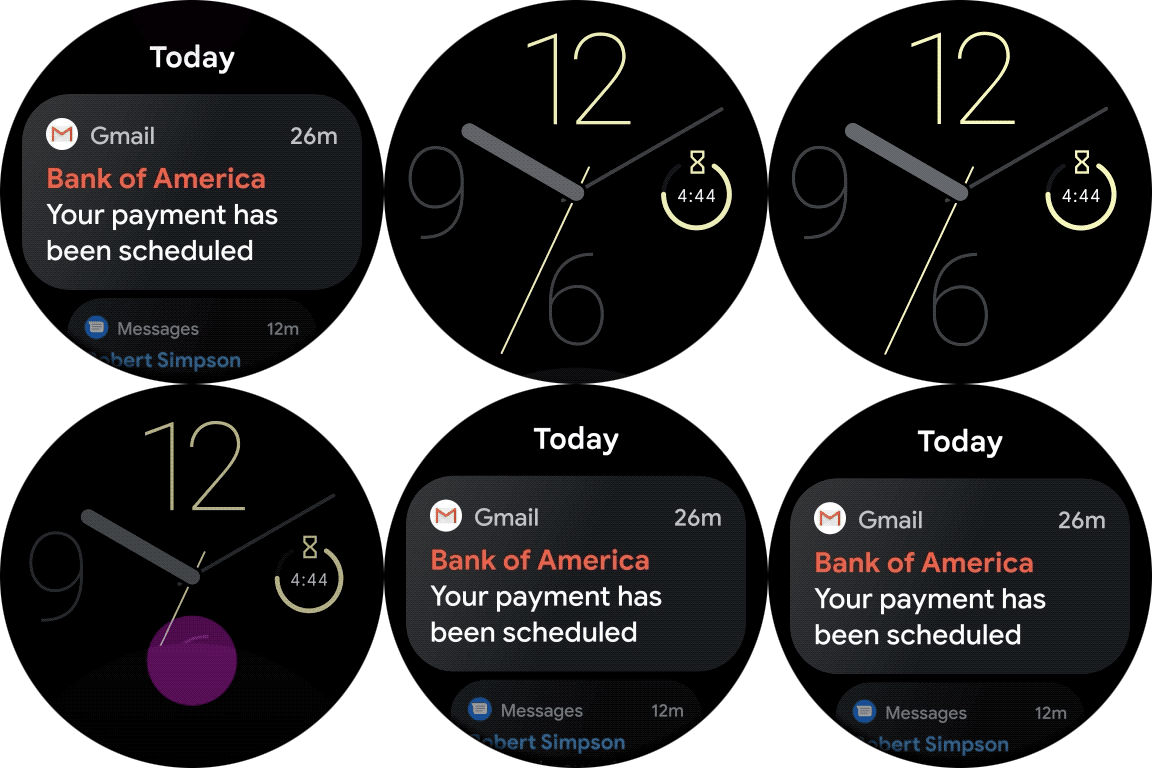
A notification provides glanceable, time-sensitive information and actions for the user. Notifications on Wear OS are similar to mobile notifications.
App launcher entries
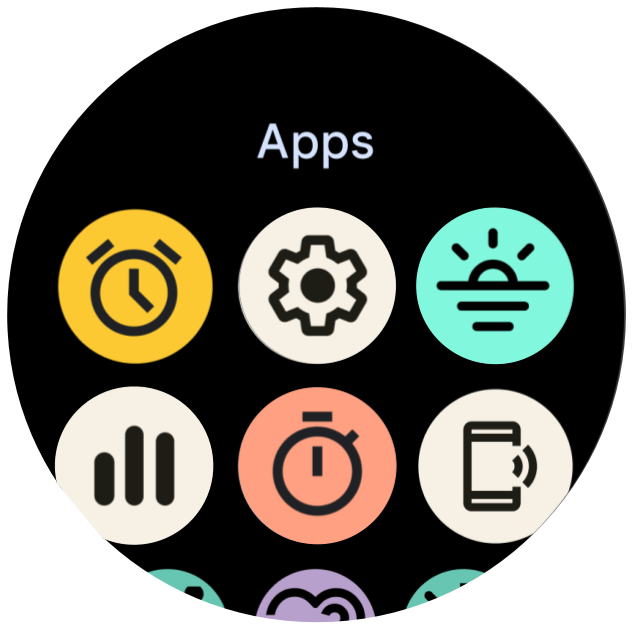
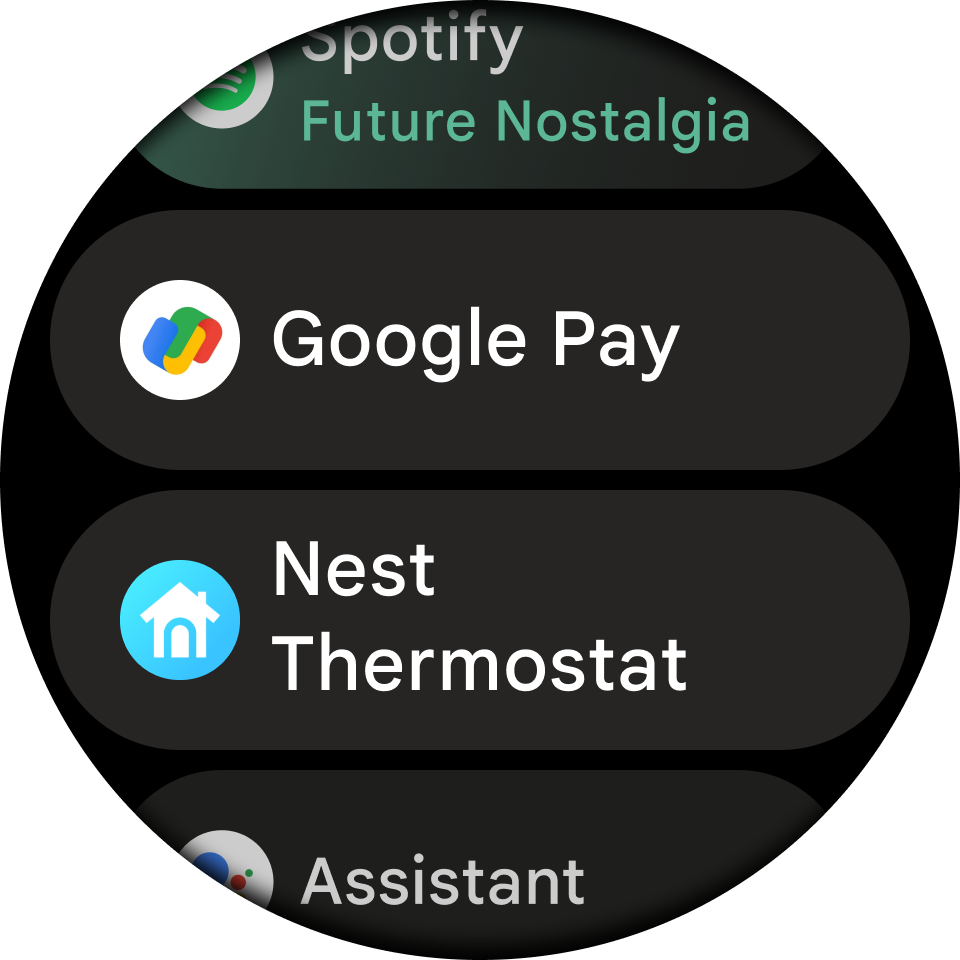
App launcher entries help users start and return to experiences on their watch. Tapping a shortcut launches an app.
Devices support at least one of the following app launcher experiences:
- Grid view: The icons appear next to each other both vertically and horizontally, as shown in figure 5. Available on all devices that run Wear OS 5 and higher, and on some devices that run previous versions of Wear OS.
- List view: The icons appear next to each other vertically, as shown in figure 6. Available on almost all devices that run Wear OS, and on all devices that don't support the grid view.
If a device supports both types of views, switch between the two using system settings.
Watch faces
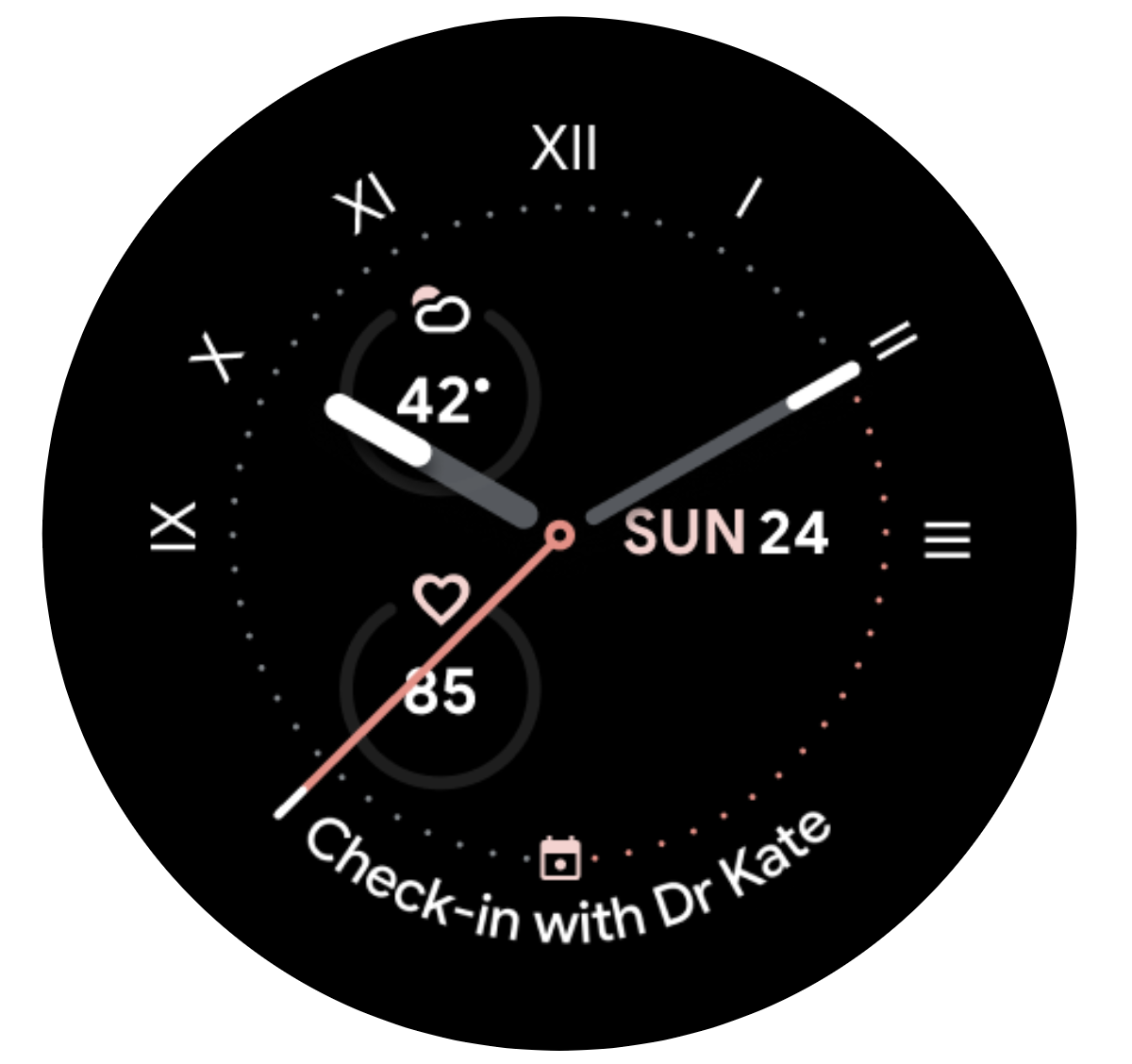
Watch faces are dynamic, digital canvases where users can express their style. Most apps don't need to create a custom watch face. However, if creating a watch face makes sense for your app, Wear OS lets you customize the surface as much as you want.
Complications
A complication is a single, often-repeated action or a highly glanceable unit of information on the watch face. As with tiles and widgets, users can tap complications to open an app on the watch for a deeper experience.