
The Wear OS canary emulator in Android Studio lets you test upcoming platform features and user interface changes before they become available in a consumer platform release on physical devices.
The latest emulator system image—published as Wear OS 7.1 (API level
37.2-beta1,
based on Android 17 "CinnamonBun") in the Android Studio Canary
channel—provides you with an early look at the upcoming system status bar, which
will appear on physical devices in a later platform release of Wear OS.
Prerequisites
Before you set up the Wear OS canary emulator, verify that your development environment meets the following requirements:
- Android Studio version: Use the latest preview release of Android Studio from the Canary channel (Android Studio Narwhal or later).
- Android emulator version: Update to the latest version of Android Emulator by navigating to Tools > SDK Manager > SDK Tools.
Set up the emulator
To download the system image and create a virtual device in the official emulator, complete the following steps:
- Download and open the latest preview release of Android Studio.
- In Android Studio, click Tools > SDK Manager.
- In the SDK Tools tab, select the latest version of Android Emulator and click Apply, then OK to install the latest version if it isn't already installed.
- In the SDK Platforms tab, select Show Package Details and expand
Android DEV Preview. Depending on your host machine's architecture (ARM or Intel), select either Wear OS 7.1 ARM 64 v8a System Image (signed) or Wear OS 7.1 Intel x86_64 Atom System Image (signed), both of which use API level 37.2-beta1. Click Apply, then OK, to download and install the system image.
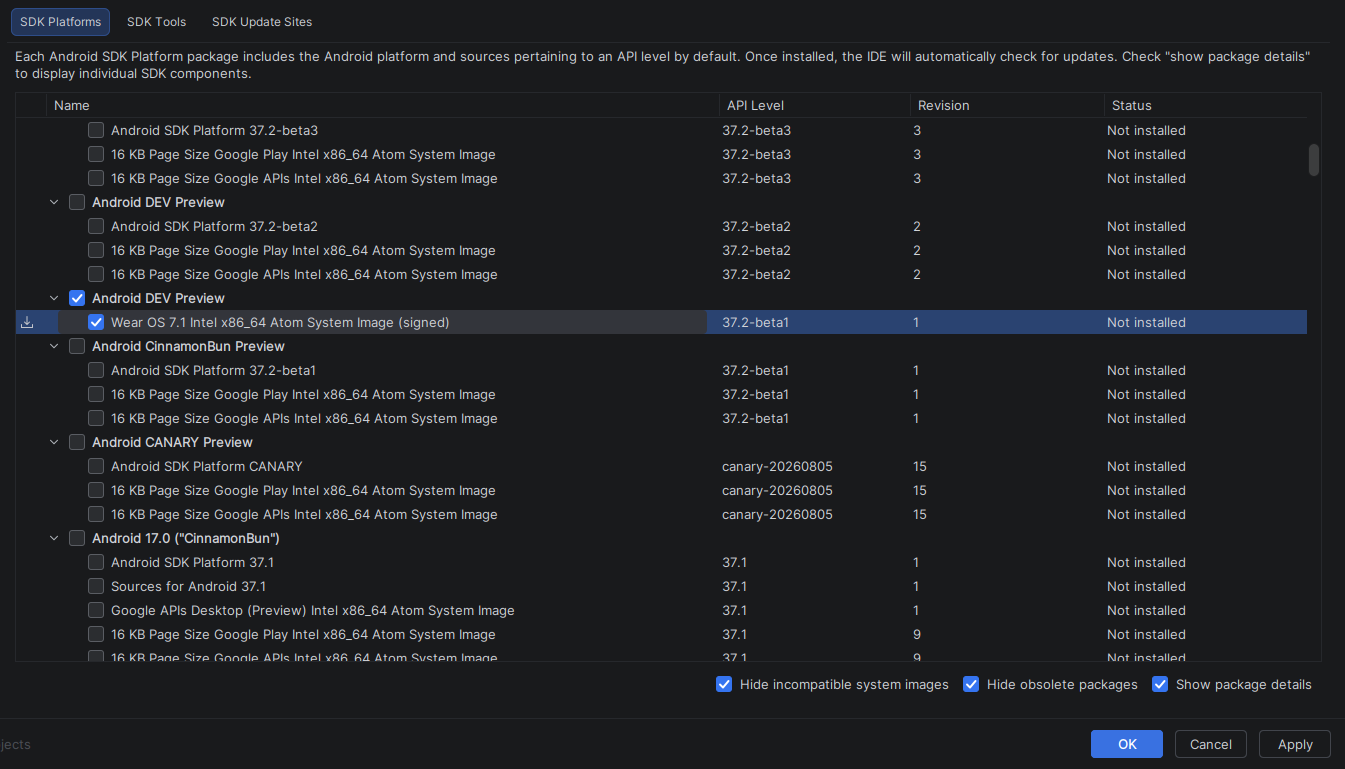
Figure 1. Select the system image for the canary emulator in the SDK Manager. In Android Studio, open the Device Manager by selecting Tools > Device Manager. Click Create device (or click Add a new device
 > Create Virtual Device).
In the Category (or Form Factor) pane, select Wear OS.
Select a hardware profile (for example, Wear OS Large Round or Wear OS Small Round), and then click Next.
Select the Wear OS 7.1 system image with an API level of
Android DEV Previewand an architecture that matches the one that your development machine uses (ARM 64 v8a or Intel x86_64). If the image isn't installed yet, click Download next to the release name.After the download is complete, or you verify that you already downloaded the image, select the image and click Finish.
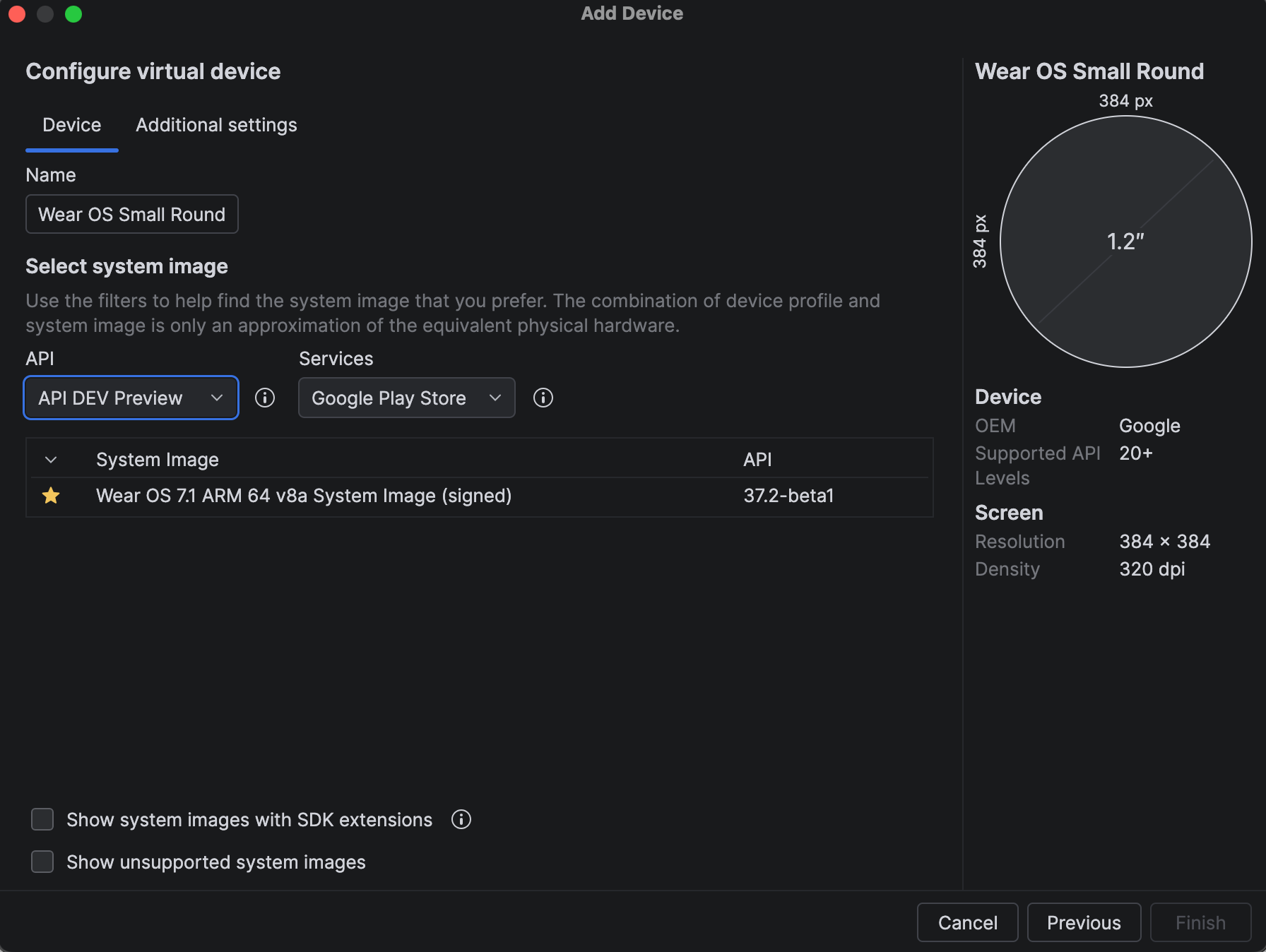
Figure 2. Configure the Wear OS canary emulator using the API 37.2-beta1 system image.
Test your app on the emulator
To run and test your app on the virtual device you created, complete the following steps:
- Go to the Android Studio toolbar and select the virtual device.
- Click Run
 .
. - Install your app on the virtual device and navigate through your app's user-facing workflows.
Try out the system status bar
To prepare for an upcoming platform release of Wear OS, this canary emulator renders a persistent system status bar over Wear OS app windows at the top position of the circular display. The system status bar displays the current time and system status indicators. These indicators use standardized clock typography, placement, and backplate across the platform and different apps, including your app.
Configure your app for the system status bar
The system status bar activates only for apps that do the following:
- Target API level 35 or higher.
- Compile against Compose for Wear OS version 1.8.0-alpha02 or higher, or explicitly opt in by updating the manifest file.
Features of the system status bar
This system implementation of the status bar has several key characteristics:
- Automatic coordination in Jetpack Compose for Wear OS: When your app
targets API level 35 or higher and compiles against Compose for Wear OS
version 1.8.0-alpha02 or higher,
AppScaffoldandScreenScaffoldautomatically opt your app in to the system status bar. Time text is handled by the system:
AppScaffoldsuppresses its in-appTimeTextclock so that only the system status bar time appears.ScreenScaffoldapplies padding to the top status bar window inset, and the scaffold hides the status bar while users scroll through list content. After about 2 seconds of user idle time, the time text reappears.Full-screen dialogs and immersive mode: Full-screen interactive components in Wear Compose Material 3—including
AlertDialog,Dialog,Stepper,TimePicker, andDatePicker—automatically hide the system status bar while displayed. For screens that require a full-screen immersive experience, useStatusBarSuppression.View-based app support (not recommended): Apps built with Android Views can opt in using the
com.google.wear.ENABLE_GLOBAL_STATUS_BARtag in the manifest file and handle top inset padding and visibility usingWindowInsetsCompatandWindowInsetsControllerCompat.
Release notes
This release of the Wear OS canary emulator has the characteristics shown in the following table.
| Release date | October 26, 2026 |
| System image | Wear OS 7.1 (API level 37.2-beta1, Android DEV Preview) |
| Build ID (emulator) | CP41.260831.001.E8 |
| Emulator support | Intel x86 (64-bit), ARM (v8-A) |