

বিজ্ঞপ্তি হল এমন একটি মেসেজ যা Android আপনার অ্যাপের UI-এর বাইরে দেখায় যাতে ব্যবহারকারীকে রিমাইন্ডার, অন্যান্য লোকজনের থেকে পাওয়া যোগাযোগ বা আপনার অ্যাপ থেকে সময়মতো তথ্য প্রদান করা যায়। ব্যবহারকারী আপনার অ্যাপ খুলতে বিজ্ঞপ্তিতে ট্যাপ করতে পারেন অথবা সরাসরি বিজ্ঞপ্তি থেকে কোনও অ্যাকশন নিতে পারেন।
এই পৃষ্ঠা থেকে বিজ্ঞপ্তি কোথায় দেখানো হয় এবং উপলভ্য ফিচার সম্পর্কে এক নজরে জানতে পারবেন।
প্রয়োগ করার নির্দেশিকা
আপনার অ্যাপে বিভিন্ন বিজ্ঞপ্তি ফিচার কীভাবে প্রয়োগ করবেন তা নিম্নলিখিত গাইড থেকে জানতে পারবেন:
- বিজ্ঞপ্তি তৈরি করা: কীভাবে একটি প্রাথমিক বিজ্ঞপ্তি তৈরি ও ইস্যু করতে হয় তা জানুন।
- বিজ্ঞপ্তি সংক্রান্ত অনুমতি:
POST_NOTIFICATIONSরানটাইম অনুমতি কীভাবে ম্যানেজ করতে হয় তা জানুন। - বিজ্ঞপ্তি চ্যানেল: ব্যবহারকারীদের বিজ্ঞপ্তি সংক্রান্ত আচরণ নিয়ন্ত্রণ করতে দেয়।
- এক্সপ্যান্ড করা যায় এমন বিজ্ঞপ্তি:
BigTextStyleবাMessagingStyle-এর মতো স্টাইল ব্যবহার করে আরও কন্টেন্ট দেখান। - বাবল: কথোপকথনের জন্য ফ্লোটিং, এক্সপ্যান্ড করা যায় এমন ওভারলে ব্যবহার করে।
- প্রগ্রেস-কেন্দ্রিক বিজ্ঞপ্তি: রাইডশেয়ার ও ডেলিভারির মতো ব্যবহারকারীর শুরু করা জার্নি ট্র্যাক করে।
- কল-স্টাইল বিজ্ঞপ্তি: অন্যান্য ধরনের বিজ্ঞপ্তি থেকে ইনকামিং ও অনগোয়িং কল আলাদা করে দেখায়।
- লাইভ আপডেট বিজ্ঞপ্তি: চলমান অ্যাক্টিভিটির প্রোগ্রেস ট্র্যাক করে।
- ভিউ-নির্দিষ্ট বিজ্ঞপ্তি গাইড: ভিউ-ভিত্তিক অ্যাপে বিজ্ঞপ্তি প্রয়োগ করার গাইড।
বিজ্ঞপ্তির ডিজাইন ও ইন্টার্যাকশন প্যাটার্ন সম্পর্কে আরও জানতে, বিজ্ঞপ্তির ডিজাইন গাইড দেখুন।
ডিভাইসে উপস্থিতি
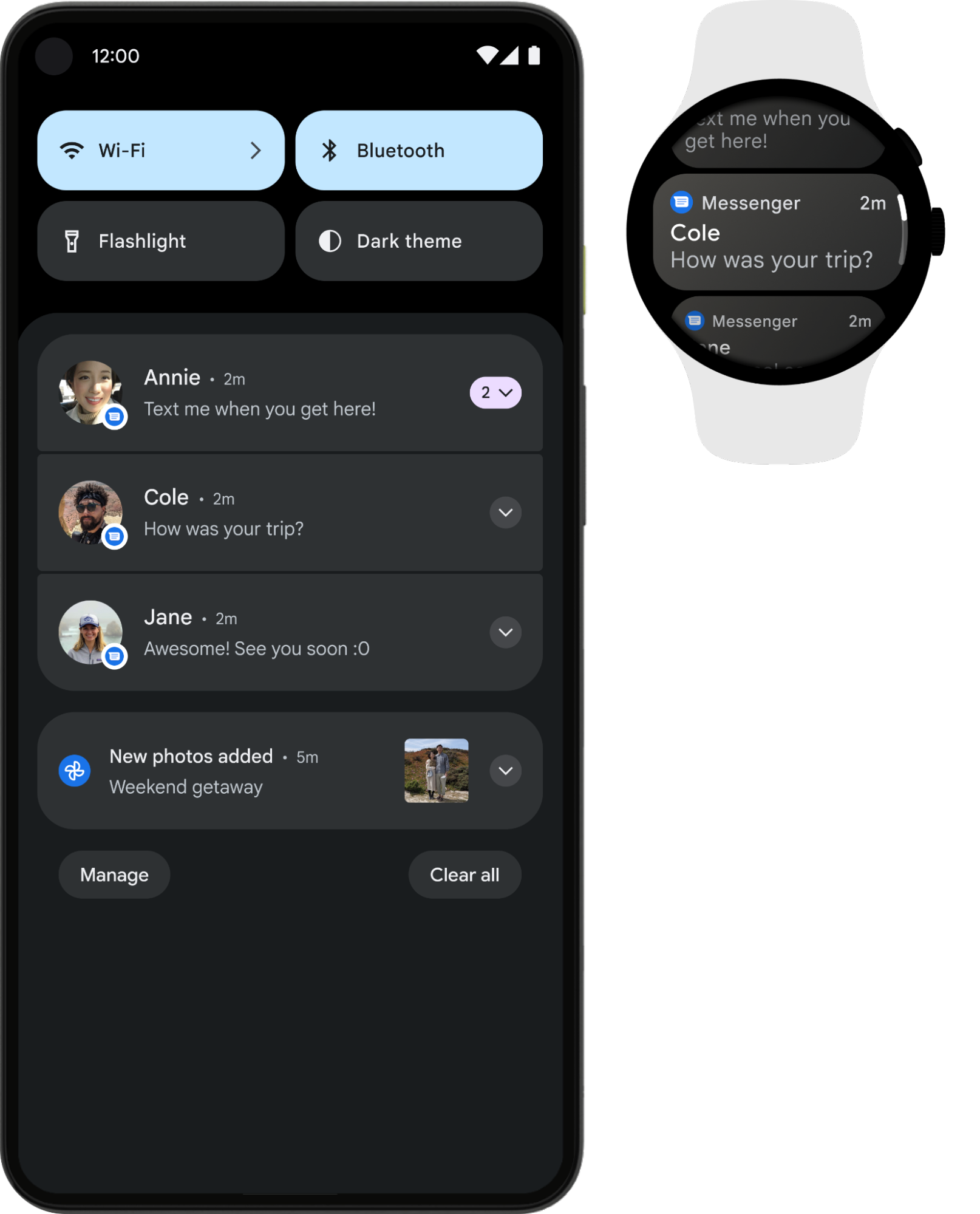
বিভিন্ন লোকেশন ও ফর্ম্যাটে ব্যবহারকারীদের কাছে বিজ্ঞপ্তি অটোমেটিক দেখানো হয়। বিজ্ঞপ্তিটি স্ট্যাটাস বারে একটি আইকন হিসেবে, বিজ্ঞপ্তি ড্রয়ারে আরও বিস্তারিত এন্ট্রি হিসেবে এবং অ্যাপের আইকনে একটি ব্যাজ হিসেবে দেখা যায়।
ক্রস-ডিভাইস আচরণ
এছাড়াও, ডিফল্ট হিসেবে পেয়ার করা পরে থাকা যায় এমন ডিভাইসে বিজ্ঞপ্তি দেখা যায়। যেসব ক্ষেত্রে
বিজ্ঞপ্তির কন্টেন্ট শুধুমাত্র সোর্স ডিভাইসের ক্ষেত্রে প্রাসঙ্গিক, সেখানে
setLocalOnly() ব্যবহার করুন। যেমন, মিডিয়া ডাউনলোড সম্পূর্ণ হয়েছে তা কনফার্ম করে একটি বিজ্ঞপ্তি
পাঠানো হয়। Wear OS বিজ্ঞপ্তি সংক্রান্ত আরও নির্দেশিকা পেতে, Wear OS বিজ্ঞপ্তি সংক্রান্ত নির্দেশিকা দেখুন।
স্ট্যাটাস বার ও বিজ্ঞপ্তি ড্রয়ার
আপনি কোনও বিজ্ঞপ্তি ইস্যু করলে, সেটি প্রথমে স্ট্যাটাস বারে একটি আইকন হিসেবে দেখা যায়।
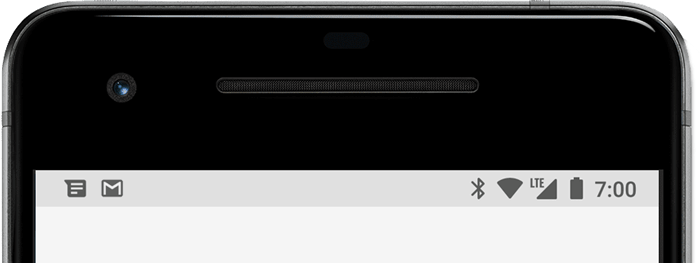
ব্যবহারকারীরা বিজ্ঞপ্তি ড্রয়ার খুলতে স্ট্যাটাস বারে নিচের দিকে সোয়াইপ করতে পারবেন, যেখানে তারা আরও বিবরণ দেখতে এবং বিজ্ঞপ্তি অনুযায়ী অ্যাকশন নিতে পারবেন।
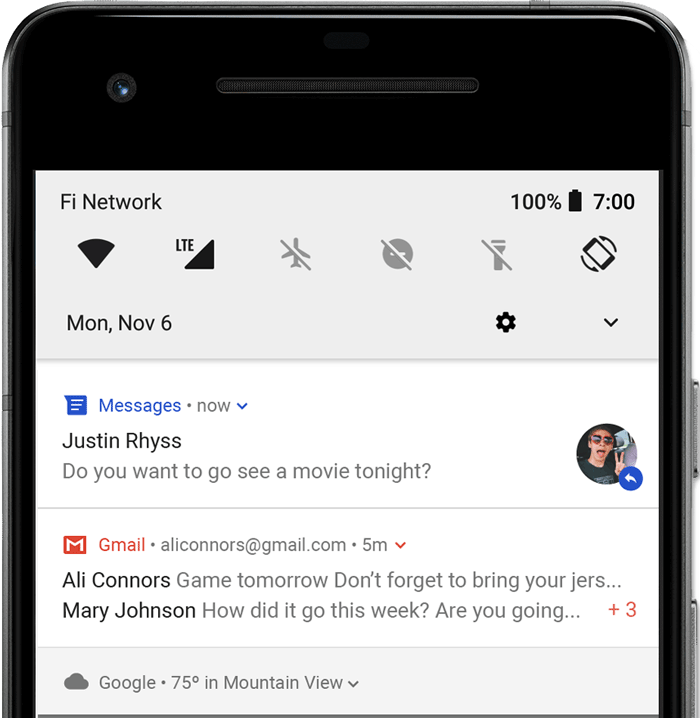
ব্যবহারকারী ড্রয়ারে থাকা বিজ্ঞপ্তি নিচের দিকে টেনে এনে বড় করে দেখতে পারেন, এর ফলে অতিরিক্ত কন্টেন্ট ও অ্যাকশন বোতাম দেখা যায়, যদি সেগুলি প্রদান করা হয়ে থাকে। Android 13 থেকে শুরু করে, এই বড় ভিউতে একটি বোতাম থাকে যা ব্যবহারকারীদের চলমান ফোরগ্রাউন্ড পরিষেবা সহ অ্যাপ বন্ধ করতে দেয়।
অ্যাপ বা ব্যবহারকারী বাতিল না করা পর্যন্ত বিজ্ঞপ্তিটি বিজ্ঞপ্তি ড্রয়ারে দেখা যায়।
হেডস-আপ বিজ্ঞপ্তি
Android 5.0 থেকে শুরু করে, বিজ্ঞপ্তিগুলি হেড-আপ বিজ্ঞপ্তি নামের একটি ফ্লোটিং উইন্ডোতে অল্প সময়ের জন্য দেখা যেতে পারে। এই আচরণটি সাধারণত গুরুত্বপূর্ণ বিজ্ঞপ্তির জন্য করা হয়, যা ব্যবহারকারীকে অবিলম্বে জানতে হবে এবং এটি শুধুমাত্র ডিভাইস আনলক করা থাকলে তবেই দেখা যায়।
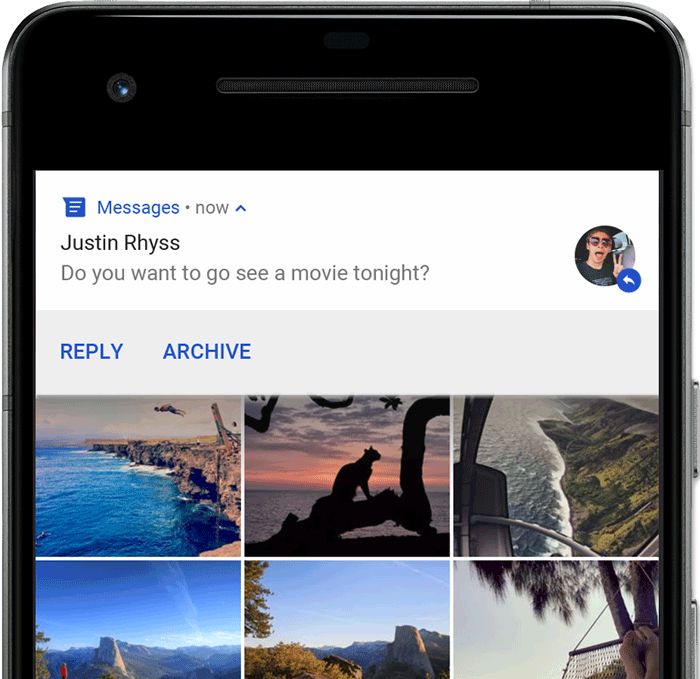
আপনার অ্যাপ বিজ্ঞপ্তি ইস্যু করলে, হেডস-আপ বিজ্ঞপ্তি দেখা যায়। এটি কিছুক্ষণ পরে অদৃশ্য হয়ে যায়, তবে এটি বিজ্ঞপ্তি ড্রয়ারে যথারীতি দেখা যায়।
যেসব শর্তের কারণে সাবধান করার ব্যাপারে সতর্কতা ট্রিগার হতে পারে, তার মধ্যে নিম্নলিখিত বিষয় অন্তর্ভুক্ত:
ব্যবহারকারীর অ্যাক্টিভিটি ফুলস্ক্রিন মোডে আছে, যেমন অ্যাপটি
fullScreenIntentব্যবহার করলে।বিজ্ঞপ্তিটি অত্যন্ত গুরুত্বপূর্ণ এবং Android 7.1 (API লেভেল 25) ও এর আগের যেকোনও ভার্সনে চলে এমন ডিভাইসে রিংটোন বা ভাইব্রেশন ব্যবহার করে।
Android 8.0 (API লেভেল 26) ও এর পরের যেকোনও ভার্সনে চলা ডিভাইসে বিজ্ঞপ্তি চ্যানেল খুব গুরুত্বপূর্ণ।
লক স্ক্রিন
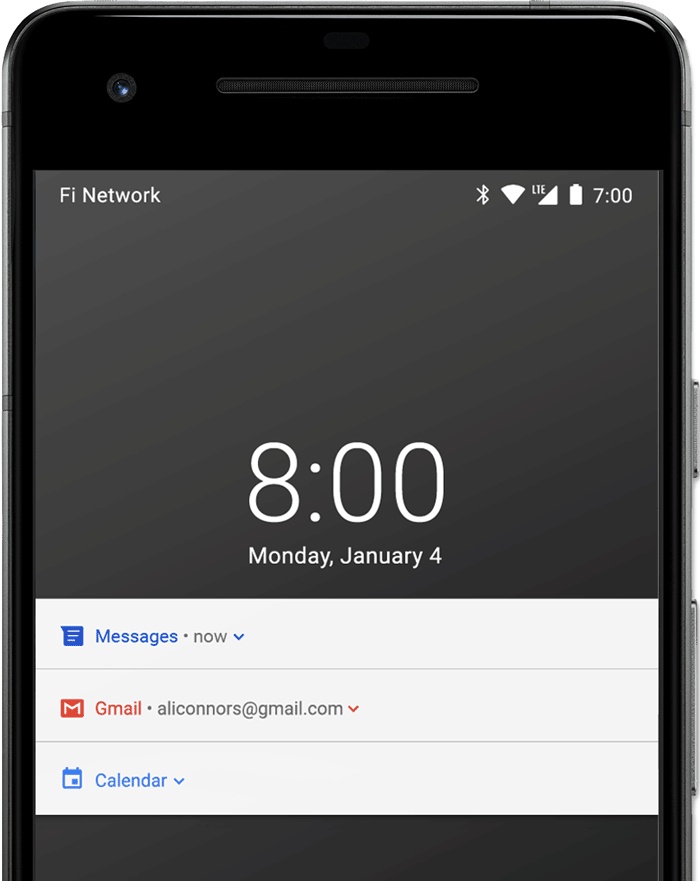
Android 5.0 থেকে শুরু করে, লক স্ক্রিনে বিজ্ঞপ্তি দেখা যেতে পারে।
আপনার অ্যাপের পোস্ট করা বিজ্ঞপ্তি কোনও সুরক্ষিত লক স্ক্রিনে দেখানো হবে কিনা এবং দেখানো হলে, কতটা বিস্তারিত তথ্য দেখা যাবে তা আপনি প্রোগ্রাম্যাটিক উপায়ে সেট করতে পারবেন।
লক স্ক্রিন বিজ্ঞপ্তিতে কতটা বিস্তারিত তথ্য দেখা যাবে তা বেছে নিতে অথবা সব লক স্ক্রিন বিজ্ঞপ্তি বন্ধ করতে ব্যবহারকারীরা সিস্টেম সেটিংস ব্যবহার করতে পারবেন। Android 8.0 থেকে শুরু করে, ব্যবহারকারীরা প্রতিটি বিজ্ঞপ্তি চ্যানেলের জন্য লক স্ক্রিন বিজ্ঞপ্তি বন্ধ বা চালু করতে পারবেন।
আরও জানতে, লক স্ক্রিনের দৃশ্যমানতা সেট করুন।
অ্যাপ আইকন ব্যাজ
Android 8.0 (API লেভেল 26) ও এর পরবর্তী যেকোনও ভার্সনে চলে এমন ডিভাইসে কাজ করে এমন লঞ্চারে, অ্যাপ আইকন, সংশ্লিষ্ট অ্যাপ লঞ্চার আইকনে কালার করা ব্যাজ সহ নতুন বিজ্ঞপ্তি নির্দেশ করে, যা বিজ্ঞপ্তি ডট হিসেবে পরিচিত।
ব্যবহারকারী কোনও অ্যাপের বিজ্ঞপ্তি দেখতে অ্যাপ আইকন টাচ করে ধরে রাখতে পারেন। ব্যবহারকারী বিজ্ঞপ্তি ড্রয়ারের মতো সেই মেনু থেকে বিজ্ঞপ্তি বাতিল করতে বা সেটির উপর অ্যাকশন নিতে পারেন।
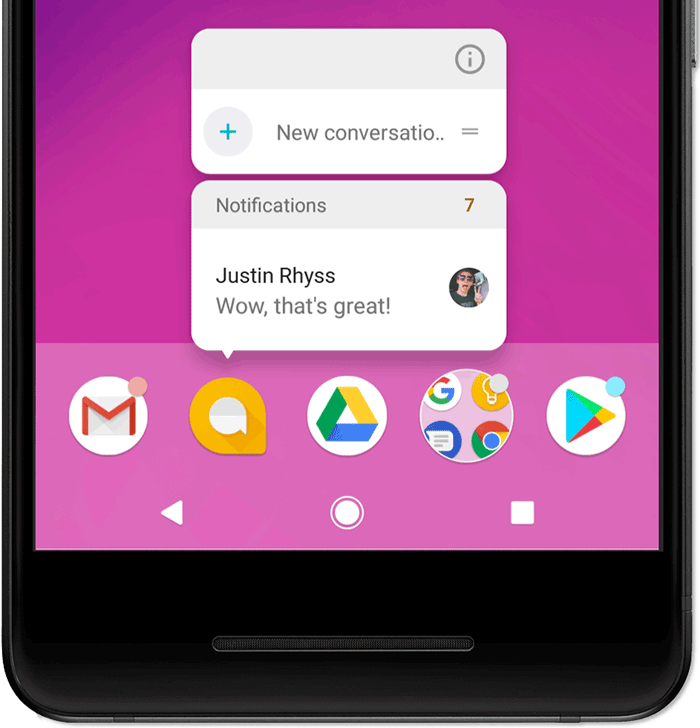
ব্যাজ কীভাবে কাজ করে সেই সম্পর্কে আরও জানতে, বিজ্ঞপ্তির ব্যাজ পরিবর্তন করুন নিবন্ধটি পড়ুন।
Wear OS ডিভাইস
ব্যবহারকারীর পেয়ার করা Wear OS ডিভাইস থাকলে, সেখানে আপনার সব বিজ্ঞপ্তি অটোমেটিক দেখানো হয়, এর মধ্যে রয়েছে বিস্তারিত তথ্য ও অ্যাকশন বোতাম।
আপনি পরিধানযোগ্য ডিভাইসে আপনার বিজ্ঞপ্তির চেহারা কাস্টমাইজ করে এবং সাজেস্ট করা উত্তর ও ভয়েস ইনপুট উত্তর সহ বিভিন্ন অ্যাকশন প্রদান করে অভিজ্ঞতা উন্নত করতে পারেন। আরও তথ্যের জন্য, কীভাবে আপনার বিজ্ঞপ্তিতে পরিধানযোগ্য ডিভাইস-নির্দিষ্ট ফিচার যোগ করবেন তা দেখুন।
বিজ্ঞপ্তির গঠন
সিস্টেম টেমপ্লেট অনুযায়ী বিজ্ঞপ্তি ডিজাইন করা হয় এবং আপনার অ্যাপ টেমপ্লেটের প্রতিটি অংশের কন্টেন্ট নির্ধারণ করে। বিজ্ঞপ্তির কিছু বিবরণ শুধুমাত্র বড় করে দেখা ভিউতে দেখা যায়।
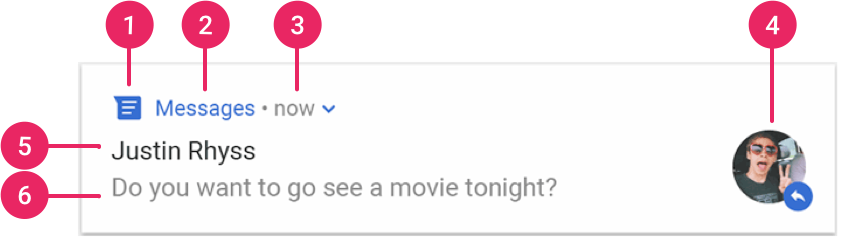
বিজ্ঞপ্তির সবচেয়ে সাধারণ অংশগুলি ৭ নম্বর ছবিতে দেখানো হয়েছে, যেমন:
- ছোট আইকন: প্রয়োজন; এটি
setSmallIcon()ব্যবহার করে সেট করতে হবে। - অ্যাপের নাম: সিস্টেমের মাধ্যমে প্রদান করা হয়েছে।
- টাইমস্ট্যাম্প: সিস্টেমের দেওয়া, তবে আপনি এটি ওভাররাইড করতে
setWhen()অথবা এটি লুকাতেsetShowWhen(false)ব্যবহার করতে পারেন। - বড় আইকন: ঐচ্ছিক; সাধারণত শুধু পরিচিতির ফটোর জন্য ব্যবহার করা হয়।
আপনার অ্যাপ আইকনের জন্য এটি ব্যবহার করবেন না।
setLargeIcon()ব্যবহার করে সেট করা হয়েছে। - শীর্ষক: ঐচ্ছিক;
setContentTitle()ব্যবহার করে সেট করুন। - টেক্সট: ঐচ্ছিক;
setContentText()ব্যবহার করে সেট করুন।
সব ডিভাইসে সঠিক ডিজাইন কম্প্যাটিবিলিটির জন্য আমরা সিস্টেম টেমপ্লেট ব্যবহার করার সাজেশন দিই। প্রয়োজন হলে, আপনি কাস্টম বিজ্ঞপ্তি লেআউট তৈরি করতে পারবেন।
এইসব ফিচার ও আরও অনেক কিছু সহ কীভাবে বিজ্ঞপ্তি তৈরি করতে হয় সেই সম্পর্কে আরও জানতে, বিজ্ঞপ্তি তৈরি করুন নিবন্ধটি পড়ুন।
বিজ্ঞপ্তি সংক্রান্ত অ্যাকশন
যদিও এটি বাধ্যতামূলক নয়, তবে প্রতিটি বিজ্ঞপ্তিতে ট্যাপ করা হলে উপযুক্ত অ্যাপ অ্যাক্টিভিটি খোলা হলে তা ভালো হয়। এই ডিফল্ট বিজ্ঞপ্তি অ্যাকশন ছাড়াও, আপনি অ্যাকশন বোতাম যোগ করতে পারেন যা বিজ্ঞপ্তি থেকে অ্যাপ-সম্পর্কিত টাস্ক সম্পূর্ণ করে—প্রায়শই কোনও অ্যাক্টিভিটি না খুলে—যেমন ছবি ৮-এ দেখানো হয়েছে।
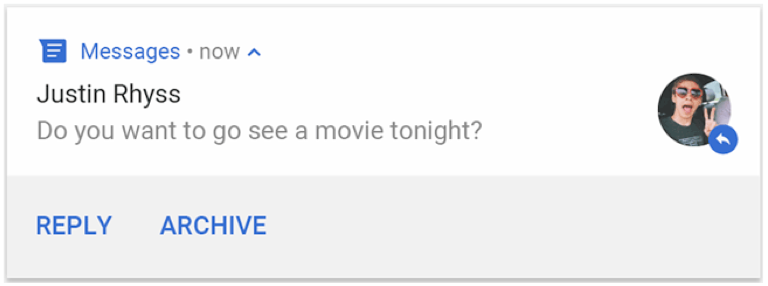
Android 7.0 (API লেভেল 24) থেকে শুরু করে, আপনি মেসেজের উত্তর দিতে অথবা বিজ্ঞপ্তি থেকে সরাসরি অন্য টেক্সট লিখতে অ্যাকশন যোগ করতে পারবেন।
Android 10 (API লেভেল ২৯) থেকে শুরু করে, প্ল্যাটফর্ম অটোমেটিক সাজেস্ট করা ইনটেন্ট-ভিত্তিক অ্যাকশন সহ অ্যাকশন বোতাম তৈরি করতে পারে।
বিজ্ঞপ্তি তৈরি করুন নিবন্ধে অ্যাকশন বোতাম যোগ করার বিষয়ে আরও ব্যাখ্যা করা হয়েছে।
আনলক করা ডিভাইস প্রয়োজন
ব্যবহারকারীরা ডিভাইসের লক স্ক্রিনে বিজ্ঞপ্তি অ্যাকশন দেখতে পেতে পারেন। কোনও বিজ্ঞপ্তি অ্যাকশনের কারণে কোনও অ্যাপ অ্যাক্টিভিটি লঞ্চ করলে বা সরাসরি উত্তর পাঠালে, অ্যাপটি সেই বিজ্ঞপ্তি অ্যাকশন প্রয়োগ করার আগে ব্যবহারকারীকে অবশ্যই ডিভাইস আনলক করতে হবে।
Android 12 (API লেভেল 31) ও এর পরের যেকোনও ভার্সনে, আপনি বিজ্ঞপ্তি অ্যাকশন এমনভাবে কনফিগার করতে পারবেন যাতে আপনার অ্যাপকে সেই অ্যাকশন ইনভোক করতে হলে ডিভাইসটি আনলক করতে হবে, অ্যাকশনটি যে ওয়ার্কফ্লোই লঞ্চ করুক না কেন। এই বিকল্পটি লক করা ডিভাইসে বিজ্ঞপ্তির জন্য নিরাপত্তার একটি অতিরিক্ত স্তর যোগ করে।
আপনার অ্যাপ কোনও বিজ্ঞপ্তি
অ্যাকশন ইনভোক করার আগে ডিভাইস আনলক করার প্রয়োজন হলে, আপনার
বিজ্ঞপ্তি অ্যাকশন তৈরি করার সময় true-কে setAuthenticationRequired()-এ পাস করুন, যেমন নিম্নলিখিত কোড স্নিপেটে দেখানো হয়েছে:
val intent = Intent( context, null /** Replace with a valid target activity */ ) val moreSecureNotification = NotificationCompat.Action.Builder( 0, "Reply", PendingIntentCompat.getActivity(context, 0, intent, PendingIntent.FLAG_NO_CREATE, false) ) // This notification always requests authentication when invoked // from a lock screen. .setAuthenticationRequired(true) .build()
বড় করা যায় এমন বিজ্ঞপ্তি
ডিফল্ট হিসেবে, বিজ্ঞপ্তির টেক্সট কন্টেন্ট এক লাইনে ফিট করার জন্য ছোট করে দেওয়া হয়। আপনি যদি আরও দীর্ঘ নোটিফিকেশন চান, তাহলে আপনি একটি বড় টেক্সট এরিয়া চালু করতে পারেন যা অতিরিক্ত টেমপ্লেট প্রয়োগ করে প্রসারিত করা যায়, যেমনটি ৯ নম্বর ছবিতে দেখানো হয়েছে।
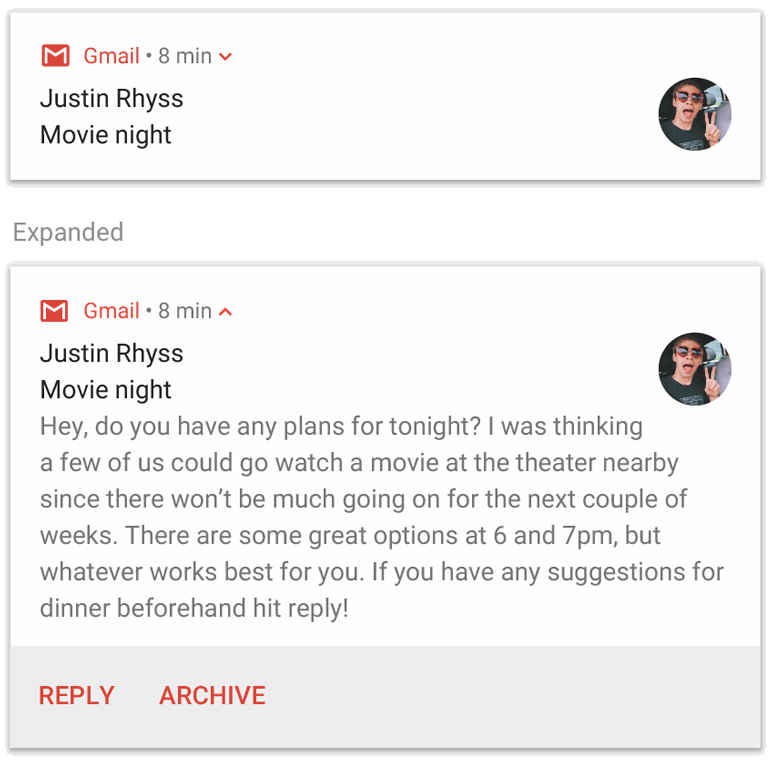
এছাড়াও, আপনি ছবি সহ একটি এক্সপ্যান্ড করা যায় এমন বিজ্ঞপ্তি তৈরি করতে পারবেন, যা ইনবক্স স্টাইলে, চ্যাট কথোপকথন সহ অথবা মিডিয়া প্লেব্যাক কন্ট্রোল সহ তৈরি করা যায়। আরও তথ্যের জন্য, এক্সপ্যান্ড করা যায় এমন বিজ্ঞপ্তি তৈরি করুন নিবন্ধটি পড়ুন।
বিজ্ঞপ্তি আপডেট ও গ্রুপ
আপনার কাছে অতিরিক্ত আপডেট থাকলে, আপনার ব্যবহারকারীদের একাধিক বা অপ্রয়োজনীয় বিজ্ঞপ্তি দিয়ে অতিষ্ঠ করে তোলা এড়াতে, নতুন বিজ্ঞপ্তি ইস্যু করার পরিবর্তে আগে থেকে থাকা বিজ্ঞপ্তি আপডেট করুন অথবা কথোপকথন সংক্রান্ত আপডেট দেখাতে ইনবক্স-স্টাইল বিজ্ঞপ্তি ব্যবহার করুন।
তবে, একাধিক বিজ্ঞপ্তি ডেলিভার করা প্রয়োজন হলে, Android 7.0 ও এর পরের যেকোনও ভার্সনে উপলভ্য গ্রুপে আলাদা আলাদা বিজ্ঞপ্তিগুলিকে গ্রুপ করার কথা বিবেচনা করুন।
বিজ্ঞপ্তি গ্রুপ আপনাকে বিজ্ঞপ্তি ড্রয়ারে সারসংক্ষেপ সহ একটি পোস্টের মধ্যে একাধিক বিজ্ঞপ্তি লুকাতে দেয়। ব্যবহারকারী আরও বিবরণের জন্য বিজ্ঞপ্তি গ্রুপ এবং তার মধ্যে থাকা প্রতিটি বিজ্ঞপ্তি ধীরে ধীরে বড় করতে পারবেন, যেমনটি ছবি ১০-এ দেখানো হয়েছে।
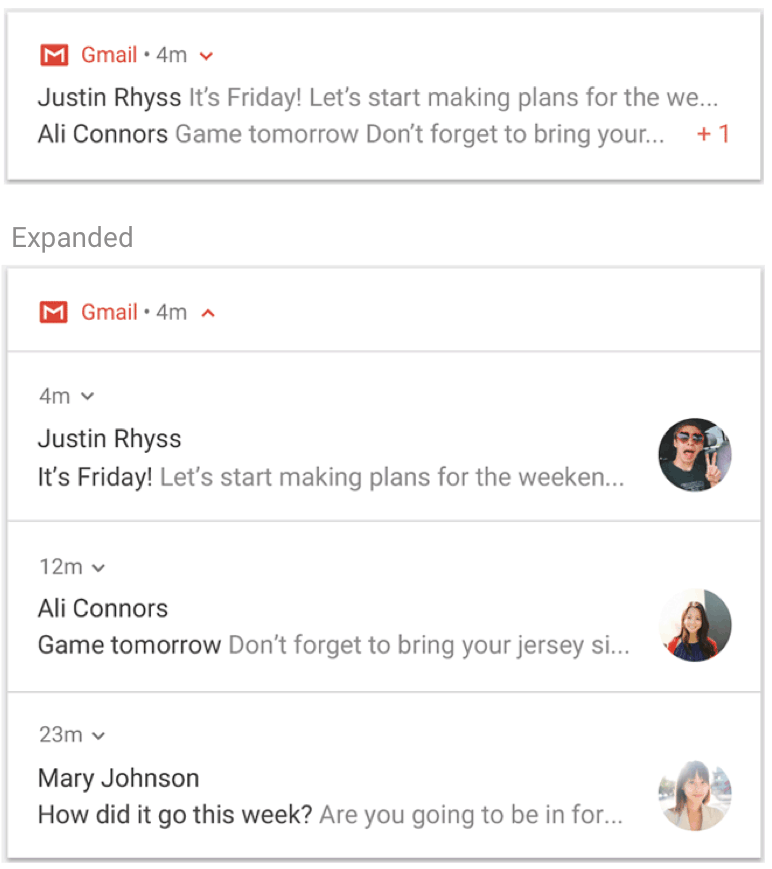
গ্রুপে কীভাবে বিজ্ঞপ্তি যোগ করতে হয় তা জানতে, বিজ্ঞপ্তির গ্রুপ তৈরি করুন দেখুন।
বিজ্ঞপ্তির চ্যানেল
Android 8.0 (API লেভেল 26) থেকে শুরু করে, সব বিজ্ঞপ্তি অবশ্যই কোনও চ্যানেলে অ্যাসাইন করতে হবে, তা না হলে সেগুলি দেখা যাবে না। এর ফলে ব্যবহারকারীরা আপনার অ্যাপের জন্য নির্দিষ্ট বিজ্ঞপ্তি চ্যানেল বন্ধ করতে পারবেন, আপনার সব বিজ্ঞপ্তি বন্ধ করতে হবে না। ব্যবহারকারীরা Android সিস্টেম সেটিংস থেকে প্রতিটি চ্যানেলের জন্য ভিজ্যুয়াল ও অডিটরি বিকল্প কন্ট্রোল করতে পারবেন, যেমনটি ১১ নম্বর ছবিতে দেখানো হয়েছে। এছাড়াও, ব্যবহারকারী কোনও বিজ্ঞপ্তিতে টাচ করে ধরে রেখে সম্পর্কিত চ্যানেলের আচরণ পরিবর্তন করতে পারবেন।
Android 7.1 (API লেভেল ২৫) ও তার আগের যেকোনও ভার্সনে চলা ডিভাইসে, ব্যবহারকারীরা শুধুমাত্র প্রতিটি অ্যাপের ভিত্তিতে বিজ্ঞপ্তি ম্যানেজ করতে পারবেন। Android 7.1 ও তার আগের যেকোনও ভার্সনে প্রতিটি অ্যাপের কার্যকরভাবে একটি করে চ্যানেল থাকে।
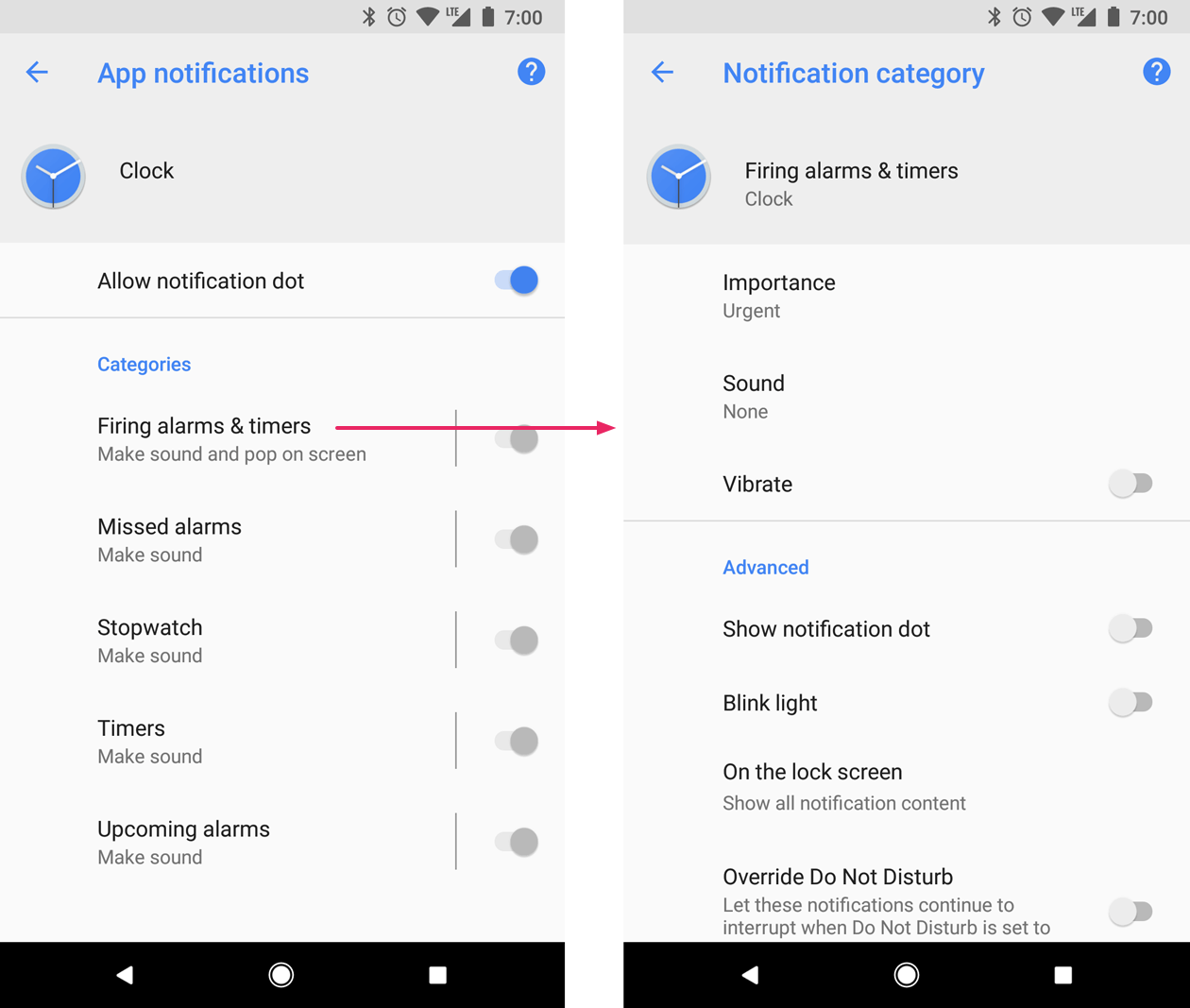
অ্যাপের মাধ্যমে ইস্যু করা প্রতিটি ধরনের বিজ্ঞপ্তির জন্য অ্যাপের আলাদা আলাদা চ্যানেল থাকতে পারে। এছাড়াও, ব্যবহারকারীদের বেছে নেওয়া বিকল্পের ভিত্তিতে কোনও অ্যাপ বিজ্ঞপ্তি চ্যানেল তৈরি করতে পারে। যেমন, মেসেজিং অ্যাপে ব্যবহারকারীর তৈরি করা প্রতিটি কথোপকথনের গ্রুপের জন্য আপনি আলাদা বিজ্ঞপ্তি চ্যানেল সেট-আপ করতে পারবেন।
এছাড়াও, Android 8.0 ও তার পরবর্তী যেকোনও ভার্সনে আপনার বিজ্ঞপ্তির গুরুত্বের লেভেল নির্দিষ্ট করার জন্য চ্যানেল ব্যবহার করা হয়, তাই একই বিজ্ঞপ্তি চ্যানেলে পোস্ট করা সব বিজ্ঞপ্তির আচরণ একই হয়। এটি নিম্নলিখিত বিভাগে বর্ণনা করা হয়েছে।
আরও তথ্যের জন্য, বিজ্ঞপ্তি চ্যানেল তৈরি ও ম্যানেজ করা দেখুন।
বিজ্ঞপ্তির গুরুত্ব
বিজ্ঞপ্তি ব্যবহারকারীকে কতটা ভিজ্যুয়ালি ও অডিবলি বাধা দেবে তা নির্ধারণ করতে Android বিজ্ঞপ্তির গুরুত্ব ব্যবহার করে। বিজ্ঞপ্তির গুরুত্ব যত বেশি হবে, বিজ্ঞপ্তিটি তত বেশি বাধা সৃষ্টি করবে।
Android
7.1 (API লেভেল ২৫) ও এর আগের যেকোনও ভার্সনে, কোনও বিজ্ঞপ্তির গুরুত্ব নির্ধারণ করা হয়
বিজ্ঞপ্তির priority দ্বারা।
Android 8.0 (API লেভেল ২৬) ও তার পরবর্তী যেকোনও ভার্সনে, কোনও বিজ্ঞপ্তির গুরুত্ব
নির্ধারণ করা হয় সেই চ্যানেলের importance থেকে যেখানে বিজ্ঞপ্তি পোস্ট করা
হয়। ব্যবহারকারী সিস্টেম
সেটিংস থেকে বিজ্ঞপ্তি চ্যানেলের গুরুত্ব পরিবর্তন করতে পারবেন, যেমনটি ১২ নম্বর ছবিতে দেখানো হয়েছে।
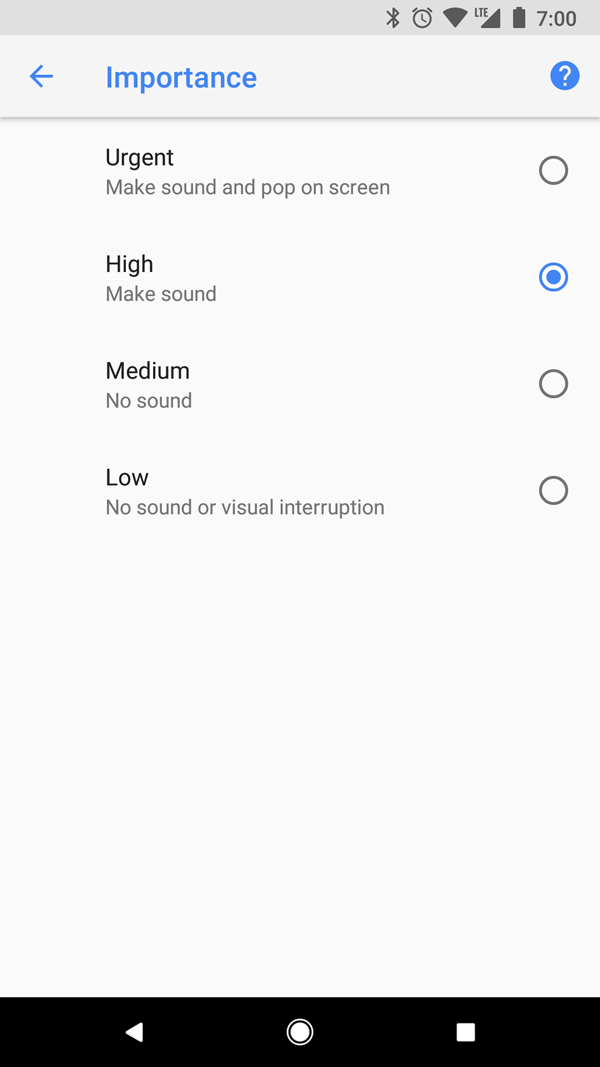
সম্ভাব্য গুরুত্বের লেভেল ও সংশ্লিষ্ট বিজ্ঞপ্তি আচরণগুলি হল নিম্নলিখিত:
জরুরি: সাউন্ড করে এবং হেডস-আপ বিজ্ঞপ্তি হিসেবে দেখা যায়।
উচ্চ: আওয়াজ করে।
মাঝারি: কোনও শব্দ হয় না।
কম: কোনও সাউন্ড হয় না এবং স্ট্যাটাস বারে দেখা যায় না।
গুরুত্বপূর্ণ হোক বা না হোক, সব বিজ্ঞপ্তিই এমন জায়গায় দেখানো হয় যেখানে সিস্টেম UI-তে কোনও বাধা সৃষ্টি হয় না, যেমন বিজ্ঞপ্তি ড্রয়ারে এবং লঞ্চার আইকনে ব্যাজ হিসেবে। তবে, আপনি বিজ্ঞপ্তির ব্যাজের চেহারা পরিবর্তন করতে পারবেন।
আরও তথ্যের জন্য, গুরুত্ব কীভাবে সেট করবেন সেই সম্পর্কে পড়ুন।
'বিরক্ত করবে না' মোড
Android 5.0 (API লেভেল ২১) থেকে শুরু করে, ব্যবহারকারীরা বিরক্ত করবে না মোড চালু করতে পারবেন, যা সব বিজ্ঞপ্তির জন্য সাউন্ড ও ভাইব্রেশন বন্ধ করে দেয়। ব্যবহারকারী অন্য কিছু নির্দিষ্ট না করলে, বিজ্ঞপ্তিগুলি এখনও সিস্টেম UI-তে স্বাভাবিকভাবেই দেখা যাবে।
'বিরক্ত করবে না' মোডে তিনটি লেভেল উপলভ্য:
- সম্পূর্ণ সাইলেন্স: অ্যালার্ম, মিউজিক, ভিডিও ও গেম সহ সব সাউন্ড ও ভাইব্রেশন ব্লক করে।
- শুধুমাত্র অ্যালার্ম: অ্যালার্ম ছাড়া সব সাউন্ড ও ভাইব্রেশন ব্লক করে।
- শুধুমাত্র অগ্রাধিকার: ব্যবহারকারী কনফিগার করতে পারবেন যে কোন কোন সিস্টেম-ওয়াইড বিভাগ তাকে বাধা দিতে পারবে, যেমন শুধুমাত্র অ্যালার্ম, রিমাইন্ডার, ইভেন্ট, কল বা মেসেজ। মেসেজ ও কলের ক্ষেত্রে, ব্যবহারকারী প্রেরক বা কলারের ভিত্তিতে ফিল্টার করতে পারবেন, যেমন ১৩ নম্বর ছবিতে দেখানো হয়েছে।
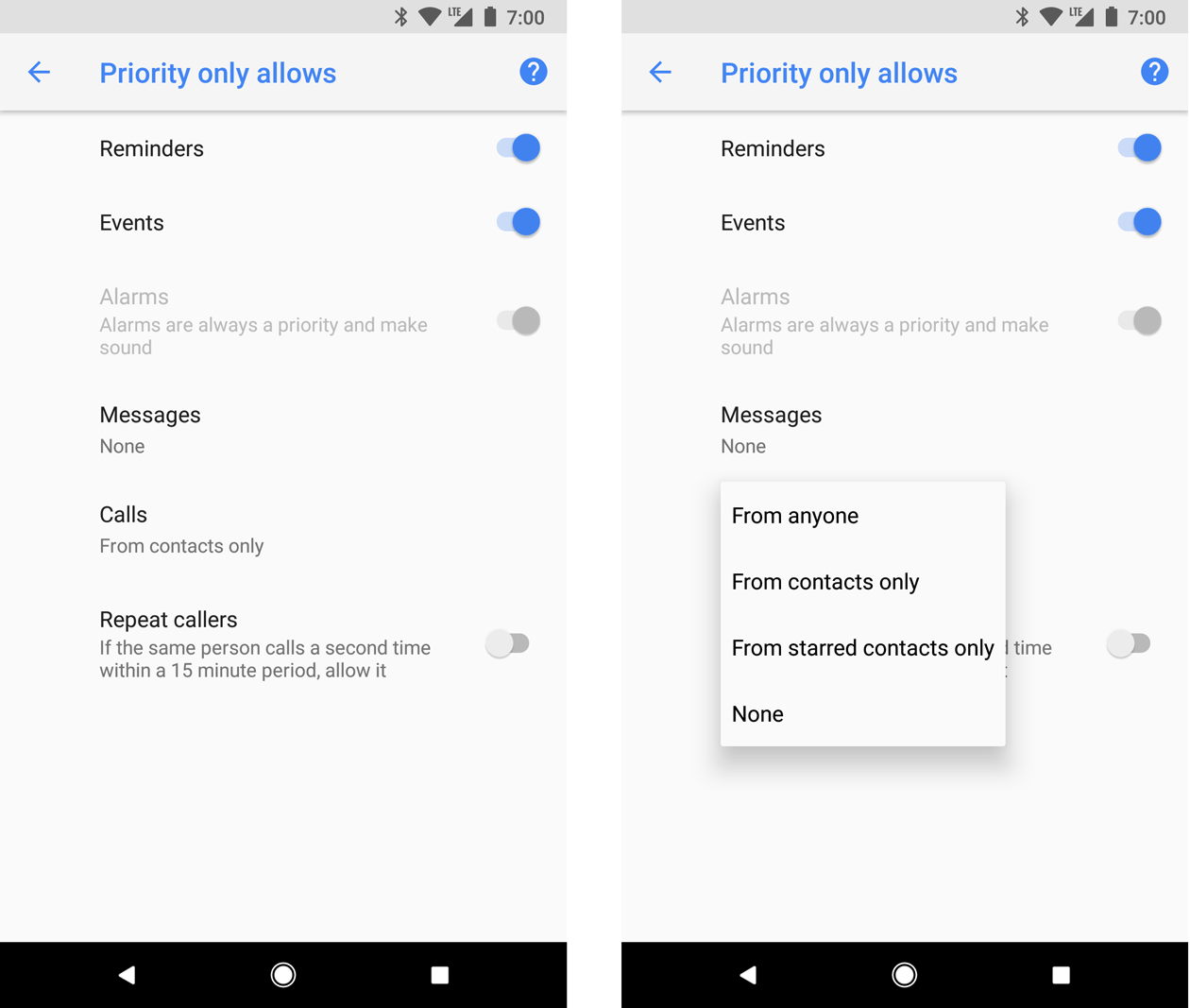
Android 8.0 (API লেভেল ২৬) ও এর পরের যেকোনও ভার্সনে, ব্যবহারকারীরা অতিরিক্তভাবে অ্যাপ-নির্দিষ্ট বিভাগের মাধ্যমে বিজ্ঞপ্তি পাওয়ার অনুমতি দিতে পারেন—এগুলি চ্যানেল নামেও পরিচিত— চ্যানেল-ভিত্তিক 'বিরক্ত করবেন না' মোড ওভাররাইড করার মাধ্যমে এটি করা যায়। যেমন, উইথড্রয়াল ও ডিপোজিট সংক্রান্ত বিজ্ঞপ্তির জন্য পেমেন্ট অ্যাপে চ্যানেল থাকতে পারে। প্রয়োরিটি মোডে থাকাকালীন ব্যবহারকারী টাকা তোলা সংক্রান্ত বিজ্ঞপ্তি, টাকা জমা দেওয়া সংক্রান্ত বিজ্ঞপ্তি অথবা দুটিই পেতে পারেন।
Android 7.1 (API লেভেল ২৫) ও তার আগের ভার্সনে চলা ডিভাইসে, ব্যবহারকারীরা চ্যানেল-ভিত্তিক পরিবর্তে অ্যাপ-ভিত্তিক বিজ্ঞপ্তি চালু করতে পারবেন।
এইসব ব্যবহারকারীর সেটিংসের জন্য আপনার বিজ্ঞপ্তি কনফিগার করতে, আপনাকে অবশ্যই সিস্টেম-ব্যাপী বিভাগ সেট করতে হবে।
ফোরগ্রাউন্ড পরিষেবার জন্য বিজ্ঞপ্তি
আপনার অ্যাপ ফোরগ্রাউন্ড
পরিষেবা চালালে বিজ্ঞপ্তি দেখাতে হবে—Service হল
ব্যাকগ্রাউন্ডে চলা এমন পরিষেবা যা অনেকক্ষণ ধরে চলে এবং ব্যবহারকারী তা লক্ষ্য করেন, যেমন মিডিয়া
প্লেয়ার। অন্যান্য বিজ্ঞপ্তির মতো এই বিজ্ঞপ্তি বাতিল করা যায় না। বিজ্ঞপ্তি
সরাতে, পরিষেবাটি অবশ্যই বন্ধ করতে হবে বা ফোরগ্রাউন্ড
স্টেট থেকে সরাতে হবে।
আরও তথ্যের জন্য, ফোরগ্রাউন্ড পরিষেবা পড়ুন। আপনি যদি কোনও মিডিয়া প্লেয়ার তৈরি করেন, তাহলে ব্যাকগ্রাউন্ডে মিডিয়া চালানো নিবন্ধটিও পড়ুন।
বিজ্ঞপ্তির আচরণ
Android 16.0, API লেভেল 36
অ্যাপের হয়ে এখন বিজ্ঞপ্তি অটোমেটিক গ্রুপ করা হয়।
নিম্নলিখিত বিজ্ঞপ্তিগুলি অটোমেটিক গ্রুপ করা হয়:
- সারসংক্ষেপ ছাড়া বিজ্ঞপ্তি
- বাচ্চাদের বিজ্ঞপ্তি ছাড়া অন্যান্য বিজ্ঞপ্তি
- একটি বা অল্প সংখ্যক চাইল্ড বিজ্ঞপ্তি সহ বিজ্ঞপ্তি
Android 15.0, API লেভেল ৩৫
কুলডাউন
Android 15 একটি বিজ্ঞপ্তি কুলডাউন ফিচার নিয়ে এসেছে, যার লক্ষ্য হল দ্রুত একের পর এক আসা বিজ্ঞপ্তিগুলির অভিজ্ঞতা উন্নত করা। এই ফিচারটি দু' মিনিট পর্যন্ত একই ধরনের বারবার আসা বিজ্ঞপ্তিগুলির ভিজ্যুয়াল, সাউন্ড ভলিউম ও ভাইব্রেশনের তীব্রতা কমায়।
গুরুতর বিজ্ঞপ্তিগুলির ক্ষেত্রে মনোযোগ আকর্ষণ করার জন্য অডিও ও হ্যাপটিক প্রয়োজন হয় এবং এগুলি কুলডাউন সাপেক্ষে হয় না। ব্যবহারকারী সেটিংস থেকে বিজ্ঞপ্তি কুলডাউন বন্ধ করতে পারবেন।
