
Design your widget so that users can configure specific traits. For example, a clock widget can let users configure which time zone to display.
If you want to let users configure your widget's settings, create a widget
configuration Activity. This activity is automatically launched by the
app widget host either when the widget is created or later, depending on the
configuration options you specify.
Declare the configuration activity
Declare the configuration activity as a normal activity in the Android manifest
file. The app widget host launches it with the ACTION_APPWIDGET_CONFIGURE
action, so the activity needs to accept this intent. For example:
<activity android:name=".ExampleAppWidgetConfigurationActivity">
    <intent-filter>
        <action android:name="android.appwidget.action.APPWIDGET_CONFIGURE"/>
    </intent-filter>
</activity>
Declare the activity in the AppWidgetProviderInfo.xml file with the
android:configure attribute. See more information about declaring this
file. Here's an example of how to declare the configuration activity:
<appwidget-provider xmlns:android="http://schemas.android.com/apk/res/android"
    ...
    android:configure="com.example.android.ExampleAppWidgetConfigurationActivity"
    ... >
</appwidget-provider>
The activity is declared with a fully qualified namespace, because the launcher references it from outside your package scope.
That's all you need to start a configuration activity. Next, you need to implement the actual activity.
Implement the configuration activity
There are two important points to remember when you implement the activity:
- The app widget host calls the configuration activity, and the configuration
activity must always return a result. The result must include the App Widget
ID passed by the intent that launched the activity saved in the intent
extras as
EXTRA_APPWIDGET_ID.- The system doesn't send the
ACTION_APPWIDGET_UPDATEbroadcast when a configuration activity is launched, which means it doesn't call your widget updates initially when the widget is created. It's the responsibility of the configuration activity to request an update from theGlanceAppWidgetwhen creating the widget for the first time. However, updates are triggered automatically for subsequent cycles.
- The system doesn't send the
See the code snippets in the following section for an example of how to return a result from the configuration and update the Glance widget.
Update the widget from the configuration activity
When a widget uses a configuration activity, it's the responsibility of the
activity to update the widget when configuration is complete. You can do so by
triggering a manual update directly from the GlanceAppWidget instance.
Here's a summary of the procedure to properly update the widget and close the configuration activity:
Get the App Widget ID from the intent that launched the activity:
val appWidgetId = intent?.extras?.getInt(
        AppWidgetManager.EXTRA_APPWIDGET_ID,
        AppWidgetManager.INVALID_APPWIDGET_ID
) ?: AppWidgetManager.INVALID_APPWIDGET_ID
Set the activity result to
RESULT_CANCELED.This way, if the user backs out of the activity before reaching the end, the system notifies the app widget host that the configuration is canceled and the host doesn't add the widget:
val resultValue = Intent().putExtra(AppWidgetManager.EXTRA_APPWIDGET_ID, appWidgetId)
setResult(Activity.RESULT_CANCELED, resultValue)
Configure the widget according to the user's preferences, for example writing the selections to persistent DataStore or a local database.
When the configuration is complete, retrieve the
GlanceIdcorresponding to the platform widget ID:val glanceAppWidgetManager = GlanceAppWidgetManager(context) val glanceId = glanceAppWidgetManager.getGlanceIdBy(appWidgetId)Update the widget content by calling the
updatesuspend function on yourGlanceAppWidgetinstance:// Update the GlanceAppWidget directly ExampleGlanceWidget().update(context, glanceId)Create the return intent, set it with the activity result, and finish the activity:
val resultValue = Intent().putExtra(AppWidgetManager.EXTRA_APPWIDGET_ID, appWidgetId)
setResult(Activity.RESULT_OK, resultValue)
finish()
Widget configuration options
By default, the app widget host only launches the configuration activity once, immediately after the user adds the widget to their home screen. However, you can specify options that let the user reconfigure existing widgets or skip initial widget configuration by providing a default widget configuration.
Enable users to reconfigure placed widgets
To let users reconfigure existing widgets, specify the reconfigurable
flag in the widgetFeatures attribute of appwidget-provider. For
example:
<appwidget-provider
    android:configure="com.myapp.ExampleAppWidgetConfigurationActivity"
    android:widgetFeatures="reconfigurable">
</appwidget-provider>
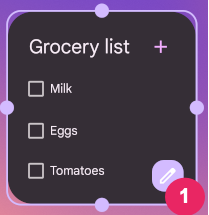
Users can reconfigure their widget by touching & holding the widget and tapping the Reconfigure button, which is labeled 1 in figure 1.
Use the widget's default configuration
You can provide a more seamless widget experience by letting users skip the
initial configuration step. To do this, specify both the
configuration_optional and reconfigurable flags in the
widgetFeatures field. This bypasses launching the configuration activity
after a user adds the widget. As mentioned previously, the user can still
reconfigure the widget afterward. For example, a clock widget can bypass
the initial configuration and show the device time zone by default.
Here is an example of how to mark your configuration activity as both reconfigurable and optional:
<appwidget-provider
    android:configure="com.myapp.ExampleAppWidgetConfigurationActivity"
    android:widgetFeatures="reconfigurable|configuration_optional">
</appwidget-provider>