

이 페이지에서는 다양한 햅틱 API를 사용하여 Android 앱에서 표준 진동 파형을 넘어 맞춤 효과를 만드는 방법을 보여주는 예를 다룹니다.
이 페이지에는 다음 예시가 포함되어 있습니다.
추가 예는 이벤트에 햅틱 반응 추가를 참고하고 항상 햅틱 디자인 원칙을 따르세요.
대체 항목을 사용하여 기기 호환성 처리
맞춤 효과를 구현할 때는 다음 사항을 고려하세요.
- 효과에 필요한 기기 기능
- 기기에서 효과를 재생할 수 없는 경우 취해야 할 조치
Android 햅틱 API 참조에서는 앱이 일관된 전반적인 환경을 제공할 수 있도록 햅틱에 관련된 구성요소의 지원 여부를 확인하는 방법을 자세히 설명합니다.
사용 사례에 따라 맞춤 효과를 사용 중지하거나 다양한 잠재적 기능을 기반으로 대체 맞춤 효과를 제공할 수 있습니다.
다음과 같은 대략적인 기기 기능 클래스를 계획하세요.
촉각 원시 요소를 사용하는 경우: 맞춤 효과에 필요한 원시 요소를 지원하는 기기 (기본형에 관한 자세한 내용은 다음 섹션을 참고하세요.)
진폭 제어가 있는 기기
기본 진동 지원 (켜기/끄기)이 있는 기기, 즉 진폭 제어가 없는 기기
앱의 햅틱 효과 선택이 이러한 카테고리를 고려하는 경우 햅틱 사용자 환경은 개별 기기에서 예측 가능해야 합니다.
햅틱 프리미티브 사용
Android에는 진폭과 주파수가 모두 다양한 여러 햅틱 원시 요소가 포함되어 있습니다. 하나의 기본 요소를 단독으로 사용하거나 여러 기본 요소를 조합하여 풍부한 햅틱 효과를 구현할 수 있습니다.
- 두 프리미티브 간에 식별 가능한 간격을 두려면 50ms 이상의 지연 시간을 사용하고 가능한 경우 프리미티브 지속 시간도 고려합니다.
- 강도 차이가 더 잘 인식되도록 1.4 이상의 비율로 다른 스케일을 사용하세요.
0.5, 0.7, 1.0 스케일을 사용하여 기본 요소의 강도가 낮음, 중간, 높음인 버전을 만듭니다.
맞춤 진동 패턴 만들기
진동 패턴은 알림 및 벨소리와 같은 주의력 햅틱에 자주 사용됩니다. Vibrator 서비스는 시간이 지남에 따라 진동 진폭을 변경하는 긴 진동 패턴을 재생할 수 있습니다. 이러한 효과를 파형이라고 합니다.
파형 효과는 일반적으로 인지할 수 있지만 조용한 환경에서 재생하면 갑작스러운 긴 진동이 사용자를 놀라게 할 수 있습니다. 타겟 진폭으로 너무 빠르게 램핑하면 청각적으로 윙윙거리는 노이즈가 발생할 수도 있습니다. 진폭 전환을 부드럽게 하여 상승 및 하강 효과를 만들도록 파형 패턴을 설계합니다.
진동 패턴의 예
다음 섹션에서는 여러 진동 패턴의 예를 제공합니다.
단계적 확대 패턴
파형은 세 가지 매개변수를 사용하여 VibrationEffect로 표현됩니다.
- Timings: 각 파형 세그먼트의 지속 시간(밀리초) 배열입니다.
- 진폭: 첫 번째 인수에 지정된 각 지속 시간의 원하는 진동 진폭입니다. 0~255의 정수 값으로 표시되며, 0은 진동기 '오프 상태'를 나타내고 255는 기기의 최대 진폭을 나타냅니다.
- 반복 색인: 파형 반복을 시작할 첫 번째 인수에 지정된 배열의 색인입니다. 패턴을 한 번만 재생해야 하는 경우 -1입니다.
다음은 펄스 사이에 350ms의 일시중지가 있는 두 번의 펄스를 보여주는 파형의 예입니다. 첫 번째 펄스는 최대 진폭까지 부드럽게 증가하고 두 번째 펄스는 최대 진폭을 유지하기 위해 빠르게 증가합니다. 끝에서 중지하는 것은 음수 반복 색인 값으로 정의됩니다.
Kotlin
val timings: LongArray = longArrayOf(
    50, 50, 50, 50, 50, 100, 350, 25, 25, 25, 25, 200)
val amplitudes: IntArray = intArrayOf(
    33, 51, 75, 113, 170, 255, 0, 38, 62, 100, 160, 255)
val repeatIndex = -1 // Don't repeat.

vibrator.vibrate(VibrationEffect.createWaveform(
    timings, amplitudes, repeatIndex))
자바
long[] timings = new long[] {
    50, 50, 50, 50, 50, 100, 350, 25, 25, 25, 25, 200 };
int[] amplitudes = new int[] {
    33, 51, 75, 113, 170, 255, 0, 38, 62, 100, 160, 255 };
int repeatIndex = -1; // Don't repeat.

vibrator.vibrate(VibrationEffect.createWaveform(
    timings, amplitudes, repeatIndex));
반복 패턴
파형은 취소될 때까지 반복적으로 재생할 수도 있습니다. 반복 파형을 만드는 방법은 음수가 아닌 repeat 매개변수를 설정하는 것입니다. 반복되는 파형을 재생하면 서비스에서 명시적으로 취소될 때까지 진동이 계속됩니다.
Kotlin
void startVibrating() {
val timings: LongArray = longArrayOf(50, 50, 100, 50, 50)
val amplitudes: IntArray = intArrayOf(64, 128, 255, 128, 64)
val repeat = 1 // Repeat from the second entry, index = 1.
VibrationEffect repeatingEffect = VibrationEffect.createWaveform(
    timings, amplitudes, repeat)
// repeatingEffect can be used in multiple places.

vibrator.vibrate(repeatingEffect)
}

void stopVibrating() {
vibrator.cancel()
}
자바
void startVibrating() {
long[] timings = new long[] { 50, 50, 100, 50, 50 };
int[] amplitudes = new int[] { 64, 128, 255, 128, 64 };
int repeat = 1; // Repeat from the second entry, index = 1.
VibrationEffect repeatingEffect = VibrationEffect.createWaveform(
    timings, amplitudes, repeat);
// repeatingEffect can be used in multiple places.

vibrator.vibrate(repeatingEffect);
}

void stopVibrating() {
vibrator.cancel();
}
이는 사용자 작업이 필요한 간헐적 이벤트를 확인하는 데 매우 유용합니다. 이러한 이벤트의 예로는 수신 전화 및 트리거된 알람이 있습니다.
대체 동작이 있는 패턴
진동의 진폭을 제어하는 것은 하드웨어 종속 기능입니다. 이 기능이 없는 저사양 기기에서 파형을 재생하면 기기가 진폭 배열의 각 양수 항목에 대해 최대 진폭으로 진동합니다. 앱에서 이러한 기기를 수용해야 하는 경우 해당 조건에서 재생할 때 버즈 효과를 생성하지 않는 패턴을 사용하거나 대신 대체로 재생할 수 있는 더 간단한 ON/OFF 패턴을 설계하세요.
Kotlin
if (vibrator.hasAmplitudeControl()) {
  vibrator.vibrate(VibrationEffect.createWaveform(
    smoothTimings, amplitudes, smoothRepeatIdx))
} else {
  vibrator.vibrate(VibrationEffect.createWaveform(
    onOffTimings, onOffRepeatIdx))
}
자바
if (vibrator.hasAmplitudeControl()) {
  vibrator.vibrate(VibrationEffect.createWaveform(
    smoothTimings, amplitudes, smoothRepeatIdx));
} else {
  vibrator.vibrate(VibrationEffect.createWaveform(
    onOffTimings, onOffRepeatIdx));
}
진동 컴포지션 만들기
이 섹션에서는 진동을 더 길고 복잡한 맞춤 효과로 구성하는 방법을 설명하고 더 나아가 고급 하드웨어 기능을 사용하여 풍부한 햅틱을 살펴봅니다. 진폭과 주파수가 다양한 효과를 조합하여 주파수 대역폭이 더 넓은 햅틱 액추에이터가 있는 기기에서 더 복잡한 햅틱 효과를 만들 수 있습니다.
이 페이지에서 이전에 설명한 맞춤 진동 패턴 만들기 프로세스에서는 진동 진폭을 제어하여 부드러운 증감 효과를 만드는 방법을 설명합니다. 풍부한 햅틱은 기기 진동기의 더 넓은 주파수 범위를 탐색하여 효과를 더욱 부드럽게 만들어 이 개념을 개선합니다. 이러한 파형은 특히 크레센도 또는 디미누엔도 효과를 만드는 데 효과적입니다.
이 페이지 앞부분에서 설명한 컴포지션 기본 요소는 기기 제조업체에서 구현합니다. 명확한 햅틱을 위한 햅틱 원칙에 부합하는 선명하고 짧고 쾌적한 진동을 제공합니다. 이러한 기능과 작동 방식에 관한 자세한 내용은 진동 액추에이터 기본사항을 참고하세요.
Android는 지원되지 않는 기본 요소가 있는 컴포지션에 대체 요소를 제공하지 않습니다. 따라서 다음 단계를 수행하세요.
고급 햅틱을 활성화하기 전에 특정 기기에서 사용 중인 모든 기본 요소를 지원하는지 확인하세요.
기본 요소가 누락된 효과뿐만 아니라 지원되지 않는 일관된 환경 세트를 사용 중지합니다.
기기 지원을 확인하는 방법에 관한 자세한 내용은 다음 섹션을 참고하세요.
구성된 진동 효과 만들기
VibrationEffect.Composition으로 구성된 진동 효과를 만들 수 있습니다. 다음은 천천히 상승하는 효과와 급격한 클릭 효과가 이어지는 예입니다.
Kotlin
vibrator.vibrate(
    VibrationEffect.startComposition().addPrimitive(
    VibrationEffect.Composition.PRIMITIVE_SLOW_RISE
    ).addPrimitive(
    VibrationEffect.Composition.PRIMITIVE_CLICK
    ).compose()
)
자바
vibrator.vibrate(
    VibrationEffect.startComposition()
        .addPrimitive(VibrationEffect.Composition.PRIMITIVE_SLOW_RISE)
        .addPrimitive(VibrationEffect.Composition.PRIMITIVE_CLICK)
        .compose());
컴포지션은 순서대로 재생할 기본 요소를 추가하여 만듭니다. 각 프리미티브는 확장 가능하므로 각 프리미티브에서 생성되는 진동의 진폭을 제어할 수 있습니다. 스케일은 0과 1 사이의 값으로 정의되며, 여기서 0은 실제로 이 기본 요소가 사용자가 (거의) 느낄 수 있는 최소 진폭에 매핑됩니다.
진동 프리미티브에서 변형 만들기
동일한 기본 요소의 약한 버전과 강한 버전을 만들려면 강도 비율을 1.4 이상으로 만들어 강도 차이를 쉽게 인식할 수 있도록 하세요. 지각적으로 구별되지 않으므로 동일한 기본 요소의 강도 수준을 3개 이상 만들지 마세요. 예를 들어 0.5, 0.7, 1.0 스케일을 사용하여 프리미티브의 낮은 강도, 중간 강도, 높은 강도 버전을 만듭니다.
진동 프리미티브 사이에 간격 추가
컴포지션은 연속된 기본 요소 사이에 추가할 지연 시간을 지정할 수도 있습니다. 이 지연 시간은 이전 기본 요소가 끝난 후 경과한 시간(밀리초)으로 표시됩니다. 일반적으로 두 기본 요소 간의 5~10ms 간격은 감지하기에 너무 짧습니다. 두 기본 요소 사이에 눈에 띄는 간격을 만들려면 50ms 이상의 간격을 사용하세요. 다음은 지연이 있는 컴포지션의 예입니다.
Kotlin
val delayMs = 100
vibrator.vibrate(
    VibrationEffect.startComposition().addPrimitive(
    VibrationEffect.Composition.PRIMITIVE_SPIN, 0.8f
    ).addPrimitive(
    VibrationEffect.Composition.PRIMITIVE_SPIN, 0.6f
    ).addPrimitive(
    VibrationEffect.Composition.PRIMITIVE_THUD, 1.0f, delayMs
    ).compose()
)
자바
int delayMs = 100;
vibrator.vibrate(
    VibrationEffect.startComposition()
        .addPrimitive(VibrationEffect.Composition.PRIMITIVE_SPIN, 0.8f)
        .addPrimitive(VibrationEffect.Composition.PRIMITIVE_SPIN, 0.6f)
        .addPrimitive(
            VibrationEffect.Composition.PRIMITIVE_THUD, 1.0f, delayMs)
        .compose());
지원되는 기본 요소 확인
다음 API를 사용하여 특정 기본 요소에 대한 기기 지원을 확인할 수 있습니다.
Kotlin
val primitive = VibrationEffect.Composition.PRIMITIVE_LOW_TICK

if (vibrator.areAllPrimitivesSupported(primitive)) {
  vibrator.vibrate(VibrationEffect.startComposition()
        .addPrimitive(primitive).compose())
} else {
  // Play a predefined effect or custom pattern as a fallback.
}
자바
int primitive = VibrationEffect.Composition.PRIMITIVE_LOW_TICK;

if (vibrator.areAllPrimitivesSupported(primitive)) {
  vibrator.vibrate(VibrationEffect.startComposition()
        .addPrimitive(primitive).compose());
} else {
  // Play a predefined effect or custom pattern as a fallback.
}
여러 기본 요소를 확인한 다음 기기 지원 수준에 따라 어떤 요소를 구성할지 결정할 수도 있습니다.
Kotlin
val effects: IntArray = intArrayOf(
VibrationEffect.Composition.PRIMITIVE_LOW_TICK,
VibrationEffect.Composition.PRIMITIVE_TICK,
VibrationEffect.Composition.PRIMITIVE_CLICK
)
val supported: BooleanArray = vibrator.arePrimitivesSupported(primitives)
자바
int[] primitives = new int[] {
VibrationEffect.Composition.PRIMITIVE_LOW_TICK,
VibrationEffect.Composition.PRIMITIVE_TICK,
VibrationEffect.Composition.PRIMITIVE_CLICK
};
boolean[] supported = vibrator.arePrimitivesSupported(effects);
진동 구성의 예
다음 섹션에서는 GitHub의 햅틱 샘플 앱에서 가져온 진동 구성의 여러 예를 제공합니다.
저항 (틱이 낮음)
진행 중인 작업에 유용한 피드백을 전달하기 위해 기본 진동의 진폭을 제어할 수 있습니다. 간격이 좁은 스케일 값을 사용하여 기본 도형의 부드러운 크레센도 효과를 만들 수 있습니다. 연속된 원시 요소 간의 지연 시간도 사용자 상호작용에 따라 동적으로 설정할 수 있습니다. 이는 드래그 동작으로 제어되고 햅틱으로 보강된 뷰 애니메이션의 다음 예에 나와 있습니다.
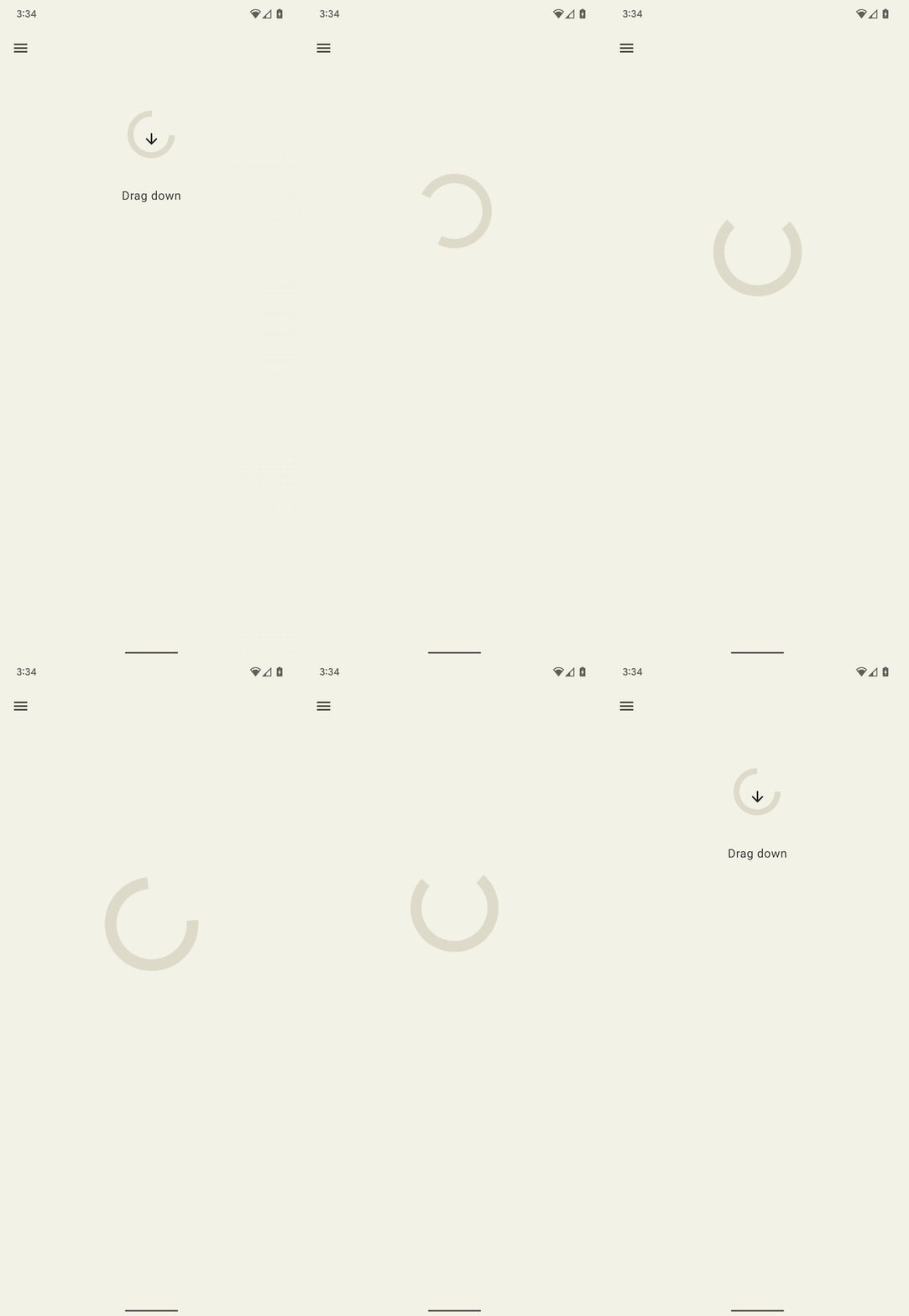
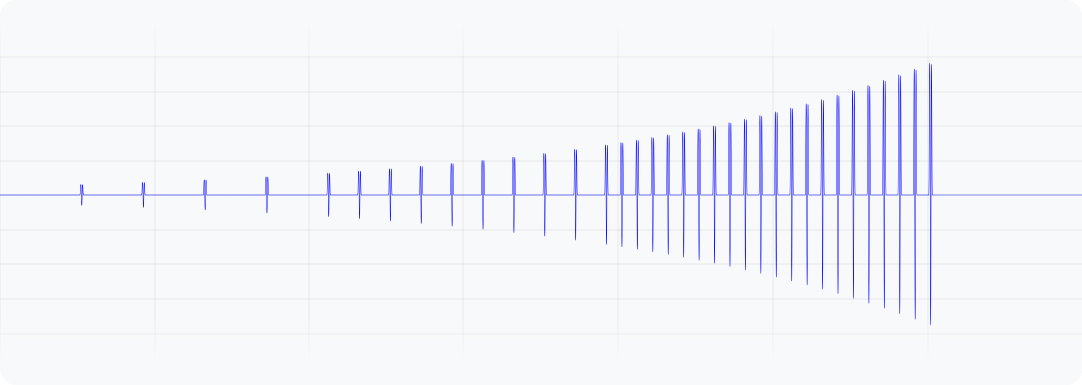
그림 1. 이 파형은 기기에서 진동의 출력 가속도를 나타냅니다.
Kotlin
@Composable
fun ResistScreen() {
    // Control variables for the dragging of the indicator.
    var isDragging by remember { mutableStateOf(false) }
    var dragOffset by remember { mutableStateOf(0f) }

    // Only vibrates while the user is dragging
    if (isDragging) {
        LaunchedEffect(Unit) {
        // Continuously run the effect for vibration to occur even when the view
        // is not being drawn, when user stops dragging midway through gesture.
        while (true) {
            // Calculate the interval inversely proportional to the drag offset.
            val vibrationInterval = calculateVibrationInterval(dragOffset)
            // Calculate the scale directly proportional to the drag offset.
            val vibrationScale = calculateVibrationScale(dragOffset)

            delay(vibrationInterval)
            vibrator.vibrate(
            VibrationEffect.startComposition().addPrimitive(
                VibrationEffect.Composition.PRIMITIVE_LOW_TICK,
                vibrationScale
            ).compose()
            )
        }
        }
    }

    Screen() {
        Column(
        Modifier
            .draggable(
            orientation = Orientation.Vertical,
            onDragStarted = {
                isDragging = true
            },
            onDragStopped = {
                isDragging = false
            },
            state = rememberDraggableState { delta ->
                dragOffset += delta
            }
            )
        ) {
        // Build the indicator UI based on how much the user has dragged it.
        ResistIndicator(dragOffset)
        }
    }
}
자바
class DragListener implements View.OnTouchListener {
    // Control variables for the dragging of the indicator.
    private int startY;
    private int vibrationInterval;
    private float vibrationScale;

    @Override
    public boolean onTouch(View view, MotionEvent event) {
        switch (event.getAction()) {
        case MotionEvent.ACTION_DOWN:
            startY = event.getRawY();
            vibrationInterval = calculateVibrationInterval(0);
            vibrationScale = calculateVibrationScale(0);
            startVibration();
            break;
        case MotionEvent.ACTION_MOVE:
            float dragOffset = event.getRawY() - startY;
            // Calculate the interval inversely proportional to the drag offset.
            vibrationInterval = calculateVibrationInterval(dragOffset);
            // Calculate the scale directly proportional to the drag offset.
            vibrationScale = calculateVibrationScale(dragOffset);
            // Build the indicator UI based on how much the user has dragged it.
            updateIndicator(dragOffset);
            break;
        case MotionEvent.ACTION_CANCEL:
        case MotionEvent.ACTION_UP:
            // Only vibrates while the user is dragging
            cancelVibration();
            break;
        }
        return true;
    }

    private void startVibration() {
        vibrator.vibrate(
            VibrationEffect.startComposition()
                .addPrimitive(VibrationEffect.Composition.PRIMITIVE_LOW_TICK,
                        vibrationScale)
                .compose());

        // Continuously run the effect for vibration to occur even when the view
        // is not being drawn, when user stops dragging midway through gesture.
        handler.postDelayed(this::startVibration, vibrationInterval);
    }

    private void cancelVibration() {
        handler.removeCallbacksAndMessages(null);
    }
}
확장 (상승 및 하강 포함)
지각된 진동 강도를 높이는 데는 두 가지 원시 요소가 있습니다. PRIMITIVE_QUICK_RISE와 PRIMITIVE_SLOW_RISE입니다. 두 광고 모두 동일한 타겟에 도달하지만 기간은 다릅니다. 램프 다운에는 PRIMITIVE_QUICK_FALL이라는 기본 요소 하나만 있습니다. 이러한 프리미티브는 함께 작동하여 강도가 증가한 후 사라지는 파형 세그먼트를 만드는 데 더 적합합니다. 크기가 조정된 프리미티브를 정렬하여 프리미티브 간에 진폭이 갑자기 증가하는 것을 방지할 수 있으며, 이는 전체 효과 지속 시간을 연장하는 데도 유용합니다.
사람들은 항상 하강 부분보다 상승 부분을 더 잘 인식하므로 하강 부분에 중점을 두기 위해 상승 부분을 하강 부분보다 짧게 만들 수 있습니다.
다음은 원을 확장하고 축소하기 위한 이 컴포지션의 적용 예입니다. 상승 효과는 애니메이션 중에 확장되는 느낌을 강화할 수 있습니다. 상승 및 하강 효과를 결합하면 애니메이션이 끝날 때 접히는 부분을 강조할 수 있습니다.
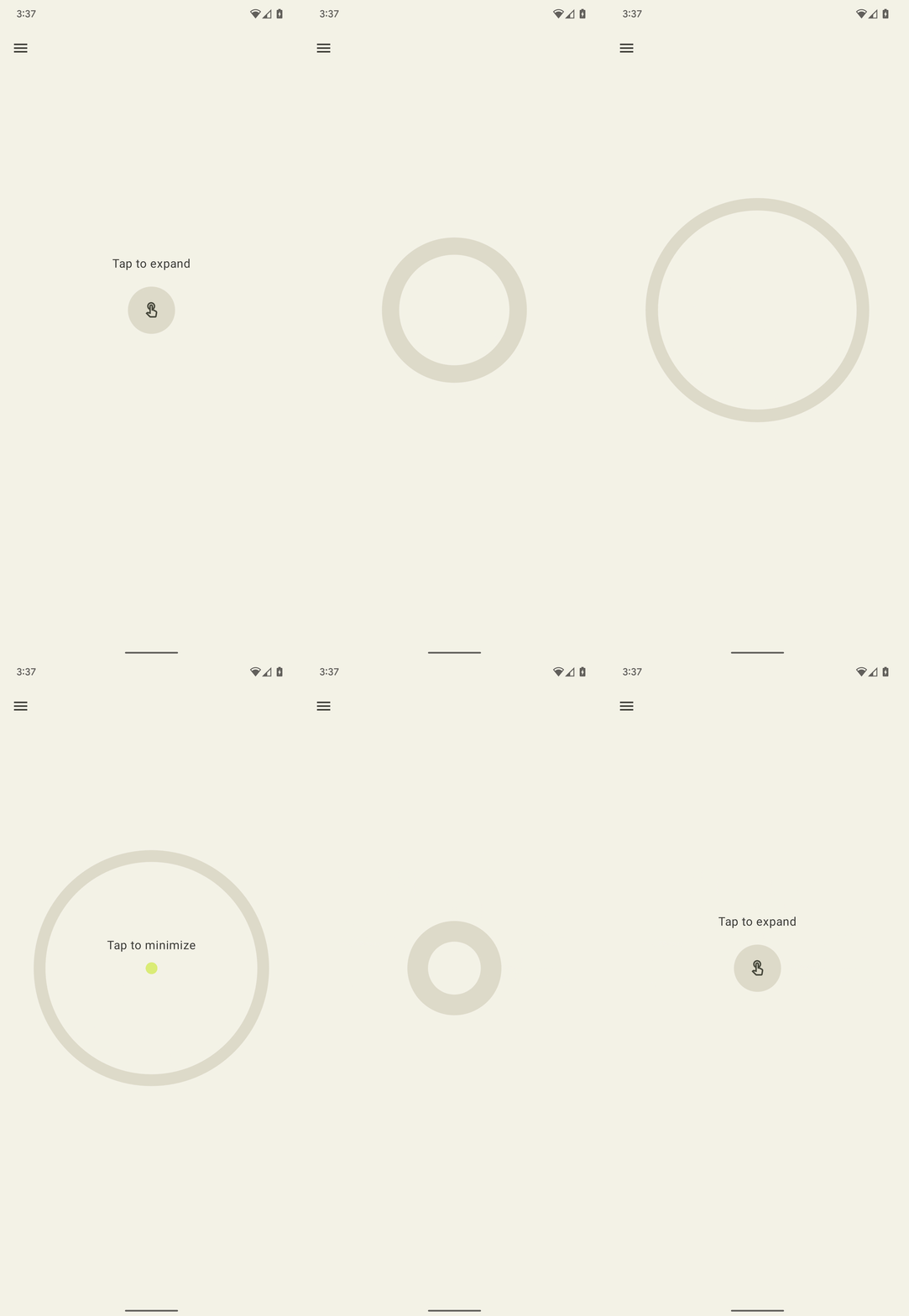
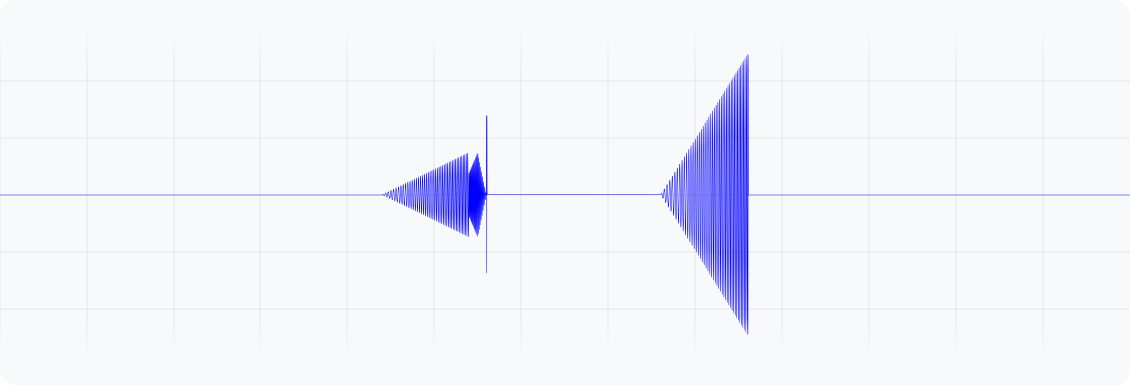
그림 2. 이 파형은 기기에서 진동의 출력 가속도를 나타냅니다.
Kotlin
enum class ExpandShapeState {
    Collapsed,
    Expanded
}

@Composable
fun ExpandScreen() {
    // Control variable for the state of the indicator.
    var currentState by remember { mutableStateOf(ExpandShapeState.Collapsed) }

    // Animation between expanded and collapsed states.
    val transitionData = updateTransitionData(currentState)

    Screen() {
        Column(
        Modifier
            .clickable(
            {
                if (currentState == ExpandShapeState.Collapsed) {
                currentState = ExpandShapeState.Expanded
                vibrator.vibrate(
                    VibrationEffect.startComposition().addPrimitive(
                    VibrationEffect.Composition.PRIMITIVE_SLOW_RISE,
                    0.3f
                    ).addPrimitive(
                    VibrationEffect.Composition.PRIMITIVE_QUICK_FALL,
                    0.3f
                    ).compose()
                )
                } else {
                currentState = ExpandShapeState.Collapsed
                vibrator.vibrate(
                    VibrationEffect.startComposition().addPrimitive(
                    VibrationEffect.Composition.PRIMITIVE_SLOW_RISE
                    ).compose()
                )
            }
            )
        ) {
        // Build the indicator UI based on the current state.
        ExpandIndicator(transitionData)
        }
    }
}
자바
class ClickListener implements View.OnClickListener {
    private final Animation expandAnimation;
    private final Animation collapseAnimation;
    private boolean isExpanded;

    ClickListener(Context context) {
        expandAnimation = AnimationUtils.loadAnimation(context, R.anim.expand);
        expandAnimation.setAnimationListener(new Animation.AnimationListener() {

        @Override
        public void onAnimationStart(Animation animation) {
            vibrator.vibrate(
            VibrationEffect.startComposition()
                .addPrimitive(
                    VibrationEffect.Composition.PRIMITIVE_SLOW_RISE, 0.3f)
                .addPrimitive(
                    VibrationEffect.Composition.PRIMITIVE_QUICK_FALL, 0.3f)
                .compose());
        }
        });

        collapseAnimation = AnimationUtils
                .loadAnimation(context, R.anim.collapse);
        collapseAnimation.setAnimationListener(new Animation.AnimationListener() {

            @Override
            public void onAnimationStart(Animation animation) {
                vibrator.vibrate(
                VibrationEffect.startComposition()
                    .addPrimitive(
                        VibrationEffect.Composition.PRIMITIVE_SLOW_RISE)
                    .compose());
            }
        });
    }

    @Override
    public void onClick(View view) {
        view.startAnimation(isExpanded ? collapseAnimation : expandAnimation);
        isExpanded = !isExpanded;
    }
}
흔들림 (회전 포함)
햅틱 원칙의 핵심 중 하나는 사용자를 즐겁게 하는 것입니다. 유쾌한 예기치 않은 진동 효과를 도입하는 재미있는 방법은 PRIMITIVE_SPIN를 사용하는 것입니다. 이 기본 요소는 두 번 이상 호출될 때 가장 효과적입니다. 연속된 여러 회전은 흔들리고 불안정한 효과를 만들 수 있으며, 각 기본 도형에 다소 무작위적인 크기 조정을 적용하여 효과를 더욱 강화할 수 있습니다. 연속적인 회전 원시 요소 사이의 간격을 실험해 볼 수도 있습니다. 두 번의 회전 사이에 간격이 없으면 (0ms) 긴장감 있는 회전 감각이 만들어집니다. 회전 간 간격을 10에서 50밀리초로 늘리면 회전 감각이 더 느슨해지며 동영상이나 애니메이션의 지속 시간에 맞출 수 있습니다.
100ms보다 긴 간격을 사용하지 마세요. 연속 회전이 더 이상 잘 통합되지 않고 개별 효과처럼 느껴지기 때문입니다.
다음은 아래로 드래그한 후 놓으면 다시 튀어 오르는 탄력적인 모양의 예입니다. 애니메이션은 바운스 변위에 비례하는 다양한 강도로 재생되는 두 개의 스핀 효과로 향상됩니다.
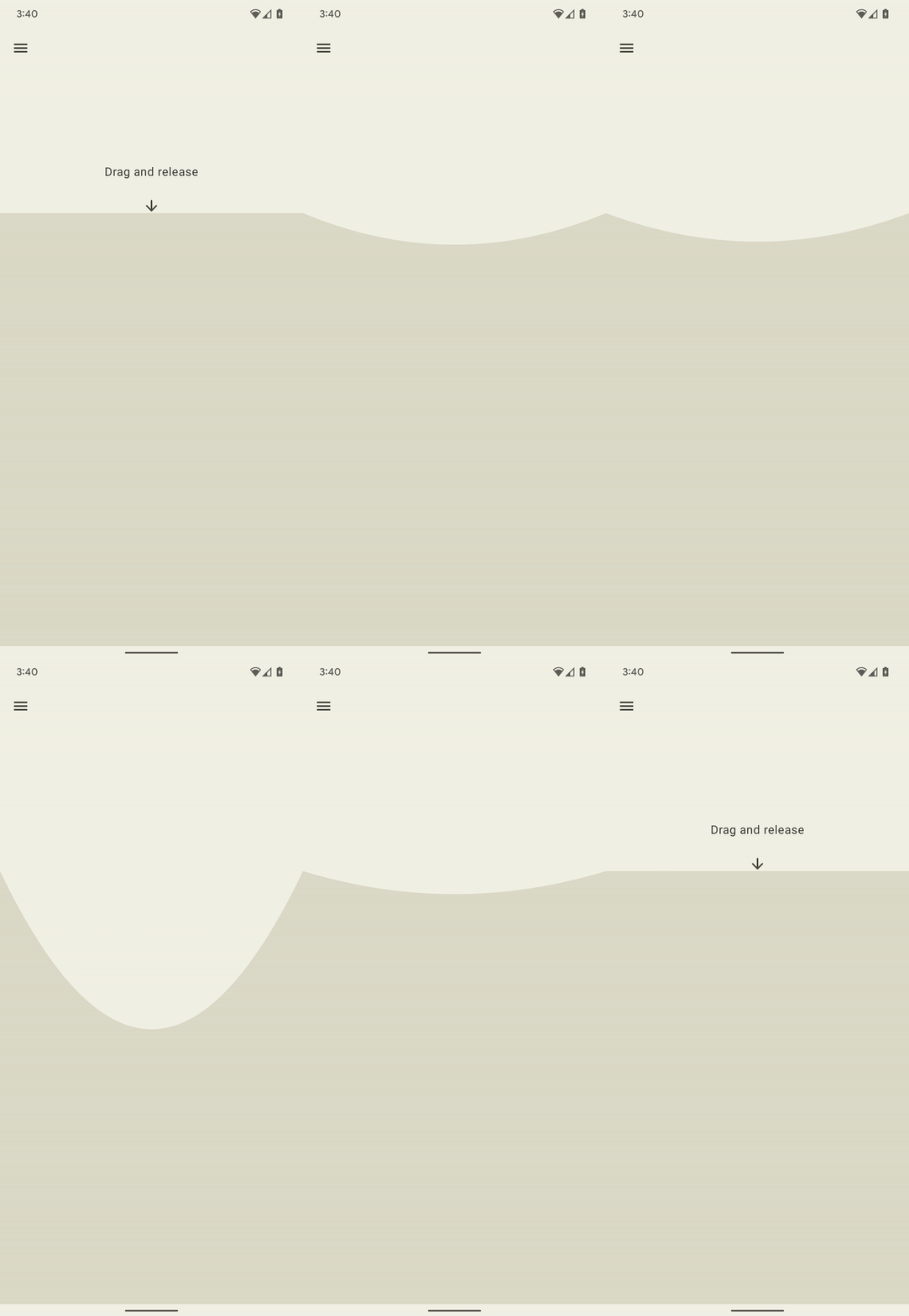
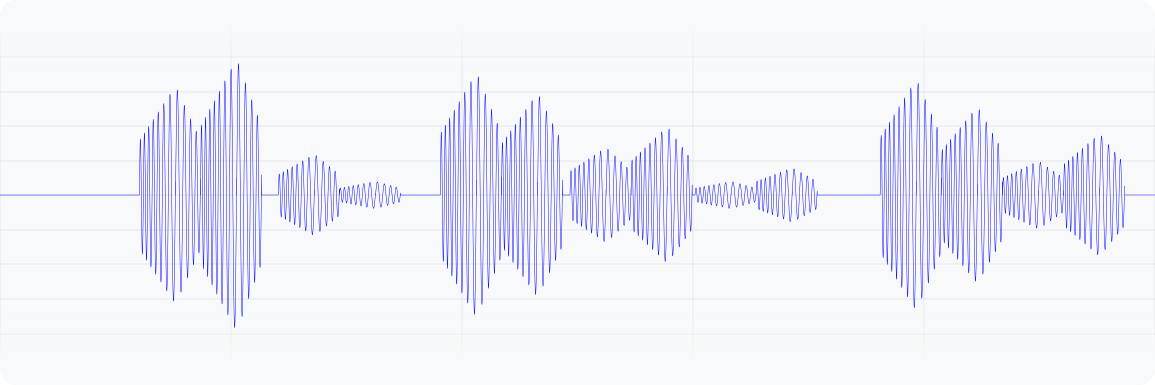
그림 3. 이 파형은 기기에서 진동의 출력 가속도를 나타냅니다.
Kotlin
@Composable
fun WobbleScreen() {
    // Control variables for the dragging and animating state of the elastic.
    var dragDistance by remember { mutableStateOf(0f) }
    var isWobbling by remember { mutableStateOf(false) }

    // Use drag distance to create an animated float value behaving like a spring.
    val dragDistanceAnimated by animateFloatAsState(
        targetValue = if (dragDistance > 0f) dragDistance else 0f,
        animationSpec = spring(
            dampingRatio = Spring.DampingRatioHighBouncy,
            stiffness = Spring.StiffnessMedium
        ),
    )

    if (isWobbling) {
        LaunchedEffect(Unit) {
            while (true) {
                val displacement = dragDistanceAnimated / MAX_DRAG_DISTANCE
                // Use some sort of minimum displacement so the final few frames
                // of animation don't generate a vibration.
                if (displacement > SPIN_MIN_DISPLACEMENT) {
                    vibrator.vibrate(
                        VibrationEffect.startComposition().addPrimitive(
                            VibrationEffect.Composition.PRIMITIVE_SPIN,
                            nextSpinScale(displacement)
                        ).addPrimitive(
                        VibrationEffect.Composition.PRIMITIVE_SPIN,
                        nextSpinScale(displacement)
                        ).compose()
                    )
                }
                // Delay the next check for a sufficient duration until the
                // current composition finishes. Note that you can use
                // Vibrator.getPrimitiveDurations API to calculcate the delay.
                delay(VIBRATION_DURATION)
            }
        }
    }

    Box(
        Modifier
            .fillMaxSize()
            .draggable(
                onDragStopped = {
                    isWobbling = true
                    dragDistance = 0f
                },
                orientation = Orientation.Vertical,
                state = rememberDraggableState { delta ->
                    isWobbling = false
                    dragDistance += delta
                }
            )
    ) {
        // Draw the wobbling shape using the animated spring-like value.
        WobbleShape(dragDistanceAnimated)
    }
}

// Calculate a random scale for each spin to vary the full effect.
fun nextSpinScale(displacement: Float): Float {
    // Generate a random offset in the range [-0.1, +0.1] to be added to the
    // vibration scale so the spin effects have slightly different values.
    val randomOffset: Float = Random.Default.nextFloat() * 0.2f - 0.1f
    return (displacement + randomOffset).absoluteValue.coerceIn(0f, 1f)
}
자바
class AnimationListener implements DynamicAnimation.OnAnimationUpdateListener {
    private final Random vibrationRandom = new Random(seed);
    private final long lastVibrationUptime;

    @Override
    public void onAnimationUpdate(
        DynamicAnimation animation, float value, float velocity) {
        // Delay the next check for a sufficient duration until the current
        // composition finishes. Note that you can use
        // Vibrator.getPrimitiveDurations API to calculcate the delay.
        if (SystemClock.uptimeMillis() - lastVibrationUptime < VIBRATION_DURATION) {
            return;
        }

        float displacement = calculateRelativeDisplacement(value);

        // Use some sort of minimum displacement so the final few frames
        // of animation don't generate a vibration.
        if (displacement < SPIN_MIN_DISPLACEMENT) {
            return;
        }

        lastVibrationUptime = SystemClock.uptimeMillis();
        vibrator.vibrate(
        VibrationEffect.startComposition()
            .addPrimitive(VibrationEffect.Composition.PRIMITIVE_SPIN,
            nextSpinScale(displacement))
            .addPrimitive(VibrationEffect.Composition.PRIMITIVE_SPIN,
            nextSpinScale(displacement))
            .compose());
    }

    // Calculate a random scale for each spin to vary the full effect.
    float nextSpinScale(float displacement) {
        // Generate a random offset in the range [-0.1,+0.1] to be added to
        // the vibration scale so the spin effects have slightly different
        // values.
        float randomOffset = vibrationRandom.nextFloat() * 0.2f - 0.1f
        return MathUtils.clamp(displacement + randomOffset, 0f, 1f)
    }
}
바운스 (쿵 소리)
진동 효과의 또 다른 고급 적용은 실제 상호작용을 시뮬레이션하는 것입니다. PRIMITIVE_THUD은 강력하고 울림이 있는 효과를 만들어낼 수 있으며, 예를 들어 동영상이나 애니메이션에서 충격 시각화와 결합하여 전반적인 경험을 강화할 수 있습니다.
다음은 공이 화면 하단에서 튕길 때마다 재생되는 쿵 소리 효과로 강화된 공 떨어뜨리기 애니메이션의 예입니다.
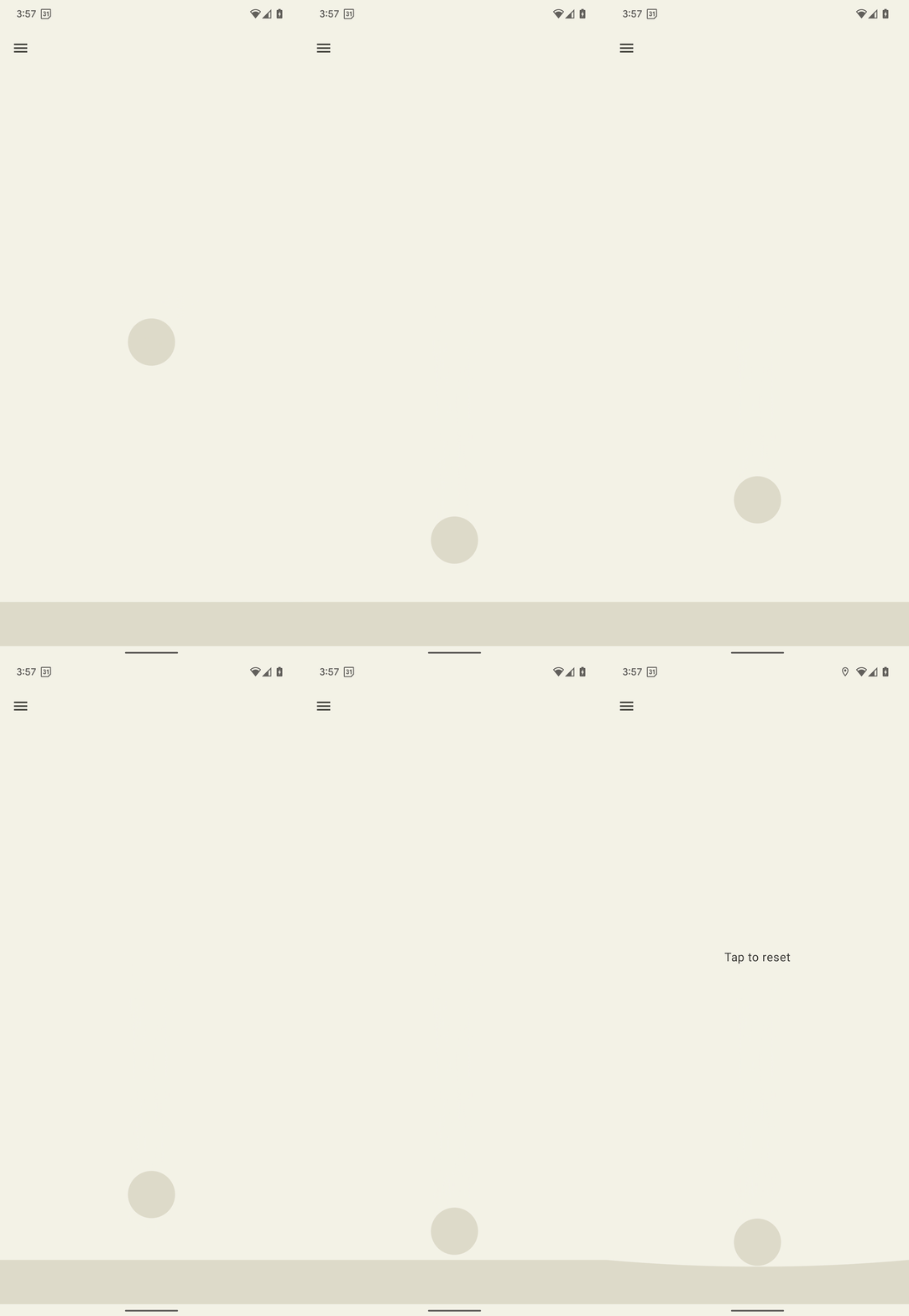
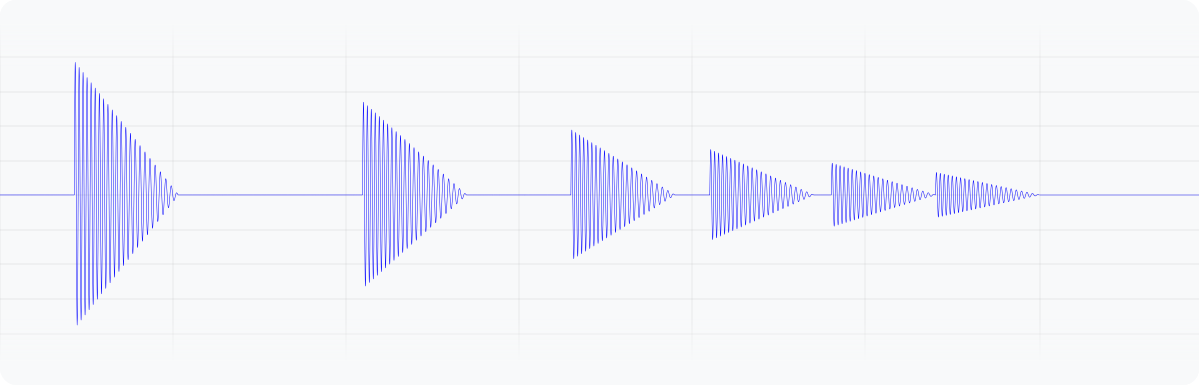
그림 4. 이 파형은 기기에서 진동의 출력 가속도를 나타냅니다.
Kotlin
enum class BallPosition {
    Start,
    End
}

@Composable
fun BounceScreen() {
    // Control variable for the state of the ball.
    var ballPosition by remember { mutableStateOf(BallPosition.Start) }
    var bounceCount by remember { mutableStateOf(0) }

    // Animation for the bouncing ball.
    var transitionData = updateTransitionData(ballPosition)
    val collisionData = updateCollisionData(transitionData)

    // Ball is about to contact floor, only vibrating once per collision.
    var hasVibratedForBallContact by remember { mutableStateOf(false) }
    if (collisionData.collisionWithFloor) {
        if (!hasVibratedForBallContact) {
        val vibrationScale = 0.7.pow(bounceCount++).toFloat()
        vibrator.vibrate(
            VibrationEffect.startComposition().addPrimitive(
            VibrationEffect.Composition.PRIMITIVE_THUD,
            vibrationScale
            ).compose()
        )
        hasVibratedForBallContact = true
        }
    } else {
        // Reset for next contact with floor.
        hasVibratedForBallContact = false
    }

    Screen() {
        Box(
        Modifier
            .fillMaxSize()
            .clickable {
            if (transitionData.isAtStart) {
                ballPosition = BallPosition.End
            } else {
                ballPosition = BallPosition.Start
                bounceCount = 0
            }
            },
        ) {
        // Build the ball UI based on the current state.
        BouncingBall(transitionData)
        }
    }
}
자바
class ClickListener implements View.OnClickListener {
    @Override
    public void onClick(View view) {
        view.animate()
        .translationY(targetY)
        .setDuration(3000)
        .setInterpolator(new BounceInterpolator())
        .setUpdateListener(new AnimatorUpdateListener() {

            boolean hasVibratedForBallContact = false;
            int bounceCount = 0;

            @Override
            public void onAnimationUpdate(ValueAnimator animator) {
            boolean valueBeyondThreshold = (float) animator.getAnimatedValue() > 0.98;
            if (valueBeyondThreshold) {
                if (!hasVibratedForBallContact) {
                float vibrationScale = (float) Math.pow(0.7, bounceCount++);
                vibrator.vibrate(
                    VibrationEffect.startComposition()
                    .addPrimitive(
                        VibrationEffect.Composition.PRIMITIVE_THUD,
                        vibrationScale)
                    .compose());
                hasVibratedForBallContact = true;
                }
            } else {
                // Reset for next contact with floor.
                hasVibratedForBallContact = false;
            }
            }
        });
    }
}
엔벨로프가 있는 진동 파형
맞춤 진동 패턴 만들기 프로세스를 사용하면 진동 진폭을 제어하여 부드러운 증감 효과를 만들 수 있습니다. 이 섹션에서는 시간 경과에 따른 진동 진폭과 주파수를 정밀하게 제어할 수 있는 파형 엔벨로프를 사용하여 동적 햅틱 효과를 만드는 방법을 설명합니다. 이를 통해 더 풍부하고 미묘한 햅틱 환경을 만들 수 있습니다.
Android 16 (API 수준 36)부터 시스템은 제어점 시퀀스를 정의하여 진동 파형 엔벨로프를 생성하는 다음 API를 제공합니다.
BasicEnvelopeBuilder: 하드웨어에 구애받지 않는 햅틱 효과를 만드는 접근성 높은 방법입니다.WaveformEnvelopeBuilder: 햅틱 효과를 만드는 고급 접근 방식입니다. 햅틱 하드웨어에 익숙해야 합니다.
Android는 봉투 효과에 대한 대체를 제공하지 않습니다. 이 지원이 필요한 경우 다음 단계를 완료하세요.
Vibrator.areEnvelopeEffectsSupported()를 사용하여 지정된 기기가 엔벨로프 효과를 지원하는지 확인합니다.- 지원되지 않는 일관된 환경 세트를 사용 중지하거나 맞춤 진동 패턴 또는 컴포지션을 대체 옵션으로 사용합니다.
더 기본적인 엔벨로프 효과를 만들려면 다음 매개변수와 함께 BasicEnvelopeBuilder를 사용하세요.
- \( [0, 1] \)범위의 강도 값으로, 감지된 진동의 강도를 나타냅니다. 예를 들어 \( 0.5 \)값은 기기에서 달성할 수 있는 전역 최대 강도의 절반으로 인식됩니다.
\( [0, 1] \)범위의 선명도 값으로, 진동의 선명도를 나타냅니다. 값이 낮을수록 진동이 더 부드러워지고 값이 높을수록 더 날카로운 느낌이 듭니다.
duration 값입니다. 이는 마지막 제어점(즉, 강도 및 선명도 쌍)에서 새 제어점으로 전환하는 데 걸리는 시간을 밀리초 단위로 나타냅니다.
다음은 500ms에 걸쳐 낮은 피치에서 높은 피치, 최대 강도 진동으로 강도를 높인 다음 100ms에 걸쳐\( 0 \) (꺼짐)으로 다시 낮추는 파형의 예입니다.
vibrator.vibrate(VibrationEffect.BasicEnvelopeBuilder()
    .setInitialSharpness(0.0f)
    .addControlPoint(1.0f, 1.0f, 500)
    .addControlPoint(0.0f, 1.0f, 100)
    .build()
)
햅틱에 대한 고급 지식이 있다면 WaveformEnvelopeBuilder를 사용하여 엔벨로프 효과를 정의할 수 있습니다. 이 객체를 사용하면 VibratorFrequencyProfile를 통해 주파수-출력 가속 매핑 (FOAM)에 액세스할 수 있습니다.
- \( [0, 1] \)범위의 진폭 값으로, 기기 FOAM에 의해 결정된 특정 주파수에서 달성 가능한 진동 강도를 나타냅니다. 예를 들어 값 \( 0.5 \) 은 지정된 주파수에서 달성할 수 있는 최대 출력 가속도의 절반을 생성합니다.
헤르츠로 지정된 frequency 값입니다.
duration 값: 마지막 제어점에서 새 제어점으로 전환하는 데 걸린 시간(밀리초)을 나타냅니다.
다음 코드는 400ms 진동 효과를 정의하는 파형의 예를 보여줍니다. 50ms 진폭 램프가 꺼짐에서 전체로 일정한 60Hz로 시작됩니다. 그런 다음 주파수가 다음 100ms에 걸쳐 120Hz로 램프업되고 200ms 동안 해당 수준으로 유지됩니다. 마지막으로 진폭이 \( 0 \)로 램프다운되고 주파수가 마지막 50ms에 걸쳐 60Hz로 돌아갑니다.
vibrator.vibrate(VibrationEffect.WaveformEnvelopeBuilder()
    .addControlPoint(1.0f, 60f, 50)
    .addControlPoint(1.0f, 120f, 100)
    .addControlPoint(1.0f, 120f, 200)
    .addControlPoint(0.0f, 60f, 50)
    .build()
)
다음 섹션에서는 엔벨로프가 있는 진동 파형의 몇 가지 예를 제공합니다.
바운싱 스프링
이전 샘플에서는 PRIMITIVE_THUD를 사용하여 물리적 바운스 상호작용을 시뮬레이션합니다. 기본 엔벨로프 API는 훨씬 더 세밀한 제어를 제공하여 진동 강도와 선명도를 정확하게 맞춤설정할 수 있습니다.
이렇게 하면 애니메이션 이벤트를 더 정확하게 따르는 햅틱 반응이 생성됩니다.
다음은 스프링이 화면 하단에서 튕길 때마다 재생되는 기본 엔벨로프 효과로 애니메이션이 향상된 자유 낙하 스프링의 예입니다.
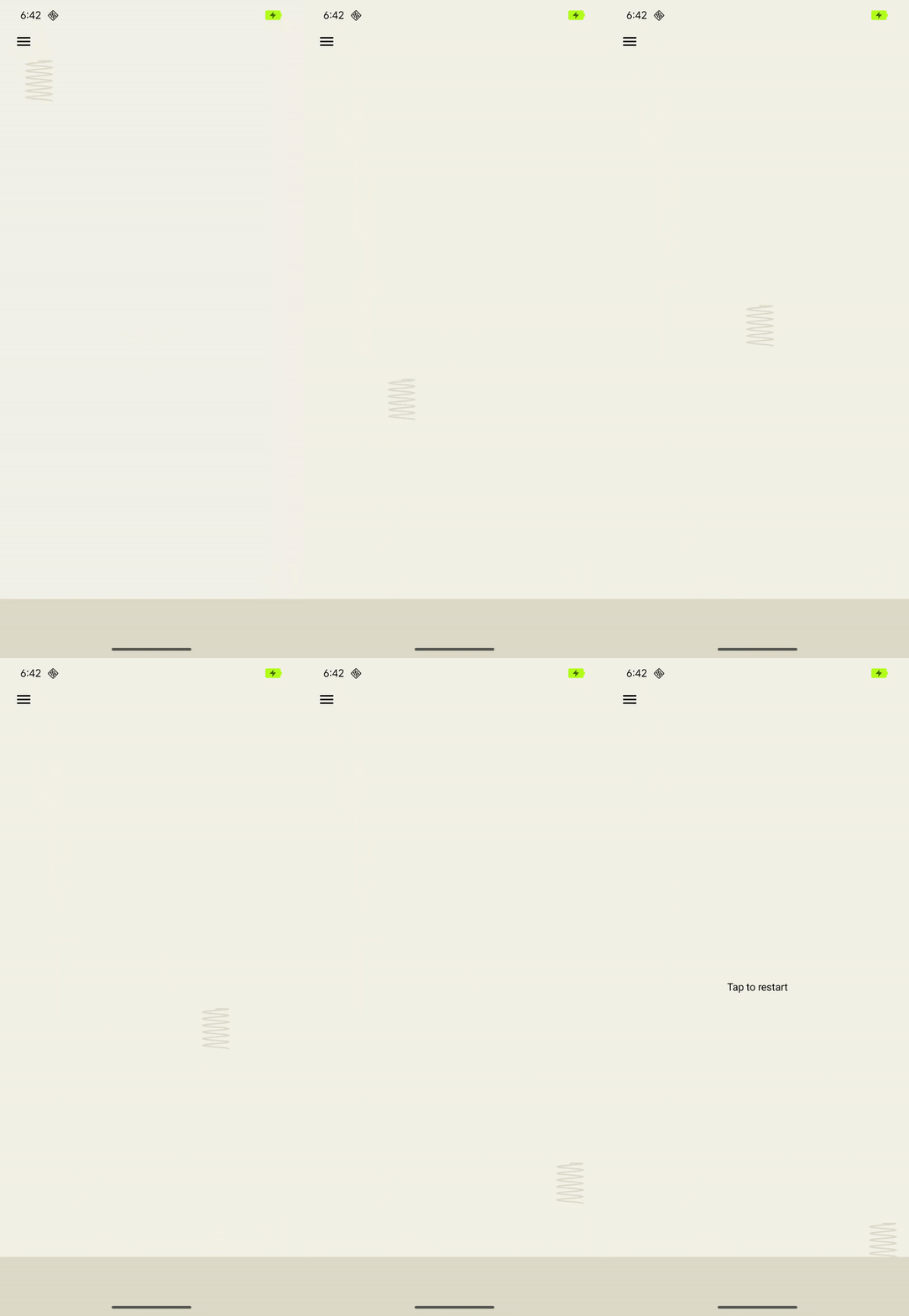
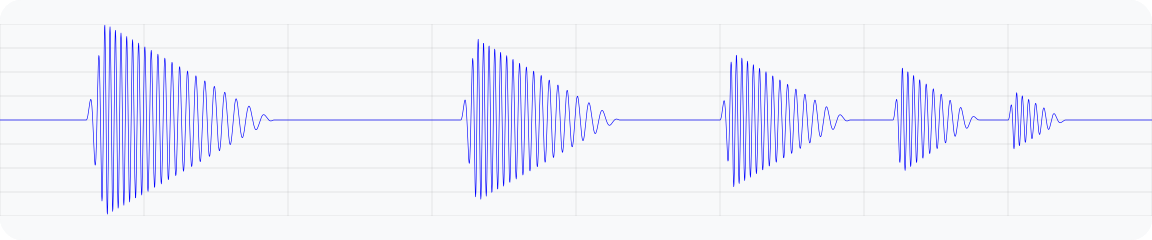
그림 5. 튀는 스프링을 시뮬레이션하는 진동의 출력 가속 파형 그래프
@Composable
fun BouncingSpringAnimation() {
  var springX by remember { mutableStateOf(SPRING_WIDTH) }
  var springY by remember { mutableStateOf(SPRING_HEIGHT) }
  var velocityX by remember { mutableFloatStateOf(INITIAL_VELOCITY) }
  var velocityY by remember { mutableFloatStateOf(INITIAL_VELOCITY) }
  var sharpness by remember { mutableFloatStateOf(INITIAL_SHARPNESS) }
  var intensity by remember { mutableFloatStateOf(INITIAL_INTENSITY) }
  var multiplier by remember { mutableFloatStateOf(INITIAL_MULTIPLIER) }
  var bottomBounceCount by remember { mutableIntStateOf(0) }
  var animationStartTime by remember { mutableLongStateOf(0L) }
  var isAnimating by remember { mutableStateOf(false) }

  val (screenHeight, screenWidth) = getScreenDimensions(context)

  LaunchedEffect(isAnimating) {
    animationStartTime = System.currentTimeMillis()
    isAnimating = true

    while (isAnimating) {
      velocityY += GRAVITY
      springX += velocityX.dp
      springY += velocityY.dp

      // Handle bottom collision
      if (springY > screenHeight - FLOOR_HEIGHT - SPRING_HEIGHT / 2) {
        // Set the spring's y-position to the bottom bounce point, to keep it
        // above the floor.
        springY = screenHeight - FLOOR_HEIGHT - SPRING_HEIGHT / 2

        // Reverse the vertical velocity and apply damping to simulate a bounce.
        velocityY *= -BOUNCE_DAMPING
        bottomBounceCount++

        // Calculate the fade-out duration of the vibration based on the
        // vertical velocity.
        val fadeOutDuration =
            ((abs(velocityY) / GRAVITY) * FRAME_DELAY_MS).toLong()

        // Create a "boing" envelope vibration effect that fades out.
        vibrator.vibrate(
            VibrationEffect.BasicEnvelopeBuilder()
                // Starting from zero sharpness here, will simulate a smoother
                // "boing" effect.
                .setInitialSharpness(0f)

                // Add a control point to reach the target intensity and
                // sharpness very quickly.
                .addControlPoint(intensity, sharpness, 20L)

                // Add a control point to fade out the vibration intensity while
                // maintaining sharpness.
                .addControlPoint(0f, sharpness, fadeOutDuration)
                .build()
        )

        // Decrease the intensity and sharpness of the vibration for subsequent
        // bounces, and reduce the multiplier to create a fading effect.
        intensity *= multiplier
        sharpness *= multiplier
        multiplier -= 0.1f
      }

      if (springX > screenWidth - SPRING_WIDTH / 2) {
        // Prevent the spring from moving beyond the right edge of the screen.
        springX = screenWidth - SPRING_WIDTH / 2
      }

      // Check for 3 bottom bounces and then slow down.
      if (bottomBounceCount >= MAX_BOTTOM_BOUNCE &&
            System.currentTimeMillis() - animationStartTime > 1000) {
        velocityX *= 0.9f
        velocityY *= 0.9f
      }

      delay(FRAME_DELAY_MS) // Control animation speed.

      // Determine if the animation should continue based on the spring's
      // position and velocity.
      isAnimating = (springY < screenHeight + SPRING_HEIGHT ||
            springX < screenWidth + SPRING_WIDTH)
        && (velocityX >= 0.1f || velocityY >= 0.1f)
    }
  }

  Box(
    modifier = Modifier
      .fillMaxSize()
      .noRippleClickable {
        if (!isAnimating) {
          resetAnimation()
        }
      }
      .width(screenWidth)
      .height(screenHeight)
  ) {
    DrawSpring(mutableStateOf(springX), mutableStateOf(springY))
    DrawFloor()
    if (!isAnimating) {
      DrawText("Tap to restart")
    }
  }
}
로켓 발사
이전 샘플에서는 기본 엔벨로프 API를 사용하여 탄력적인 스프링 반응을 시뮬레이션하는 방법을 보여줍니다. WaveformEnvelopeBuilder은 기기의 전체 주파수 범위를 정밀하게 제어할 수 있도록 하여 맞춤설정이 가능한 햅틱 효과를 지원합니다. 이를 FOAM 데이터와 결합하면 특정 주파수 기능에 맞게 진동을 맞춤설정할 수 있습니다.
다음은 동적 진동 패턴을 사용하여 로켓 발사 시뮬레이션을 보여주는 예입니다. 효과는 지원되는 최소 주파수 가속도 출력인 0.1G에서 공진 주파수까지 이동하며 항상 10% 진폭 입력을 유지합니다. 이렇게 하면 구동 진폭이 동일하더라도 효과가 적당히 강한 출력으로 시작하고 인지된 강도와 선명도가 증가합니다. 공명에 도달하면 효과 주파수가 최소로 다시 내려가며, 이는 강도와 선명도가 내려가는 것으로 인식됩니다. 이렇게 하면 우주로 발사되는 것을 모방하여 초기 저항 후 해제되는 느낌이 생성됩니다.
기본 엔벨로프 API는 공진 주파수와 출력 가속도 곡선에 관한 기기별 정보를 추상화하므로 이 효과는 불가능합니다. 선명도를 높이면 등가 주파수가 공진을 넘어설 수 있어 의도치 않은 가속도 감소가 발생할 수 있습니다.
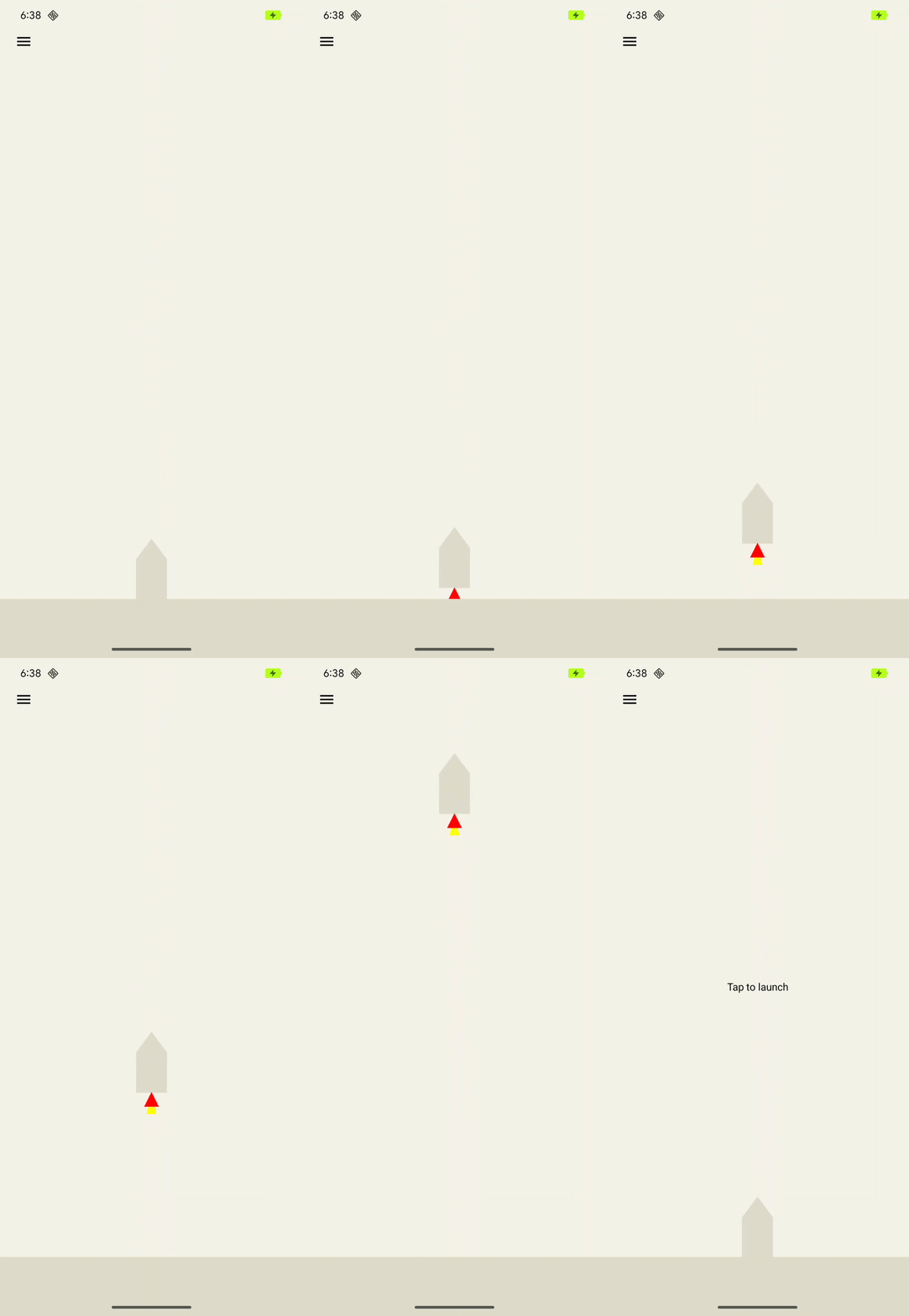
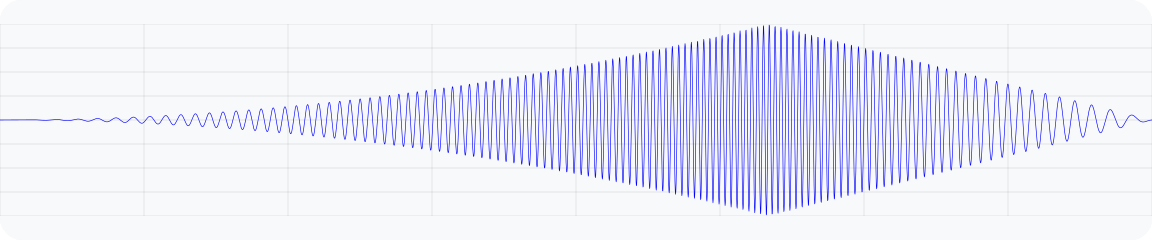
그림 6. 로켓 발사를 시뮬레이션하는 진동의 출력 가속도 파형 그래프
@Composable
fun RocketLaunchAnimation() {
  val context = LocalContext.current
  val screenHeight = remember { mutableFloatStateOf(0f) }
  var rocketPositionY by remember { mutableFloatStateOf(0f) }
  var isLaunched by remember { mutableStateOf(false) }
  val animation = remember { Animatable(0f) }

  val animationDuration = 3000
  LaunchedEffect(isLaunched) {
    if (isLaunched) {
      animation.animateTo(
        1.2f, // Overshoot so that the rocket goes off the screen.
        animationSpec = tween(
          durationMillis = animationDuration,
          // Applies an easing curve with a slow start and rapid acceleration
          // towards the end.
          easing = CubicBezierEasing(1f, 0f, 0.75f, 1f)
        )
      ) {
        rocketPositionY = screenHeight.floatValue * value
      }
      animation.snapTo(0f)
      rocketPositionY = 0f;
      isLaunched = false;
    }
  }

  Box(
    modifier = Modifier
      .fillMaxSize()
      .noRippleClickable {
        if (!isLaunched) {
          // Play vibration with same duration as the animation, using 70% of
          // the time for the rise of the vibration, to match the easing curve
          // defined previously.
          playVibration(vibrator, animationDuration, 0.7f)
          isLaunched = true
        }
      }
      .background(Color(context.getColor(R.color.background)))
      .onSizeChanged { screenHeight.floatValue = it.height.toFloat() }
  ) {
    drawRocket(rocketPositionY)
  }
}

private fun playVibration(
  vibrator: Vibrator,
  totalDurationMs: Long,
  riseBias: Float,
  minOutputAccelerationGs: Float = 0.1f,
) {
  require(riseBias in 0f..1f) { "Rise bias must be between 0 and 1." }

  if (!vibrator.areEnvelopeEffectsSupported()) {
    return
  }

  val resonantFrequency = vibrator.resonantFrequency
  if (resonantFrequency.isNaN()) {
    // Device doesn't have or expose a resonant frequency.
    return
  }

  val startFrequency = vibrator.frequencyProfile?.getFrequencyRange(minOutputAccelerationGs)?.lower ?: return

  if (startFrequency >= resonantFrequency) {
    // Vibrator can't generate the minimum required output at lower frequencies.
    return
  }

  val minDurationMs = vibrator.envelopeEffectInfo.minControlPointDurationMillis
  val rampUpDurationMs = (riseBias * totalDurationMs).toLong() - minDurationMs
  val rampDownDurationMs = totalDurationMs - rampUpDuration - minDurationMs

  vibrator.vibrate(
    VibrationEffect.WaveformEnvelopeBuilder()
      // Quickly reach the target output at the start frequency
      .addControlPoint(0.1f, startFrequency, minDurationMs)
      .addControlPoint(0.1f, resonantFrequency, rampUpDurationMs)
      .addControlPoint(0.1f, startFrequency, rampDownDurationMs)

      // Controlled ramp down to zero to avoid ringing after the vibration.
      .addControlPoint(0.0f, startFrequency, minDurationMs)
      .build()
  )
}
LavaBeats
로켓 발사 예와 마찬가지로 WaveformEnvelopeBuilder API를 사용하면 진동에서 진폭 및 주파수 세그먼트를 제어할 수 있으므로 복잡한 햅틱 효과를 많이 설계할 수 있습니다. 이러한 설계의 또 다른 예는 '생동감'과 같은 더 추상적인 물리적 감각의 에뮬레이션입니다.
이는 특정 진폭과 주파수의 진동 세그먼트로 일반적인 심전도 (ECG) 신호의 생체 지표를 나타내면 됩니다. LavaBeats는 ECG 기록의 두 가지 특징 세그먼트가 시간 지연으로 구분된 두 개의 펄스로 표현되는 예입니다. 첫 번째 특징적인 맥박은 QRS 복합체로, 높은 진폭과 짧은 지속 시간의 날카로운 피크로 표시됩니다. 두 번째 맥박은 T파로, 진폭이 낮고 지속 시간이 길며 모양이 더 부드럽습니다 (그림 7 참고).
WaveformEnvelopeBuilder를 사용하여 고정된 첫 번째-두 번째 펄스 지연으로 분리된 이 두 펄스의 다양한 반복을 구성합니다. 첫 번째 펄스는 짧은 시간 동안 낮은 주파수에서 시작하여 높은 주파수로 끝나는 처프 신호일 수 있습니다. 두 번째 펄스는 저주파 사인파의 단일 기간으로 표현할 수 있습니다. 두 개의 펄스를 비트로 구성하고, 비트 사이의 지연을 사용하여 구성을 여러 번 반복할 수 있습니다. 이는 일반적인 분당 비트 수 (bpm)를 따릅니다. 그 결과 심장 박동과 유사한 햅틱 효과가 나타납니다.
GitHub의 햅틱 샘플 앱에서 LavaBeats을 사용해 보고 햅틱 효과와 동일한 리듬으로 움직이는 용암 램프 시각화와 함께 효과를 느껴 보세요. 두 펄스의 진폭, 주파수, 지속 시간, 지연을 수정하여 효과의 설정을 변경하여 다양한 비트 감각을 만들 수도 있습니다.
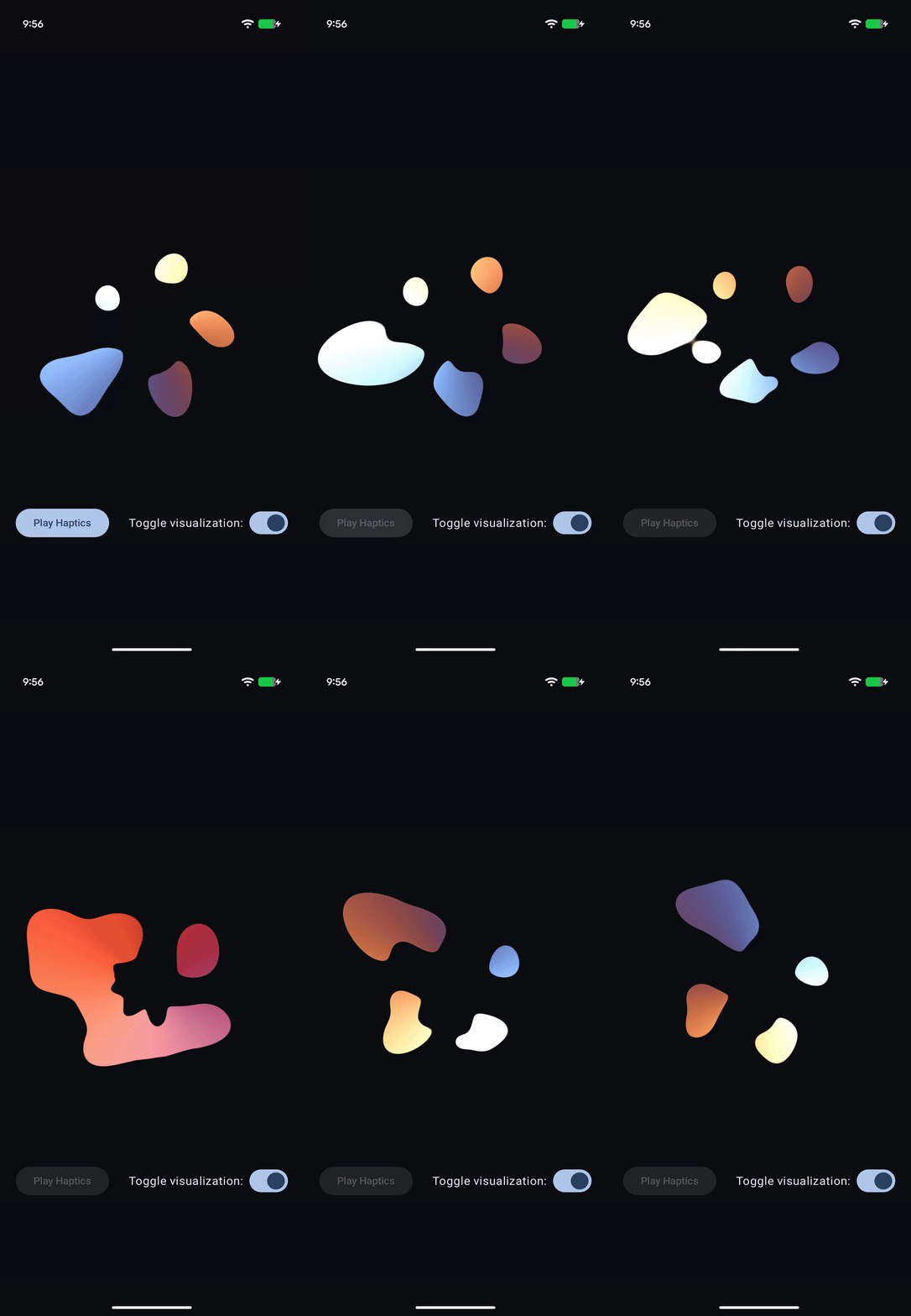
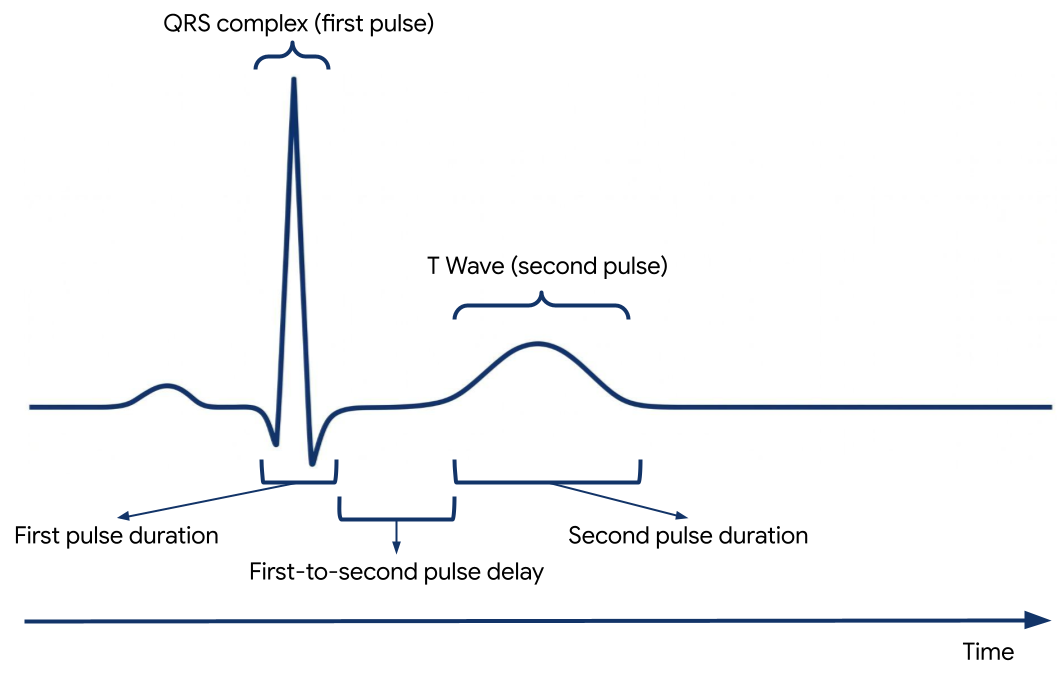
그림 7. QRS 복합체와 T파가 있는 심전도 기록의 한 세그먼트
@RequiresApi(Build.VERSION_CODES.BAKLAVA)
private fun createEnvelopeEffect(
beatParameters: List<BeatParameter>
):VibrationEffect =
    VibrationEffect.WaveformEnvelopeBuilder()
        .apply {
            repeat(beatParameters.getNumBeats()) {
                // First pulse chirp
                addControlPoint(
                    beatParameters.getFirstPulseAmplitude(),
                    beatParameters.getFirstPulseStartFreq(),
                    ENVELOPE_RAMP_DURATION_MILLIS,
                )
                addControlPoint(
                    beatParameters.getFirstPulseAmplitude(),
                    beatParameters.getFirstPulseEndFreq(),
                    beatParameters.getFirstPulseDurationMillis().toLong(),
                )
                addControlPoint(
                    0f,
                    beatParameters.getFirstPulseEndFreq(),
                    ENVELOPE_RAMP_DURATION_MILLIS,
                )

                // Delay between first and second pulse
                addControlPoint(
                    0f,
                    beatParameters.getFirstPulseEndFreq(),
                    beatParameters.getFirstToSecondPulseDelayMillis().toLong(),
                )

                // Second pulse
                addControlPoint(
                    beatParameters.getSecondPulseAmplitude(),
                    beatParameters.getSecondPulseFreq(),
                    ENVELOPE_RAMP_DURATION_MILLIS,
                )
                addControlPoint(
                    beatParameters.getSecondPulseAmplitude(),
                    beatParameters.getSecondPulseFreq(),
                    (1_000 / (2f * beatParameters.getSecondPulseFreq())).toLong(),
                )
                addControlPoint(
                    0f,
                    beatParameters.getSecondPulseFreq(),
                    ENVELOPE_RAMP_DURATION_MILLIS,
                )
                addControlPoint(
                    0f,
                    beatParameters.getSecondPulseFreq(),
                    beatParameters.getBeatDelayMillis().toLong(),
                )
            }
        }
        .build()

/** A parameter of a haptic beat effect that represents an ECG signal parameter */
@Stable
data class BeatParameter(
    val description: String = "",
    val value: Float = 0f,
    val range: ClosedFloatingPointRange<Float> = 0f..1f,
    val steps: Int = 0,
    val isFrequencyType: Boolean = false,
)