

เอกสารนี้อธิบายวิธีย้ายข้อมูลเกมที่มีอยู่จาก SDK v1 ของ Games ไปยัง SDK v2 ของ Games
ก่อนเริ่มต้น
คุณสามารถใช้ IDE ที่ต้องการ เช่น Android Studio เพื่อย้ายข้อมูลเกมได้ ทำตามขั้นตอนต่อไปนี้ให้ครบถ้วนก่อนที่จะย้ายข้อมูลไปยัง Games v2
- ดาวน์โหลดและติดตั้ง Android Studio
- เกมของคุณต้องใช้ SDK v1 ของ Games
- คุณอัปเกรดเกมให้ใช้ SDK v1 ของ Games เพื่อ
com.google.android.gms:play-services-games:24.0.0ได้ คุณไม่ควรอัปเกรดเป็นcom.google.android.gms:play-services-games:25.0.0เนื่องจากระบบได้นำ API v1 ของเกมออกแล้ว
อัปเดตการอ้างอิง
ในไฟล์
build.gradleของโมดูล ให้ค้นหาบรรทัดนี้ในทรัพยากร Dependency ระดับโมดูลimplementation "com.google.android.gms:play-services-games:+"แทนที่ด้วยโค้ดต่อไปนี้
implementation "com.google.android.gms:play-services-games-v2:version"แทนที่ version ด้วย SDK ของเกมเวอร์ชันล่าสุด
หลังจากอัปเดตการอ้างอิงแล้ว โปรดทำตามขั้นตอนทั้งหมดใน เอกสารนี้
กำหนดรหัสโปรเจ็กต์
หากต้องการเพิ่มรหัสโปรเจ็กต์ SDK บริการเกมของ Play ลงในแอป ให้ทำตามขั้นตอนต่อไปนี้
ในไฟล์
AndroidManifest.xmlให้เพิ่มองค์ประกอบและแอตทริบิวต์<meta-data>ต่อไปนี้ลงในองค์ประกอบ<application><manifest> <application> <meta-data android:name="com.google.android.gms.games.APP_ID" android:value="@string/game_services_project_id"/> </application> </manifest>กำหนดการอ้างอิงทรัพยากรสตริง
@string/game_services_project_idโดยใช้รหัสโปรเจ็กต์บริการเกมของเกมเป็นค่า คุณดูรหัสโปรเจ็กต์บริการเกมได้ที่ใต้ชื่อเกมในหน้าการกำหนดค่าใน Google Play Consoleในไฟล์
res/values/strings.xmlให้เพิ่มการอ้างอิงทรัพยากรสตริง และตั้งค่ารหัสโปรเจ็กต์เป็นค่า เช่น<!-- res/values/strings.xml --> <resources> <!-- Replace 0000000000 with your game’s project id. Example value shown above. --> <string translatable="false" name="game_services_project_id"> 0000000000 </string> </resources>
เส้นทางการย้ายข้อมูล
เส้นทางการย้ายข้อมูลที่ถูกต้องสำหรับเกมของคุณจะขึ้นอยู่กับวิธีที่เกมใช้บริการเกมของ Play เวอร์ชัน 1 และ จัดการข้อมูลประจำตัวของผู้เล่น ระบุสถานการณ์ที่ตรงกับการตั้งค่าที่มีอยู่มากที่สุดและทำตามขั้นตอนที่เกี่ยวข้องเพื่อให้การเปลี่ยนผ่านเป็นไปอย่างราบรื่นและป้องกันไม่ให้ข้อมูลผู้เล่นสูญหาย
ตัวเลือกที่ 1: สำหรับเกมที่ IGA เชื่อมโยงกับรหัสผู้เล่นของบริการเกมของ Play
สถานการณ์นี้ใช้กับเกมที่ใช้บริการเกมของ Play Player ID เป็นตัวระบุเพียงอย่างเดียวสำหรับบัญชีในเกม (IGA) ของผู้เล่น และไม่ได้ขอหรือจัดเก็บ OpenID ไว้ก่อนหน้านี้ ความท้าทายหลักคือการลิงก์ IGA ที่มีอยู่
กับตัวระบุหลัก (OpenID) โดยไม่สูญเสียการเชื่อมต่อกับ
ความคืบหน้าของผู้เล่น
ขั้นตอนการย้ายข้อมูลมีดังนี้
- เมื่อเปิดเกม SDK บริการเกมของ Play เวอร์ชัน 2 จะตรวจสอบสิทธิ์แพลตฟอร์มโดยอัตโนมัติและเงียบๆ
แสดงหน้าจอเข้าสู่ระบบที่มีปุ่มลงชื่อเข้าใช้ด้วย Google แทนที่ปุ่ม Google Play เช่น ดู CredManBridge.java
CredManBridge.java
package com.wickedcube.trivialkart; import android.accounts.Account; import android.content.Context; import android.util.Log; import android.os.CancellationSignal; import androidx.credentials.CredentialManager; import androidx.credentials.GetCredentialRequest; import androidx.credentials.GetCredentialResponse; import androidx.credentials.exceptions.GetCredentialException; import androidx.credentials.exceptions.NoCredentialException; import com.google.android.libraries.identity.googleid.GetGoogleIdOption; import com.google.android.libraries.identity.googleid.GoogleIdTokenCredential; import com.google.android.gms.auth.api.identity.AuthorizationClient; import com.google.android.gms.auth.api.identity.AuthorizationRequest; import com.google.android.gms.auth.api.identity.AuthorizationResult; import com.google.android.gms.common.api.ApiException; import com.google.android.gms.auth.api.identity.Identity; import com.google.android.gms.common.api.Scope; import com.unity3d.player.UnityPlayer; import java.util.Collections; import java.util.List; import java.util.concurrent.Executor; import java.util.concurrent.Executors;public class CredManBridge {
// --- MODE 1: SILENT SIGN-IN (Called on Awake) --- // Tries to auto-select an authorized account. If it fails, it does NOT show UI. public static void signInSilent(Context context, String webClientId) { CredentialManager credentialManager = CredentialManager.create(context); CancellationSignal cancellationSignal = new CancellationSignal(); Executor executor = Executors.newSingleThreadExecutor();
Log.d("CredMan", "Attempting Silent Sign-In..."); GetGoogleIdOption silentOption = new GetGoogleIdOption.Builder() .setFilterByAuthorizedAccounts(true) // Strict: Only authorized accounts .setServerClientId(webClientId) .setAutoSelectEnabled(true) // Auto-select if possible .build(); GetCredentialRequest silentRequest = new GetCredentialRequest.Builder() .addCredentialOption(silentOption) .build(); credentialManager.getCredentialAsync( context, silentRequest, cancellationSignal, executor, new androidx.credentials.CredentialManagerCallback<GetCredentialResponse, GetCredentialException>() { @Override public void onResult(GetCredentialResponse result) { Log.d("CredMan", "Silent Sign-In Successful!"); handleSignInResult(context, result, webClientId); } @Override public void onError(GetCredentialException e) { // Send a specific error code so Unity knows to just stay on the Start Screen Log.d("CredMan", "Silent sign-in failed. Keeping UI hidden."); UnityPlayer.UnitySendMessage("AuthManager", "OnSignInError", "SilentFailed"); } } );}
// --- MODE 2: INTERACTIVE SIGN-IN (Called on Button Click) --- // Forces the Account Selection / "Add Account" sheet to appear. public static void signInInteractive(Context context, String webClientId) { CredentialManager credentialManager = CredentialManager.create(context); CancellationSignal cancellationSignal = new CancellationSignal(); Executor executor = Executors.newSingleThreadExecutor();
Log.d("CredMan", "Starting Interactive Sign-In...");

GetGoogleIdOption interactiveOption = new GetGoogleIdOption.Builder()
    .setFilterByAuthorizedAccounts(false) // Show ALL accounts (and "Add Account")
    .setServerClientId(webClientId)
    .setAutoSelectEnabled(false)          // Force the UI to show
    .build();

GetCredentialRequest interactiveRequest = new GetCredentialRequest.Builder()
    .addCredentialOption(interactiveOption)
    .build();

credentialManager.getCredentialAsync(
    context,
    interactiveRequest,
    cancellationSignal,
    executor,
    new androidx.credentials.CredentialManagerCallback<GetCredentialResponse, GetCredentialException>() {
        @Override
        public void onResult(GetCredentialResponse result) {
            Log.d("CredMan", "Interactive Sign-In Successful!");
            handleSignInResult(context, result, webClientId);
        }

        @Override
        public void onError(GetCredentialException e) {
            Log.e("CredMan", "Interactive Sign-In Canceled or Failed", e);
            UnityPlayer.UnitySendMessage("AuthManager", "OnSignInError", "Canceled");
        }
    }
);
}
private static void handleSignInResult(Context context, GetCredentialResponse result, String webClientId) { try { GoogleIdTokenCredential credential = GoogleIdTokenCredential.createFrom(result.getCredential().getData()); String email = credential.getId();
    Account account = new Account(email, "com.google");
    // Requesting GAMES_LITE scope to check for pre-existing V1 grants
    List<Scope> requestedScopes = Collections.singletonList(new Scope("https://www.googleapis.com/auth/games_lite"));

    AuthorizationRequest authRequest = new AuthorizationRequest.Builder()
        .setRequestedScopes(requestedScopes)
        .setAccount(account)
        .requestOfflineAccess(webClientId)
        .build();

    AuthorizationClient authClient = Identity.getAuthorizationClient(context);

    authClient.authorize(authRequest)
        .addOnSuccessListener(authorizationResult -> {
            if (authorizationResult.getServerAuthCode() != null) {
                // CASE 1: RETURNING USER (Success)
                // The user has already granted GAMES_LITE in the past.
                // We got the code directly without showing UI.
                Log.i("CredMan", "PGS v1: Existing grant found. Returning user detected. Auth Code retrieved.");
                UnityPlayer.UnitySendMessage("AuthManager", "OnSignInSuccess", authorizationResult.getServerAuthCode());
            }
            else if (authorizationResult.hasResolution()) {
                // CASE 2: NEW USER (PendingIntent)
                // The user has NOT granted GAMES_LITE before. The API returned a PendingIntent
                // (authorizationResult.getPendingIntent()) to show the consent screen.
                // As per your flow, we DISCARD this intent and do not show UI.
                Log.i("CredMan", "PGS v1: No existing grant (PendingIntent returned). This is a NEW user or they revoked access.");
                Log.i("CredMan", "PGS v1: Discarding PendingIntent. Proceeding as New User.");

                // Notify Unity that this is a "New User" so it can trigger V2 logic instead of failing
                UnityPlayer.UnitySendMessage("AuthManager", "OnSignInError", "NewUser_NoGrant");
            }
            else {
                // Edge Case: No code and no resolution?
                Log.e("CredMan", "PGS v1: Authorization success but no Auth Code or Resolution returned.");
                UnityPlayer.UnitySendMessage("AuthManager", "OnSignInError", "No Auth Code returned");
            }
        })
        .addOnFailureListener(e -> {
            // CASE 3: GENERIC FAILURE
            Log.e("CredMan", "PGS v1: Authorization failed completely.", e);
            UnityPlayer.UnitySendMessage("AuthManager", "OnSignInError", "Authorization Failed: " + e.getMessage());
        });

} catch (Exception e) {
    UnityPlayer.UnitySendMessage("AuthManager", "OnSignInError", "Parsing Error: " + e.getMessage());
}
} }
เรียกตัวระบุที่แตกต่างกัน 2 รายการเมื่อผู้เล่นแตะปุ่มลงชื่อเข้าใช้ด้วย Google แล้วเลือกบัญชี Google
OpenIDซึ่งเป็นตัวระบุหลักสำหรับการเชื่อมโยง IGAPlayer IDบริการเกมของ PlayGAMES_LITEที่ดึงข้อมูลโดยใช้ขอบเขตGAMES_LITEเพื่อค้นหา IGA ของผู้เล่นในระบบแบ็กเอนด์และทำการเชื่อมโยง ดูข้อมูลเพิ่มเติมได้ที่ดึงข้อมูลPlayer ID
เข้าถึง IGA โดยใช้ขั้นตอนลงชื่อเข้าใช้ด้วย Google ในการเปิดตัวเกมครั้งต่อๆ ไป โดยไม่ต้องกำหนดให้เกมใช้
Player IDเป็นตัวระบุหลัก
ดึงข้อมูล Player ID
คุณทำขั้นตอนที่ 3 ได้โดยใช้การติดตั้งใช้งานฝั่งไคลเอ็นต์ของเกม
- เรียกใช้ Android Credential Manager API เพื่อลงชื่อเข้าใช้ผู้ใช้ด้วยบัญชี Google
- หลังจากที่ผู้ใช้ทำขั้นตอนการลงชื่อเข้าใช้ด้วย Google เสร็จสมบูรณ์และเลือกบัญชี Google แล้ว ให้รับออบเจ็กต์ผลลัพธ์ที่มีโทเค็นรหัสและอีเมล
- สร้างออบเจ็กต์บัญชีจากอีเมล
- เรียกใช้ Authorization API ด้วยขอบเขต
GAMES_LITEและบัญชี - หากบัญชีมีสิทธิ์ที่ได้รับล่วงหน้าใน
GAMES_LITEขอบเขต Authorization API จะแสดงโทเค็นโดยตรงในออบเจ็กต์การตอบกลับ- ใช้โทเค็นการตอบกลับเพื่อเรียกเซิร์ฟเวอร์บริการเกมของ Play และดึง
Player IDของบริการเกมของ Play - ตรวจสอบว่าบริการเกมของ Play
Player IDลิงก์กับบัญชีในเกมหรือไม่- ซึ่งระบุผู้ใช้ที่กลับมาจากบริการเกมของ Play v1
- ลิงก์รหัส Gaia ใหม่กับบัญชีบริการเกมของ Play เวอร์ชัน 1 ก่อนหน้า
- ใช้โทเค็นการตอบกลับเพื่อเรียกเซิร์ฟเวอร์บริการเกมของ Play และดึง
- หากบัญชีไม่มีการให้สิทธิ์ล่วงหน้าใน
GAMES_LITEขอบเขต Authorization API จะแสดงPendingIntent:- ซึ่งบ่งบอกว่าผู้ใช้ไม่มีบัญชีจากบริการเกมของ Play เวอร์ชัน 1
- ทิ้ง
PendingIntentอย่างปลอดภัยโดยไม่แสดง UI ใดๆ
ตัวเลือกที่ 2: สำหรับเกมที่ผูก IGA กับ OpenID อยู่แล้ว
นักพัฒนาแอปในกลุ่มนี้มีเส้นทางการย้ายข้อมูลที่ตรงไปตรงมาที่สุด หากบัญชีในเกมของเกมผูกกับ OpenID เป็นหลักอยู่แล้ว คุณเพียงแค่ต้องทำการย้ายข้อมูล SDK ทางเทคนิคมาตรฐานจาก v1 เป็น v2 ตามที่ระบุไว้ในขั้นตอน
ย้ายข้อมูลจาก Google Sign-In ที่เลิกใช้งานแล้ว
แทนที่คลาส GoogleSignInClient
ด้วยคลาส GamesSignInClient
Java
ค้นหาไฟล์ที่มีคลาส GoogleSignInClient
import com.google.android.gms.auth.api.signin.GoogleSignIn;
import com.google.android.gms.auth.api.signin.GoogleSignInClient;
import com.google.android.gms.auth.api.signin.GoogleSignInOptions;

// ... existing code

@Override
public void onCreate(@Nullable Bundle bundle) {
    super.onCreate(bundle);

    // ... existing code

    GoogleSignInOptions signInOption =
        new GoogleSignInOptions.Builder(GoogleSignInOptions.DEFAULT_GAMES_SIGN_IN).build();

    // Client used to sign in to Google services
    GoogleSignInClient googleSignInClient =
        GoogleSignIn.getClient(this, signInOptions);
}
และอัปเดตเป็น
import com.google.android.gms.games.PlayGamesSdk;
import com.google.android.gms.games.PlayGames;
import com.google.android.gms.games.GamesSignInClient;

// ... existing code

@Override
public void onCreate(){
    super.onCreate();
    PlayGamesSdk.initialize(this);
    // Client used to sign in to Google services
    GamesSignInClient gamesSignInClient =
        PlayGames.getGamesSignInClient(getActivity());
}
Kotlin
ค้นหาไฟล์ที่มีคลาส GoogleSignInClient
import com.google.android.gms.auth.api.signin.GoogleSignIn
import com.google.android.gms.auth.api.signin.GoogleSignInClient
import com.google.android.gms.auth.api.signin.GoogleSignInOptions

// ... existing code

val signInOptions = GoogleSignInOptions.DEFAULT_GAMES_SIGN_IN

// ... existing code

override fun onCreate(savedInstanceState: Bundle?) {
    super.onCreate(savedInstanceState)
    val googleSignInClient: GoogleSignInClient =
        GoogleSignIn.getClient(this, signInOptions)
}
และอัปเดตเป็น
import com.google.android.gms.games.PlayGames
import com.google.android.gms.games.PlayGamesSdk
import com.google.android.gms.games.GamesSignInClient

// ... existing code

override fun onCreate(savedInstanceState: Bundle?) {
    super.onCreate(savedInstanceState)
    PlayGamesSdk.initialize(this)
    // client used to sign in to Google services
    val gamesSignInClient: GamesSignInClient =
        PlayGames.getGamesSignInClient(this)
}
อัปเดตรหัส GoogleSignIn
GoogleSignIn API
ไม่รองรับใน SDK v2 ของเกม แทนที่โค้ด GoogleSignIn API
ด้วย GamesSignInClient API ตามที่แสดงในตัวอย่างต่อไปนี้
หากต้องการขอโทเค็นเพื่อการเข้าถึงฝั่งเซิร์ฟเวอร์ ให้ใช้วิธีการ
GamesSignInClient.requestServerSideAccess()
ดูข้อมูลเพิ่มเติมได้ที่
อัปเดตคลาสการเข้าถึงฝั่งเซิร์ฟเวอร์
Java
ค้นหาไฟล์ที่มีคลาส GoogleSignIn
// Request code used when invoking an external activity.
private static final int RC_SIGN_IN = 9001;

private boolean isSignedIn() {
    GoogleSignInAccount account = GoogleSignIn.getLastSignedInAccount(this);
    GoogleSignInOptions signInOptions =
    GoogleSignInOptions.DEFAULT_GAMES_SIGN_IN;
    return GoogleSignIn.hasPermissions(account, signInOptions.getScopeArray());
}

private void signInSilently() {
    GoogleSignInOptions signInOptions =
        GoogleSignInOptions.DEFAULT_GAMES_SIGN_IN;
    GoogleSignInClient signInClient = GoogleSignIn.getClient(this, signInOptions);
    signInClient
        .silentSignIn()
        .addOnCompleteListener(
            this,
            task -> {
            if (task.isSuccessful()) {
                // The signed-in account is stored in the task's result.
                GoogleSignInAccount signedInAccount = task.getResult();
                showSignInPopup();
            } else {
                // Perform interactive sign in.
                startSignInIntent();
            }
        });
}

private void startSignInIntent() {
    GoogleSignInClient signInClient = GoogleSignIn.getClient(this,
        GoogleSignInOptions.DEFAULT_GAMES_SIGN_IN);
    Intent intent = signInClient.getSignInIntent();
    startActivityForResult(intent, RC_SIGN_IN);
}

@Override
protected void onActivityResult(int requestCode, int resultCode, Intent data) {
    super.onActivityResult(requestCode, resultCode, data);
    if (requestCode == RC_SIGN_IN) {
        GoogleSignInResult result =
        Auth.GoogleSignInApi.getSignInResultFromIntent(data);
        if (result.isSuccess()) {
            // The signed-in account is stored in the result.
            GoogleSignInAccount signedInAccount = result.getSignInAccount();
            showSignInPopup();
        } else {
            String message = result.getStatus().getStatusMessage();
            if (message == null || message.isEmpty()) {
                message = getString(R.string.signin_other_error);
        }
        new AlertDialog.Builder(this).setMessage(message)
            .setNeutralButton(android.R.string.ok, null).show();
        }
    }
}

private void showSignInPopup() {
Games.getGamesClient(requireContext(), signedInAccount)
    .setViewForPopups(contentView)
    .addOnCompleteListener(
        task -> {
            if (task.isSuccessful()) {
                logger.atInfo().log("SignIn successful");
            } else {
                logger.atInfo().log("SignIn failed");
            }
        });
  }
และอัปเดตเป็น
private void signInSilently() {
    gamesSignInClient.isAuthenticated().addOnCompleteListener(isAuthenticatedTask -> {
    boolean isAuthenticated =
        (isAuthenticatedTask.isSuccessful() &&
            isAuthenticatedTask.getResult().isAuthenticated());
        if (isAuthenticated) {
            // Continue with Play Games Services
        } else {
            // If authentication fails, either disable Play Games Services
            // integration or
            // display a login button to prompt players to sign in.
            // Use`gamesSignInClient.signIn()` when the login button is clicked.
        }
    });
}

@Override
protected void onResume() {
    super.onResume();
    // When the activity is inactive, the signed-in user's state can change;
    // therefore, silently sign in when the app resumes.
    signInSilently();
}
Kotlin
ค้นหาไฟล์ที่มีคลาส GoogleSignIn
// Request codes we use when invoking an external activity.
private val RC_SIGN_IN = 9001

// ... existing code

private fun isSignedIn(): Boolean {
    val account = GoogleSignIn.getLastSignedInAccount(this)
    val signInOptions = GoogleSignInOptions.DEFAULT_GAMES_SIGN_IN
    return GoogleSignIn.hasPermissions(account, *signInOptions.scopeArray)
}

private fun signInSilently() {
    val signInOptions = GoogleSignInOptions.DEFAULT_GAMES_SIGN_IN
    val signInClient = GoogleSignIn.getClient(this, signInOptions)
    signInClient.silentSignIn().addOnCompleteListener(this) { task ->
        if (task.isSuccessful) {
            // The signed-in account is stored in the task's result.
            val signedInAccount = task.result
            // Pass the account to showSignInPopup.
            showSignInPopup(signedInAccount)
        } else {
            // Perform interactive sign in.
            startSignInIntent()
        }
    }
}

private fun startSignInIntent() {
    val signInClient = GoogleSignIn.getClient(this, GoogleSignInOptions.DEFAULT_GAMES_SIGN_IN)
    val intent = signInClient.signInIntent
    startActivityForResult(intent, RC_SIGN_IN)
}

override fun onActivityResult(requestCode: Int, resultCode: Int, data: Intent?) {
    super.onActivityResult(requestCode, resultCode, data)
    if (requestCode == RC_SIGN_IN) {
        val result = Auth.GoogleSignInApi.getSignInResultFromIntent(data)
        if (result.isSuccess) {
            // The signed-in account is stored in the result.
            val signedInAccount = result.signInAccount
            showSignInPopup(signedInAccount) // Pass the account to showSignInPopup.
        } else {
            var message = result.status.statusMessage
            if (message == null || message.isEmpty()) {
                message = getString(R.string.signin_other_error)
        }
        AlertDialog.Builder(this)
            .setMessage(message)
            .setNeutralButton(android.R.string.ok, null)
            .show()
        }
    }
}

private fun showSignInPopup(signedInAccount: GoogleSignInAccount) {
    // Add signedInAccount parameter.
    Games.getGamesClient(this, signedInAccount)
        .setViewForPopups(contentView) // Assuming contentView is defined.
        .addOnCompleteListener { task ->
        if (task.isSuccessful) {
            logger.atInfo().log("SignIn successful")
        } else {
            logger.atInfo().log("SignIn failed")
        }
    }
}
และอัปเดตเป็น
private fun signInSilently() {
    gamesSignInClient.isAuthenticated.addOnCompleteListener { isAuthenticatedTask ->
        val isAuthenticated = isAuthenticatedTask.isSuccessful &&
        isAuthenticatedTask.result.isAuthenticated
        if (isAuthenticated) {
            // Continue with Play Games Services
        } else {
            // To handle a user who is not signed in, either disable Play Games Services integration
            // or display a login button. Selecting this button calls `gamesSignInClient.signIn()`.
        }
    }
}

override fun onResume() {
    super.onResume()
    // Since the state of the signed in user can change when the activity is
    // not active it is recommended to try and sign in silently from when the
    // app resumes.
    signInSilently()
}
เพิ่มรหัส GamesSignInClient
หากตรวจสอบสิทธิ์ผู้เล่นสำเร็จ ให้นำปุ่มลงชื่อเข้าใช้บริการเกมของ Play ออกจากเกม หากผู้ใช้เลือกที่จะไม่ตรวจสอบสิทธิ์เมื่อเกมเปิดตัว
ให้แสดงปุ่มที่มีไอคอนบริการเกมของ Play ต่อไป
และเริ่มกระบวนการเข้าสู่ระบบด้วย
GamesSignInClient.signIn()
Java
private void startSignInIntent() {
    gamesSignInClient
        .signIn()
        .addOnCompleteListener( task -> {
            if (task.isSuccessful() && task.getResult().isAuthenticated()) {
                // sign in successful
            } else {
                // sign in failed
            }
        });
  }
Kotlin
private fun startSignInIntent() {
    gamesSignInClient
        .signIn()
        .addOnCompleteListener { task ->
            if (task.isSuccessful && task.result.isAuthenticated) {
                // sign in successful
            } else {
                // sign in failed
            }
        }
  }
นำรหัสลงชื่อออกออก
นำรหัสสำหรับ GoogleSignInClient.signOut ออก
นำโค้ดที่แสดงในตัวอย่างต่อไปนี้ออก
Java
// ... existing code

private void signOut() {
    GoogleSignInClient signInClient = GoogleSignIn.getClient(this,
    GoogleSignInOptions.DEFAULT_GAMES_SIGN_IN);
    signInClient.signOut().addOnCompleteListener(this,
    new OnCompleteListener() {
        @Override
        public void onComplete(@NonNull Task task) {
           // At this point, the user is signed out.
        }
    });
}
Kotlin
// ... existing code

private fun signOut() {
    val signInClient = GoogleSignIn.getClient(this, GoogleSignInOptions.DEFAULT_GAMES_SIGN_IN)
    signInClient.signOut().addOnCompleteListener(this) {
    // At this point, the user is signed out.
    }
}
ตรวจสอบการตรวจสอบสิทธิ์ที่สำเร็จ
ใส่โค้ดต่อไปนี้เพื่อตรวจสอบว่าคุณได้ทำการตรวจสอบสิทธิ์โดยอัตโนมัติหรือไม่ และ เพิ่มตรรกะที่กำหนดเองหากมี
Java
private void checkIfAutomaticallySignedIn() {
gamesSignInClient.isAuthenticated().addOnCompleteListener(isAuthenticatedTask -> {
boolean isAuthenticated =
    (isAuthenticatedTask.isSuccessful() &&
    isAuthenticatedTask.getResult().isAuthenticated());

    if (isAuthenticated) {
        // Continue with Play Games Services
        // If your game requires specific actions upon successful sign-in,
        // you can add your custom logic here.
        // For example, fetching player data or updating UI elements.
    } else {
        // Show a login button to ask  players to sign-in. Clicking it should
        // call GamesSignInClient.signIn().
        }
    });
}
Kotlin
private void checkIfAutomaticallySignedIn() {
gamesSignInClient.isAuthenticated()
    .addOnCompleteListener { task ->
    val isAuthenticated = task.isSuccessful && task.result?.isAuthenticated ?: false

        if (isAuthenticated) {
            // Continue with Play Games Services
        } else {
            // Disable your integration or show a login button
        }
    }
}
อัปเดตชื่อคลาสและเมธอดของไคลเอ็นต์
เมื่อย้ายข้อมูลไปยังเกม v2 วิธีที่ใช้ในการรับชื่อคลาสไคลเอ็นต์
จะแตกต่างกัน
ให้ใช้เมธอด
PlayGames.getxxxClient()
ที่เกี่ยวข้องแทนเมธอด
Games.getxxxClient()
เช่น สำหรับ
LeaderboardsClient
ให้ใช้ PlayGames.getLeaderboardsClient() แทน
Games.getLeaderboardsClient()
นำโค้ดที่เกี่ยวข้องกับคลาส GamesClient และ GamesMetadataClient ออก
เนื่องจากเราไม่มีคลาสทดแทนในเกมเวอร์ชัน 2
Java
ค้นหารหัสสำหรับ LeaderboardsClient
import com.google.android.gms.games.LeaderboardsClient;
import com.google.android.gms.games.Games;

@Override
public void onCreate(@Nullable Bundle bundle) {
    super.onCreate(bundle);
        // Get the leaderboards client using Play Games services.
    LeaderboardsClient leaderboardsClient = Games.getLeaderboardsClient(this,
        GoogleSignIn.getLastSignedInAccount(this));
}
และอัปเดตเป็น
import com.google.android.gms.games.LeaderboardsClient;
import com.google.android.gms.games.PlayGames;

 @Override
public void onCreate(@Nullable Bundle bundle) {
    super.onCreate(bundle);
        // Get the leaderboards client using Play Games services.
        LeaderboardsClient leaderboardsClient = PlayGames.getLeaderboardsClient(getActivity());
}
Kotlin
ค้นหารหัสสำหรับ LeaderboardsClient
import com.google.android.gms.games.LeaderboardsClient
import com.google.android.gms.games.Games
// Initialize the variables.
private lateinit var leaderboardsClient: LeaderboardsClient

override fun onCreate(savedInstanceState: Bundle?) {
    super.onCreate(savedInstanceState)
    leaderboardsClient = Games.getLeaderboardsClient(this,
        GoogleSignIn.getLastSignedInAccount(this))
}
และอัปเดตเป็น
import com.google.android.gms.games.LeaderboardsClient
import com.google.android.gms.games.PlayGames
    // Initialize the variables.
private lateinit var leaderboardsClient: LeaderboardsClient

override fun onCreate(savedInstanceState: Bundle?) {
    super.onCreate(savedInstanceState)
    leaderboardsClient = PlayGames.getLeaderboardsClient(this)
}
ในทำนองเดียวกัน ให้ใช้วิธีการที่เกี่ยวข้องสำหรับไคลเอ็นต์ต่อไปนี้
AchievementsClient, EventsClient, GamesSignInClient,
PlayerStatsClient, RecallClient, SnapshotsClient หรือ PlayersClient
อัปเดตคลาสการเข้าถึงฝั่งเซิร์ฟเวอร์
หากต้องการขอโทเค็นเพื่อการเข้าถึงฝั่งเซิร์ฟเวอร์ ให้ใช้วิธีการ
GamesSignInClient.requestServerSideAccess()
แทนวิธีการ
GoogleSignInAccount.getServerAuthCode()
ดูข้อมูลเพิ่มเติมได้ที่ส่งรหัสการให้สิทธิ์เซิร์ฟเวอร์
ตัวอย่างต่อไปนี้แสดงวิธีขอโทเค็นเพื่อการเข้าถึงฝั่งเซิร์ฟเวอร์
Java
ค้นหารหัสสำหรับชั้นเรียน GoogleSignInOptions
    private static final int RC_SIGN_IN = 9001;
    private GoogleSignInClient googleSignInClient;

    private void startSignInForAuthCode() {
        /** Client ID for your backend server. */
        String webClientId = getString(R.string.webclient_id);
        GoogleSignInOptions signInOption = new GoogleSignInOptions.Builder(GoogleSignInOptions.DEFAULT_GAMES_SIGN_IN)
            .requestServerAuthCode(webClientId)
            .build();

        GoogleSignInClient signInClient = GoogleSignIn.getClient(this, signInOption);
        Intent intent = signInClient.getSignInIntent();
        startActivityForResult(intent, RC_SIGN_IN);
    }

    /** Auth code to send to backend server */
    private String mServerAuthCode;

    @Override
    protected void onActivityResult(int requestCode, int resultCode, Intent data) {
        super.onActivityResult(requestCode, resultCode, data);
        if (requestCode == RC_SIGN_IN) {
            GoogleSignInResult result = Auth.GoogleSignInApi.getSignInResultFromIntent(data);
        if (result.isSuccess()) {
            mServerAuthCode = result.getSignInAccount().getServerAuthCode();
        } else {
            String message = result.getStatus().getStatusMessage();
            if (message == null || message.isEmpty()) {
                message = getString(R.string.signin_other_error);
            }
            new AlertDialog.Builder(this).setMessage(message)
                .setNeutralButton(android.R.string.ok, null).show();
        }
      }
    }
และอัปเดตเป็น
  private void startRequestServerSideAccess() {
      GamesSignInClient gamesSignInClient = PlayGames.getGamesSignInClient(this);
      gamesSignInClient
          .requestServerSideAccess(OAUTH_2_WEB_CLIENT_ID,
           /* forceRefreshToken= */ false, /* additional AuthScope */ scopes)
          .addOnCompleteListener(task -> {
              if (task.isSuccessful()) {
                  AuthResponse authresp = task.getResult();
                  // Send the authorization code as a string and a
                  // list of the granted AuthScopes that were granted by the
                  // user. Exchange for an access token.
                  // Verify the player with Play Games Services REST APIs.
              } else {
                // Authentication code retrieval failed.
              }
        });
  }
Kotlin
ค้นหารหัสสำหรับชั้นเรียน GoogleSignInOptions
  // ... existing code

  private val RC_SIGN_IN = 9001
  private lateinit var googleSignInClient: GoogleSignInClient

  // Auth code to send to backend server.
  private var mServerAuthCode: String? = null

  private fun startSignInForAuthCode() {
      // Client ID for your backend server.
      val webClientId = getString(R.string.webclient_id)

      val signInOption = GoogleSignInOptions.Builder(GoogleSignInOptions.DEFAULT_GAMES_SIGN_IN)
          .requestServerAuthCode(webClientId)
          .build()

      googleSignInClient = GoogleSignIn.getClient(this, signInOption)
      val intent = googleSignInClient.signInIntent
      startActivityForResult(intent, RC_SIGN_IN)
  }

  override fun onActivityResult(requestCode: Int, resultCode: Int, data: Intent?) {
      super.onActivityResult(requestCode, resultCode, data)
      if (requestCode == RC_SIGN_IN) {
          val result = Auth.GoogleSignInApi.getSignInResultFromIntent(data)
          if (result.isSuccess) {
              mServerAuthCode = result.signInAccount.serverAuthCode
          } else {
              var message = result.status.statusMessage
              if (message == null || message.isEmpty()) {
                  message = getString(R.string.signin_other_error)
              }
              AlertDialog.Builder(this).setMessage(message)
                  .setNeutralButton(android.R.string.ok, null).show()
            }
        }
  }
และอัปเดตเป็น
  private void startRequestServerSideAccess() {
  GamesSignInClient gamesSignInClient = PlayGames.getGamesSignInClient(this);
      gamesSignInClient
          .requestServerSideAccess(OAUTH_2_WEB_CLIENT_ID, /* forceRefreshToken= */ false,
          /* additional AuthScope */ scopes)
          .addOnCompleteListener(task -> {
              if (task.isSuccessful()) {
                  AuthResponse authresp = task.getResult();
                  // Send the authorization code as a string and a
                  // list of the granted AuthScopes that were granted by the
                  // user. Exchange for an access token.
                  // Verify the player with Play Games Services REST APIs.
              } else {
                // Authentication code retrieval failed.
              }
        });
  }
ย้ายข้อมูลจาก GoogleApiClient
สำหรับการผสานรวมที่มีอยู่เดิมซึ่งเก่ากว่า เกมของคุณอาจขึ้นอยู่กับ
GoogleApiClient รูปแบบ API ของ SDK บริการเกมของ Play ซึ่งเลิกใช้งานไปแล้วในช่วงปลายปี 2017
และแทนที่ด้วยไคลเอ็นต์ "แบบไม่มีการเชื่อมต่อ"
หากต้องการย้ายข้อมูล คุณสามารถแทนที่คลาส GoogleApiClient ด้วยคลาสที่เทียบเท่า "แบบไม่มีการเชื่อมต่อ"
ตารางต่อไปนี้แสดงการแมปคลาสทั่วไปจากเกมเวอร์ชัน 1 เป็นเกมเวอร์ชัน 2
| เกม v2 (ปัจจุบัน) | games v1 (เดิม) |
|---|---|
| com.google.android.gms.games.AchievementsClient | com.google.android.gms.games.achievement.Achievements |
| com.google.android.gms.games.LeaderboardsClient | com.google.android.gms.games.leaderboard.Leaderboard |
| com.google.android.gms.games.SnapshotsClient | com.google.android.gms.games.snapshot.Snapshots |
| com.google.android.gms.games.PlayerStatsClient | com.google.android.gms.games.stats.PlayerStats |
| com.google.android.gms.games.PlayersClient | com.google.android.gms.games.Players |
| com.google.android.gms.games.GamesClientStatusCodes | com.google.android.gms.games.GamesStatusCodes |
สร้างและเรียกใช้เกม
หากต้องการสร้างและเรียกใช้ใน Android Studio โปรดดูสร้างและเรียกใช้แอป
ทดสอบเกม
ทดสอบเกมเพื่อให้แน่ใจว่าเกมทำงานได้ตามที่ออกแบบไว้ การทดสอบที่คุณดำเนินการ ขึ้นอยู่กับฟีเจอร์ของเกม
ต่อไปนี้คือรายการการทดสอบที่พบบ่อยซึ่งควรเรียกใช้
ลงชื่อเข้าใช้สำเร็จ
การลงชื่อเข้าใช้โดยอัตโนมัติใช้งานได้ ผู้ใช้ควรลงชื่อเข้าใช้บริการเกมของ Play เมื่อเปิดตัวเกม
ป๊อปอัปต้อนรับจะแสดงขึ้น
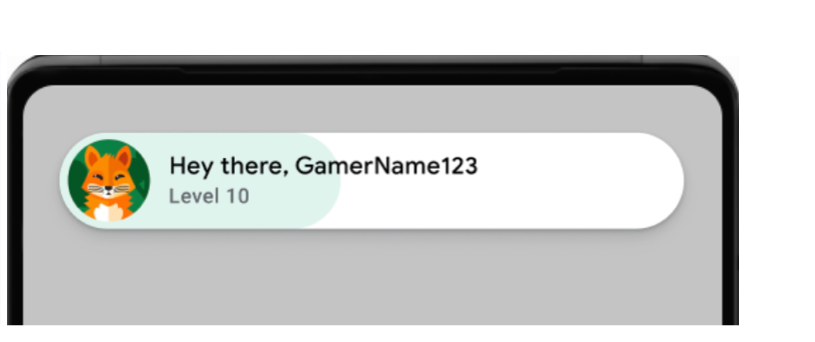
ป๊อปอัปต้อนรับตัวอย่าง (คลิกเพื่อขยาย) ข้อความบันทึกที่สำเร็จจะแสดงขึ้น เรียกใช้คำสั่งต่อไปนี้ ในเทอร์มินัล
adb logcat | grep com.google.android.
ตัวอย่างต่อไปนี้แสดงข้อความในบันทึกที่สำเร็จ
[
ตรวจสอบความสอดคล้องของคอมโพเนนต์ UI
ป๊อปอัป ลีดเดอร์บอร์ด และรางวัลพิเศษแสดงอย่างถูกต้องและสอดคล้องกันในขนาดและการวางแนวหน้าจอต่างๆ ในอินเทอร์เฟซผู้ใช้ (UI) ของบริการเกมของ Play
ตัวเลือกการออกจากระบบไม่ปรากฏใน UI ของบริการเกมของ Play
ตรวจสอบว่าคุณดึงข้อมูลรหัสผู้เล่นได้สำเร็จ และหากมี ความสามารถฝั่งเซิร์ฟเวอร์ทํางานได้ตามที่คาดไว้
หากเกมใช้การตรวจสอบสิทธิ์ฝั่งเซิร์ฟเวอร์ ให้ทดสอบ
requestServerSideAccessโฟลว์อย่างละเอียด ตรวจสอบว่าเซิร์ฟเวอร์ได้รับรหัสการให้สิทธิ์ และแลกเป็นโทเค็นเพื่อการเข้าถึงได้ ทดสอบทั้งสถานการณ์ที่สำเร็จและไม่สำเร็จสำหรับข้อผิดพลาดเกี่ยวกับเครือข่าย สถานการณ์ที่ไม่ถูกต้องclient ID
หากเกมของคุณใช้ฟีเจอร์ใดฟีเจอร์หนึ่งต่อไปนี้ ให้ทดสอบเพื่อให้แน่ใจว่าฟีเจอร์เหล่านั้นทำงานเหมือนเดิมก่อนการย้ายข้อมูล
- ลีดเดอร์บอร์ด: ส่งคะแนนและดูลีดเดอร์บอร์ด ตรวจสอบว่ามีการจัดอันดับและแสดงชื่อและคะแนนของผู้เล่นอย่างถูกต้อง
- รางวัลพิเศษ: ปลดล็อกรางวัลพิเศษและตรวจสอบว่าระบบบันทึกอย่างถูกต้อง และแสดงใน UI ของ Play Games
- เกมที่บันทึกไว้: หากเกมใช้เกมที่บันทึกไว้ ให้ตรวจสอบว่าการบันทึกและโหลดความคืบหน้าของเกมทำงานได้อย่างราบรื่น การทดสอบในอุปกรณ์หลายเครื่องและหลังจากการอัปเดตแอปมีความสำคัญอย่างยิ่ง
งานหลังการย้ายข้อมูล
ทำตามขั้นตอนต่อไปนี้หลังจากย้ายข้อมูลไปยังเกม v2 แล้ว
เผยแพร่เกม
สร้าง APK และเผยแพร่เกมใน Play Console
- ในเมนู Android Studio ให้เลือก Build > Build Bundles(s) / APK(s) > Build APK(s)
- เผยแพร่เกมของคุณ ดูข้อมูลเพิ่มเติมได้ที่ เผยแพร่แอปส่วนตัวจาก Play Console