
We recommend that you use PgsGamesSignInClient to authenticate players and securely pass the player's identity to the backend server. This enables your game to securely retrieve the player's identity and other data without being exposed to potential tampering while passing through the device.
Once the player authenticates successfully, you can request a special single-use code (called the server auth code) from the Play Games Services v2 Native SDK (beta), which the client passes to the server. Then, on the server, exchange the server auth code for an OAuth 2.0 token that the server can use to make calls to the Google Play Games Services API.
For additional guidance on adding authentication in your games, see Platform authentication.
The following steps are required for offline access:
- In the Google Play Console: Create a credential for your game server. The OAuth client type of the credential will be "web".
- In the Android app: As part of platform authentication, request a server
auth code for your server's credential, and pass that to your server. The
PgsGamesSignInClientcan request three OAuth 2.0 scopes when requesting server-side access to Play Games Services web APIs. The optional scopes arePGS_AUTH_SCOPE_EMAIL,PGS_AUTH_SCOPE_PROFILE, andPGS_AUTH_SCOPE_OPENID. The two default scopes areDRIVE_APPFOLDERandGAMES_LITE. - On your game server: Exchange the server auth code for an OAuth access token using Google auth services, and then use this to call the Play Games Services REST APIs.
Before you begin
You'll first need to add your game in the Google Play Console, as described in Set Up Google Play Games Services with your game.
Create a server-side web app
Google Play Game services does not provide backend support for Web games. However, it does provide backend server support for your Android game's server.
If you want to use the REST APIs for Google Play Games services in your server-side app, follow these steps:
- In the Google Play Console, select a game.
- Go to Play Games Services > Setup and management > Configuration.
- Select Add credential to be brought to the Add credential page.
Select Game server as the credential type and continue onto the
Authorization section.
- If your game server already has an OAuth client ID select it from the drop-down menu. After saving your changes, move onto the next section.
- If you don't have an existing OAuth client ID for your game server, you can
create one.
- Click Create OAuth client and follow the Create OAuth Client ID link.
- This will bring you to the Google Cloud Platform's Create OAuth Client ID page for your project associated with your game.
- Fill out the page's form and click create. Be sure to set the Application type to Web application.
- Return to the Add credential page's Authorization section, select the newly created OAuth client and save your changes.
Get the server auth code
To retrieve a server auth code that your game can use for access tokens on your backend server:
- Call
PgsGamesSignInClient_requestServerSideAccessfrom the client.- Be sure that you use the OAuth Client ID registered for your game server and not the OAuth Client ID of your Android application.
- (Optional) If your game server requires offline access (long lived access
using a refresh token) to Play Games Services, you can set the
force_refresh_tokenparameter to true.
(Optional) As part of the authentication, new users should encounter a single consent screen for additional scopes. Upon accepting the consent, you set the
PgsAuthScopescopesparameter withPGS_AUTH_SCOPE_EMAIL,PGS_AUTH_SCOPE_PROFILE, andPGS_AUTH_SCOPE_OPENIDOAuth scopes. If users decline the consent, only the two default scopesDRIVE_APPFOLDERandGAMES_LITEare sent to the backend.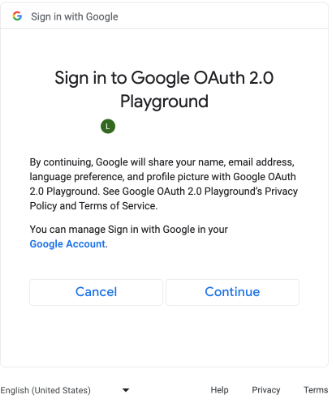
Consent screen for additional OAuth scopes. (click to enlarge). // #include "google/games/pgs_games_sign_in_client.h" // 1. Define the Callback // This function is called when the server-side access request completes. // It provides the authorization code (on success) or an error (on failure). void OnServerSideAccessCallback(void* context, PgsError error, const char* serverAuthCode) { if (error == PgsError_Success) { if (serverAuthCode != nullptr) { __android_log_print(ANDROID_LOG_INFO, "Games", "Received Server Auth Code: %s", serverAuthCode); // Send 'serverAuthCode' to your backend server immediately. // Your server will exchange this code for an OAuth access token. } } else { __android_log_print(ANDROID_LOG_ERROR, "Games", "Failed to get server auth code. Error: %d", error); } } // 2. Define the Wrapper Function void RequestServerAccess(PgsGamesSignInClient* signInClient) { if (signInClient == nullptr) { return; } // This must match the "Web client ID" from your Google Cloud Console // (linked to your Play Console Game Server Credential). const char* SERVER_CLIENT_ID = "xxxx"; // Set to 'true' if your server needs a Refresh Token (long-lived access). // Set to 'false' if you only need an Access Token (short-lived). bool forceRefreshToken = false; // Call the API PgsGamesSignInClient_requestServerSideAccess( signInClient, SERVER_CLIENT_ID, forceRefreshToken, OnServerSideAccessCallback, // The callback defined nullptr // User context (optional, passed to callback) ); } // 3. Example Usage void TriggerSignInProcess(PgsGamesClient* gamesClient) { // Obtain the Sign-In Client from the main Games Client PgsGamesSignInClient* signInClient = PgsGamesClient_getSignInClient(gamesClient); RequestServerAccess(signInClient); }
Send the OAuth auth code token to your backend server so it may be exchanged, the Player ID verified against the Play Games Services REST APIs, and then authenticated with your game.
Send the server auth code
Send the server auth code to your backend server to exchange for access and refresh tokens. Use the access token to call the Play Games Services API on behalf of the player and, optionally, store the refresh token to acquire a new access token when the access token expires.
For more information about how Player IDs work, see Next-generation Player IDs.
The following code snippet shows how you might implement the server-side code in the C++ programming language to exchange the server auth code for access tokens.
Java
/**
 * Exchanges the authcode for an access token credential. The credential
 * is associated with the given player.
 *
 * @param authCode - the non-null authcode passed from the client.
 * @param player   - the player object which the given authcode is
 *                 associated with.
 * @return the HTTP response code indicating the outcome of the exchange.
 */
private int exchangeAuthCode(String authCode, Player player) {
try {

    // The client_secret.json file is downloaded from the Google Cloud
    // console. This is used to identify your web application. The
    // contents of this file shouldn't be shared.

    File secretFile = new File("client_secret.json");

    // If we don't have the file, we can't access any APIs, so return
    // an error.
    if (!secretFile.exists()) {
        log("Secret file : " + secretFile
                .getAbsolutePath() + "  does not exist!");
        return HttpServletResponse.SC_FORBIDDEN;
    }

    GoogleClientSecrets clientSecrets = GoogleClientSecrets.load(
            JacksonFactory.getDefaultInstance(), new
            FileReader(secretFile));

    // Extract the application ID of the game from the client ID.
    String applicationId = extractApplicationId(clientSecrets
            .getDetails().getClientId());

    GoogleTokenResponse tokenResponse =
            new GoogleAuthorizationCodeTokenRequest(
            HTTPTransport,
            JacksonFactory.getDefaultInstance(),
            "https://oauth2.googleapis.com/token",
            clientSecrets.getDetails().getClientId(),
            clientSecrets.getDetails().getClientSecret(),
            authCode,
            "")
            .execute();

    TokenVerifier(tokenResponse);

    log("hasRefresh == " + (tokenResponse.getRefreshToken() != null));
    log("Exchanging authCode: " + authCode + " for token");
    Credential credential = new Credential
            .Builder(BearerToken.authorizationHeaderAccessMethod())
            .setJsonFactory(JacksonFactory.getDefaultInstance())
            .setTransport(HTTPTransport)
            .setTokenServerEncodedUrl("https://www.googleapis.com/oauth2/v4/token")
            .setClientAuthentication(new HttpExecuteInterceptor() {
                @Override
                public void intercept(HttpRequest request)
                        throws IOException {
                        }
            })
            .build()
            .setFromTokenResponse(tokenResponse);

    player.setCredential(credential);

    // Now that we have a credential, we can access the Games API.
    PlayGamesAPI api = new PlayGamesAPI(player, applicationId,
            HTTPTransport, JacksonFactory.getDefaultInstance());

    // Call the verify method, which checks that the access token has
    // access to the Games API, and that the Player ID used by the
    // client matches the playerId associated with the accessToken.
    boolean ok = api.verifyPlayer();

    // Call a Games API on the server.
    if (ok) {
        ok = api.updatePlayerInfo();
        if (ok) {
            // persist the player.
            savePlayer(api.getPlayer());
        }
    }

    return ok ? HttpServletResponse.SC_OK :
            HttpServletResponse.SC_INTERNAL_SERVER_ERROR;

  } catch (IOException e) {
    e.printStackTrace();
  }
  return HttpServletResponse.SC_INTERNAL_SERVER_ERROR;
}
You can retrieve the OAuth scopes using the
Google API Client Libraries
in Java or Python to get the GoogleIdTokenVerifier object. The following code
snippet shows the implementation in Java programming language.
Java
import com.google.api.client.googleapis.auth.oauth2.GoogleIdToken;
import com.google.api.client.googleapis.auth.oauth2.GoogleIdToken.Payload;
import com.google.api.client.googleapis.auth.oauth2.GoogleIdTokenVerifier;

/**
 * Gets the GoogleIdTokenVerifier object and additional OAuth scopes.
 * If additional OAuth scopes are not requested, the idToken will be null.
 *
 * @param tokenResponse - the tokenResponse passed from the exchangeAuthCode
 *                        function.
 *
 **/

void TokenVerifier(GoogleTokenResponse tokenResponse) {

    string idTokenString = tokenResponse.getIdToken();

    GoogleIdTokenVerifier verifier = new GoogleIdTokenVerifier.Builder(transport, jsonFactory)
        // Specify the WEB_CLIENT_ID of the app that accesses the backend:
        .setAudience(Collections.singletonList(WEB_CLIENT_ID))
        // Or, if multiple clients access the backend:
        //.setAudience(Arrays.asList(WEB_CLIENT_ID_1, WEB_CLIENT_ID_2, WEB_CLIENT_ID_3))
        .build();

    GoogleIdToken idToken = verifier.verify(idTokenString);

    // The idToken can be null if additional OAuth scopes are not requested.
    if (idToken != null) {
        Payload payload = idToken.getPayload();

    // Print user identifier
    String userId = payload.getSubject();
    System.out.println("User ID: " + userId);

    // Get profile information from payload
    String email = payload.getEmail();
    boolean emailVerified = Boolean.valueOf(payload.getEmailVerified());
    String name = (String) payload.get("name");
    String pictureUrl = (String) payload.get("picture");
    String locale = (String) payload.get("locale");
    String familyName = (String) payload.get("family_name");
    String givenName = (String) payload.get("given_name");

    // This ID is unique to each Google Account, making it suitable for use as
    // a primary key during account lookup. Email is not a good choice because
    // it can be changed by the user.
    String sub = payload.getSubject();

    // Use or store profile information
    // ...

    } else {
      System.out.println("Invalid ID token.");
    }
}
Call REST APIs from the server
See REST APIs for Google Play Games services for a full description of API calls available.
Examples of REST API calls that you may find useful include the following:
Player
Want to get the authenticated with player's ID and profile data? Call
Players.get with 'me' as the ID.
Achievements
See the Achievements guide for details.
To get a list of current achievements, call AchievementDefinitions.list.
Combine that with a call to Achievements.list to find out which ones the player unlocked.
Call Achievements.unlock to unlock a player achievement.
Call Achievements.increment to report progress on an achievement, and find out if the player unlocked it.
If you are debugging a game that hasn't reached production, you can call Achievements.reset or Achievements.resetAll from the Management APIs to reset achievements to their original state.