
This document explains how to integrate Game Stats into your game using the Google Play Console. It covers the essential CSV and ZIP files formats, and describes how to create, import, and manage them.
Create events
To create an event for a new and unpublished game, complete these steps:
- Create the events CSV file PlayerGameEvent.csv.
- In the Google Play Console, select a game.
- In the Play Games Services - Game Stats page (Grow users > Play Games Services > Setup and management > Game Stats), select Setup events.
- In the Events configuration page, drop the CSV file to upload.
- After you create an event, set up stats.
Set up stats
After you create an event, you need to set up stats:
- Create the ZIP file containing stats, localizations, and icon files according to the ZIP file guidelines for stats.
- In the Google Play Console, select a game.
- In the Play Games Services - Game Stats page (Grow users > Play Games Services > Setup and management > Game Stats), select Set up stats.
- In the Game Stats configuration page, drop the ZIP file to upload.
- After you upload all the stats, publish your game.
Test Game Stats
To verify that the Game Stats work as intended, follow the steps to test them:
- In the Play Console, set up an internal test track.
- Add test accounts to your game project for testers.
- Create Play Games Services profile for one of the test account using Play Games App.
- Open the game using the same test account for which you created the Play Games Services profile.
- Verify that Play Games Services "Welcome toast" is shown on the screen as a confirmation of successful automatic authentication on game launch.
- The test account user can play the game to trigger the events. Check the API response to know if the events have been recorded.
Manage Game Stats visibility on your device for testing
Once the game's available to your testers in the Play Console, follow these steps to view the Game Stats on your device:
Clear the Google Play Store cache:
- Open the Settings app on your device.
- Tap Apps > Google Play Store.
- Tap Storage and cache, and then tap Clear cache.
Open the Google Play Store app.
View your game stats using either the Track your playtime section or your gamer profile:
Method 1: Use the Track your playtime section
Go to the Track your playtime section, and then tap it to view your game stats.
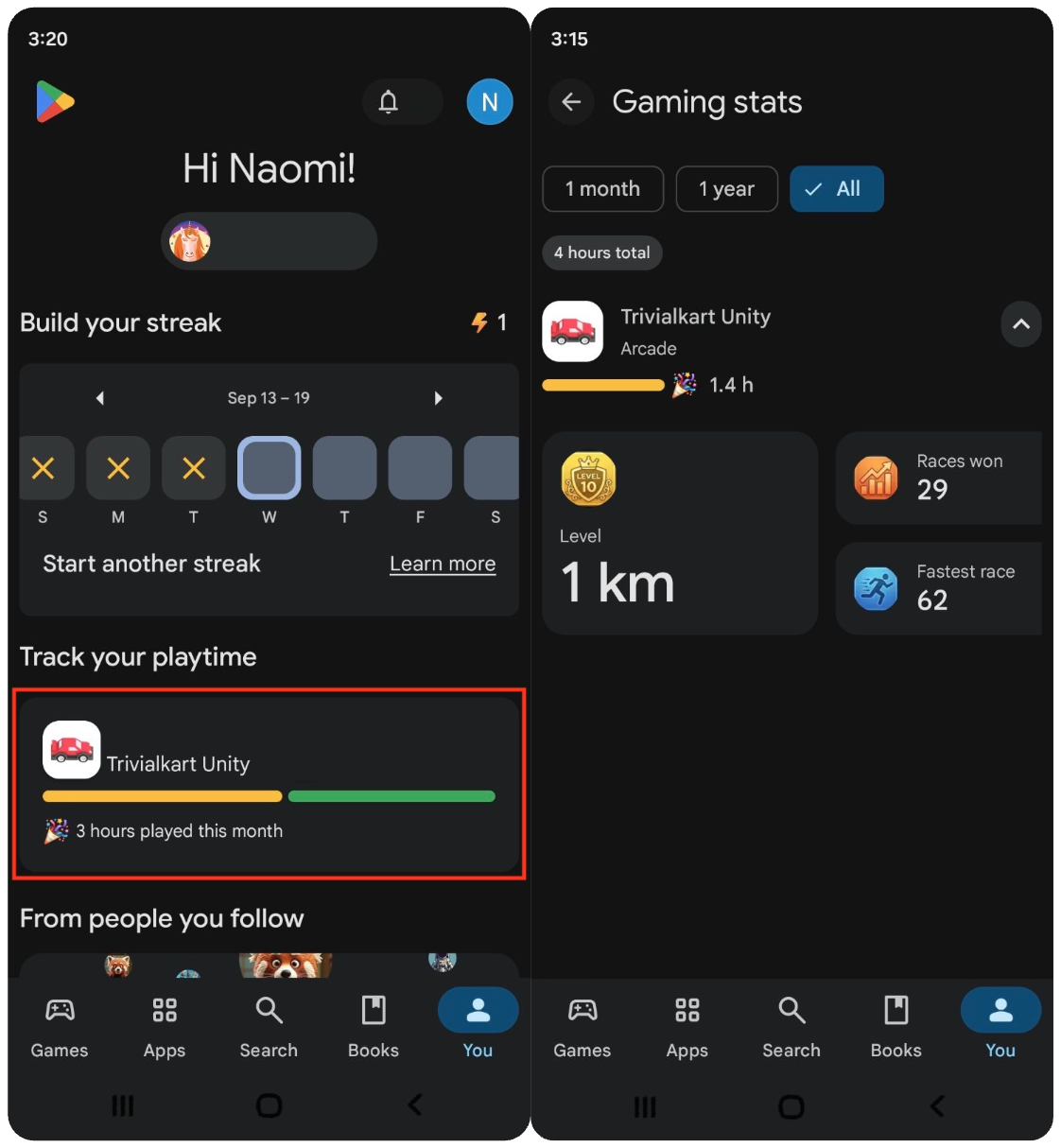
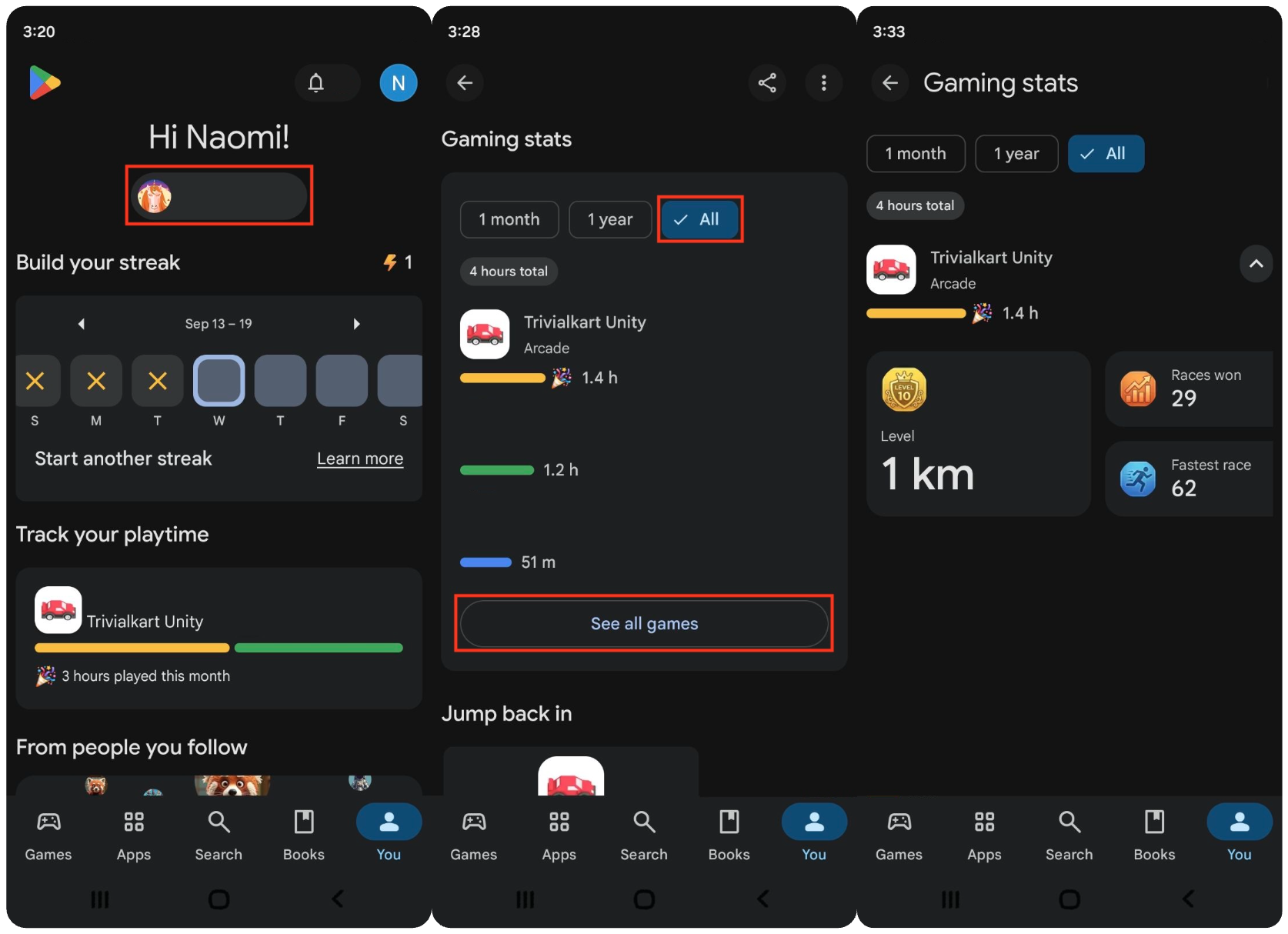
Method 2: Use your gamer profile
- Tap the You tab, and then tap your gamer profile.
- Go to the Game Stats section.
- For the time range, select All.
- If your game doesn't appear, tap See all games.
- Select your game to view its stats.
View the logs on your device
To verify that the Game Stats work as designed, turn on logs in your device:
Enable adb debugging on your device and run the following commands in a terminal:
adb shell setprop log.tag.Games VERBOSE
adb logcat -v time | grep -iE "EventService|GameStats|RecordEvent"
Verify that a successful log message appears, as shown in the following example:
Successfully submitted GameStats event
Publish the Game Stats
Once you finish testing, you must publish your game. All of your game's events and stats are published with it.
To publish, follow these steps:
- In the Google Play Console, select a game.
- In the Play Games Services - Game Stats page (Grow users > Play Games Services > Setup and management > Game Stats), click Review and publish.
- In the Play Games Services - Publishing page (Grow users > Play Games Services > Setup and management > Publishing), review the actions and fix the issues.
- Click Publish. All of your Game Stats are published.
Delete Game Stats
After the Game Stats has been published, it can't be deleted.
CSV file guidelines for events
The first row of the CSV file is a header row. You must import events using the
events CSV file, for example, PlayerGameEvent.csv.
PlayerGameEvent.csv format
The CSV contains declared event and its properties as comma separated values in the following order:
Event Name,Property Name,Property Type
If you send the progressUpdate event for the progressionStat, add a row for
this event. This event must contain at least a currentProgress property of
type INT or STRING, plus any other properties you want to send.
These fields are described in the following table:
| CSV column headers | Required or Optional | Accepted values |
|---|---|---|
| Event Name | Required | Maximum of 50 characters Must consist only of letters, numbers, and underscores. If the special event name |
| Property Name | Required | Maximum of 50 characters Must consist only of letters, numbers, and underscores. Unique per Event: Property names must be unique within the same event. Don't use the following reserved keywords: |
| Property Type | Required | Case-sensitive enum string matching one of the supported data types:
INT64, DOUBLE, STRING, BOOL
|
PlayerGameEvent.csv file requirements:
- The file supports a maximum of 20 unique event name, with up to 20 properties per event.
- The file content can't be empty and must have at least 1 row.
Example table
| Event Name | Property Name | Property Type |
|---|---|---|
| matchCompleted | duration | DOUBLE |
| matchCompleted | kills | INT64 |
| matchCompleted | isWinner | BOOL |
| matchCompleted | matchType | STRING |
| itemCollected | coinsAmount | INT64 |
| itemCollected | weaponType | STRING |
| progressUpdate | currentProgress | INT64 |
ZIP file guidelines for stats
You can import stats at once using a ZIP file. Refer to the table for the precise filenames to use in your ZIP file:
| Filename | Required or Optional | Accepted values |
|---|---|---|
RepetitiveStatsConfig.csv
|
Required | A repetitive stat represents regularly occurring in-game actions performed by players. |
ProgressionStatConfig.csv
|
Required | A progression stat represents a player's progress in a game. |
StatLocalizations.csv
|
Optional | Provides translations for Game Stats names and descriptions. |
| Icon files | Required | Icons in 512 x 512 PNG, JPEG, or JPG format. |
The ZIP file must meet the following requirements:
- ZIP file size limit: Maximum total uncompressed size is 10 MB.
- Max files: Maximum 53 (3 CSV and 50 icons) total files inside the ZIP archive.
- Max combined stats limit: Maximum 50 total stats across
ProgressionStatConfig.csvandRepetitiveStatsConfig.csv. - Supported CSV files:
ProgressionStatConfig.csv,RepetitiveStatsConfig.csv, andStatLocalizations.csv(optional). If you want to upload only progression stat, don't include the repetitive stats CSV file in the ZIP; otherwise, the console emits an error. The same applies if you want to upload only repetitive stats. - Icon image files: PNG (.png) or JPEG (.jpg, .jpeg).
- All icons referenced in the CSVs must exist in the root of the ZIP file.
- All image files present in the ZIP must be referenced by at least one stat.
- Directory structure: All files must reside at the root of the ZIP file. Subdirectories aren't allowed.
RepetitiveStatsConfig.csv format
The CSV contains declared event and its properties as comma separated values in the following order:
Stat Id,Event Name,Event Property Name,Aggregation Type,Stat Display Name,Stat Description,Filter Property,Filter Operator,Filter Value,Is Competitive,Min limit,Max limit,Icon File Name,Good value direction,Unit
These fields are described in the following table:
| CSV column headers | Required or Optional | Accepted values |
|---|---|---|
| Stat Id | Required | Maximum of 100 characters Must consist only of letters, numbers, and underscores. Must be unique across all stats in the game. |
| Event Name | Required | Maximum of 50 characters Must reference the Event Name defined in the PlayerGameEvent.csv format. |
| Event Property Name | Required | Maximum of 50 characters |
| Stat Display Name | Required | Maximum of 50 characters Default display name for the stat (default locale). Must be unique across stats. |
| Stat Description | Required | Maximum of 500 characters Default description for the stat. |
| Aggregation Type | Required | Maximum of 50 characters SUM, MAX, MIN, COUNT. |
| Filter Property | Optional | Maximum of 50 characters Must be a Property Name defined in the PlayerGameEvent.csv. |
| Filter Operator | Optional | =, !=, >, <, >=, <=Filter comparison operators. |
| Filter Value | Optional | Compared with the Filter Property.
Filter value must be INT64, DOUBLE, BOOL, STRING.
|
| Is Competitive | Required | true, false
|
| Min limit | Required when Is Competitive is true | Minimum allowable score for competitive stats. |
| Max limit | Required when Is Competitive is true | Maximum allowable score for competitive stats. |
| Icon File Name | Required | Filename of the icon image included in the root of the ZIP file. Can't conflict with icon file names used in repetitive stats. |
| Good value direction | Required | Specifies whether higher values INCREASING or lower values DECREASING are better.
|
| Unit | Optional | Unit of measurement for raw numerical or duration values. For example, KILOMETER, SECOND, PERCENTAGE, UNITLESS. |
In case you don't want to use the filter condition, keep the cell as blank.
Example table
| Stat ID | Event Name | Property Name | Aggregation | Stat Display Name | Stat Description | Filter Property (optional) | Filter Operator (optional) | Filter Value (optional) | Is Competitive | minLimit | maxLimit | Icon filename | Good value direction | unit |
|---|---|---|---|---|---|---|---|---|---|---|---|---|---|---|
| 1 | matchCompleted | duration | MAX | Longest Match Survival | This denotes the survival time of a player in any match | isWinner | = | TRUE | TRUE | 0 | 50 | stat1.png | Decreasing | seconds |
| 2 | matchCompleted | isWinner | COUNT | Matches Won | This denotes the number of matches a player has won | isWinner | = | TRUE | TRUE | 0 | 50 | stat3.png | Increasing | |
| 3 | matchCompleted | kills | SUM | 1-on-1 match kills | Number of kills made across 1-on-1 matches | matchType | = | "1-on-1" | FALSE | stat4.png | Increasing | |||
| 4 | itemCollected | coinsAmount | SUM | Total Gold Collected | Player collects coins while playing in a match | weaponType | = | "sword" | FALSE | stat2.png | Increasing |
ProgressionStatConfig.csv format
The csv contains declared event and its properties as comma separated values in the following order:
Stat Id,Event Property Name,Stat Display Name,Stat Description,Icon File Name,Good value direction,Unit
The progression stat will be shown as the first stat to a player in their Gamer Profile.
These fields are described in the following table:
| CSV column headers | Required or Optional | Accepted values |
|---|---|---|
| Stat Id | Required | Maximum of 100 characters Must consist only of letters, numbers, and underscores. Must be unique across all stats in the game. |
| Event Property Name | Required | Maximum of 50 characters Must be a Property Name defined in the PlayerGameEvent.csv. |
| Stat Display Name | Required | Must be a unique name. |
| Stat Description | Required | Maximum of 50 characters Default description for the stat. |
| Icon File Name | Required | Filename of the icon image included in the root of the ZIP file. Can't conflict with icon file names used in repetitive stats. |
| Good value direction | Required | Specifies whether higher values INCREASING or lower values DECREASING are better.
|
| Unit | Optional | Unit of measurement for raw numerical or duration values. For example, KILOMETER, SECOND, PERCENTAGE, UNITLESS. |
Example table
| Stat ID | Event Property Name | Stat Display Name | Stat Description | Icon File Name | Good value direction |
|---|---|---|---|---|---|
| 5 | currentProgress | Level | Players accumulate xp by playing matches and level up. | Level.png | increasing |
StatLocalizations.csv format
The csv contains declared event and its properties as comma separated values in the following order:
Stat Id,Stat Display Name,Locale,Localized Stat Display Name,Localized Stat Description
These fields are described in the following table:
| CSV column headers | Required or Optional | Accepted values |
|---|---|---|
| Stat Id | Required | Maximum of 100 characters Must consist only of letters, numbers, and underscores. Must be unique across all stats in the game. |
| Stat Display Name | Required | Must be a unique name. |
| Locale | Required | The locale code such as en-US. Add translations for your game before specifying a locale. Note that you can't specify the default locale. Supported locale codes can be found in the list of supported languages. |
| Localized Stat Display Name | Optional | Maximum 50 characters. Translated stat display name for the given locale. |
| Localized Stat Description | Optional | Maximum 500 characters. Translated stat description for the given locale. |
Example table
| Stat ID | Stat Display Name | Language Code | Localized Stat Name (UTF-8) | Localized Stat Description (UTF-8) |
|---|---|---|---|---|
| 1 | Longest Match Survival | es | Supervivencia más larga en partidos | Esto denota el tiempo de supervivencia de una jugadora en cualquier partido. |
| 1 | Longest Match Survival | fr | Survie du match le plus long | Cela indique la durée de survie d'un joueur dans n'importe quel match. |
| 4 | Total Gold Collected | es | Oro total recolectado | La jugadora recoge monedas mientras juega en un partido |
| 4 | Total Gold Collected | fr | Or total collecté | Le joueur collecte des pièces en jouant un match |
Icon files
Icons you reference in CSV file must exist in the current ZIP archive you import.
Icon validation rules are:
| Validation property | Enforced constraint / rule |
|---|---|
| Max file size | 1 MB (1,048,576 bytes) maximum per icon file. |
| Dimensions | Exactly 512 × 512 pixels (width = 512, height = 512) |
| Aspect Ratio | Strictly 1:1 (Square aspect ratio) |
| Allowed Formats | PNG (.png) and JPEG (.jpg, .jpeg) |
| Placement in ZIP | Must be located in the root directory in the ZIP file. |
| Referenced Check | All icon filenames specified in Icon File Name columns must exist in the ZIP. |
| Orphan Check | All image files inside the ZIP must be referenced by at least one stat. |
| Conflict Check | Icon filenames in ProgressionStatConfig.csv can't
conflict with RepetitiveStatsConfig.csv.
|
| Visual Duplicates | Duplicate icons are flagged. |
Icon guidelines
Icons should be created as 512 x 512 PNG, JPEG, or JPG files.
The same icon is used in all locales, so we recommend against including any text or localized content in an icon.
Unit specification
The Unit columns control how raw stat values are formatted and localized for players.
Numeric stat properties (INT64, DOUBLE)
| Allowed Unit Value | Example Raw Value |
| (Empty) / UNITLESS / NONE | 1234567 |
| % / PERCENTAGE / PERCENT | 0.857 |
| Distance/Length: CENTIMETER, METER, KILOMETER, FOOT, INCH, MILE, YARD, MILLIMETER, NANOMETER | 15 (KILOMETER) |
| Speed: KILOMETER_PER_HOUR, METER_PER_SECOND, MILE_PER_HOUR | 60 (MILE_PER_HOUR) |
Non-Numeric Stat Properties (STRING, BOOL)
Unit columns must be left empty.