
SplitSwitchButton
Functions summary
Unit |
@ComposableThe Wear Material |
Functions
SplitSwitchButton
@Composable
fun SplitSwitchButton(
    checked: Boolean,
    onCheckedChange: (Boolean) -> Unit,
    toggleContentDescription: String?,
    onContainerClick: () -> Unit,
    modifier: Modifier = Modifier,
    enabled: Boolean = true,
    shape: Shape = SwitchButtonDefaults.splitSwitchButtonShape,
    colors: SplitSwitchButtonColors = SwitchButtonDefaults.splitSwitchButtonColors(),
    toggleInteractionSource: MutableInteractionSource? = null,
    containerInteractionSource: MutableInteractionSource? = null,
    transformation: SurfaceTransformation? = null,
    containerClickLabel: String? = null,
    contentPadding: PaddingValues = SwitchButtonDefaults.ContentPadding,
    secondaryLabel: (@Composable RowScope.() -> Unit)? = null,
    label: @Composable RowScope.() -> Unit
): Unit
The Wear Material SplitSwitchButton offers slots and a specific layout for a label and secondary label. The secondaryLabel is optional. The items are laid out with a column containing the two label slots and a Switch at the end.
The SplitSwitchButton is Stadium shaped. The label should take no more than 3 lines of text. The secondary label should take no more than 2 lines of text. With localisation and/or large font sizes, the SplitSwitchButton height adjusts to accommodate the contents. The label and secondary label are start aligned by default.
A SplitSwitchButton has two tappable areas, one tap area for the labels and another for the switch. The onContainerClick listener will be associated with the main body of the SplitSwitchButton with the onCheckedChange listener associated with the switch area only.
Example of a SplitSwitchButton:
import androidx.compose.runtime.mutableStateOf
import androidx.compose.runtime.remember
import androidx.compose.ui.text.style.TextOverflow
import androidx.wear.compose.material3.SplitSwitchButton
import androidx.wear.compose.material3.SwitchButton
import androidx.wear.compose.material3.Text

var checked by remember { mutableStateOf(true) }
SplitSwitchButton(
    label = { Text("Split Switch Button", maxLines = 3, overflow = TextOverflow.Ellipsis) },
    checked = checked,
    onCheckedChange = { checked = it },
    toggleContentDescription = "Split Switch Button Sample",
    onContainerClick = {
        /* Do something */
    },
    enabled = true,
)
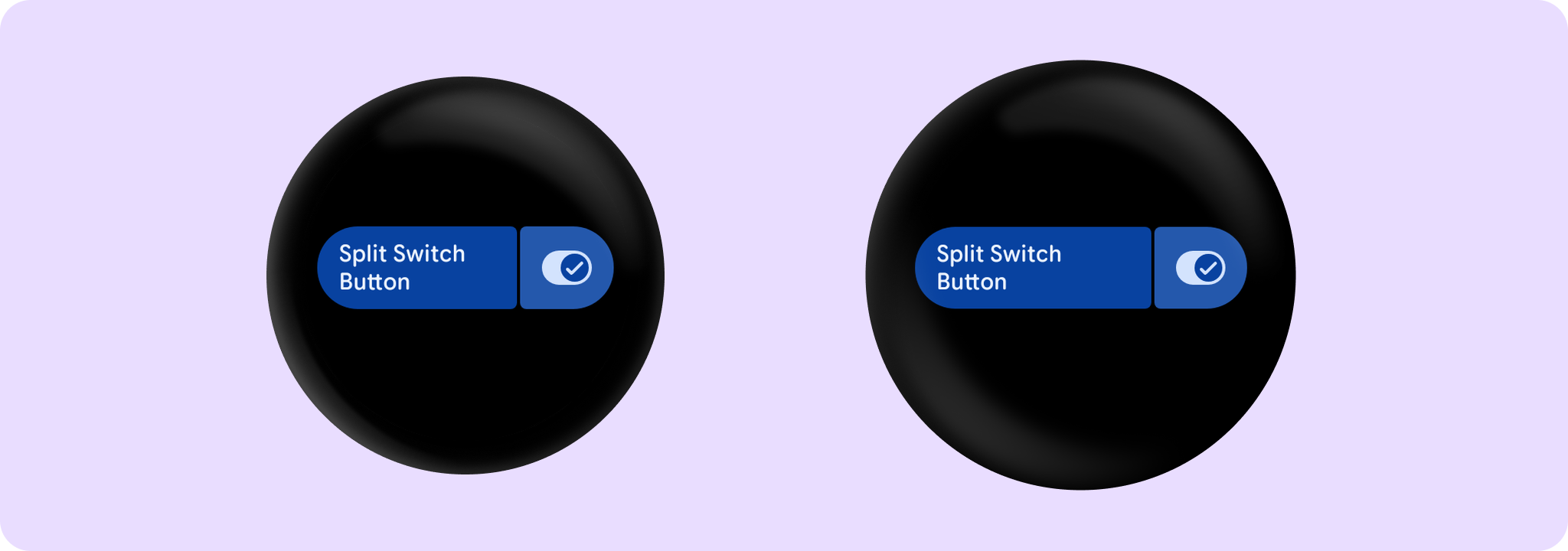
For a SplitSwitchButton the background of the tappable background area behind the switch will have a visual effect applied to provide a "divider" between the two tappable areas.
The recommended set of colors can be obtained from SwitchButtonDefaults, e.g. SwitchButtonDefaults.splitSwitchButtonColors.
SplitSwitchButton can be enabled or disabled. A disabled button will not respond to click events.
| Parameters | |
|---|---|
checked: Boolean |
Boolean flag indicating whether this button is currently checked. |
onCheckedChange: (Boolean) -> Unit |
Callback to be invoked when this buttons checked status is changed. |
toggleContentDescription: String? |
The content description for the switch control part of the component. |
onContainerClick: () -> Unit |
Click listener called when the user clicks the main body of the button, the area behind the labels. |
modifier: Modifier = Modifier |
Modifier to be applied to the button. |
enabled: Boolean = true |
Controls the enabled state of the button. When |
shape: Shape = SwitchButtonDefaults.splitSwitchButtonShape |
Defines the button's shape. It is strongly recommended to use the default as this shape is a key characteristic of the Wear Material Theme. |
colors: SplitSwitchButtonColors = SwitchButtonDefaults.splitSwitchButtonColors() |
|
toggleInteractionSource: MutableInteractionSource? = null |
an optional hoisted |
containerInteractionSource: MutableInteractionSource? = null |
an optional hoisted |
transformation: SurfaceTransformation? = null |
Transformation to be used when button appears inside a container that needs to dynamically change its content separately from the background. |
containerClickLabel: String? = null |
Optional click label on the main body of the button for accessibility. |
contentPadding: PaddingValues = SwitchButtonDefaults.ContentPadding |
The spacing values to apply internally between the container and the content. |
secondaryLabel: (@Composable RowScope.() -> Unit)? = null |
A slot for providing the button's secondary label. The contents are expected to be "start" aligned. |
label: @Composable RowScope.() -> Unit |
A slot for providing the button's main label. The contents are expected to be text which is "start" aligned. |